
Laptops are engineered for portability and performance, but sustained heavy workloads—like video editing, 3D rendering, or gaming—push their internal components to the limit. One of the most critical byproducts of this strain is heat. When temperatures climb, system stability, performance, and long-term reliability can all suffer. This has led many users to adopt external solutions like laptop cooling pads. But do they actually help extend the lifespan of your hardware? The answer isn’t a simple yes or no—it depends on usage patterns, laptop design, ambient conditions, and the quality of the cooling solution.
This article examines the relationship between thermal stress and component degradation, evaluates the real-world effectiveness of cooling pads, and provides actionable insights for users who regularly push their laptops to the edge.
How Heat Affects Laptop Hardware Over Time
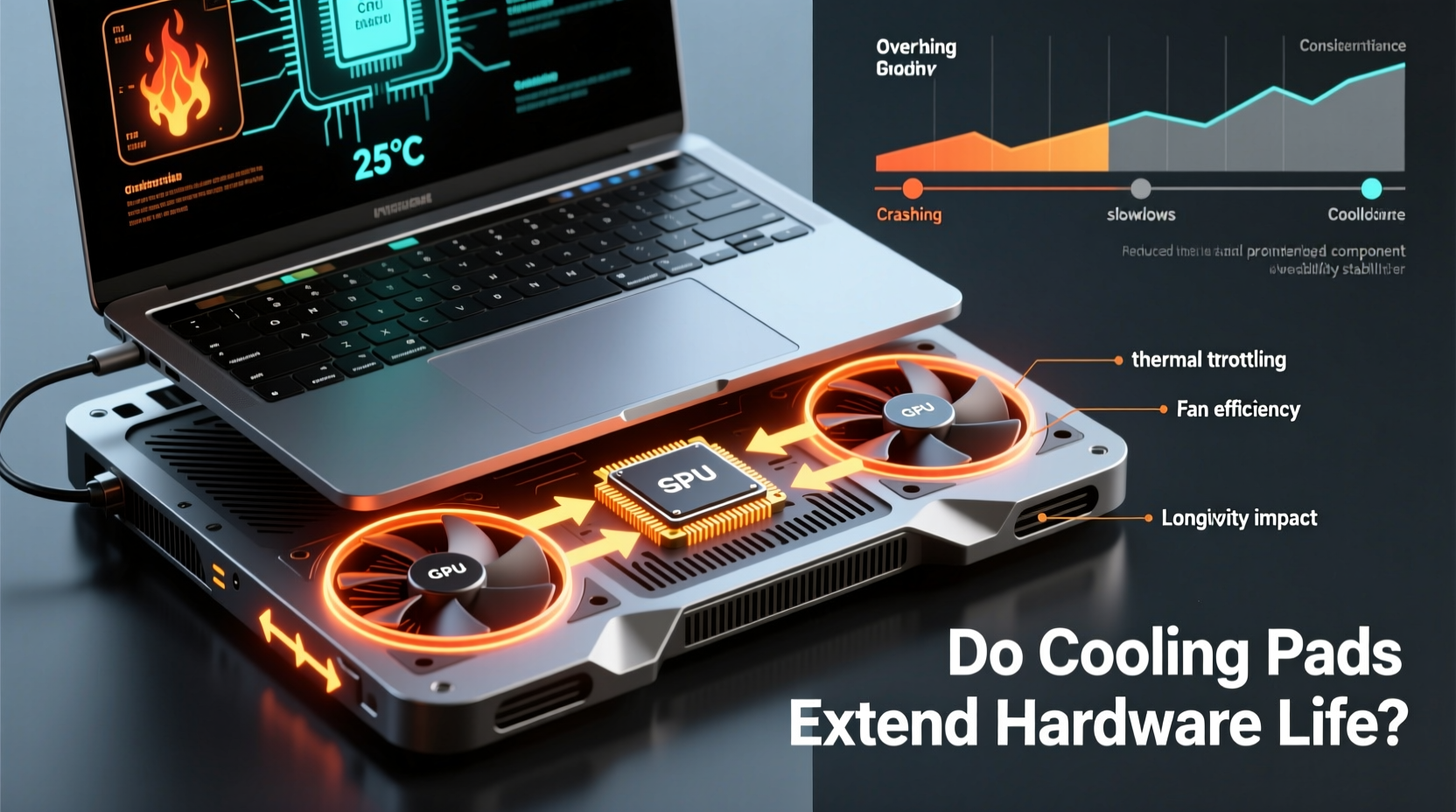
Every electronic component generates heat when in use, and modern processors, graphics cards, and power regulators are especially heat-intensive. While laptops include built-in cooling systems—typically consisting of heat pipes, fans, and vents—these are often constrained by thin chassis and limited airflow.
Prolonged exposure to high temperatures accelerates several forms of physical and chemical degradation:
- Thermal cycling fatigue: Repeated expansion and contraction of materials (such as solder joints) due to temperature fluctuations can lead to micro-cracks and eventual failure.
- Electromigration: In CPUs and GPUs, high heat increases the movement of metal atoms within circuits, which over time can cause circuit breaks or shorts.
- Capacitor aging: Electrolytic capacitors degrade faster at elevated temperatures, reducing their ability to regulate voltage and increasing the risk of system instability.
- Battery wear: Lithium-ion batteries lose capacity more quickly when exposed to sustained heat, especially above 40°C (104°F).
A study by Intel found that for every 10°C increase in operating temperature, the rate of electronic failure can double. This principle, known as the Arrhenius effect, underscores why thermal management isn't just about preventing throttling—it's a core factor in determining hardware longevity.
“Consistently running a laptop above 85°C under load significantly shortens the mean time between failures. Active cooling—even external—can mitigate that risk.” — Dr. Rajiv Mehta, Thermal Systems Engineer, ex-Dell R&D
Do Cooling Pads Actually Lower Internal Temperatures?
The effectiveness of a cooling pad hinges on its ability to improve airflow beneath the laptop and assist the internal cooling system. Most cooling pads use one or more fans positioned to blow air upward through a perforated surface. Some advanced models include variable speed controls, ergonomic tilt adjustments, and even thermoelectric (Peltier) cooling elements.
However, not all cooling pads deliver meaningful results. Their impact depends on several factors:
- Laptop vent placement: If the laptop’s primary intake vents are on the bottom, a cooling pad can provide a direct benefit. Many ultrabooks, however, draw air from the sides or rear, limiting the pad’s influence.
- Fan size and airflow (CFM): Larger fans move more air quietly. Pads with multiple small, high-RPM fans may create noise without significant cooling gains.
- Elevation and airflow clearance: Even passive stands that raise the laptop improve convection. Cooling pads that add elevation plus active airflow compound this benefit.
- Surface conductivity: Metal-based pads conduct heat away slightly better than plastic ones, though the difference is marginal without direct thermal contact.
Independent testing by NotebookCheck and other tech reviewers shows that effective cooling pads can reduce CPU and GPU temperatures by 5–15°C under sustained load—particularly in older or thermally constrained laptops. However, in newer, well-ventilated models with efficient internal cooling, the gain may be only 2–5°C, which while beneficial, doesn’t drastically alter long-term outcomes.
When Cooling Pads Make the Biggest Difference
Cooling pads aren’t universally necessary, but they become highly valuable in specific scenarios. Below are situations where a cooling pad can meaningfully contribute to hardware preservation:
1. Older or Dust-Accumulated Laptops
Over time, dust clogs fans and heat sinks, reducing cooling efficiency. A cooling pad can compensate for diminished internal airflow, delaying the need for disassembly and cleaning.
2. High-Ambient Temperature Environments
In poorly ventilated rooms or hot climates, ambient air temperature can exceed 30°C (86°F), making it harder for internal fans to dissipate heat. A cooling pad introduces cooler air from below, improving the thermal gradient.
3. Extended Workloads Without Breaks
Users running VMs, encoding software, or rendering engines for hours at a stretch keep components at peak thermal output. Continuous operation at high temps accelerates wear. A cooling pad helps maintain lower average temperatures, reducing cumulative stress.
4. Gaming and Creative Laptops
High-performance laptops often run near thermal limits even with factory cooling. Models like the ASUS ROG Zephyrus or Lenovo Legion series benefit from supplemental cooling during marathon sessions.
5. Users Who Avoid Lap Use
Placing a laptop directly on a bed or couch blocks intake vents. A cooling pad acts as a barrier and ensures consistent airflow, preventing sudden thermal spikes.
“I’ve maintained the same gaming laptop for five years—mostly because I never let it idle above 80°C. The cooling pad, regular cleaning, and undervolting made the difference.” — Marcus Tran, Freelance Video Editor
Choosing the Right Cooling Pad: A Practical Checklist
Not all cooling pads are created equal. To ensure you’re investing in a device that genuinely supports hardware longevity, follow this checklist:
- ✅ Check laptop vent location—ensure the pad aligns with intake zones.
- ✅ Prioritize larger fans (120mm or more) for quieter, more efficient airflow.
- ✅ Look for adjustable fan speeds to match workload intensity.
- ✅ Choose a design with stable elevation (ideally 15°–25°) to improve ergonomics and airflow.
- ✅ Avoid ultra-thin pads with tiny, noisy fans—they offer minimal cooling.
- ✅ Consider USB-powered models to avoid needing extra outlets.
- ✅ Opt for metal mesh surfaces if durability and heat dissipation are priorities.
Comparative Overview: Cooling Solutions and Their Impact
| Solution | Avg. Temp Reduction | Noise Level | Best For | Lifespan Benefit |
|---|---|---|---|---|
| Basic Plastic Cooling Pad (small fans) | 2–5°C | Moderate-High | Casual use, light typing | Minimal |
| Multi-Fan Metal Pad (adjustable speed) | 8–12°C | Low-Moderate | Gaming, rendering, coding | Significant |
| Ergonomic Stand (passive) | 3–6°C | None | Office work, web browsing | Moderate |
| Thermoelectric (Peltier) Cooler | 10–18°C | High | Extreme workloads, overclocking | High (but high power/noise cost) |
| No External Aid | Baseline | Varies | All use cases | Depends on internal cooling health |
Complementary Practices to Maximize Hardware Longevity
A cooling pad alone won’t guarantee extended hardware life. It should be part of a broader thermal management strategy. Combine it with these best practices:
- Regular internal cleaning: Every 6–12 months, clean dust from fans and heat sinks using compressed air. Severe buildup can reduce cooling efficiency by up to 30%.
- Repaste thermal compounds: After 2–3 years, factory-applied thermal paste dries out. Replacing it with high-quality paste (e.g., Arctic MX-6) can drop CPU/GPU temps by 5–10°C.
- Optimize power settings: Use “Balanced” or “Cool” modes instead of “High Performance” when maximum speed isn’t needed.
- Undervolt when possible: Reducing voltage slightly (via tools like ThrottleStop or AMD Ryzen Controller) lowers heat output without sacrificing performance.
- Avoid soft surfaces: Never place a laptop on beds, sofas, or pillows. These block airflow and act as insulators.
- Monitor temperatures: Use software like HWInfo or Open Hardware Monitor to set alerts for unsafe temperatures (e.g., >90°C under load).
FAQ: Common Questions About Cooling Pads and Hardware Life
Can a cooling pad prevent my laptop from throttling?
Yes, in many cases. Thermal throttling occurs when components overheat and reduce clock speeds to cool down. A cooling pad that lowers internal temperatures by 10°C or more can delay or prevent throttling during prolonged tasks, maintaining higher sustained performance.
Are cooling pads worth it for ultrabooks?
It depends. Ultrabooks like MacBooks or Dell XPS models have bottom-mounted vents and limited thermal headroom. A quiet, well-designed cooling pad can help, especially during video calls or light multitasking in warm environments. However, avoid bulky pads that compromise portability.
Do cooling pads consume a lot of power?
No. Most cooling pads draw power via USB and consume less than 1 watt per fan. Even models with three fans typically use under 5 watts—negligible compared to the laptop’s total draw. USB-C powered pads are increasingly common and integrate cleanly with modern devices.
Conclusion: A Smart Investment for Heavy Users
Laptop cooling pads are not magic devices that instantly double your hardware’s lifespan. However, when used appropriately, they play a measurable role in reducing thermal stress—a key driver of long-term component degradation. For users who routinely engage in CPU- or GPU-intensive tasks, operate in warm environments, or rely on older machines, a quality cooling pad is a low-cost, high-impact tool.
The real value lies in consistency. Just as regular oil changes extend a car’s engine life, consistent thermal management extends the functional life of your laptop. Combine a reliable cooling pad with smart usage habits, periodic maintenance, and temperature monitoring, and you’ll maximize both performance and durability.




 浙公网安备
33010002000092号
浙公网安备
33010002000092号 浙B2-20120091-4
Comments
No comments yet. Why don't you start the discussion?