
Projection mapping has evolved from a niche visual art form into a mainstream tool for storytelling, entertainment, and immersive design. One of the most captivating applications is using animated projections on three-dimensional objects—particularly artificial or fake trees. Whether in holiday displays, theatrical productions, retail environments, or themed attractions, the fusion of light and form creates magical illusions. But do these systems truly work on fake trees? The answer isn’t just “yes”—it’s a resounding “yes, and here’s how to do it right.”
Fake trees, especially those made with realistic textures and stable silhouettes, offer excellent canvases for projection mapping when properly selected and prepared. Unlike living trees, which shift with wind and grow unpredictably, artificial trees provide consistency in shape, color, and positioning—critical factors for precise projection alignment.
Why Fake Trees Are Ideal for Projection Mapping
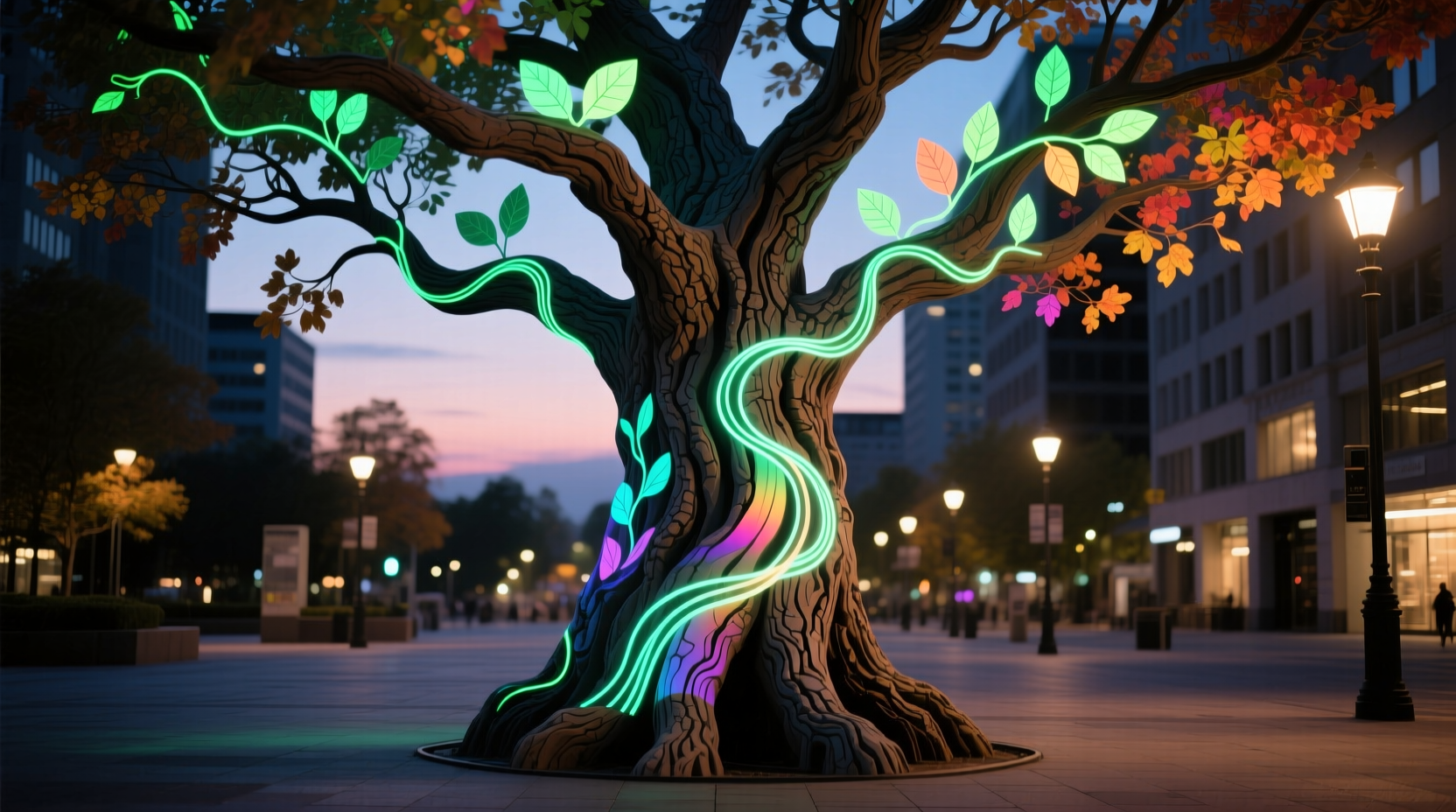
Artificial trees eliminate many of the challenges associated with natural foliage. Their static structure allows for repeatable, high-fidelity projections that can be fine-tuned over time. Designers can rely on fixed branch positions, consistent surface reflectivity, and predictable depth—all essential for creating seamless animated effects.
Moreover, fake trees are often constructed with materials like PVC, polyethylene, or flame-retardant plastics, which respond well to projected light. These surfaces, while not perfect reflectors, can be enhanced with subtle treatments or strategic lighting angles to maximize visual impact.
Theme parks such as Disneyland and Universal Studios have long used artificial trees combined with projection mapping to simulate enchanted forests, seasonal transformations, or fantasy realms. In smaller-scale applications, event planners use the same principles for weddings, product launches, or holiday window displays.
Key Factors That Affect Projection Success on Artificial Trees
Not all fake trees are created equal when it comes to projection mapping. Several technical and aesthetic variables influence how well animations will appear on their surfaces.
Surface Texture and Material
Smooth, uniformly colored surfaces project better than highly textured or reflective ones. Glossy leaves may cause specular highlights, distorting colors and reducing contrast. Matte-finished foliage absorbs more light evenly, resulting in richer image fidelity.
Tree Structure and Depth
A tree with layered branches offers depth cues that enhance 3D mapping effects. The more dimensionality the object has, the more dynamic the animation can become—allowing for effects like light \"crawling\" up the trunk or blossoms appearing to bloom outward.
Color of the Tree
Neutral tones—especially white, gray, or earthy browns—work best. Brightly colored or patterned trees interfere with color accuracy. For maximum versatility, consider painting or covering an existing fake tree with neutral-toned fabric or spray (if safe and non-flammable).
Stability and Placement
The tree must remain perfectly still during projection. Even minor vibrations from foot traffic or fans can misalign mapped content. Secure the base firmly and avoid placing near HVAC vents or moving equipment.
Projector Positioning and Throw Distance
Short-throw projectors are ideal for tight spaces, while long-throw models suit large installations. The angle of projection must account for occlusion—branches blocking other parts of the tree—which requires careful masking in mapping software.
“With the right surface and calibration, a $200 fake Christmas tree can look like a glowing portal to another world.” — Lena Torres, Immersive Experience Designer at Lumina Studios
Step-by-Step Guide to Setting Up Projection Mapping on a Fake Tree
Creating animated effects on a fake tree involves both technical setup and creative planning. Follow this sequence for professional results.
- Select the Right Tree: Choose one with realistic proportions, matte finish, and minimal sheen. Avoid metallic or glitter-coated foliage.
- Prepare the Environment: Control ambient light. Darker rooms yield sharper, more vivid projections.
- Position the Tree: Place it against a neutral backdrop. Ensure no nearby objects will catch stray light.
- Set Up the Projector: Mount securely on a tripod or ceiling rig. Align it to cover the desired area without distortion.
- Map the Surface: Use software like MadMapper, Resolume, or TouchDesigner to warp the projection to the tree’s contours. Mark key points (trunk base, top, major limbs) for accurate mesh creation.
- Create or Import Animation: Design content that respects depth and movement. Consider looping sequences with gradual transitions to maintain immersion.
- Test and Refine: Run the animation in low brightness first. Adjust focus, keystone, gamma, and black levels. Re-mask areas where light bleeds onto unintended surfaces.
- Finalize and Automate: Once aligned, save the mapping profile. Integrate triggers (timers, motion sensors, audio sync) if needed for interactive experiences.
Comparison: Real vs. Fake Trees for Projection Mapping
| Factor | Real Tree | Fake Tree |
|---|---|---|
| Stability | Low (moves in wind) | High (fixed position) |
| Surface Consistency | Variable (bark texture, moisture) | Uniform (predictable material) |
| Long-Term Usability | Seasonal only | Reusable year after year |
| Maintenance Needs | Watering, pruning, pest control | Dusting, storage |
| Cost Efficiency | Higher long-term cost | One-time investment |
| Creative Flexibility | Limited by organic changes | Full control over appearance |
Real-World Example: Enchanted Forest Installation at a Botanical Garden
In 2022, the Willow Creek Botanical Garden launched a winter exhibit titled “Whispers of the Woods,” featuring a walk-through forest of animated fake trees. The team installed 17 artificial evergreens ranging from 6 to 12 feet tall, each mapped with custom animations simulating bioluminescent growth, falling snow, and mythical creatures flitting through branches.
Using six short-throw projectors and MadMapper software, technicians spent two days calibrating each tree individually. They painted select trunks with gray primer to improve contrast and draped thin neutral netting over particularly glossy foliage. Motion sensors triggered different scenes as visitors approached, creating an interactive journey.
The exhibit ran for eight weeks and attracted over 35,000 guests—many citing the “living” trees as the highlight. Post-event analysis showed that fake trees required less maintenance and produced more reliable visuals than initial test runs on live specimens had achieved.
Checklist: Preparing Your Fake Tree for Projection Mapping
- ☐ Choose a fake tree with neutral, matte-colored foliage
- ☐ Clean dust and debris from branches and trunk
- ☐ Secure the tree to prevent movement during operation
- ☐ Test projector placement and coverage before final setup
- ☐ Use masking tape or temporary markers to identify key projection zones
- ☐ Calibrate projector brightness and contrast in the actual environment
- ☐ Create a backup copy of your mapping file and animation sequence
- ☐ Perform a full run-through under intended viewing conditions
Common Challenges and How to Overcome Them
Even with optimal conditions, certain issues may arise when projecting onto artificial trees.
Problem: Light Bleeding onto Surrounding Surfaces
Solution: Use digital masking within your projection software to crop the image precisely to the tree’s silhouette. Alternatively, place physical baffles (black foam boards) around the base to absorb stray light.
Problem: Uneven Color Reproduction
Solution: Ensure the projector lamp is not degraded and perform white balance calibration. Apply a neutral wash across the entire tree before launching full-color animations.
Problem: Animations Appear Flat or Misaligned
Solution: Increase the number of mapping points in your software. Use reference grids during setup to verify spatial accuracy. Reassess projector angle—sometimes a slight tilt correction resolves depth perception issues.
Problem: Flickering or Lag During Playback
Solution: Check video format compatibility. Render animations in codecs optimized for real-time playback (e.g., ProRes, DNxHD). Use dedicated media servers or SSD-equipped laptops for smooth output.
Frequently Asked Questions
Can I use any projector for mapping on fake trees?
No—not all projectors are suitable. You need a model with sufficient lumens (at least 3,000 ANSI lumens for dim environments), good contrast ratio (10,000:1 or higher), and lens shift capabilities. Short-throw or ultra-short-throw projectors are preferred for close-range installations.
Do I need special software to map animations to a tree?
Yes. Standard video players cannot warp images to fit complex 3D shapes. Use dedicated projection mapping software such as MadMapper, HeavyM, or TouchDesigner to define surfaces, mask areas, and synchronize multi-projector setups.
Can I make the tree react to sound or motion?
Absolutely. Many mapping platforms support MIDI, OSC, or audio-reactive triggers. Connect microphones or motion sensors to dynamically change animations based on audience interaction—ideal for exhibits, parties, or retail displays.
Conclusion: Bringing Artificial Nature to Life Through Light
Projection mapping transforms inert objects into living narratives—and fake trees are among the most versatile and effective surfaces for this art form. With thoughtful selection, precise calibration, and creative content, you can turn a simple artificial tree into a mesmerizing centerpiece that captivates audiences of all ages.
From backyard holiday spectacles to large-scale public installations, the combination of durable props and advanced lighting technology opens new frontiers in visual storytelling. As projectors become more affordable and software more intuitive, the barrier to entry continues to drop.




 浙公网安备
33010002000092号
浙公网安备
33010002000092号 浙B2-20120091-4
Comments
No comments yet. Why don't you start the discussion?