
Many smartphone users believe that constantly swiping away apps from the recent apps list will make their phones faster and extend battery life. It’s a habit ingrained in daily routines—after using social media or checking email, the instinct is to “clean up” by closing everything in the background. But does this actually help? The answer isn’t as straightforward as it seems, and much of what people assume about app management is based on outdated information or misconceptions. Modern operating systems like iOS and Android are designed to manage resources efficiently, often making manual app closure unnecessary—and sometimes even counterproductive.
This article explores the real impact of closing background apps on performance, battery, and responsiveness. We’ll examine how mobile operating systems handle multitasking, when closing apps might help, and what truly affects your phone’s speed and longevity.
How Background Apps Actually Work
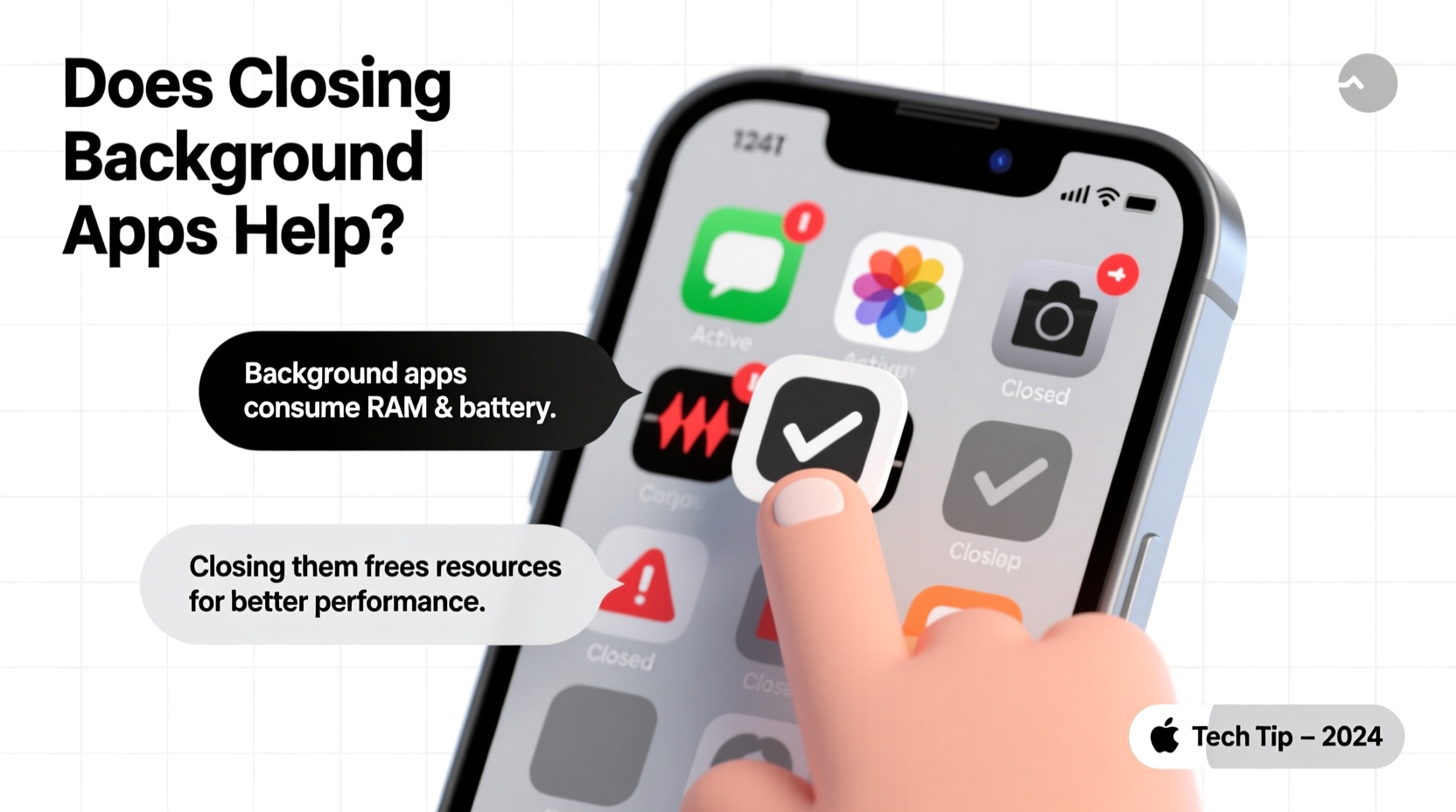
Understanding the behavior of background apps starts with recognizing how modern smartphones manage memory and processes. Unlike desktop computers from the early 2000s, today’s mobile operating systems use sophisticated resource management techniques to optimize performance without user intervention.
When you switch away from an app, it doesn’t continue running full throttle. Instead, most apps enter a suspended state. In this state:
- The app is still loaded in RAM but consumes no CPU power.
- No active tasks (like refreshing data or playing audio) occur unless explicitly allowed by the OS.
- The system can instantly resume the app from where you left off.
This design prioritizes speed and efficiency. Keeping apps in memory allows for faster switching between them, which enhances the overall user experience. Think of it like pausing a movie—you can resume exactly where you left off without waiting for it to reload.
“iOS and Android are built to handle background processes intelligently. Closing apps manually rarely improves performance and can actually slow things down.” — Dr. Lena Patel, Mobile Systems Engineer at Stanford University
Myth vs. Reality: The Performance Impact
A widespread belief is that having too many apps open slows down your phone. This idea stems from older devices and earlier versions of mobile operating systems, where RAM was limited and process management was less refined. Today, that logic no longer applies to most devices.
Myth: More open apps = slower phone.
Reality: RAM is meant to be used. An idle app in memory doesn’t slow anything down—it simply sits there until the system needs the space.
In fact, forcing apps to close can have the opposite effect. When you reopen an app that was previously closed, the phone must reload it from storage, which takes more time and energy than resuming it from RAM. This increases load times and may temporarily spike CPU usage, creating a perception of sluggishness.
When Closing Apps Might Actually Help
While routine app-swiping offers little benefit, there are specific scenarios where closing background apps can improve performance or resolve issues.
App Is Misbehaving or Frozen
If an app continues to run animations, play audio, or drain battery after being minimized, it may not have entered a proper suspended state. Force-closing such apps can stop rogue processes and restore normal function.
Battery Drain from Specific Apps
Some apps—especially those with location tracking, push notifications, or constant syncing—can remain active in the background. Check your battery usage settings to identify culprits. If an app consistently uses disproportionate power, consider closing it or adjusting its permissions.
Phone Is Running Low on Memory
On older or budget devices with limited RAM (e.g., 3GB or less), having several heavy apps open simultaneously can lead to memory pressure. In these cases, the system may struggle to keep apps suspended, leading to frequent reloading. Closing unused apps can free up memory and improve responsiveness.
After Installing Updates or System Glitches
Sometimes, after a software update or unexpected crash, apps may fail to resume properly. A quick force-close can reset their state and fix minor bugs.
What Actually Affects Phone Performance?
If closing apps isn’t the solution, what factors truly influence your phone’s speed and efficiency?
| Factor | Impact on Performance | Recommended Action |
|---|---|---|
| Storage Space | Low storage slows down read/write operations and system responsiveness. | Maintain at least 10–15% free space. |
| Software Updates | Outdated OS or apps may contain bugs or inefficiencies. | Update regularly for security and optimization. |
| Background Services | Location services, sync, and push notifications consume resources. | Disable unnecessary background activity. |
| Too Many Widgets & Animations | Live widgets and high animation scales strain GPU and CPU. | Reduce widgets and set animation scales to \"off\" or \"0.5x\". |
| Malware or Bloatware | Poorly coded or malicious apps run hidden processes. | Install apps only from official stores; review app permissions. |
Unlike closing apps, addressing these underlying issues delivers measurable improvements in speed, battery life, and stability.
Step-by-Step Guide to Optimizing Phone Performance
Instead of swiping apps away aimlessly, follow this structured approach to keep your phone running smoothly:
- Check Battery Usage: Go to Settings > Battery and review which apps are consuming the most power. Investigate why—do they use location, background refresh, or constant network access?
- Limit Background App Refresh: Disable this feature for non-essential apps. On iOS: Settings > General > Background App Refresh. On Android: Settings > Apps > Special Access > Background Restrictions.
- Clear Cache Periodically: For Android, go to Settings > Storage > Internal Storage > Cached Data. On iOS, offload unused apps (Settings > App Store > Offload Unused Apps).
- Restart Your Phone Weekly: A reboot clears temporary files, resets network connections, and stops any lingering processes.
- Free Up Storage: Delete unused apps, old photos, and downloaded files. Use cloud storage or external drives for backups.
- Turn Off Unnecessary Features: Disable Bluetooth, Wi-Fi, and GPS when not in use. Consider using Dark Mode to reduce strain on OLED screens.
- Monitor for Malware: Avoid sideloading apps. Use built-in security tools like Google Play Protect or Apple’s privacy reports.
“Users should focus on system-level optimizations rather than micro-managing individual apps. The OS already handles most of the heavy lifting.” — Mark Tran, Senior Developer at Android Open Source Project
Mini Case Study: Sarah’s Sluggish iPhone
Sarah, a freelance designer, noticed her iPhone 12 was becoming increasingly slow. Apps took longer to open, and the device frequently overheated. Believing that too many apps were “running,” she began swiping them all away multiple times a day. The problem persisted.
After consulting a tech support forum, she checked her battery settings and discovered that a weather app was using 40% of her battery—even when not in use. Further investigation revealed it had background refresh enabled and was constantly updating location.
She disabled background refresh for the app and turned off location services for it. She also cleared cached data and restarted her phone. Within hours, performance improved dramatically. The culprit wasn’t open apps—it was one poorly optimized app abusing background resources.
Sarah now checks her battery usage monthly and only closes apps when necessary. Her phone runs faster, and she spends less time managing it.
Do’s and Don’ts of Background App Management
| Do | Don't |
|---|---|
| Close apps that are actively draining battery or malfunctioning. | Swipe away apps out of habit every few minutes. |
| Use battery settings to identify problematic apps. | Assume all background apps are harmful. |
| Restart your phone weekly to clear system clutter. | Force-close system apps like Messages or Phone. |
| Update apps and OS regularly. | Ignore persistent slowdowns—investigate root causes. |
| Limit background refresh for non-essential apps. | Install apps from unknown sources without reviewing permissions. |
Frequently Asked Questions
Does closing apps save battery?
Generally, no. Closing apps doesn’t save battery because suspended apps consume negligible power. However, if a specific app continues to run in the background (e.g., using GPS or syncing data), closing it may reduce battery drain. Always check battery usage stats to identify true offenders.
Why does my phone feel faster after closing apps?
This perception often comes from performing a related action—like restarting the phone or closing a particularly resource-heavy app. The act of swiping apps away isn’t what caused the improvement; it’s likely coincidental. True performance gains come from freeing up memory, stopping active processes, or clearing cache—not merely closing apps.
Should I use task killer apps?
No. Task killers are largely obsolete and can harm performance. They disrupt the operating system’s ability to manage memory efficiently and may cause apps to restart more frequently, increasing battery usage. Both Apple and Google discourage their use.
Conclusion: Rethink Your App-Closing Habit
Closing apps in the background does not meaningfully improve phone performance for most users. Modern smartphones are engineered to handle multitasking intelligently, and the system’s automatic management is far more efficient than manual intervention. Constantly swiping away apps provides a false sense of control while offering little real benefit.
True performance optimization comes from understanding how your phone works and focusing on impactful actions: keeping storage free, updating software, managing background services, and identifying misbehaving apps. These strategies deliver lasting results without unnecessary effort.




 浙公网安备
33010002000092号
浙公网安备
33010002000092号 浙B2-20120091-4
Comments
No comments yet. Why don't you start the discussion?