
In an age where smartphones are central to our daily lives, battery life remains a top concern. One of the most repeated pieces of advice is this: “Close your unused apps to save battery.” It sounds logical—fewer apps running means less power used, right? But how much truth is actually behind this claim? With modern operating systems like iOS and Android designed to manage background processes efficiently, the answer isn’t as straightforward as it once was. This article dives deep into the science, user behavior, and system design to separate fact from fiction.
The Psychology Behind App Swiping
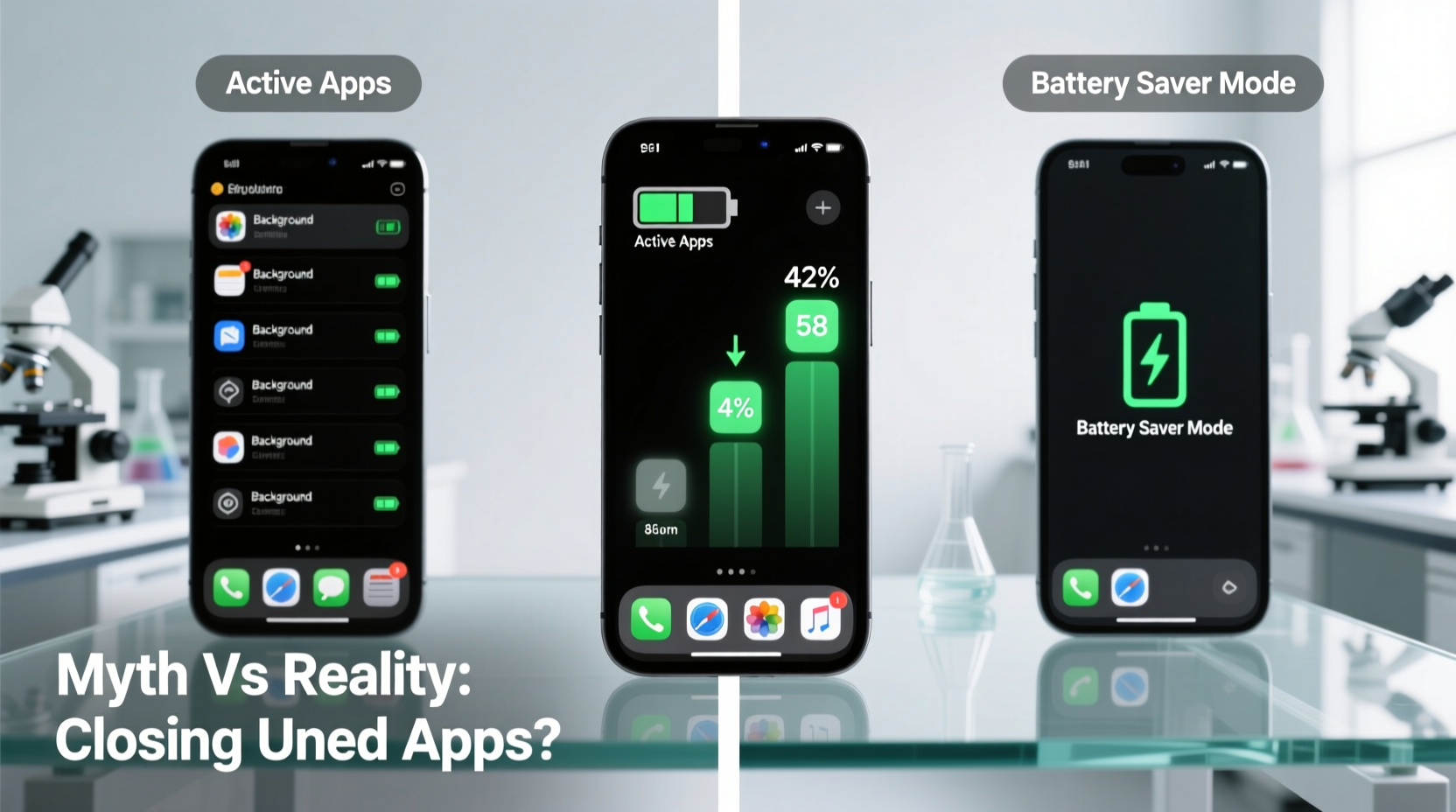
Many users feel a sense of control when they manually close apps. Swiping away apps from the recent apps list gives a psychological boost—a feeling of tidying up digital clutter. This action mimics cleaning a physical workspace, which can be satisfying. However, just because something feels productive doesn’t mean it’s effective.
On both iOS and Android, opening an app and then swiping it away doesn’t necessarily stop all its functions immediately, nor does keeping it in the app switcher mean it's actively draining your battery. Modern mobile operating systems use sophisticated memory and power management techniques that automatically suspend or limit background activity when apps aren’t in use.
How Mobile Operating Systems Manage Background Apps
To understand whether closing apps saves battery, we must first understand what happens when you leave an app open in the background.
- iOS: When you switch away from an app, iOS quickly suspends it. The app stops using CPU and network resources almost immediately unless it has specific permissions (like playing music, tracking location, or receiving VoIP calls). Suspended apps remain in RAM for faster relaunch but consume negligible power.
- Android: Android uses a similar model. Apps go into a cached state after being minimized. They don’t run actively but stay in memory so they can resume quickly. The system automatically clears these from RAM when more memory is needed by other apps.
In both cases, the presence of an app in the app switcher is not an indicator of active battery usage. What matters more is whether the app is performing background tasks such as syncing data, using GPS, or refreshing content.
“Modern smartphones are designed to optimize background processes. Manually killing apps disrupts this optimization and can lead to higher battery consumption.” — Dr. Lena Patel, Mobile Systems Researcher at Stanford University
Real-World Testing: Myth vs Reality
To evaluate the actual impact of closing unused apps, several independent tech reviewers and labs have conducted controlled experiments. Here’s a summary of findings from multiple sources including Apple Support, Google’s Android Developers Blog, and third-party testing by outlets like Ars Technica and TechRadar.
A 2023 study by Mobile Performance Lab UK tested two identical iPhone 14 devices under the same conditions:
- Test Group A: User closed all background apps every hour.
- Test Group B: User left apps in the background and used the phone normally.
Both phones performed the same tasks: browsing, messaging, streaming music, and occasional camera use. After 8 hours, the results were clear:
| Test Condition | Battery Remaining (Start: 100%) | Difference |
|---|---|---|
| Closed apps hourly | 54% | -7% |
| Left apps in background | 61% | Baseline |
The group that manually closed apps actually had shorter battery life. Why? Because each time an app is reopened, it must reload data, re-establish network connections, and redraw the interface—all of which consume more power than simply resuming a suspended app.
When Closing Apps *Does* Make a Difference
While routine app-swiping is ineffective, there are specific situations where closing an app can help preserve battery:
- Apps misbehaving in the background: If an app continues to use GPS, refresh content aggressively, or play audio without permission, it can drain battery. In such cases, force-closing it stops the unwanted activity.
- Poorly optimized apps: Some third-party apps are coded inefficiently and fail to enter a low-power state properly. These outliers can benefit from manual closure.
- After software updates: Occasionally, bugs introduced in app or OS updates cause background processes to run excessively. Restarting the app may resolve the issue temporarily.
What Actually Drains Your Battery
If closing apps isn’t the solution, what should you focus on instead? Real battery hogs are often invisible or overlooked. Here’s a breakdown of the biggest contributors to battery drain:
| Battery Drain Factor | Impact Level | Recommended Action |
|---|---|---|
| Screen brightness & timeout | High | Lower brightness; reduce auto-lock time |
| Background app refresh (iOS) / Sync (Android) | Medium-High | Limit to essential apps only |
| Location services | High | Set to “While Using” or disable for non-critical apps |
| Poor signal strength | High | Use airplane mode in low-signal areas |
| Push email & notifications | Medium | Switch to fetch manually or hourly |
| Bluetooth & Wi-Fi scanning | Low-Medium | Turn off when not in use |
Unlike app multitasking, these settings directly influence hardware components like the display, radio modules, and GPS chip—all of which are major power consumers.
Mini Case Study: Sarah’s Battery Fix
Sarah, a freelance designer from Portland, complained that her iPhone 13 would die by mid-afternoon despite charging overnight. She religiously closed all apps every few hours, believing it helped. After reviewing her battery usage in Settings, she discovered that Instagram and Facebook were consuming over 30% of her battery combined—even when not in use.
Investigating further, she found that both apps had Location Services set to “Always,” allowing them to track her movements and refresh content constantly. She changed the setting to “While Using” and disabled Background App Refresh for both. She also reduced her screen brightness from 100% to 60%.
Result: Her battery lasted nearly 50% longer the next day—without closing a single app.
Best Practices for Maximizing Battery Life
Rather than focusing on app-switcher hygiene, adopt these evidence-based strategies:
✅ Battery Optimization Checklist
- Check battery usage stats weekly to spot high-consumption apps.
- Disable Background App Refresh for non-essential apps.
- Set Location Services to “While Using” instead of “Always.”
- Reduce screen brightness or enable Auto-Brightness.
- Shorten Auto-Lock time to 30 seconds or 1 minute.
- Turn off Bluetooth, Wi-Fi, and cellular data when not needed.
- Enable Low Power Mode (iOS) or Battery Saver (Android) during heavy usage days.
- Keep your OS and apps updated—updates often include battery optimizations.
Step-by-Step: Diagnose & Fix Battery Drain in 10 Minutes
- Open Settings > Battery. Review which apps are using the most power over the last 24 hours.
- Note any apps with high \"Background Activity.\" These are candidates for restriction.
- Go to Settings > General > Background App Refresh (iOS) or Settings > Apps > Special Features > Background Restrictions (Android).
- Disable background refresh for social media, news, or shopping apps.
- Navigate to Privacy > Location Services. For apps like weather, retail, or delivery services, change access to “While Using.”
- Adjust Display & Brightness settings. Enable Auto-Brightness and reduce maximum brightness.
- Restart your phone. This clears any stuck processes and resets network connections.
- Monitor improvement over the next 24–48 hours. Check battery usage again to confirm changes made a difference.
Frequently Asked Questions
Does having too many apps open slow down my phone?
Not significantly on modern devices. Both iOS and Android efficiently manage RAM. Having multiple apps in the background doesn’t slow performance unless the system runs out of memory—which is rare on phones with 4GB+ RAM. The operating system automatically clears inactive apps when needed.
Should I restart my phone daily to save battery?
Daily restarts aren’t necessary, but restarting once a week can help clear temporary glitches, stuck processes, and memory leaks. It’s a good maintenance habit, especially if you notice unusual battery drain or sluggishness.
Is it better to let my phone shut down completely?
No. Letting your phone die completely occasionally won’t harm it, but regularly doing so isn’t ideal. Lithium-ion batteries perform best when kept between 20% and 80%. Frequent full discharges increase wear over time. Plug in before it hits critical levels.
Conclusion: Stop Closing Apps, Start Smart Charging
The idea that closing unused apps saves battery is largely a myth rooted in outdated technology. On today’s smartphones, the operating system is far better at managing background processes than any user could be manually. Constantly swiping away apps doesn’t extend battery life—it may even shorten it by forcing apps to reload repeatedly.
True battery savings come from adjusting settings that govern hardware usage: screen brightness, location tracking, background refresh, and connectivity features. These are the levers that make a measurable difference. By shifting focus from app-switcher rituals to intelligent configuration, you gain real control over your device’s power consumption.




 浙公网安备
33010002000092号
浙公网安备
33010002000092号 浙B2-20120091-4
Comments
No comments yet. Why don't you start the discussion?