
In the early days of smartphones, users were routinely advised to close background apps to preserve battery life and improve performance. Swipe up, swipe away — it became second nature. But as mobile operating systems have evolved, so too has how apps behave when not in active use. Today’s question isn’t just about habit; it’s about understanding whether closing unused apps still matters or if it’s an outdated practice rooted in older technology.
The short answer: for most modern smartphones, manually closing unused apps does little to nothing for battery life — and in some cases, it can actually hurt efficiency. To understand why, we need to look at how iOS and Android manage background processes, what truly drains battery power, and what actions actually make a difference.
How Modern Smartphones Handle Background Apps
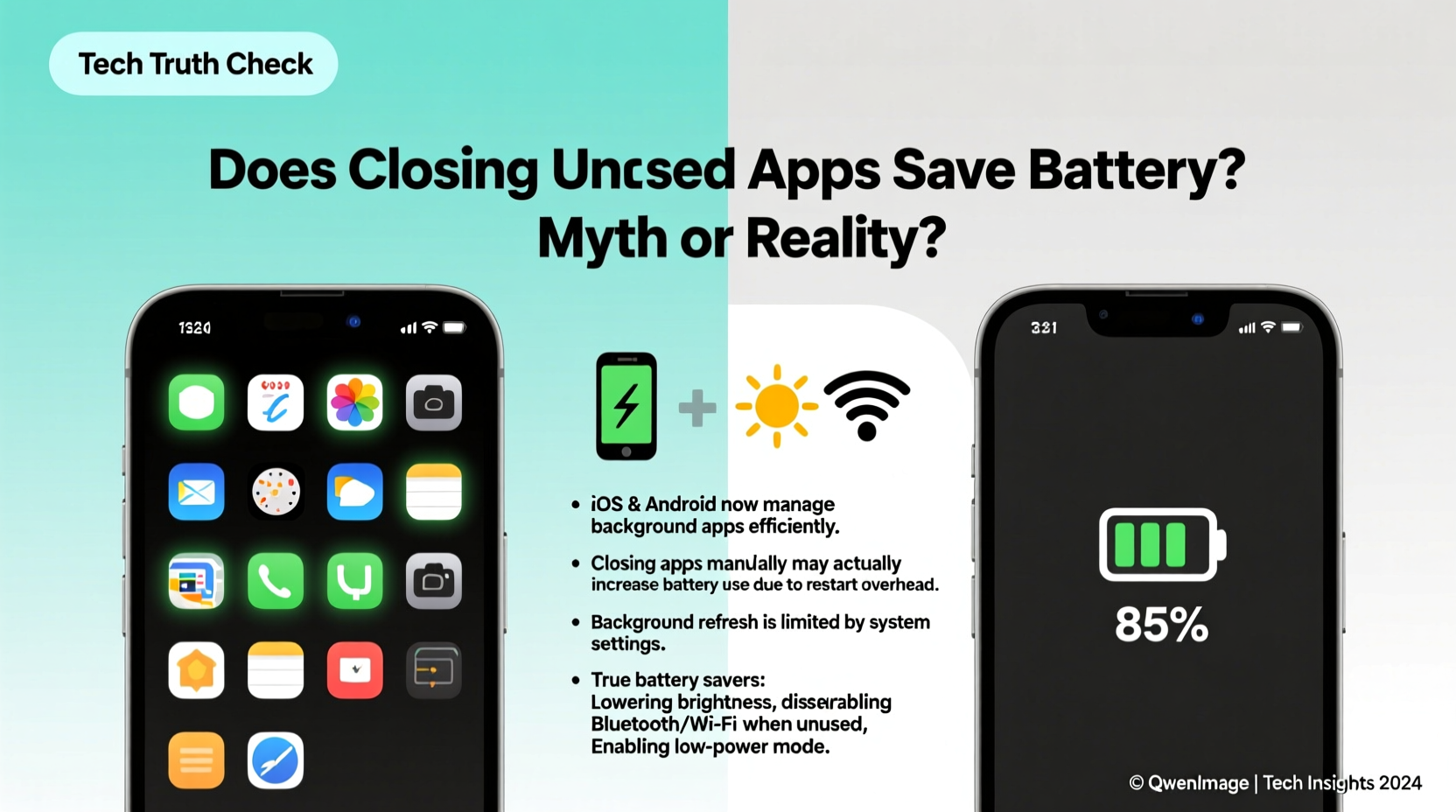
Unlike desktop computers, smartphones are designed with aggressive memory and power management systems. Both Apple’s iOS and Google’s Android treat app switching differently than traditional multitasking. When you press the home button or swipe to another app, the current app doesn’t continue running freely in the background. Instead, it enters a suspended state almost immediately.
In this suspended state, the app uses no CPU resources and consumes negligible battery. It remains in RAM (memory) so that when you return to it, it opens quickly — a design choice known as “app hibernation.” This is fundamentally different from the old model where background apps could actively run processes, drain battery, and slow down the device.
Apple has been clear about this for years. In a 2016 support article, they stated: “Closing apps won't make your iPhone run faster or save battery life.” Similarly, Google has emphasized that Android automatically manages background activity through features like Doze mode and App Standby, which limit network access and background processing when the phone is idle.
“On both iOS and Android, apps in the background are frozen by default. They’re not using CPU or battery unless they have specific permissions to do so, like location tracking.” — Dr. Linus Lin, Mobile Systems Researcher, University of California, San Diego
What Actually Drains Battery Life?
If background apps aren’t the culprit, what is? The truth is, battery drain comes from active hardware components and poorly optimized software behaviors. Here’s a breakdown of the real offenders:
- Screen brightness and usage time: The display is typically the largest power consumer. A bright screen used for hours will drain more than any background app ever could.
- Location services: Apps constantly pinging GPS, especially navigation or fitness apps, consume significant energy.
- Network activity: Poor cellular signal forces the phone to boost transmission power. Wi-Fi scanning and constant syncing also contribute.
- Background refresh and push notifications: While the app itself may be suspended, scheduled data fetches or live updates can wake the system periodically.
- Bluetooth and sensors: Always-on Bluetooth connections, motion tracking, or ambient light sensors add small but cumulative loads.
Closing an app that’s already suspended won’t stop these processes — only adjusting settings will. For example, turning off background app refresh or disabling location access for non-essential apps has a measurable impact. Manually swiping away apps does not.
When Closing Apps Might Help (Rare Exceptions)
While the general rule is that closing unused apps doesn’t help, there are edge cases where it might make a difference:
- A misbehaving app: If an app is stuck in a loop, crashing repeatedly, or actively downloading large files in the background, force-closing it can stop excessive battery drain.
- Apps with active background tasks: Music players, navigation apps, or VoIP services (like WhatsApp calls) may continue running processes even when minimized. These are exceptions, not the norm.
- Older devices or outdated OS versions: Phones running Android 5 or earlier, or iOS versions before iOS 7, had less efficient background management. On such devices, closing apps may have had a minor benefit.
- After a software update: Occasionally, an app glitch occurs post-update. Restarting the app can resolve temporary bugs affecting battery.
But even in these scenarios, the solution isn’t routine app-swiping — it’s targeted troubleshooting based on observed behavior.
Mini Case Study: Sarah’s Battery Anxiety
Sarah, a freelance designer, noticed her iPhone battery dropping faster than usual. She responded by closing every app after use, sometimes multiple times per hour. Despite this, her battery still died by mid-afternoon.
After checking her battery usage stats, she discovered that Instagram was consuming 35% of her battery — not because it was open, but because it was refreshing content in the background and using location services unnecessarily. She disabled background app refresh and limited location access to “While Using.” Within two days, her battery lasted 40% longer — all without ever swiping away an app.
This case illustrates a common misconception: the symptom (high battery use) was mistaken for the cause (open apps), while the real culprits were hidden settings.
Do’s and Don’ts: Managing Battery Life Effectively
| Do | Don’t |
|---|---|
| Check battery usage in Settings to identify power-hungry apps | Assume all background apps are draining battery |
| Disable background app refresh for non-essential apps | Routinely close apps out of habit |
| Limit location access to “While Using” for most apps | Leave Bluetooth or Wi-Fi on when not needed |
| Enable Low Power Mode (iOS) or Battery Saver (Android) | Ignore software updates — they often include battery optimizations |
| Reduce screen brightness or enable auto-brightness | Use third-party “battery saver” apps that promise to kill background processes |
Expert Insights: What Engineers Say About App Management
Mobile operating systems are engineered to optimize resource use. Developers at both Apple and Google have spent years refining how apps interact with memory and power systems.
“The idea that you need to close apps to save battery is like turning off your car every time you stop at a red light. It uses more energy to restart than to idle. Same with apps — resuming a suspended app is far more efficient than reloading it from scratch.” — Mark Chen, Senior Android Engineer at a major OEM
This analogy holds up under scrutiny. Every time you reopen an app that was previously closed, the phone must reload it from storage, re-establish network connections, and rebuild its interface — all of which require CPU cycles and energy. Keeping frequently used apps in suspended memory avoids this overhead.
Moreover, both iOS and Android use predictive models to anticipate which apps you’ll use next. Closing them disrupts this intelligence, potentially slowing down your experience and increasing energy use over time.
Step-by-Step Guide to Optimizing Battery Without Closing Apps
If you're serious about extending battery life, follow this practical sequence:
- Open Battery Settings: Go to Settings > Battery (iOS) or Settings > Battery & Device Care (Android).
- Analyze Usage: Look at which apps are consuming the most battery over the last 24 hours or 7 days.
- Investigate High-Usage Apps: Tap on any app using disproportionate power. Ask: Is it running in the foreground a lot? Does it use location or background refresh?
- Adjust Permissions: For problematic apps, go to Location Services or Background App Refresh and restrict access.
- Enable System-Level Power Saving: Turn on Low Power Mode (iOS) or Battery Saver (Android). These throttle background activity intelligently.
- Update Your Software: Install the latest OS update — manufacturers regularly release battery efficiency improvements.
- Restart Occasionally: A full reboot every week or two clears cached data and resets any rogue processes — far more effective than daily app-swiping.
This approach targets actual sources of battery drain rather than perceived ones.
Frequently Asked Questions
Does leaving apps open in the background slow down my phone?
No. Modern smartphones use RAM efficiently. Apps in the background are suspended and don’t compete for processing power. Your phone slows down when RAM is full and apps must reload frequently — which is more likely if you close apps too aggressively.
Why do some people swear that closing apps helps their battery?
Perception plays a big role. After closing apps, users often use their phone less intensely for a while, leading to better battery life. They attribute the improvement to app-closing, when in reality, reduced screen time was the real factor. Confirmation bias reinforces the belief.
Should I ever force-close an app?
Only if it’s malfunctioning — for example, if it’s freezing, using excessive battery, or sending constant notifications. Otherwise, let the operating system handle it. Force-closing should be a troubleshooting step, not a routine habit.
Conclusion: Let Go of the Habit, Focus on What Matters
The practice of closing unused apps to save battery is largely a relic of the past — a well-intentioned habit formed during an era of less sophisticated operating systems. Today, both iOS and Android are designed to manage apps efficiently, suspending them instantly and waking them only when necessary.
True battery optimization comes not from swiping away apps, but from understanding how your device works and adjusting settings accordingly. Monitor actual battery usage, restrict unnecessary permissions, and rely on built-in power-saving modes. These steps deliver real results.
Instead of fighting your phone’s intelligence, work with it. You’ll get longer battery life, faster app switching, and one less thing to worry about every time you switch screens.




 浙公网安备
33010002000092号
浙公网安备
33010002000092号 浙B2-20120091-4
Comments
No comments yet. Why don't you start the discussion?