
There’s a common belief among smartphone users: if you don’t close your apps, they’ll silently drain your battery. It’s a reflex for many—double-tap the home button or swipe up, then flick away every app in sight, convinced that this simple gesture will extend battery life. But is there any truth to it? Or has this become a modern digital myth, perpetuated by misunderstanding how smartphones actually work?
The reality is more nuanced than a simple yes or no. While some background activity can affect battery life, the mere presence of an app in the multitasking view does not equate to active power consumption. Modern operating systems like iOS and Android are designed to manage resources efficiently, suspending apps when they’re not in use. The real culprits behind battery drain are often hidden processes, poorly optimized apps, and system-level functions—not the number of apps sitting in your recent apps list.
Let’s explore what actually happens when apps run in the background, how operating systems handle them, and what truly impacts your smartphone’s battery life.
How Smartphones Handle Background Apps
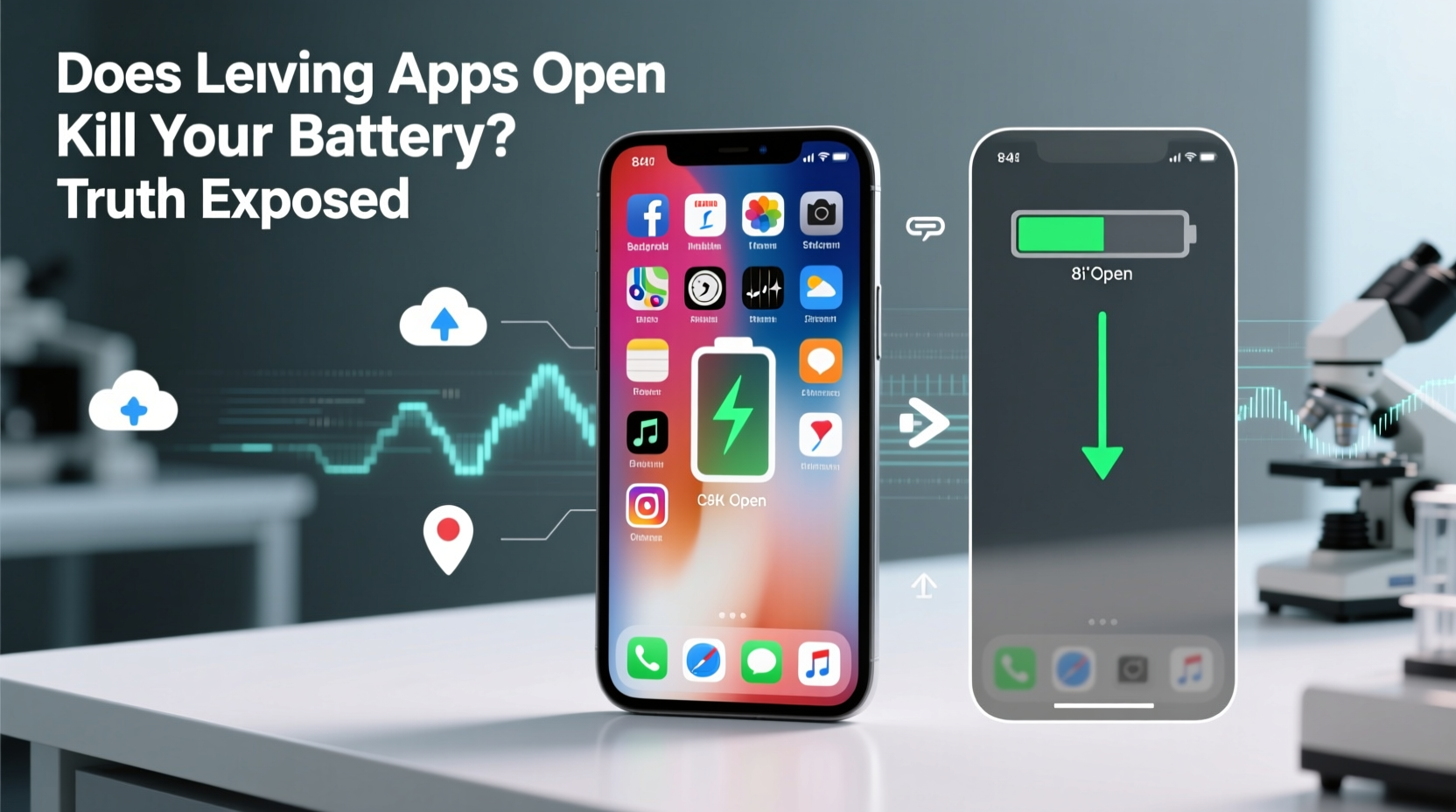
When you switch from one app to another, the previous app doesn’t continue running at full capacity. Instead, it enters a suspended state. In this state, the app is stored in RAM (Random Access Memory) but consumes minimal CPU and no significant battery power. Think of it like pausing a movie—you can resume exactly where you left off, but the player isn’t actively decoding video or using energy while paused.
iOS, for example, follows a strict lifecycle model:
- Active: The app is in use and fully operational.
- Inactive: The app is still visible but not receiving events (e.g., during a phone call).
- Background: The app runs limited tasks (like finishing a download) for a short time after being minimized.
- Suspended: The app remains in memory but performs no execution. It uses RAM but not CPU or battery.
Android operates similarly, though with more flexibility due to device fragmentation and manufacturer customizations. When an app is minimized, Android may keep it in memory for faster switching but will freeze or kill it if system resources are needed elsewhere.
Neither platform allows apps to freely run in the background without restrictions. If they did, battery life would collapse within hours.
What Actually Drains Your Battery
If background apps aren’t the main issue, what is? The answer lies in specific types of background activity that do consume power. These include:
- Location services (GPS tracking)
- Push notifications and background fetch
- Audio playback (music, podcasts)
- Background sync (email, social media updates)
- Poorly coded or malicious apps
- Screen brightness and display timeout
For instance, a navigation app like Google Maps continues using GPS even when minimized, which significantly drains battery. Similarly, messaging apps that constantly check for new messages or stream live location are active consumers of power—even if they appear “closed” to the user.
A study conducted by Purdue University found that up to 70% of smartphone battery drain comes from apps fetching data in the background, particularly due to inefficient ad networks and tracking scripts. One popular weather app was shown to consume more power in idle than during active use because of constant network polling.
“Most battery drain isn’t from visible apps—it’s from invisible processes. Users focus on closing apps, but the real savings come from managing permissions and background activity.” — Dr. Y. Charlie Hu, Professor of Electrical and Computer Engineering, Purdue University
Do’s and Don’ts: Managing App Behavior for Better Battery Life
Instead of swiping away apps, focus on controlling what they’re allowed to do behind the scenes. The table below outlines practical actions you can take to optimize battery performance.
| Do | Don't |
|---|---|
| Limit background app refresh for non-essential apps | Manually close all apps daily “to save battery” |
| Disable location access for apps that don’t need it | Install unknown apps from third-party stores |
| Use battery usage settings to identify power-hungry apps | Leave Bluetooth, Wi-Fi, or GPS on unnecessarily |
| Update apps regularly—they often include efficiency fixes | Assume all background activity is harmful |
| Enable Low Power Mode (iOS) or Battery Saver (Android) | Restart your phone multiple times a day hoping to boost battery |
Real-World Example: A Week Without Closing Apps
To test the myth, a tech journalist conducted a personal experiment. For one week, he stopped closing any apps manually. He used his phone normally—browsing, messaging, navigating, streaming—but never swiped away a single app. At the end of each day, he recorded battery percentage at bedtime and reviewed the battery usage stats.
The result? His battery drain was nearly identical to previous weeks when he routinely closed apps. However, he noticed slightly faster app switching and less lag when returning to recently used apps like Instagram and Spotify.
The only noticeable difference came on Day 3, when a fitness tracker app ran in the background for eight hours, recording GPS data without him realizing it. That single app accounted for 42% of total battery usage that day. This wasn’t about having apps “open”—it was about uncontrolled background activity.
The takeaway: conscious management beats ritualistic app-swiping.
Step-by-Step Guide to Optimize Battery Without Closing Apps
You don’t need to micromanage your recent apps list. Instead, follow these steps to genuinely improve battery life:
- Check Battery Usage Stats
Go to Settings > Battery to see which apps are consuming the most power. Focus on those above 10–15% over 24 hours. - Restrict Background Activity
On iOS: Settings > General > Background App Refresh → disable for non-critical apps.
On Android: Settings > Apps > [App Name] > Battery → select “Restricted” or “Unrestricted” based on need. - Manage Location Permissions
Only allow precise location access for apps that require it (e.g., maps). Set others to “While Using” or “Approximate.” - Turn Off Push Notifications
Reduce unnecessary alerts. Go to Settings > Notifications and disable for low-priority apps. - Enable Adaptive Features
Use Adaptive Battery (Android) or Low Data Mode (iOS), which learn your habits and limit background activity accordingly. - Update Your OS and Apps
Developers frequently release patches that fix battery-draining bugs. Keeping software current is one of the most effective optimizations. - Reboot Occasionally, Not Daily
Restarting once a week clears temporary glitches, but doing it daily offers no measurable benefit and wastes energy.
FAQ: Common Questions About Background Apps and Battery Life
Does keeping apps open in the background use battery?
No—not in the way most people think. An app sitting in the multitasking view but not performing any tasks uses RAM but consumes negligible battery. Only apps actively using GPS, network, audio, or sensors drain power while in the background.
Should I close apps to make my phone faster?
No. Closing apps forces your phone to reload them entirely when reopened, which uses more CPU and battery than resuming from memory. Modern smartphones are designed to manage RAM efficiently; let the system decide when to close apps.
Why does my battery drain overnight even when I’m not using my phone?
This is usually caused by background processes such as email syncing, cloud backups, or location tracking. Check your battery usage report in the morning to identify the culprit. Disabling background refresh and limiting location access often resolves this issue.
Expert Insight: What Engineers Say About App Management
Nat Brown, a former iOS software engineer at Apple, has publicly addressed this misconception:
“We designed iOS so that users don’t need to worry about closing apps. The system handles suspension and termination automatically. Swiping apps away doesn’t help battery life—it just makes the next launch slower.” — Nat Brown, iOS Software Engineer (2010–2018)
Similarly, Dave Burke, VP of Engineering for Android, stated in a developer keynote:
“Android’s memory management is built on the principle that keeping apps in memory is more efficient than tearing them down and reloading. Users should focus on app behavior, not app count.”
These statements reflect a consistent philosophy across major platforms: trust the system. Manual intervention rarely improves performance or battery life—and often harms it.
Checklist: Optimize Your Smartphone Battery Today
Follow this concise checklist to ensure your phone runs efficiently without unnecessary battery drain:
- ✅ Review battery usage in Settings
- ✅ Disable background app refresh for non-essential apps
- ✅ Set location access to “While Using” for most apps
- ✅ Turn off push notifications for social media and games
- ✅ Enable Battery Saver or Low Power Mode during heavy use
- ✅ Update all apps and your operating system
- ✅ Avoid third-party “battery saver” apps—they often do more harm than good
Conclusion: Stop Closing Apps, Start Smart Optimization
The idea that leaving apps open kills your battery is outdated—a relic from early smartphones with limited memory and poor task management. Today’s devices are engineered to suspend inactive apps and reclaim resources seamlessly. Obsessively closing apps doesn’t extend battery life; it undermines the very efficiency the system is designed to provide.
True battery optimization comes from understanding what apps are doing behind the scenes, not how many are listed in your recent apps tray. By managing permissions, restricting background activity, and relying on built-in tools, you gain real control over your phone’s performance.
It’s time to break the habit. Stop swiping. Start analyzing. Your battery—and your phone—will thank you.




 浙公网安备
33010002000092号
浙公网安备
33010002000092号 浙B2-20120091-4
Comments
No comments yet. Why don't you start the discussion?