
It’s a common habit: after using an app, you tap the Home button or swipe up, assuming the app is still running and consuming resources. Many iPhone users believe that swiping away apps from the App Switcher improves speed and saves battery. But does it actually help? The short answer is no — not only is this practice largely ineffective, but it can sometimes do more harm than good. To understand why, we need to look at how iOS manages background processes, memory, and app states.
iOS operates differently from desktop operating systems and even some Android devices. Apple has built a tightly controlled ecosystem where resource management is handled automatically and efficiently. Misconceptions about background apps often stem from outdated advice or misunderstandings of how modern smartphones function. Let’s dive into the facts, dispel the myths, and clarify what truly affects your iPhone’s performance.
How iOS Manages Background Apps
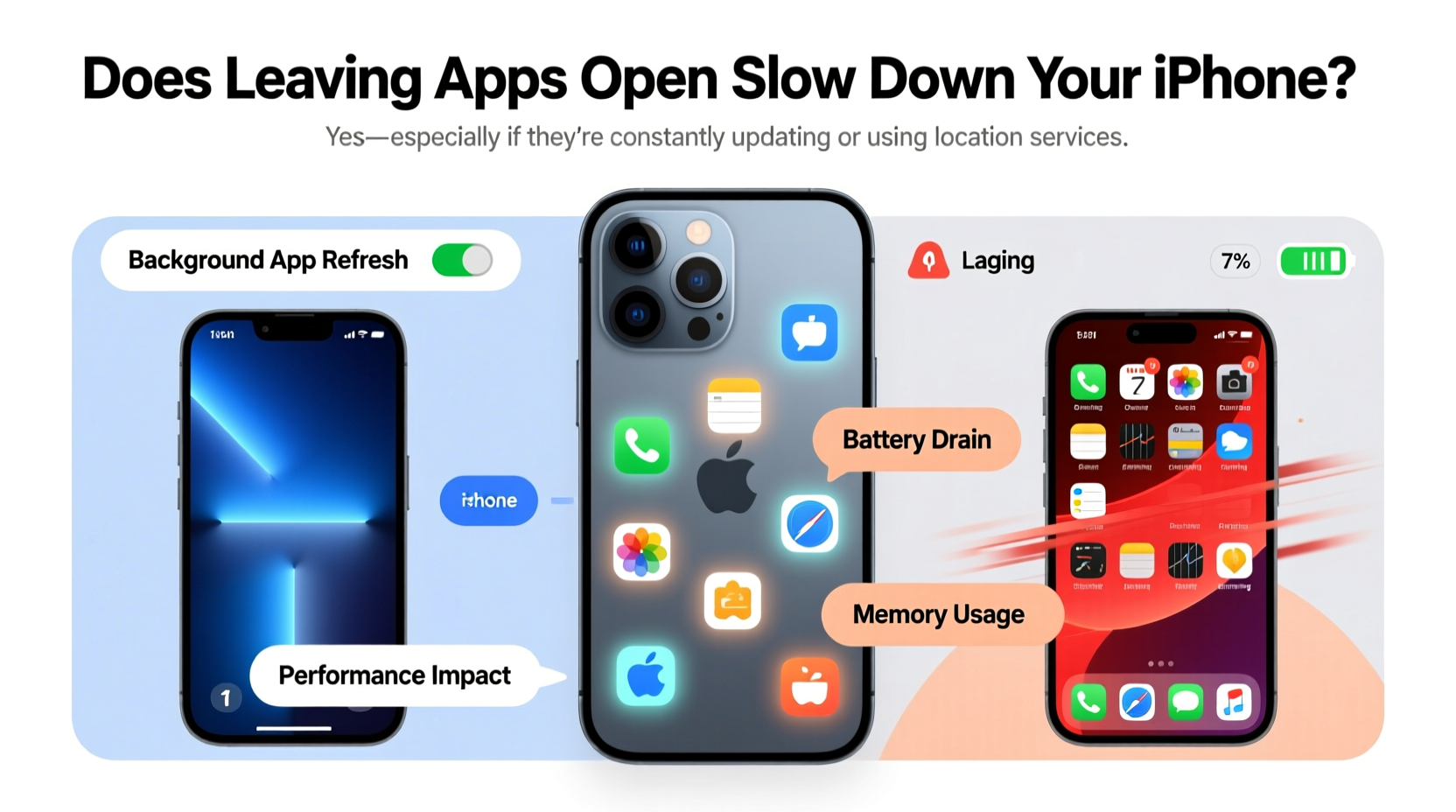
When you leave an app by pressing the Home button or swiping up on newer iPhones, the app doesn’t continue running in full capacity. Instead, iOS transitions it through a series of suspended states designed to minimize resource usage while preserving user experience.
The lifecycle of a backgrounded app follows this general path:
- Active: The app is in use and fully operational.
- Inactive: The app is still visible but not receiving events (e.g., during a phone call).
- Background: The app runs briefly (up to 30 seconds) to complete tasks like saving data or uploading content.
- Suspended: The app remains in memory but uses no CPU or energy. It’s frozen in place for quick resumption.
- Terminated: If the system needs memory, iOS quietly removes suspended apps without user input.
Crucially, a suspended app consumes almost no battery or processing power. It exists in RAM simply so you can return to it quickly. This is part of iOS’s optimization strategy — keeping frequently used apps in memory reduces reload times and overall energy consumption.
Debunking the Myth: Do Background Apps Slow Down Your iPhone?
No, having multiple apps in the App Switcher does not slow down your iPhone. The visual list of recent apps is not a real-time display of active processes. It’s more like a history of recently used apps, many of which are already suspended or terminated.
Apple engineer Chad Little once clarified this misconception in a public forum post: “The app switcher shows snapshots of apps for fast navigation, not live usage. Most ‘open’ apps aren’t doing anything.”
Performance slowdowns are far more likely caused by:
- Low available storage (below 1 GB free)
- Outdated iOS version with unresolved bugs
- Buggy third-party apps misusing background refresh
- Overheating or degraded battery health
- System-wide animations and visual effects
If your iPhone feels sluggish, closing background apps won’t solve these issues — and may make things worse by increasing reload frequency.
When Background Activity *Can* Affect Performance
While most backgrounded apps are harmless, certain types can legitimately impact battery life and responsiveness if poorly optimized or overused.
These include:
- Navigation apps (like Google Maps or Waze) using GPS continuously.
- Music or podcast apps streaming audio in the background.
- Cloud sync services (e.g., Dropbox, iCloud Drive) uploading large files.
- Apps with Background App Refresh enabled checking for updates too frequently.
In these cases, the app isn’t just suspended — it’s actively using system resources with permission from iOS. You can control this behavior through settings.
Managing Legitimate Background Activity
To identify and manage apps that are actively using resources:
- Go to Settings > Battery.
- Wait a few minutes for data to populate.
- Check which apps show high \"Background Activity\" percentages.
- Tap on the app and consider adjusting its permissions.
You can also disable Background App Refresh for specific apps:
- Navigate to Settings > General > Background App Refresh.
- Select individual apps and toggle them off.
- Or disable it entirely for maximum battery savings (with trade-offs in app responsiveness).
“iOS is designed to manage memory and background tasks intelligently. Users don’t need to micromanage app states — the system does it better.” — Dr. Lisa Chen, Mobile Systems Researcher, Stanford University
Real-World Example: The Daily Commuter
Consider Sarah, a busy professional who uses her iPhone throughout the day. She checks email, listens to a podcast during her commute, uses Maps for directions, takes photos at lunch, and replies to messages between meetings. By afternoon, she notices her phone feels slower and the battery is at 40%.
Her instinct is to force-close all apps in the switcher, believing they’re dragging down performance. She does this three times a day.
In reality:
- Email and Messages are suspended after use — zero CPU usage.
- The podcast app stopped streaming when paused, but Background App Refresh occasionally checks for new episodes.
- Maps ran actively during her drive, using GPS and cellular data — the main battery drain.
- Photos was briefly in memory but had already been purged by iOS due to low RAM availability.
By force-closing apps, Sarah forces each one to reload from scratch next time. Her email app now spends extra seconds syncing, the podcast restarts its interface loading, and Maps recalculates routes. These repeated cold starts increase CPU load and reduce perceived performance — the opposite of her goal.
Instead, she could have:
- Limited Background App Refresh for non-essential apps.
- Disabled Location Services for apps that don’t need it.
- Updated iOS to fix known performance bugs.
- Allowed iOS to manage memory naturally.
After making these changes, Sarah noticed smoother performance and an extra 15% battery life by day’s end — without ever swiping away an app.
Do’s and Don’ts: Managing iPhone Performance
| Do | Don’t |
|---|---|
| Keep iOS updated for performance improvements and bug fixes. | Swiping away apps daily to “speed up” your phone. |
| Use Settings > Battery to monitor actual usage patterns. | Assume all apps in the switcher are actively running. |
| Disable Background App Refresh for rarely used apps. | Turn off all background activity if you rely on timely notifications. |
| Restart your iPhone occasionally (once a week) to clear system caches. | Leave storage below 1 GB free — this harms performance. |
| Enable Low Power Mode when battery is low or performance lags. | Install untrusted apps that run excessive background tasks. |
Step-by-Step Guide to Optimizing iPhone Performance
If your iPhone feels slow, follow this practical sequence instead of closing apps:
- Check Available Storage
Go to Settings > General > iPhone Storage. If less than 1–2 GB is free, delete unused apps, photos, or videos. Low storage forces iOS to work harder managing cache files. - Review Battery Usage
Visit Settings > Battery and examine which apps use the most power — especially in the background. Investigate any unexpected high consumers. - Adjust Background App Refresh
Navigate to Settings > General > Background App Refresh. Disable it for social media, news, or shopping apps that don’t require instant updates. - Limit Location Services
Go to Settings > Privacy > Location Services. Set apps to “While Using” instead of “Always,” especially for non-navigation tools. - Update iOS and Apps
Outdated software often contains performance bugs. Enable automatic updates under Settings > General > Software Update. - Restart Your iPhone Weekly
A simple reboot clears temporary system clutter and resets network connections. No need to do it daily. - Reset All Settings (if needed)
If problems persist, go to Settings > General > Transfer or Reset iPhone > Reset > Reset All Settings. This won’t erase data but will restore system defaults.
Frequently Asked Questions
Does keeping apps in the switcher drain battery?
No. Suspended apps in the App Switcher consume negligible power. Only apps actively performing tasks (like playing music or tracking location) use significant battery. The visual presence of an app in the switcher does not equate to energy usage.
Should I close apps before charging my iPhone?
There’s no benefit to closing apps before charging. Charging performance depends on hardware, temperature, and charger quality — not app state. Let iOS manage memory as intended.
Why does my iPhone still lag after closing all apps?
Because app closure doesn’t address the root causes of slowdowns. Common culprits include insufficient storage, outdated software, failing hardware (especially degraded batteries), or corrupted app data. Focus on system-level fixes rather than task switching.
Final Thoughts: Trust the System
iOS was engineered with efficiency at its core. Unlike older mobile operating systems, it doesn’t rely on users to manually manage memory or kill processes. The system knows when to suspend, purge, or terminate apps based on real-time conditions like available RAM, battery level, and thermal state.
Constantly swiping away apps disrupts this intelligent flow. It forces apps to reload from scratch, increasing CPU usage, energy draw, and load times. Over time, this habit can degrade the fluidity iOS was designed to deliver.
Instead of treating your iPhone like a computer from 2005, trust its modern architecture. Focus on meaningful optimizations: keep storage free, update software, manage background permissions, and restart occasionally. These actions yield real results.
Let go of the myth. Embrace the design. Your iPhone works best when you work with it — not against it.




 浙公网安备
33010002000092号
浙公网安备
33010002000092号 浙B2-20120091-4
Comments
No comments yet. Why don't you start the discussion?