
For years, a common piece of digital advice has echoed across forums, social media, and even family group chats: “Close your apps to speed up your phone.” It’s become second nature for many users to swipe away every app after use, believing that fewer open apps mean better performance and longer battery life. But as smartphone operating systems have evolved dramatically over the past decade, this advice may be outdated—possibly even counterproductive.
The reality is more nuanced than a simple “yes” or “no.” Modern iOS and Android devices are designed with intelligent memory and power management systems that handle background processes far more efficiently than older models. Understanding how these systems work can help you make informed decisions about app usage—and stop wasting time closing apps unnecessarily.
How Background Apps Actually Work on Modern Smartphones
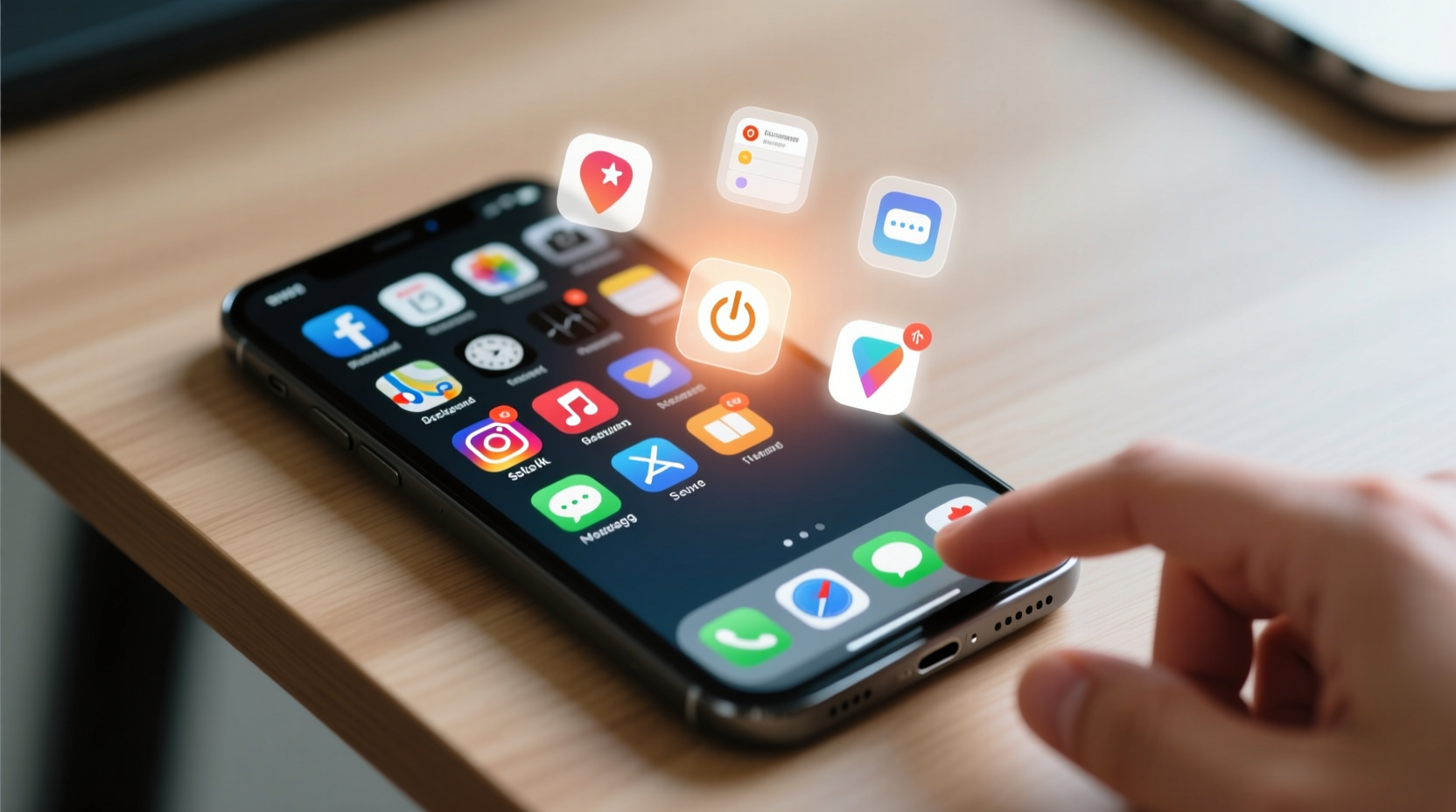
When you switch from one app to another, the previous app doesn’t keep running at full capacity. Instead, it enters a suspended or dormant state. This means it remains in the device’s RAM (Random Access Memory) but isn't actively consuming CPU cycles or draining significant battery.
RAM is not the same as storage. Think of RAM as your phone’s short-term workspace. Keeping an app in RAM allows it to resume quickly when you return to it. If you force-close an app, the system must reload it entirely the next time you open it, which actually uses more processing power and energy than simply resuming from memory.
iOS and Android both use a concept called “app hibernation.” When you leave an app, it stops executing code almost immediately unless it has a legitimate reason to continue—such as playing music, tracking GPS during navigation, or syncing messages. Even then, these activities are tightly regulated by the OS to minimize resource consumption.
“Modern mobile operating systems are built to manage background activity intelligently. Manually killing apps often does more harm than good.” — Dr. Lin Chen, Mobile Systems Researcher at Stanford University
The Myth of the “Running Apps = Slow Phone” Belief
The idea that visible background apps are slowing down your phone stems from early smartphones (circa 2007–2012), when RAM was limited, processors were underpowered, and operating systems lacked sophisticated task management. Back then, leaving multiple apps open could indeed cause lag or crashes.
Today’s high-end phones come with 6GB to 16GB of RAM, advanced processors, and OS-level optimizations that automatically suspend, prioritize, and purge apps based on usage patterns. Apple and Google have spent years refining their background execution models to balance responsiveness and efficiency.
In fact, repeatedly swiping away apps forces the OS to constantly reload them, increasing CPU usage and potentially reducing battery life. Each relaunch requires disk access, network reconnection, and UI rendering—all of which consume more energy than maintaining a suspended app in memory.
When Background Apps *Can* Cause Problems
While most background apps pose no threat, certain behaviors can legitimately impact performance and battery. These exceptions are worth monitoring:
- Location Tracking: Apps like fitness trackers, delivery services, or social media may request constant location access, which keeps GPS active and drains battery.
- Background Refresh & Syncing: Email, messaging, and cloud apps that sync frequently can cause periodic CPU spikes.
- Audio Playback: Music or podcast apps that play in the background continue using resources intentionally.
- Poorly Optimized Apps: Some third-party apps don’t follow platform guidelines and may run unnecessary processes.
- Push Notifications: Excessive notifications trigger brief wake-ups, which add up over time.
These issues aren’t solved by routinely closing apps—they require targeted settings adjustments.
Step-by-Step: Managing Problematic Background Behavior
- Review Battery Usage: Go to Settings > Battery to see which apps are consuming the most power.
- Limit Background App Refresh: On iOS: Settings > General > Background App Refresh. On Android: Settings > Apps > Special App Access > Background Restrictions.
- Disable Unnecessary Location Access: Restrict apps to “While Using” instead of “Always” in location permissions.
- Turn Off Push for Low-Priority Apps: Reduce notification frequency in app settings.
- Update or Replace Misbehaving Apps: Developers often fix resource leaks in updates. If an app consistently drains battery, consider switching to a better-optimized alternative.
Android vs. iOS: How Each Handles Background Apps
Both platforms take different approaches to background management, but both are highly effective.
| Feature | iOS | Android |
|---|---|---|
| App Suspension | Apps freeze within seconds of being backgrounded; only allowed limited background tasks with user permission. | Uses a similar suspension model, but historically allowed more flexibility, leading to potential abuse by developers. |
| Background Refresh | Controlled via system-wide toggle; apps refresh only when conditions allow (Wi-Fi, charging, etc.). | Managed per-app; newer versions (Android 8+) impose strict limits on background services. |
| Battery Optimization | Aggressive sleep modes; apps denied background access if unused for days. | Adaptive Battery (AI-based) learns usage patterns and restricts background activity for rarely used apps. |
| User Control | Limited—Apple assumes the OS knows best; manual app killing discouraged. | More granular controls, though recent versions reduce user interference to improve efficiency. |
| Developer Enforcement | Strict App Store review process prevents abusive background behavior. | Google Play policies exist, but enforcement is looser; sideloading increases risk. |
Despite differences, both systems now prioritize automatic optimization over manual intervention. The takeaway? Trust the platform.
Real-World Example: Maria’s iPhone Performance Fix
Maria, a freelance photographer, noticed her iPhone felt sluggish and the battery drained faster than usual. She was in the habit of closing every app after use, believing it would “free up space.” She also had multiple cloud storage apps, social media tools, and editing software installed.
After consulting a tech-savvy friend, she checked her battery usage and discovered that Instagram and Dropbox were consuming disproportionate power—even when not in use. Further investigation revealed both apps had “Always” location access enabled and aggressive background refresh settings.
She adjusted the settings: restricted location access to “While Using,” disabled background app refresh for non-essential apps, and allowed the system to manage RAM. Within two days, her phone felt snappier, and her battery lasted nearly two hours longer.
Interestingly, she stopped closing apps altogether—and noticed faster app switching. The real issue wasn’t open apps; it was misconfigured permissions.
Expert Tips for Optimal Phone Performance
Instead of focusing on app closure, adopt these evidence-based practices to keep your phone running smoothly:
- Keep Your OS Updated: Software updates often include performance improvements and background process optimizations.
- Use Built-in Battery Tools: Both iOS and Android provide detailed breakdowns of battery usage by app and process.
- Enable Dark Mode: On OLED screens, dark mode reduces power consumption, indirectly improving perceived performance.
- Limit Animations (Android): On developer options, reducing animation scales can make transitions feel faster.
- Clear Cache Periodically: For problem apps, clearing cache (not data) can resolve slowdowns caused by bloated temporary files.
Performance Checklist
Follow this checklist monthly to maintain peak performance without obsessing over open apps:
- ✅ Review battery usage in Settings
- ✅ Disable background refresh for non-critical apps
- ✅ Update all apps and the operating system
- ✅ Revoke “Always” location access for unnecessary apps
- ✅ Clear cache for apps showing erratic behavior
- ✅ Restart the device once per week
- ✅ Avoid third-party “cleaner” apps—they often do more harm than good
Frequently Asked Questions
Does having too many apps open use up storage?
No. Apps in the background use RAM, not storage. RAM is temporary memory that clears when the device restarts. Storage refers to permanent space used for apps, photos, and files. Having ten apps open doesn’t reduce your available storage.
If I don’t close apps, will my phone eventually run out of memory?
No. The operating system automatically closes suspended apps when RAM is needed for new tasks. It prioritizes recently used apps and removes the least relevant ones first. This process is seamless and invisible to the user.
Are there any cases where I should manually close an app?
Yes, but only in specific situations: if an app is frozen, malfunctioning, or clearly misbehaving (e.g., overheating the phone, excessive battery drain). In such cases, force-closing can act as a quick reset. Otherwise, it’s unnecessary.
Conclusion: Rethinking App Management in the Modern Era
The belief that closing background apps speeds up your phone is a relic of outdated technology. Today’s smartphones are engineered to manage memory and background processes autonomously, often more efficiently than any manual intervention could achieve. Constantly swiping away apps doesn’t improve performance—it disrupts the system’s ability to deliver fast, fluid experiences.
True optimization comes not from micromanaging app states, but from understanding how your device works and adjusting key settings like location access, background refresh, and notifications. By focusing on these levers, you gain real control over battery life and responsiveness—without falling for myths that waste your time.




 浙公网安备
33010002000092号
浙公网安备
33010002000092号 浙B2-20120091-4
Comments
No comments yet. Why don't you start the discussion?