
It’s a familiar scene: dozens of browser tabs stacked like a precarious Jenga tower, each promising information, entertainment, or a task left half-finished. While this habit might feel harmless—or even efficient—it raises a legitimate concern: does leaving tabs open actually slow down your computer? The answer isn’t a simple yes or no. It depends on your system’s resources, the type of content in those tabs, and how you use your browser. Understanding the mechanics behind tab performance can help you strike a balance between convenience and efficiency.
How Browser Tabs Use System Resources
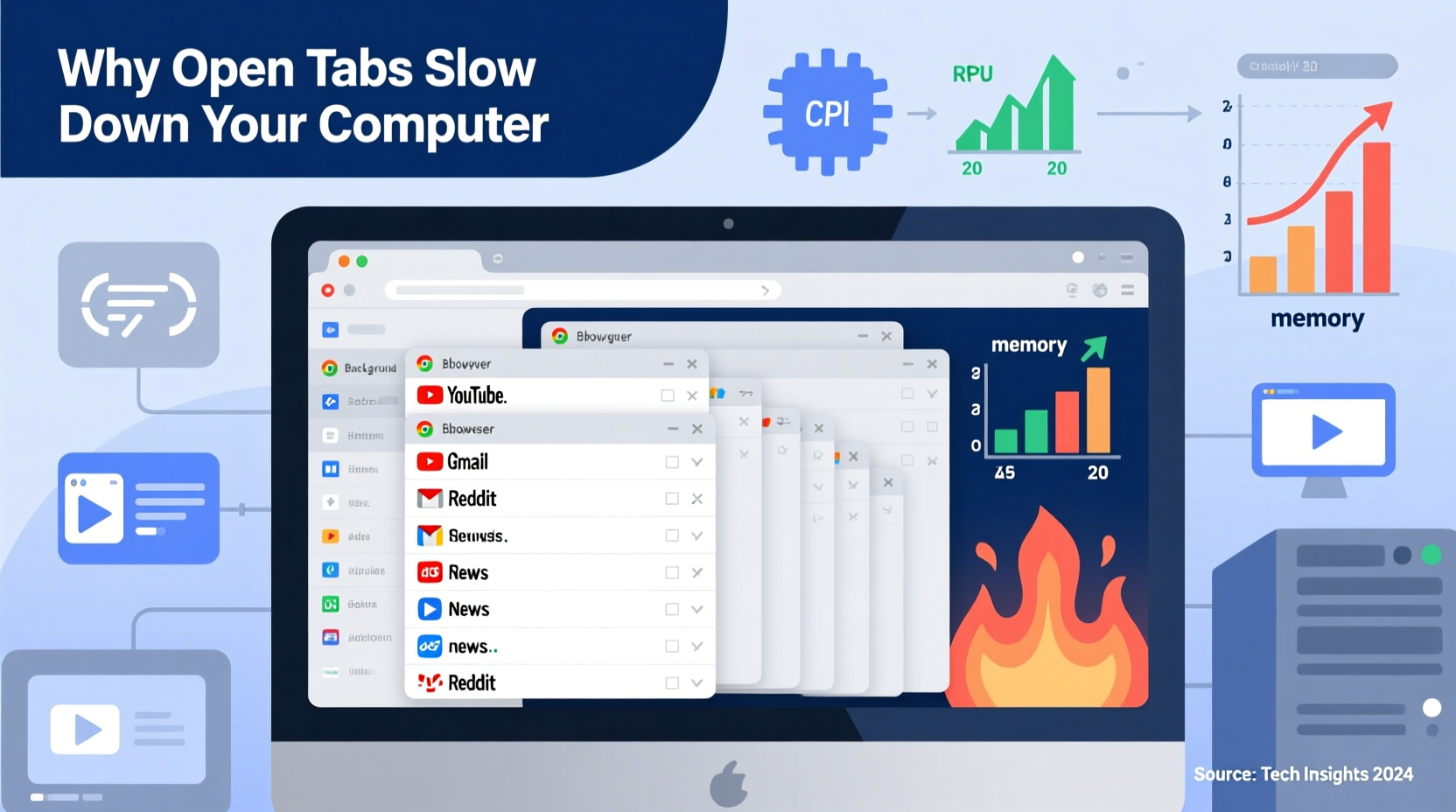
Each open tab in your web browser functions as an independent process or thread, depending on the browser's architecture. Modern browsers like Chrome, Firefox, and Edge use multi-process models to isolate tabs for stability and security. This means that every tab consumes a portion of your computer’s RAM (Random Access Memory), CPU (Central Processing Unit), and sometimes GPU (Graphics Processing Unit).
RAM is the most directly affected resource. When you open a tab, the browser loads the webpage’s HTML, CSS, JavaScript, images, and other assets into memory. Even if you’re not actively viewing the tab, many of these resources remain loaded unless the browser implements tab discarding or freezing features. For example:
- A single news article with minimal scripts may use 50–100 MB of RAM.
- A video streaming site like YouTube or Netflix can consume over 300 MB per tab.
- Web applications such as Google Docs, Figma, or Trello often run complex JavaScript, using 200–400 MB or more.
CPU usage spikes when a tab runs background scripts, animations, or autoplay videos. Some websites continue playing audio or refreshing content even when minimized, keeping the CPU engaged. Over time, multiple such tabs accumulate pressure on your processor, leading to slower response times across all applications.
When Tab Count Matters Most
The impact of open tabs varies significantly based on your hardware. Users with high-end machines may barely notice 20+ tabs, while those with older or budget systems might experience lag with just five or six.
Low-RAM Systems (4–8 GB): These are most vulnerable. Once available RAM drops below 1 GB, your computer begins using virtual memory (swap space on your hard drive), which is much slower than physical RAM. This leads to noticeable slowdowns, app freezes, and longer load times.
Solid-State vs. Hard Disk Drives: Even when swap is needed, SSDs handle it far better than traditional HDDs. If you're on an older machine with an HDD, excessive tabs can cause severe performance degradation due to slow disk access during memory swapping.
Background Activity: Not all tabs are passive. Sites like Facebook, Twitter, and news portals often run tracking scripts, push notifications, and auto-refreshing feeds. These activities keep the CPU and network interface busy, draining both performance and battery life on laptops.
“Modern browsers are optimized, but they can’t overcome physics. Every open tab has a cost—especially on devices with limited RAM.” — Dr. Lena Patel, Computer Systems Researcher at MIT
Tab Management: Practical Strategies to Optimize Performance
You don’t need to close everything the moment you open it. Instead, adopt smarter habits that preserve productivity without sacrificing speed.
Use Built-in Tab Discarding Features
Many browsers now include tab discarding or sleeping tabs technology. For instance, Chrome’s “Memory Saver” mode automatically unloads inactive tabs after a set period, freeing up RAM. When you click back on the tab, it reloads from the web. While there’s a brief delay, the trade-off in performance is usually worth it.
To enable Memory Saver in Chrome:
- Click the three-dot menu in the top-right corner.
- Go to Settings > Performance.
- Toggle on “Memory Saver.”
Firefox offers a similar feature called “Automatic Tab Discarding,” which works seamlessly in the background.
Pin Essential Tabs
Pinning tabs reduces their visual footprint and often prioritizes them for resource allocation. More importantly, pinned tabs (like email or calendar) are less likely to be accidentally closed, reducing the need to reload heavy pages repeatedly—a process that uses more CPU and bandwidth than keeping a light tab alive.
Leverage Bookmarking and Tab Groups
If you keep tabs open “just in case,” consider whether bookmarking would serve you better. Organize related topics into folders or use browser-native tab groups (available in Chrome, Edge, and Firefox) to collapse and manage clusters of research, shopping, or work projects.
Real-World Example: The Overloaded Workday Browser
Consider Sarah, a digital marketing analyst working remotely. Her typical morning setup includes:
- Google Sheets (data dashboard)
- Slack (team communication)
- Gmail (inbox with 12 unread messages)
- Three social media dashboards (each auto-refreshing)
- A live analytics report with real-time charts
- Two news sites for industry updates
- A YouTube tutorial she paused earlier
By mid-morning, her laptop fan kicks on frequently, applications respond slowly, and Zoom calls become choppy. A quick look at Task Manager reveals Chrome using over 3.2 GB of RAM and spiking CPU usage. After closing unused tabs and enabling Memory Saver, her system stabilizes. Responsiveness returns, and battery life improves by nearly two hours.
This scenario illustrates how seemingly benign tabs compound into a performance burden—especially when multiple are actively processing data or media.
Comparison: Tab Load Impact Across Browsers
| Browser | Default Tab Isolation | Memory Saver Feature | Avg. RAM per Complex Tab | Best For |
|---|---|---|---|---|
| Google Chrome | Per-tab process (high isolation) | Memory Saver (configurable) | 250–400 MB | Power users with strong hardware |
| Mozilla Firefox | Multiprocess (fewer processes) | Automatic Tab Discarding | 180–300 MB | Balanced performance on mid-tier systems |
| Microsoft Edge | Chromium-based (similar to Chrome) | Sleeping Tabs | 240–380 MB | Windows users seeking optimization |
| Safari (macOS) | Efficient process sharing | Automatic Tab Suspensions | 150–250 MB | MacBooks with limited RAM |
The table shows that while Chrome offers robust security through process separation, it comes at a higher memory cost. Safari and Firefox tend to be more conservative with resources, making them better choices for older or lower-spec machines.
Checklist: Optimize Your Browser for Speed
Follow this checklist weekly to maintain optimal performance:
- ✅ Audit open tabs: Close any you haven’t used in the last hour.
- ✅ Enable memory-saving mode in your browser settings.
- ✅ Bookmarks over tabs: Save references instead of leaving them open.
- ✅ Use tab groups or extensions like OneTab to consolidate research.
- ✅ Update your browser regularly—performance improvements are frequent.
- ✅ Restart your browser daily to clear accumulated memory leaks.
- ✅ Avoid autoplay media sites when possible; mute or pause them.
Frequently Asked Questions
Does having 50 tabs open ruin my computer?
No, it won’t cause permanent damage, but it can severely degrade performance, increase heat output, and shorten battery life. On systems with 8 GB of RAM or less, this can lead to constant swapping and sluggishness across all software.
Do inactive tabs still use CPU?
Yes. Many websites run background scripts, ads, trackers, or push notification services even when minimized. Video or music tabs will continue consuming CPU if playback isn’t paused. Some modern browsers suspend these activities after a timeout, but not universally.
Is it better to close tabs or leave them open?
It depends. Frequently revisited tabs (like email) benefit from staying open to avoid reload delays. However, one-time-use or rarely accessed tabs should be closed or bookmarked. The key is intentionality—keep only what you actively need.
Conclusion: Smart Browsing for Better Performance
Leaving tabs open isn’t inherently bad, but unchecked accumulation can silently degrade your computer’s performance. The real issue isn’t the number alone—it’s the quality and activity level of the content within those tabs. By understanding how browsers use memory and CPU, leveraging built-in optimization tools, and adopting disciplined tab hygiene, you can maintain a fast, responsive system without sacrificing workflow flexibility.
Performance isn’t just about hardware upgrades; it’s also about smart usage. Whether you're working, learning, or browsing for fun, taking control of your tabs means taking control of your computing experience.




 浙公网安备
33010002000092号
浙公网安备
33010002000092号 浙B2-20120091-4
Comments
No comments yet. Why don't you start the discussion?