
It’s a common habit: opening dozens of browser tabs for articles to read later, videos to watch, shopping pages to revisit, or research to complete. Many people assume this behavior is harmless—after all, the tab isn’t actively being used. But does keeping tabs open actually slow down your laptop? The answer isn’t a simple yes or no. It depends on several factors, including your hardware, browser efficiency, and what those tabs are doing in the background. Let’s break down the truth behind this digital-age dilemma.
How Browsers Use System Resources
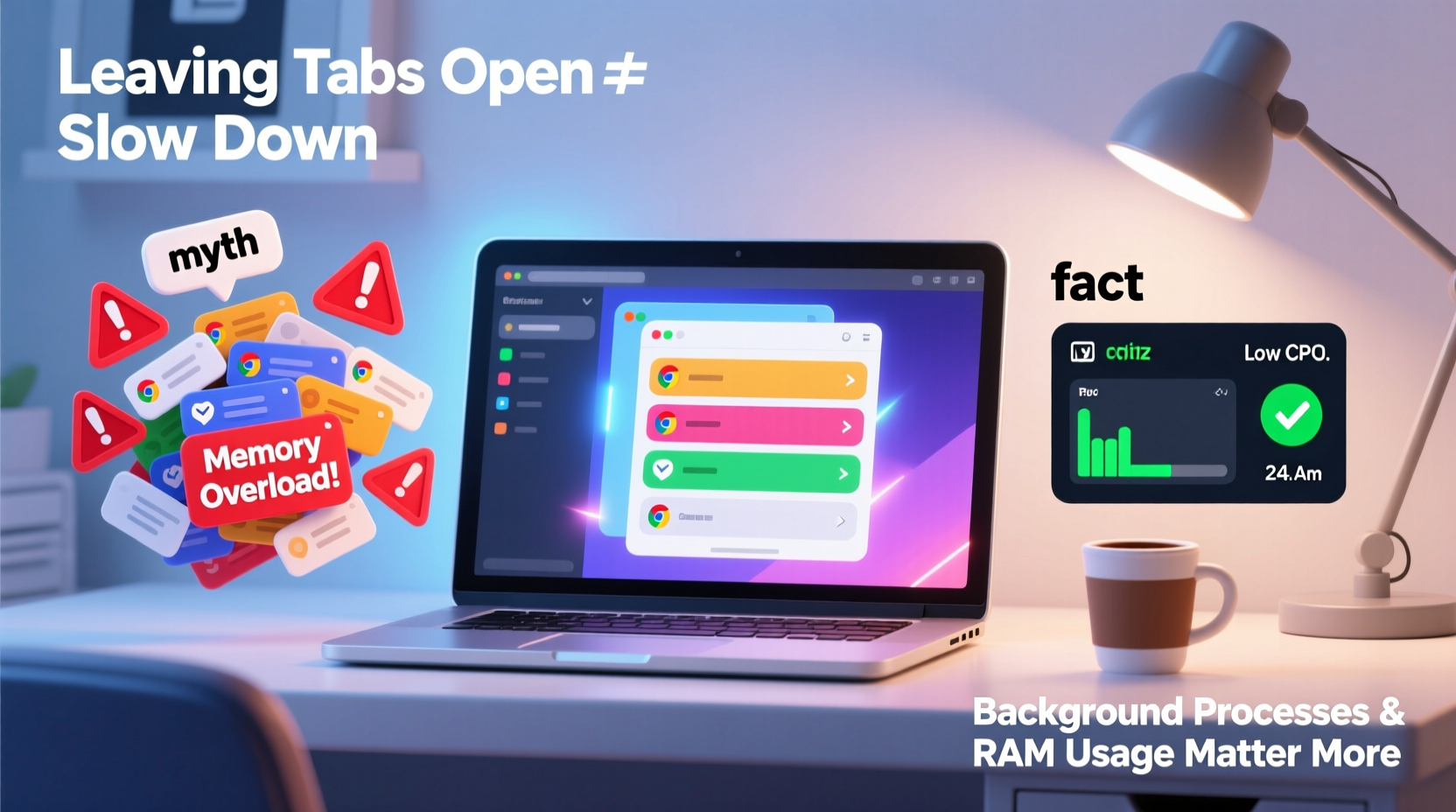
Every time you open a tab in a web browser like Chrome, Firefox, or Edge, that tab consumes system resources—primarily RAM (Random Access Memory), CPU (Central Processing Unit), and sometimes GPU (Graphics Processing Unit). Even if a tab is sitting idle in the background, it may still be running scripts, playing audio, tracking user behavior, or refreshing content automatically.
Modern websites are more complex than ever. They often include JavaScript-heavy frameworks, embedded videos, ads, analytics tools, and real-time updates. These components don’t just vanish when you switch tabs—they continue to operate unless explicitly paused or optimized by the browser.
For example, a single YouTube video tab left playing in the background can use up to 300–500 MB of RAM and a significant portion of CPU power. Multiply that by ten inactive tabs, and you’re looking at a noticeable impact on system performance, especially on laptops with limited memory or older processors.
The Real Impact on Laptop Performance
Leaving multiple tabs open doesn’t immediately crash your system, but over time it degrades performance. Here's how:
- RAM consumption: Each tab reserves memory. Too many tabs can exhaust available RAM, forcing your laptop to use slower virtual memory (swap space on the hard drive), which leads to lag.
- CPU drain: Background scripts, animations, and auto-refreshing content keep the processor busy, reducing battery life and slowing active tasks.
- Battery usage: More active processes mean higher energy draw. On laptops, this directly translates to shorter battery life.
- Disk activity: When RAM fills up, the system writes data to the SSD or HDD, increasing disk usage and potentially causing slowdowns.
A study conducted by Google in 2020 found that users with more than 10 active tabs experienced up to 25% longer app launch times and 15% reduced battery life compared to those with fewer than five tabs open. While modern browsers have improved memory management, the cumulative effect of too many tabs remains a real concern.
When Tabs Become a Problem
Not all tabs are equal. Some are lightweight (e.g., static text articles), while others are resource hogs. Tabs that are most likely to slow down your laptop include:
- Social media platforms (Facebook, Twitter/X, Reddit) – constantly updating feeds and loading new content.
- Streaming services (YouTube, Netflix, Spotify web player) – even when paused, they may preload data.
- Productivity tools (Google Docs, Trello, Slack) – sync in real time and run background scripts.
- Websites with autoplay videos or intrusive ads – consume CPU and bandwidth without user interaction.
“Modern browsers are designed to throttle background tabs, but they can’t eliminate resource usage entirely. A tab with an active video or script will always cost you performance.” — Dr. Lena Patel, Senior Systems Engineer at Mozilla
Browser Optimization Features: Do They Help?
To combat tab overload, major browsers have introduced features aimed at reducing the impact of inactive tabs.
| Browser | Memory Saver Mode | Sleeping Tabs | Background Throttling |
|---|---|---|---|
| Google Chrome | Yes (discards inactive tabs) | Yes (Windows/macOS) | Yes (limits timers & scripts) |
| Mozilla Firefox | Yes (Auto Tab Discard) | Yes (Sleeping Tabs) | Yes (reduced timer precision) |
| Microsoft Edge | Yes (Efficiency Mode) | Yes (sleeps after 2 hours) | Yes (aggressive throttling) |
| Safari | Limited (automatic discarding) | Yes (Tab Suspender) | Yes (energy-efficient design) |
These tools help, but they’re not foolproof. For instance, Chrome’s “Memory Saver” mode only activates after a tab has been inactive for a set period (usually 5 minutes or more). Until then, the tab continues to use full resources. Similarly, sleeping tabs may reload when clicked, causing brief delays and network requests.
Moreover, these optimizations vary by operating system and device capabilities. Older laptops with 4GB or 8GB of RAM benefit less from these features because the baseline capacity is already constrained.
Real-World Example: The Researcher’s Dilemma
Consider Sarah, a university student working on her thesis. She regularly opens 20+ tabs across Chrome and Edge: journal articles, citation tools, note-taking apps, reference managers, and communication platforms. Her laptop—a mid-range model with 8GB RAM and an Intel i5 processor—starts to lag after a few hours of work.
Initially, she assumes her antivirus is scanning files or that her Wi-Fi is slow. But upon checking Task Manager, she discovers Chrome alone is using 6.2 GB of RAM. After closing unused tabs and enabling Chrome’s Memory Saver mode, her system responsiveness improves dramatically. App switching becomes smoother, and her battery lasts nearly two hours longer.
This case illustrates a common scenario: users blame their hardware or software when the real culprit is inefficient tab management. With proper habits and browser settings, Sarah could maintain productivity without sacrificing performance.
Practical Steps to Minimize Tab-Related Slowdowns
You don’t need to close every tab to keep your laptop running smoothly. Instead, adopt smarter browsing habits and leverage built-in tools.
Step-by-Step Guide to Optimize Tab Usage
- Assess your current tab load. Open your browser’s task manager (Shift + Esc in Chrome/Edge) to see which tabs use the most memory and CPU.
- Close or bookmark high-resource tabs. If a tab is using excessive resources and isn’t essential, close it and save the link for later.
- Enable browser efficiency features. Turn on Memory Saver (Chrome), Sleeping Tabs (Firefox), or Efficiency Mode (Edge).
- Use tab groups or sessions. Organize related tabs into groups so you can collapse or suspend entire sets at once.
- Install a tab manager extension. Tools like OneTab, Toby, or The Great Suspender can freeze or consolidate tabs to save memory.
- Restart your browser periodically. This clears cached data and resets memory allocation, giving your system a fresh start.
Checklist: Healthy Tab Habits
- ✅ Limit open tabs to 10 or fewer during intensive work sessions
- ✅ Bookmark articles instead of keeping them open
- ✅ Use reading list features (Safari, Firefox, Edge) to save content offline
- ✅ Disable autoplay for videos in browser settings
- ✅ Regularly clear cache and browsing data
- ✅ Upgrade RAM if consistently hitting memory limits
Debunking Common Myths
Despite growing awareness, several myths persist about tabs and laptop performance:
- Myth: Inactive tabs use no resources. False. Background scripts, ads, and auto-refreshes still run unless blocked or suspended.
- Myth: Closing tabs frees up permanent performance gains. Not exactly. While closing tabs frees immediate RAM, performance returns to baseline only after restarting the browser or clearing cache.
- Myth: All browsers handle tabs the same way. No. Chrome is known for high memory usage; Firefox and Safari tend to be more efficient on macOS.
- Myth: Only video tabs slow things down. Incorrect. Text-heavy pages with complex JavaScript (e.g., interactive dashboards) can also be resource-intensive.
The key takeaway: perception matters. Just because a tab looks “quiet” doesn’t mean it’s not working behind the scenes.
FAQ: Your Tab Questions Answered
Can having too many tabs open damage my laptop?
No, it won’t cause physical damage. However, sustained high CPU and memory usage can lead to increased heat, which over time may affect component longevity—especially on poorly ventilated laptops.
Is it better to have many tabs open or multiple browser windows?
From a performance standpoint, it makes little difference. What matters is the total number of active tabs and their content. However, organizing tabs into windows can improve focus and workflow.
Do incognito/private tabs use less memory?
No. Incognito mode disables history and cookies but doesn’t reduce memory usage per tab. A private tab with a YouTube video uses just as much RAM as a regular one.
Conclusion: Smart Browsing for Better Performance
Leaving tabs open isn’t inherently bad—but doing so without awareness can degrade your laptop’s performance over time. The myth that “tabs don’t matter if I’m not using them” overlooks the reality of modern web complexity. Every tab is a small program running in the background, and too many programs add up.
The solution isn’t extreme minimalism but intentional management. Use browser tools, adopt smart habits, and monitor your system’s behavior. Upgrading hardware helps, but behavioral changes offer immediate, cost-free improvements.




 浙公网安备
33010002000092号
浙公网安备
33010002000092号 浙B2-20120091-4
Comments
No comments yet. Why don't you start the discussion?