
In an age where remote work and digital multitasking dominate our daily routines, the dual-monitor setup has become a symbol of professional efficiency. From software developers to financial analysts, many swear by the power of a second screen. But is this setup truly a productivity booster, or does it simply turn your workspace into a tangled maze of cables and distractions? The answer isn’t black and white—it depends on how you use the technology, your workflow, and your personal habits.
While the appeal of expanded screen real estate is undeniable, adding a second monitor without intention can lead to information overload, visual fatigue, and even reduced focus. This article dives into the science behind dual monitors, examines real user experiences, and provides actionable advice to help you determine whether a second screen enhances or hinders your performance.
The Science Behind Dual Monitors and Productivity
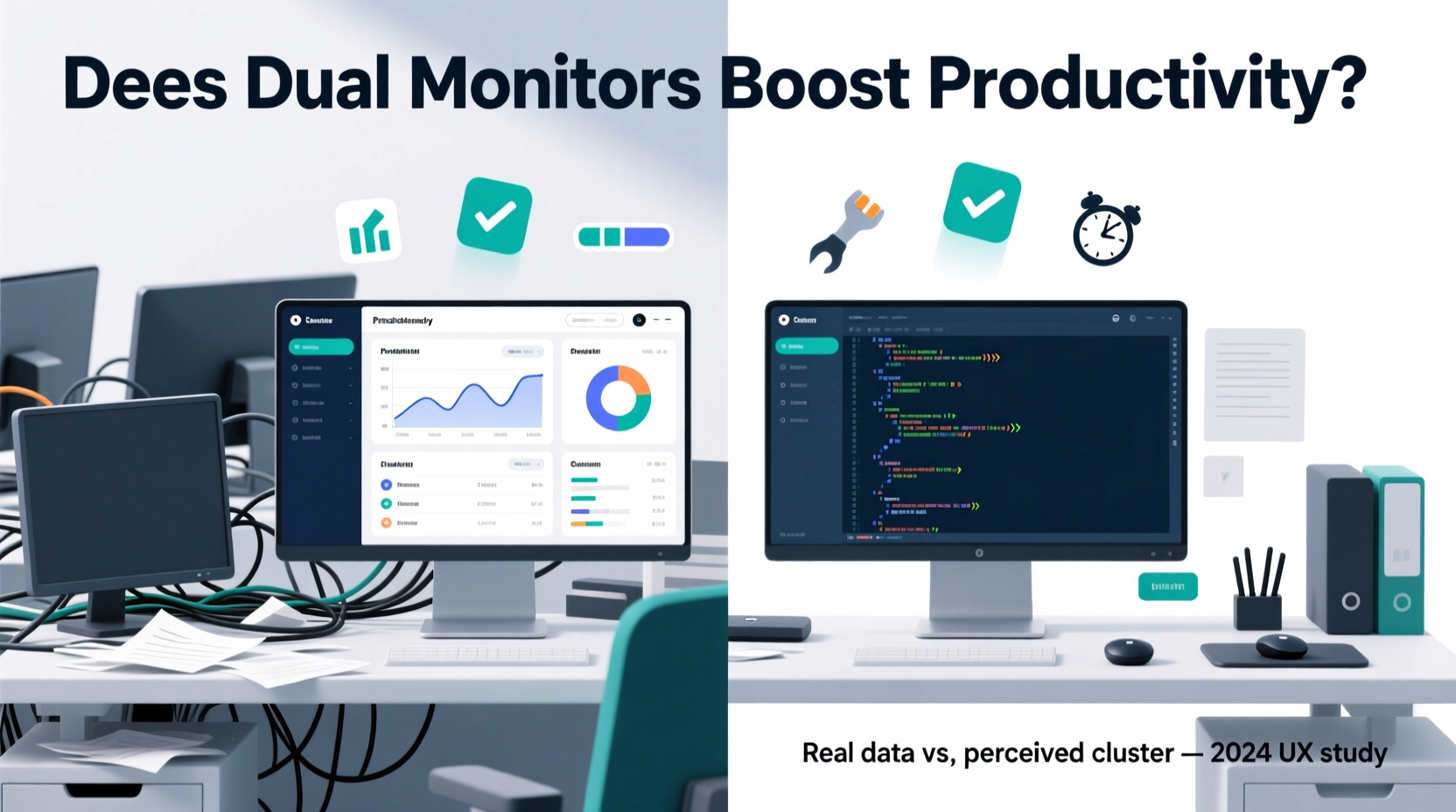
Multiple studies have investigated the impact of multiple displays on work output. One of the most cited pieces of research comes from the University of Utah, commissioned by Fujitsu in the early 2000s. It found that workers using dual monitors were up to 30% more productive than those using a single screen when performing tasks involving spreadsheets, coding, or document comparisons.
A follow-up study by the National Institute of Standards and Technology (NIST) confirmed these findings, showing that users completed tasks faster with fewer errors when they could keep reference material visible on a second screen while working on primary documents.
However, these benefits are context-dependent. Tasks that require constant switching between applications—like editing video while referencing scripts, managing emails alongside customer data, or coding with documentation open—benefit most from extra screen space. In contrast, simple or linear tasks may see little to no improvement.
“Dual monitors reduce cognitive load by minimizing window switching. When information is always in view, the brain doesn’t waste energy recalling what was hidden.” — Dr. Sarah Lin, Cognitive Ergonomics Researcher at MIT
Still, increased screen real estate doesn’t automatically translate to better performance. If not managed properly, dual monitors can amplify distractions—especially when social media, news feeds, or messaging apps occupy the secondary display.
Real-World Use Cases: Who Benefits Most?
Not all jobs benefit equally from a second monitor. Understanding your workflow is key to determining whether the investment makes sense.
High-Benefit Professions
- Software Developers: Keeping code on one screen and documentation or terminal outputs on another reduces context switching.
- Graphic Designers: Using one screen for design tools and another for asset libraries or client feedback streamlines creative workflows.
- Financial Analysts: Monitoring live market data on a second screen while building models improves responsiveness.
- Writers & Editors: Viewing research or source material on one screen while drafting on the other minimizes tab-hopping.
- Customer Support Agents: Handling tickets on one screen while accessing knowledge bases or CRM systems on the other increases resolution speed.
Low-Impact Scenarios
- General Office Workers: Those primarily using email and word processors may find limited gains unless juggling multiple documents.
- Students: Unless writing research papers with multiple sources, a second monitor might encourage distraction rather than aid focus.
- Casual Users: For browsing or streaming, a second monitor often becomes underutilized or misused for entertainment.
Dual Monitors vs. Single Large Monitor: A Practical Comparison
With ultrawide and high-resolution single monitors now widely available, the question arises: Is a second monitor still necessary, or can one large display do the job?
| Feature | Dual Monitors | Single Large/Ultrawide Monitor |
|---|---|---|
| Cost | Often higher (two separate units) | Moderate to high (premium for ultrawide) |
| Flexibility | High (independent positioning, rotation) | Limited (fixed orientation) |
| Seamless Workflow | Bezel gap may disrupt continuity | No bezel interruption across workspace |
| Space Efficiency | Requires wider desk space | More compact footprint |
| Setup Complexity | More cables, potential driver issues | Simpler connection and calibration |
| Best For | Multitask-heavy roles (coding, finance) | Media editing, immersive workspaces |
The choice ultimately hinges on personal preference and task type. A developer who frequently toggles between terminals and browsers may prefer dual screens for their modularity. A video editor, however, might favor an ultrawide monitor for timeline visibility and color accuracy.
When Dual Monitors Backfire: The Clutter Factor
Despite their potential, dual monitors can easily contribute to desk and mental clutter if not used intentionally. Common pitfalls include:
- Visual Overload: Too much information on-screen leads to decision fatigue and reduced concentration.
- Distraction Magnet: The second screen often becomes a home for YouTube, social media, or games during work hours.
- Poor Ergonomics: Misaligned monitors force unnatural neck movements, increasing strain over time.
- Cable Chaos: Extra power cords, HDMI/DisplayPort cables, and adapters can make desks look disorganized.
- Underutilization: Many users set up a second monitor but only extend their desktop wallpaper across both screens.
A cluttered dual-monitor setup defeats the purpose of boosting efficiency. Without discipline, it becomes a tool for procrastination rather than progress.
Mini Case Study: Alex, Remote Project Manager
Alex upgraded to dual monitors six months ago, hoping to streamline team coordination. Initially, productivity spiked—he kept Trello, Slack, and Zoom on one screen while managing reports on the other. However, within weeks, he began leaving Netflix running on the second monitor “for background noise.” What started as a focused workspace devolved into a distraction hub. After tracking his screen time, Alex discovered he spent nearly 90 minutes per day watching videos passively.
He restructured his setup: disabled auto-start apps, used virtual desktops to separate work and break-time activities, and rotated the second monitor vertically for document review only. Within two weeks, focus improved, and unplanned screen time dropped by 70%.
How to Optimize Your Dual-Monitor Setup for Real Productivity
If you choose to use two monitors, optimization is critical. Follow this step-by-step guide to ensure your setup enhances—not hinders—your work.
- Assess Your Workflow Needs: Identify which tasks involve simultaneous use of multiple applications. If fewer than three daily tasks require this, reconsider the necessity.
- Choose the Right Monitor Placement: Position the primary monitor directly in front of you. Angle the secondary monitor slightly inward to reduce neck strain. Avoid placing it too far to the side.
- Match Screen Specifications: Use monitors with similar resolution, brightness, and color calibration to avoid eye fatigue when shifting gaze.
- Assign Functional Roles: Dedicate one screen to active work (e.g., writing, coding) and the other to reference materials (e.g., emails, calendars, documentation).
- Use Operating System Features: Leverage Windows Snap Layouts or macOS Mission Control to organize windows efficiently across screens.
- Limit Non-Work Apps: Block distracting websites or schedule entertainment use only during breaks using app blockers like Freedom or Cold Turkey.
- Manage Cables: Use cable ties, sleeves, or under-desk trays to keep cords organized and out of sight.
- Review Weekly: Every Friday, evaluate how you used the second screen. Did it help complete tasks faster? Or did it host idle tabs and distractions?
Checklist: Is Your Dual-Monitor Setup Working for You?
- ☑ I use both screens for work-related tasks daily
- ☑ My monitors are ergonomically aligned
- ☑ I don’t run entertainment apps during core work hours
- ☑ I’ve minimized cable clutter
- ☑ I notice faster task completion or reduced errors
- ☑ I take regular screen breaks to avoid eye strain
Frequently Asked Questions
Can a second monitor cause eye strain?
Yes, if the monitors differ in brightness, contrast, or resolution, your eyes must constantly adjust, leading to fatigue. Ensure both screens are calibrated similarly and positioned at eye level to reduce strain.
Is one large monitor better than two smaller ones?
It depends on your needs. A single ultrawide monitor offers seamless multitasking and less clutter, ideal for creative professionals. Dual monitors provide greater flexibility in application placement and are often more cost-effective for incremental upgrades.
Do I need special software to manage dual monitors?
Most modern operating systems (Windows 10/11, macOS) support multi-monitor setups natively. However, third-party tools like DisplayFusion (Windows) or BetterSnapTool (macOS) offer advanced window management, virtual desktops, and automation features that enhance usability.
Conclusion: Intentionality Over Quantity
The truth is, a second monitor doesn’t inherently make you more productive—how you use it does. For some, dual screens unlock new levels of efficiency, reducing friction in complex workflows. For others, they introduce chaos, temptation, and physical clutter without meaningful returns.
The key lies in intentionality. Before adding another screen to your desk, ask yourself: Will this genuinely improve my ability to focus, create, or respond? Or will it simply give me more space to get distracted?
If you proceed, invest time in optimizing placement, usage patterns, and digital hygiene. Treat your second monitor not as a status symbol, but as a specialized tool—one that demands thoughtful configuration and disciplined use.




 浙公网安备
33010002000092号
浙公网安备
33010002000092号 浙B2-20120091-4
Comments
No comments yet. Why don't you start the discussion?