
Working with limited screen space on a laptop can slow down productivity, especially when multitasking across multiple applications. A dual monitor setup transforms your workflow by giving you more room to organize windows, compare documents, or keep communication tools open while focusing on core tasks. While connecting extra screens has become simpler thanks to modern hardware and operating systems, many users still struggle with configuring the displays properly—particularly when it comes to extending rather than duplicating the desktop. Getting this right ensures each monitor serves a distinct purpose in your workspace.
This guide walks through everything you need to know about setting up two external monitors with your laptop, including hardware compatibility, cable types, OS-specific configurations, and best practices for optimal layout and usability. Whether you're working from home, managing creative projects, or analyzing data, a well-configured dual-screen environment can significantly enhance efficiency and comfort.
Understanding Display Modes: Extend vs. Duplicate vs. Second Screen Only
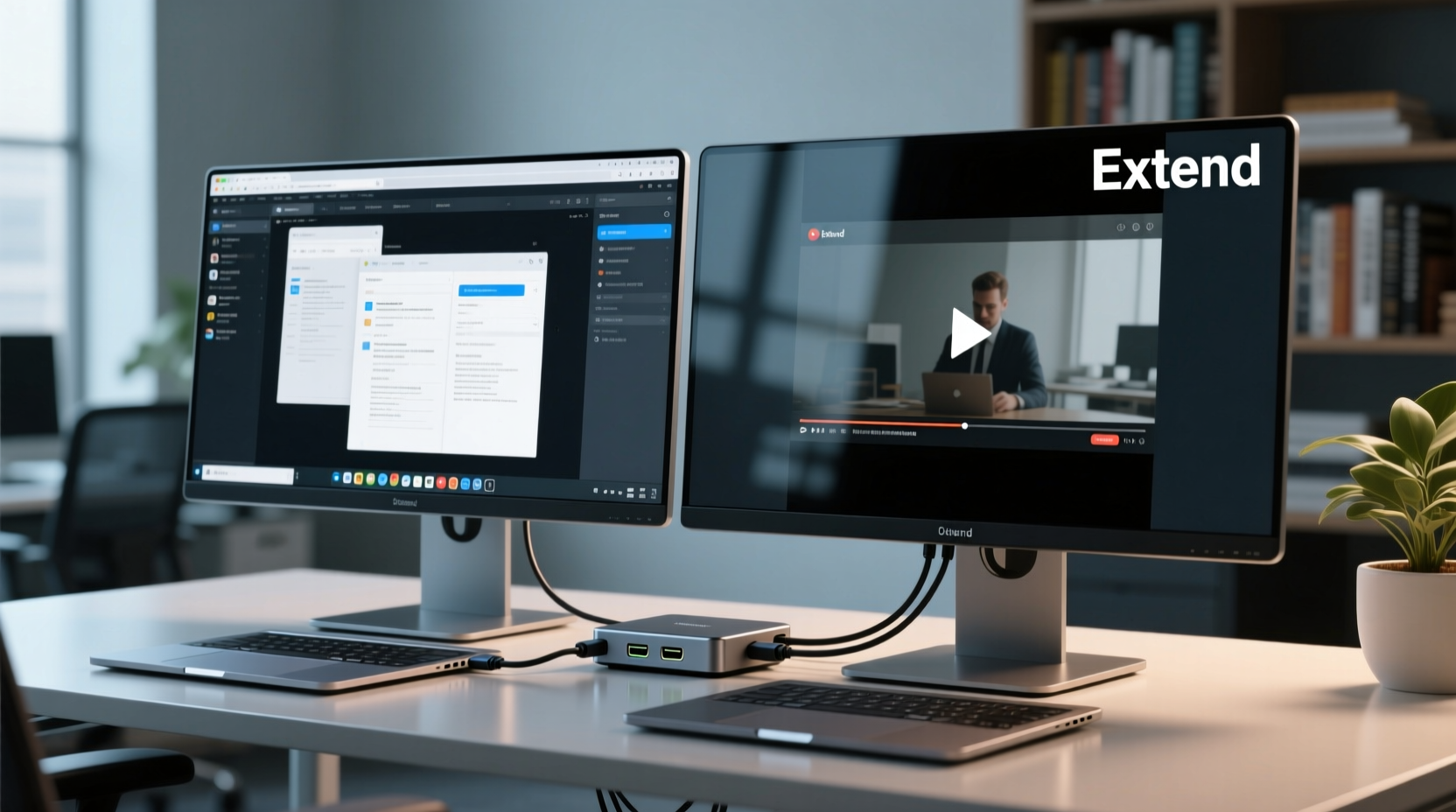
Before diving into setup steps, it's essential to understand the three primary display modes available in both Windows and macOS:
- Extend: Splits your desktop across multiple screens, allowing you to drag windows between them. This is ideal for multitasking and maximizing usable space.
- Duplicate: Shows the same image on all connected displays. Useful for presentations but limits productivity gains.
- Second Screen Only: Turns off the laptop screen and uses only the external monitor(s). Best when using a docking station or presenting via projector.
For most professional use cases, extending the display delivers the greatest benefit. It enables true multi-window workflows—such as keeping email open on one side while editing a spreadsheet on the other—without constant window switching.
“Extending your display isn’t just about adding screen real estate; it’s about redefining how you interact with digital information.” — Dr. Lena Torres, Human-Computer Interaction Researcher, MIT Media Lab
Hardware Requirements and Compatibility Check
Not every laptop supports dual external monitors out of the box. The ability depends on several factors: GPU capabilities, available ports, driver support, and whether integrated or discrete graphics are in use.
Ports and Connection Types
Most modern laptops include at least one of the following video output options:
- HDMI: Common on most devices; supports 4K at 30Hz (or 60Hz depending on version).
- DisplayPort / Mini DisplayPort: Offers higher bandwidth, often supporting daisy-chaining multiple monitors.
- USB-C / Thunderbolt 3 or 4: High-speed connections capable of carrying video, power, and data simultaneously. Thunderbolt supports dual 4K displays over a single port.
If your laptop lacks sufficient physical ports, consider using a USB-to-HDMI adapter or a docking station. However, be cautious—some adapters rely on software rendering (like DisplayLink), which may introduce lag during video playback or gaming.
Graphics Limitations
Integrated Intel or AMD GPUs typically support at least two external displays, provided they’re driven through different controllers. For example, an HDMI and a DisplayPort can run independently, but two HDMI ports might share the same controller and fail to work simultaneously.
| Laptop Type | Max External Monitors | Recommended Setup |
|---|---|---|
| Basic Ultrabook (Intel UHD Graphics) | 1–2 (varies by model) | One HDMI + one USB-C/Thunderbolt |
| Business Laptop (Dell Latitude, ThinkPad) | 2 | Docking station with DisplayPort MST |
| Gaming/Workstation Laptop (NVIDIA RTX, AMD Radeon) | 3+ | Dual HDMI/DP + optional USB-C hub |
| MacBook Air M1/M2/M3 | 1 external (officially) | Use Sidecar or certified adapters for second |
| MacBook Pro (M1 Pro/Max and later) | 2–3 external | Thunderbolt-based multi-monitor setup |
Step-by-Step Guide: Setting Up Dual Monitors with Extension Enabled
Follow these steps to connect and configure two external monitors with your laptop using extended display mode.
- Power off all devices. Start with the laptop, monitors, and any docking equipment powered down.
- Connect the first monitor using an appropriate cable (HDMI, DP, or USB-C). Plug into your laptop directly.
- Connect the second monitor using a different port type if possible (e.g., if the first used HDMI, use USB-C or Mini DP for the second).
- Power on monitors first, then turn on the laptop.
- Access display settings:
- Windows: Right-click desktop → “Display settings”
- macOS: System Settings → Displays → Arrangement
- Identify and arrange displays. You’ll see numbered boxes representing each screen. Drag them to match your physical desk layout.
- Select “Extend these displays” (Windows) or ensure mirroring is unchecked (macOS).
- Adjust resolution and scaling per monitor to avoid blurry text or mismatched sizes.
- Set primary display (optional): Choose which screen shows the taskbar/dock and opens apps by default.
- Test the setup by dragging windows between screens and verifying smooth cursor movement.
Troubleshooting Tips During Setup
- If the second monitor remains black, check that the input source on the monitor matches the cable used (e.g., HDMI 1 vs HDMI 2).
- Update graphics drivers (Intel, NVIDIA, AMD) from the manufacturer’s website.
- On older laptops, BIOS settings may limit simultaneous outputs—consult your user manual.
- Restart the laptop after connecting hardware to trigger proper detection.
Optimizing Your Extended Workspace Layout
Once both monitors are active and extending correctly, fine-tune the arrangement for ergonomic and functional efficiency.
Arrange Screens Based on Workflow
The default left-right alignment may not suit everyone. Consider:
- Vertical stacking: Useful if monitors are mounted above/below each other (e.g., portrait + landscape).
- Main vs. reference screen: Place your primary application (browser, IDE, design tool) on the center-aligned monitor, with secondary tools (chat, notes, email) on the side.
- Mouse navigation path: Ensure the transition between screens feels natural. Misaligned virtual edges can cause cursor “sticking.”
Scaling and Resolution Consistency
Mixing 1080p and 4K monitors can lead to inconsistent font sizes and awkward window scaling. To minimize disruption:
- Apply uniform scaling (e.g., 125% or 150%) across both screens where possible.
- Avoid dragging high-DPI aware apps between dissimilar displays unless necessary.
- Use app-specific DPI settings in Windows (right-click .exe → Properties → Compatibility → Change high DPI settings).
Real-World Example: Remote Developer’s Dual Monitor Upgrade
Jamal, a freelance web developer based in Austin, worked exclusively on his 13-inch MacBook Air for years. He frequently switched between code editors, browser testing, terminal commands, and client calls, leading to constant tab cycling and mental fatigue.
After purchasing two budget-friendly 24-inch 1080p monitors and a Thunderbolt 3 dock, he connected both screens—one via HDMI and the other through DisplayPort over USB-C. Initially, macOS only recognized one external display due to M1 chip limitations, but upgrading to a MacBook Pro M1 Max resolved the issue.
He arranged the monitors side-by-side, extended the desktop, placed his IDE on the left, live browser preview in the center (laptop screen), and Slack/docs on the right. Within a week, Jamal reported a 40% reduction in context-switching time and improved focus during long coding sessions.
His experience underscores the importance of matching hardware capability with actual workflow demands—and confirms that even incremental upgrades can yield substantial returns in daily productivity.
Checklist: Successful Dual Monitor Extension Setup
Use this checklist before and after installation to ensure everything functions smoothly:
- ✅ Verify laptop supports multiple external displays (check specs/manual)
- ✅ Use different port types (e.g., HDMI + USB-C) for better compatibility
- ✅ Connect monitors before powering on the laptop
- ✅ Access OS display settings and confirm all screens are detected
- ✅ Select “Extend” mode (not duplicate or second screen only)
- ✅ Arrange screen icons to match physical layout
- ✅ Set correct resolution and scaling for each monitor
- ✅ Adjust brightness/contrast for visual consistency
- ✅ Update graphics drivers if performance lags or detection fails
Frequently Asked Questions
Can I use a wireless connection for a second monitor?
Yes, technologies like Miracast (Windows) or AirPlay (Mac to Apple TV) allow wireless display extension, but they often suffer from latency and compression artifacts. These are better suited for presentations than precision work. For reliable dual-monitor performance, wired connections remain superior.
Why does my second monitor show the same content as the first?
Your system is likely set to “Duplicate” mode instead of “Extend.” Go to Display settings (Windows) or System Settings > Displays (macOS) and change the mode accordingly. On Windows, look for the dropdown labeled “Multiple displays” and select “Extend these displays.”
My laptop screen turns off when I connect two externals. How do I fix it?
Some laptops automatically disable the built-in display when multiple externals are connected to conserve resources. In Windows, press Win + P and choose “Extend” to re-enable all three screens. On macOS, go to Displays > Arrangement and make sure the laptop screen isn’t overscaled or mispositioned.
Final Thoughts: Make Your Workspace Work for You
A dual monitor setup is more than a convenience—it’s a strategic upgrade that aligns technology with human cognition. By reducing clutter, minimizing task-switching, and expanding visual real estate, extended displays empower deeper concentration and faster execution. The key lies not just in connecting extra screens, but in configuring them intelligently to mirror your actual work patterns.
Taking the time to verify compatibility, choose the right cables, and calibrate display settings pays dividends in long-term comfort and output quality. Whether you're editing videos, managing spreadsheets, writing code, or handling customer communications, a properly extended dual monitor environment becomes an invisible force multiplier.




 浙公网安备
33010002000092号
浙公网安备
33010002000092号 浙B2-20120091-4
Comments
No comments yet. Why don't you start the discussion?