
A well-designed dual monitor setup can transform your workday. From reducing strain to boosting multitasking performance, the right screen arrangement enhances both comfort and output. Yet many professionals simply place two monitors side by side without considering alignment, height, or workflow integration. When done thoughtfully, a dual-screen configuration supports deeper focus, faster task switching, and improved posture. This guide breaks down the science-backed principles of screen placement, ergonomic alignment, and software optimization to help you build a workspace that works smarter.
Understanding the Benefits of Dual Monitors
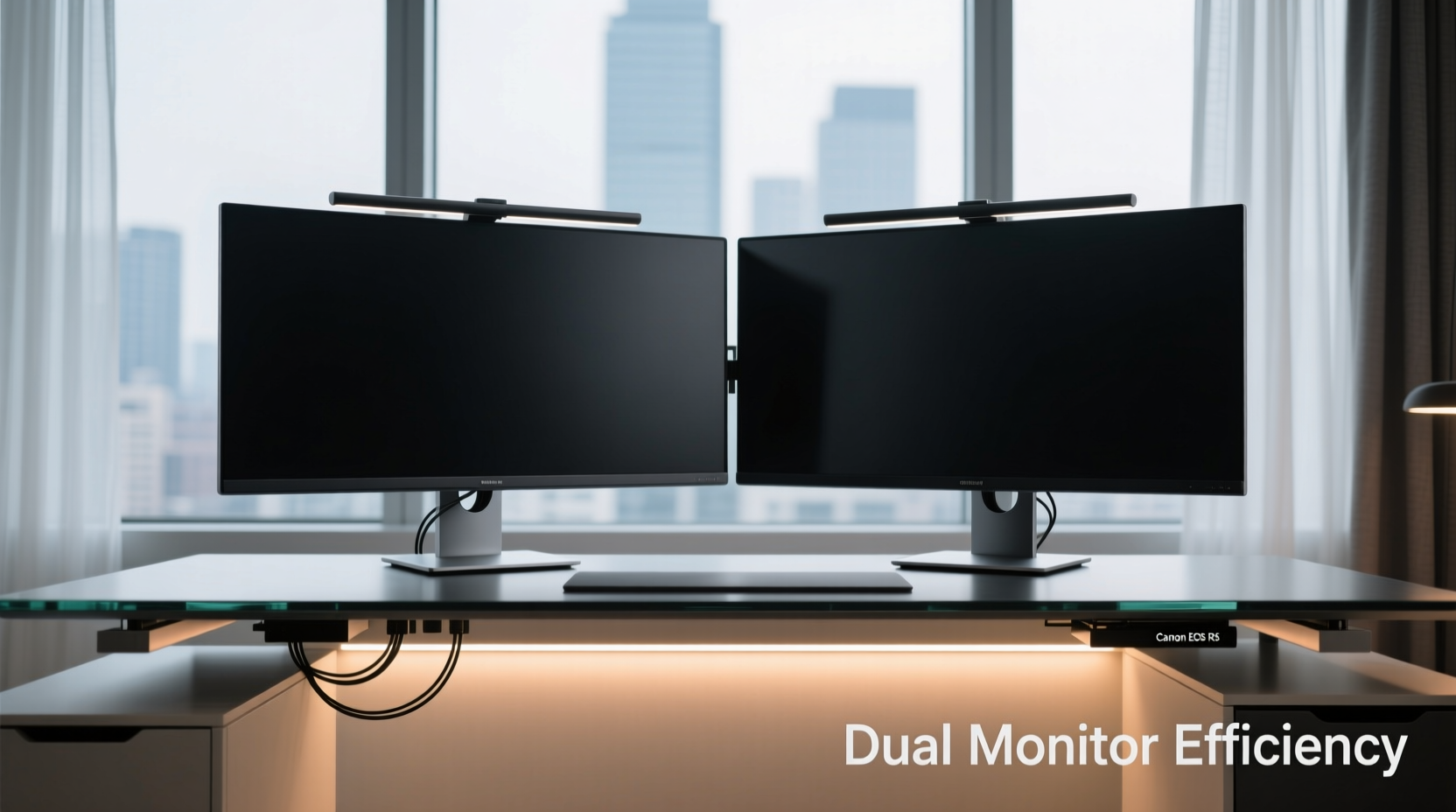
Dual monitors are more than a luxury—they’re a productivity multiplier. Studies from the University of Utah found that users with two screens completed tasks up to 44% faster than those using one. The advantage lies in spatial memory: keeping applications open in fixed locations reduces cognitive load and minimizes time spent searching for windows.
Common benefits include:
- Seamless multitasking between documents, emails, and data dashboards
- Reduced need for constant window resizing and tab switching
- Improved accuracy when comparing datasets or editing media
- Greater immersion in coding, design, or financial analysis workflows
However, these gains only materialize when the physical and digital layout supports natural eye movement and body posture. A poorly arranged setup can lead to neck strain, inefficient navigation, and mental fatigue—negating any productivity boost.
Ergonomic Principles for Screen Placement
The foundation of an efficient dual monitor setup is ergonomics. Poor posture leads to long-term discomfort, but proper alignment encourages sustained focus and physical ease.
Monitor Height and Eye Level
The top of your primary screen should be at or slightly below eye level. Looking down even 15 degrees reduces neck strain significantly. If your monitors are too low, use risers, books, or adjustable stands to elevate them.
Distance from the User
Sit approximately an arm’s length (50–70 cm) from the center of your dual-monitor array. This distance prevents eye fatigue and allows both screens to remain comfortably within peripheral vision.
Angle and Curvature
For side-by-side monitors, angle the outer edges slightly inward to form a gentle arc around your field of view. This mimics natural binocular vision and reduces head turning. A common approach is to position each screen at a 20–30 degree angle toward the user, creating a “wrap-around” effect.
“Proper monitor alignment isn’t just about comfort—it’s about sustaining attention. Misaligned screens force micro-adjustments that accumulate into mental fatigue.” — Dr. Lena Torres, Occupational Ergonomist
Optimal Screen Arrangement Based on Work Type
There is no universal \"best\" layout. The ideal configuration depends on your role, software usage, and workflow rhythm. Below are proven arrangements for different professional needs.
For Writers and Researchers
Use the left screen for research materials—PDFs, web pages, notes—and the right for active writing. This left-to-right flow aligns with reading patterns and keeps references visible without overlapping the main document.
For Coders and Developers
Place your code editor on the primary (center or dominant-side) screen and stack auxiliary tools—terminals, debuggers, documentation—on the secondary. Vertical monitors work exceptionally well here, allowing longer code files to stay in view without scrolling.
For Financial Analysts and Traders
Spread critical dashboards across both screens with real-time data on the dominant side and historical charts or news feeds on the secondary. Avoid placing high-refresh-rate tools on extended desktop areas with lag.
For Designers and Video Editors
Keep the canvas or timeline on the primary screen and reserve the second for tool palettes, asset libraries, or preview windows. Consider portrait orientation for the secondary screen to manage long layers or timelines efficiently.
Step-by-Step Guide to Configuring Your Dual Monitor Setup
Follow this sequence to optimize both hardware and software elements of your dual-screen environment.
- Assess your desk space and viewing angle. Ensure you have enough width (typically 50 inches minimum) and that ambient lighting avoids glare on either screen.
- Select monitor sizes and aspect ratios. Matching models simplify alignment, but mixing sizes is acceptable if roles differ (e.g., 27\" main + 24\" vertical secondary).
- Position the primary monitor dead center. Align it with your keyboard and chair centerline. This becomes your focal point for core tasks.
- Place the secondary monitor adjacent to it. Angle it inward so its inner edge faces you. Avoid leaving large gaps between screens.
- Adjust height and tilt. Both screens should have their top edges aligned horizontally. Tilt downward slightly (10–15°) if overhead light causes reflections.
- Configure display settings in your OS. On Windows, right-click desktop > Display Settings. On macOS, go to System Settings > Displays. Arrange the virtual monitors to match physical layout.
- Test cursor movement. Drag a window across both screens. The transition should feel smooth and continuous, not jarring or misaligned.
- Assign roles to each screen. Set your primary display for main applications; use the secondary for communication, monitoring, or reference tools.
“Misconfigured display order is one of the most common issues I see. If your mouse jumps erratically between screens, drag the monitor icons in settings until they mirror reality.” — Jordan Lee, IT Workflow Consultant
Do’s and Don’ts: Table of Best Practices
| Do’s | Don’ts |
|---|---|
| Align the top of both screens at eye level | Stack monitors unevenly, causing upward/downward gaze shifts |
| Use matching resolution and scaling for consistency | Mix high-DPI and standard screens without adjusting scale settings |
| Angle secondary monitor inward for better visibility | Place secondary screen behind or far to the side, requiring full head turns |
| Label screens in OS settings (e.g., “Main,” “Reference”) | Leave default labels like “1” and “2” without context |
| Use keyboard shortcuts to move windows (Win+Shift+Left/Right) | Rely solely on dragging windows with the mouse |
Software Optimization for Maximum Efficiency
Hardware is only half the equation. Software tools unlock the true potential of dual monitors by streamlining window management and reducing friction.
Utilize Virtual Desktops
Both Windows (Task View) and macOS (Mission Control) support virtual desktops. Create separate spaces for different projects—one desktop with email and calendar on secondary, another with full-screen analytics tools.
Install Window Management Tools
Third-party apps enhance precision:
- Microsoft PowerToys (Windows): Offers FancyZones for custom window layouts.
- Magnet (macOS): Enables snap-to-grid functionality with keyboard shortcuts.
- DisplayFusion (Cross-platform): Adds multi-monitor taskbars, wallpaper control, and automation rules.
Customize Taskbar and Dock Behavior
On Windows, enable “Show taskbar on all displays” and set taskbar buttons to “Show on monitor where window is open.” On macOS, keep the dock on the primary screen only to avoid visual distraction.
Mini Case Study: Remote Project Manager’s Transformation
Sarah Kim, a project manager at a distributed tech firm, struggled with constant context switching. Her old setup had two mismatched monitors—one laptop screen and one external—placed haphazardly on a small desk. She reported frequent neck pain and missed Slack messages due to poor app visibility.
After reconfiguring her space, she adopted a dual 24-inch IPS panel setup on adjustable arms. She placed the primary monitor centered with her keyboard and angled the secondary inward at 25 degrees. She assigned her main browser and project tools (Jira, Notion) to the primary screen and kept communication apps (Slack, Teams, email) on the secondary.
She also installed Microsoft PowerToys to create zones for video calls (top half of secondary) and chat (bottom). Within two weeks, Sarah reduced meeting prep time by 30%, experienced zero missed messages, and reported a significant drop in end-of-day fatigue.
Frequently Asked Questions
Should my dual monitors be the same size and model?
While not mandatory, using identical monitors ensures consistent color, brightness, and resolution—making transitions seamless. If mixing sizes, ensure scaling settings match (e.g., both at 100% or 125%) to prevent text distortion when moving windows.
Is portrait orientation useful for dual setups?
Yes, especially for developers, writers, and data analysts. A vertical monitor excels at displaying long documents, code files, or spreadsheets without constant scrolling. Use it as a secondary screen for reference material or tools.
How do I prevent eye strain with two bright screens?
Enable blue light filters during evening hours (Night Light on Windows, Night Shift on macOS). Match brightness levels to ambient light—avoid overly bright screens in dark rooms. Take regular breaks using the 20-20-20 rule: every 20 minutes, look at something 20 feet away for 20 seconds.
Final Checklist Before You Begin
Before finalizing your setup, run through this checklist to ensure maximum efficiency:
- ✅ Primary monitor centered and aligned with spine
- ✅ Top of screens at or slightly below eye level
- ✅ Secondary monitor angled inward, not flat-side-out
- ✅ No large gap between monitors
- ✅ Display settings in OS reflect physical layout
- ✅ Resolution and scaling consistent across screens
- ✅ Keyboard shortcuts configured for window snapping
- ✅ Glare minimized via positioning or matte screen protectors
- ✅ Roles assigned: primary for core work, secondary for support apps
- ✅ Cable management in place to reduce clutter
Conclusion: Build a Setup That Works With You
A dual monitor setup isn’t just about adding more screen real estate—it’s about designing a workspace that aligns with how you think, move, and interact with information. When monitors are positioned with intention, supported by smart software tools, and tailored to your specific workflow, the result is not just increased output but greater comfort and clarity.
Take the time today to evaluate your current arrangement. Adjust heights, test angles, and redefine screen roles. Small changes compound into meaningful improvements in focus, speed, and long-term well-being. Your most productive workday starts with the way you place two simple screens.




 浙公网安备
33010002000092号
浙公网安备
33010002000092号 浙B2-20120091-4
Comments
No comments yet. Why don't you start the discussion?