
In today’s digital workspace, a dual monitor setup is no longer a luxury—it’s a necessity for professionals across industries. From graphic designers and software developers to financial analysts and writers, using two screens can significantly expand your visual real estate and streamline multitasking. However, simply placing two monitors side by side isn’t enough. The way you position them can make the difference between sustained focus and chronic discomfort.
Improper monitor alignment leads to neck strain, eye fatigue, and reduced concentration over time. On the other hand, an ergonomically sound configuration enhances posture, reduces physical stress, and supports deep work. This guide dives into the science and practical strategies behind optimizing your dual monitor arrangement to boost both comfort and productivity.
The Ergonomic Foundation of Dual Monitor Placement
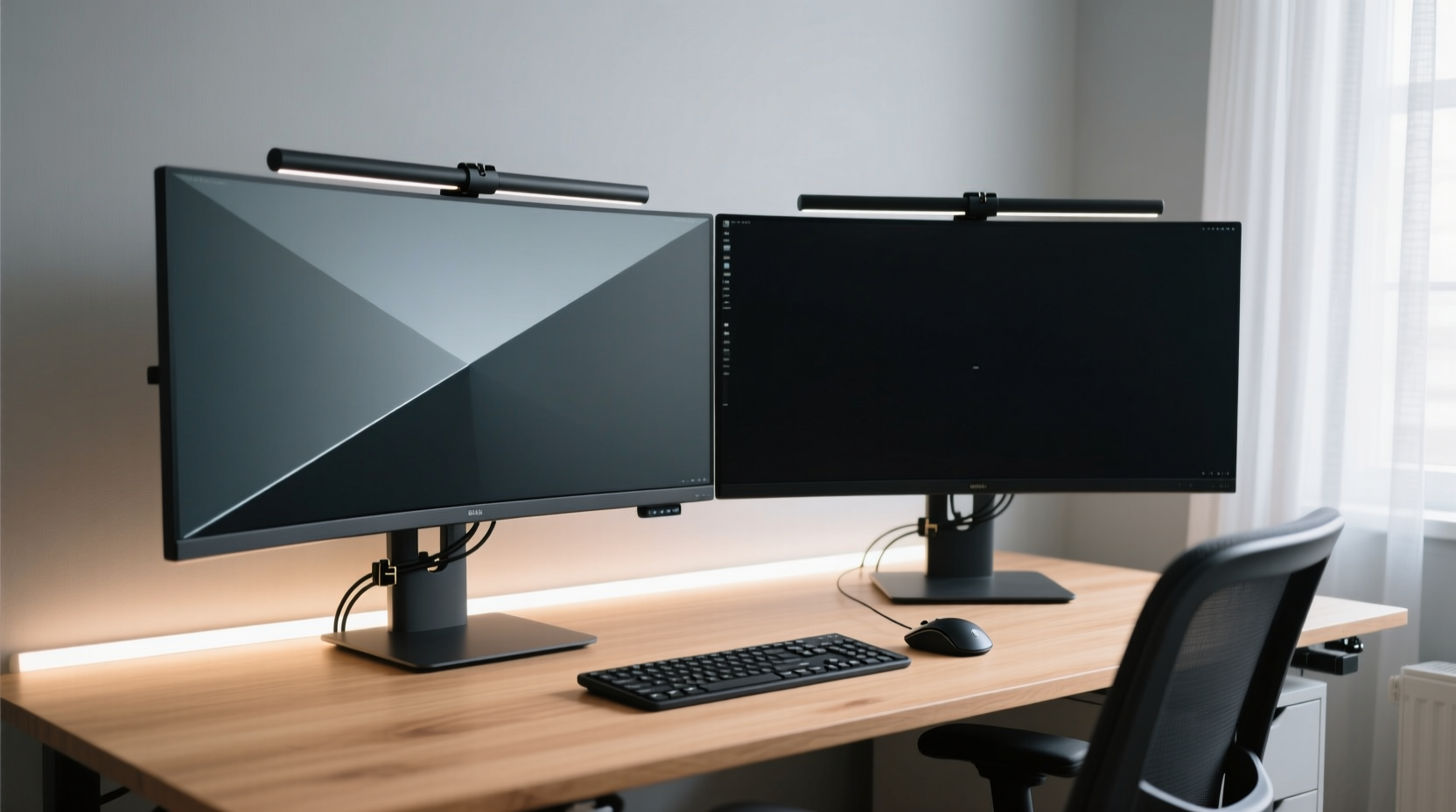
Ergonomics isn’t just about chairs and desks—it extends directly to how your screens are arranged in space. The human body performs best when viewing angles, distances, and heights align with natural vision and posture patterns. When setting up dual monitors, three primary factors must be considered: height, distance, and angle.
Your eyes should naturally fall on the top third of the screen without tilting your head up or down. The center of each screen should be about 15–20 degrees below eye level when seated properly. This prevents upward gaze strain, which can cause headaches and dry eyes over prolonged periods.
The ideal viewing distance is roughly arm’s length—between 20 to 40 inches (50–100 cm)—depending on screen size and resolution. Sitting too close forces your eyes to work harder; sitting too far reduces readability and increases squinting.
Choosing Between Horizontal and Vertical Orientation
Most users default to horizontal placement, but vertical orientation has proven benefits depending on your workflow. Programmers scrolling through long code files, legal professionals reviewing lengthy documents, or marketers analyzing data sheets often gain more usable space by rotating one monitor vertically.
A vertical monitor eliminates constant scrolling and keeps context visible at once. For example, having email open on a vertical screen while drafting replies on the main display minimizes tab-switching and mental load.
However, creative professionals like video editors or UX designers benefit more from wide horizontal layouts that allow timelines, tool palettes, and previews to coexist seamlessly.
“Orientation should follow function. If your work involves long-form content, vertical space is often more valuable than width.” — Dr. Lena Patel, Human Factors & Ergonomics Researcher, University of Michigan
Optimal Positioning Strategies Based on Workflow
There is no universal “best” configuration—only what works best for your tasks and environment. Below are three common setups tailored to different professional needs.
Symmetric Side-by-Side Setup (General Productivity)
This classic layout places both monitors at equal height and distance, aligned horizontally with minimal bezel gap in the center. Ideal for multitaskers who frequently switch between applications—such as browsing, document editing, and communication tools.
To reduce eye strain during lateral movement, angle both monitors slightly inward so their edges face you, forming a gentle curve. This mimics natural peripheral vision and reduces head rotation.
Primary-Secondary Asymmetrical Setup (Focused Work)
Reserve one screen (typically centered) as your primary workspace and use the second as a supporting panel. Place the primary monitor directly in front of you, aligned with your keyboard and torso. The secondary screen sits off to the side—either left or right—and hosts reference materials, chat apps, or notifications.
This design reduces distractions on the main screen while keeping auxiliary information accessible. It's especially effective for writers, coders, and researchers who need uninterrupted focus.
Dual Landscape + Portrait Combo (Specialized Tasks)
Combine orientations strategically. A landscape-primary screen handles your main application (e.g., spreadsheet or design canvas), while a portrait-oriented secondary displays related content (e.g., comments, logs, or documentation).
This hybrid approach maximizes vertical reading space without sacrificing horizontal real estate. Many modern operating systems support independent orientation settings per display, making this easy to implement.
Step-by-Step Guide to Setting Up Your Dual Monitor System
Follow this sequence to ensure your dual monitor setup is both functional and ergonomic:
- Clear your desk space – Remove clutter and ensure there’s enough room for both monitors and your input devices.
- Position the primary monitor centrally – Align it directly in front of your seating position, centered with your keyboard and shoulders.
- Place the secondary monitor adjacent – Situate it flush with the primary, either to the left or right, minimizing gaps.
- Adjust screen height – Use stands or arms so the top of each screen is at or slightly below eye level.
- Set viewing distance – Sit back and extend your arm; your fingertips should lightly touch the screen surface.
- Angle monitors inward – Tilt both screens 10–30 degrees toward you to reduce head turning.
- Configure display settings – In Windows or macOS, arrange virtual screens to match physical layout under Display Settings.
- Test and refine – Spend 15–20 minutes working normally. Adjust tilt, brightness, or position based on comfort feedback.
Do’s and Don’ts of Dual Monitor Positioning
| Do’s | Don’ts |
|---|---|
| Align the top edges of both monitors at the same height | Mismatch screen heights, forcing constant eye adjustment |
| Use monitor arms for precise positioning and cable management | Rely on bulky base stands that limit adjustability |
| Angle screens slightly inward to match natural field of view | Leave monitors flat and parallel, increasing neck strain |
| Keep frequently used apps on the central or primary screen | Spread critical tasks across distant corners requiring excessive glancing |
| Match brightness and color profiles across both displays | Allow stark contrast in lighting, causing visual fatigue |
Real-World Example: How a Financial Analyst Optimized Her Setup
Sarah Kim, a senior equity analyst at a mid-sized investment firm, struggled with fatigue after long hours tracking live markets, building models, and communicating with clients. Her initial dual monitor setup had both screens placed flat-side, with the secondary monitor positioned too far to the right and slightly lower than the primary.
After consulting her company’s workplace wellness team, she reconfigured her system: she mounted both monitors on adjustable arms, raised the secondary screen to match the primary’s height, and angled them inward at 20 degrees. She set her main monitor to display Excel and Bloomberg terminals, while the secondary ran Teams and email in vertical mode.
Within a week, Sarah reported a noticeable reduction in shoulder tension and improved ability to track multiple data streams simultaneously. “I’m not constantly swiveling my head anymore,” she said. “My focus stays sharper, especially during earnings season.”
Tips for Reducing Eye Strain and Mental Load
Even with perfect positioning, poor usage habits can undermine productivity. Consider these behavioral adjustments alongside hardware optimization:
- Use dark mode or blue light filters during evening hours to reduce retinal stress.
- Apply the 20-20-20 rule: Every 20 minutes, look at something 20 feet away for 20 seconds.
- Limit desktop clutter—avoid overcrowding both screens with windows. Use virtual desktops to compartmentalize tasks.
- Enable consistent scaling across monitors (especially if resolutions differ) to prevent jarring font size shifts when dragging windows.
- Dim ambient lighting to minimize glare and screen reflections, particularly from overhead lights.
“Productivity isn’t just about speed—it’s about sustainability. An efficient setup lets you work longer without burnout.” — Mark Tran, Occupational Health Consultant
Frequently Asked Questions
Should I place the secondary monitor on the left or right?
It depends on personal preference and task flow. Most right-handed users find it natural to place the secondary monitor on the right, keeping the mouse movement within dominant-hand reach. However, research suggests that placing reference material (like notes or email) on the left may improve reading efficiency, as our eyes scan text from left to right. Test both configurations to see which feels smoother for your workflow.
Can I use monitors of different sizes or resolutions?
Yes, but with caveats. Mixing sizes (e.g., 24” and 27”) is acceptable as long as they’re aligned at the top and height-adjusted appropriately. Different resolutions require careful scaling settings to avoid window size jumps when moving between screens. Avoid combining ultra-wide or curved monitors with standard flats unless your work specifically benefits from panoramic views.
Is a curved dual monitor setup worth it?
Curved monitors enhance immersion and reduce edge distortion in single-display setups, but pairing two curved screens introduces alignment challenges. Gaps or mismatched curvature can create visual discontinuity. A single large curved monitor may be more effective than dual curves. For most productivity tasks, flat panels with proper angling deliver comparable comfort without complexity.
Final Checklist Before You Begin Working
- ✅ Monitors are at or slightly below eye level
- ✅ Top edges of both screens are aligned
- ✅ Viewing distance is 20–40 inches
- ✅ Screens are angled 10–30 degrees inward
- ✅ Primary monitor is centered with keyboard
- ✅ Secondary monitor is flush and adjacent
- ✅ Brightness and color settings are matched
- ✅ Cables are managed to prevent tripping or tugging
- ✅ Operating system display order matches physical layout
- ✅ You’ve tested the setup with actual work tasks
Conclusion: Optimize Once, Benefit Daily
A well-positioned dual monitor setup doesn’t just increase screen space—it transforms how you interact with information. By aligning your monitors to your body’s natural posture and your mind’s workflow patterns, you reduce friction between thought and action. Small adjustments in height, angle, and orientation compound into significant gains in focus, comfort, and output over time.
Take 30 minutes today to evaluate and refine your current arrangement. Whether you're coding, designing, analyzing, or writing, the right setup empowers you to do more with less effort. Don’t settle for convenience—engineer your workspace for peak performance.




 浙公网安备
33010002000092号
浙公网安备
33010002000092号 浙B2-20120091-4
Comments
No comments yet. Why don't you start the discussion?