
For professionals, creatives, and remote workers, the way you organize your digital workspace directly impacts focus, efficiency, and long-term comfort. As screen technology evolves, two dominant setups have emerged: dual monitors and single ultrawide displays. Both promise enhanced multitasking, but which one truly delivers a smoother, more productive experience?
The debate isn’t just about screen real estate—it’s about workflow integration, visual continuity, cable management, and even psychological factors like attention span and task-switching fatigue. While some swear by the flexibility of two independent screens, others praise the seamless expanse of an ultrawide. The truth lies in how you work, what tools you use, and how your environment supports sustained concentration.
The Multitasking Myth: What “Easier” Really Means
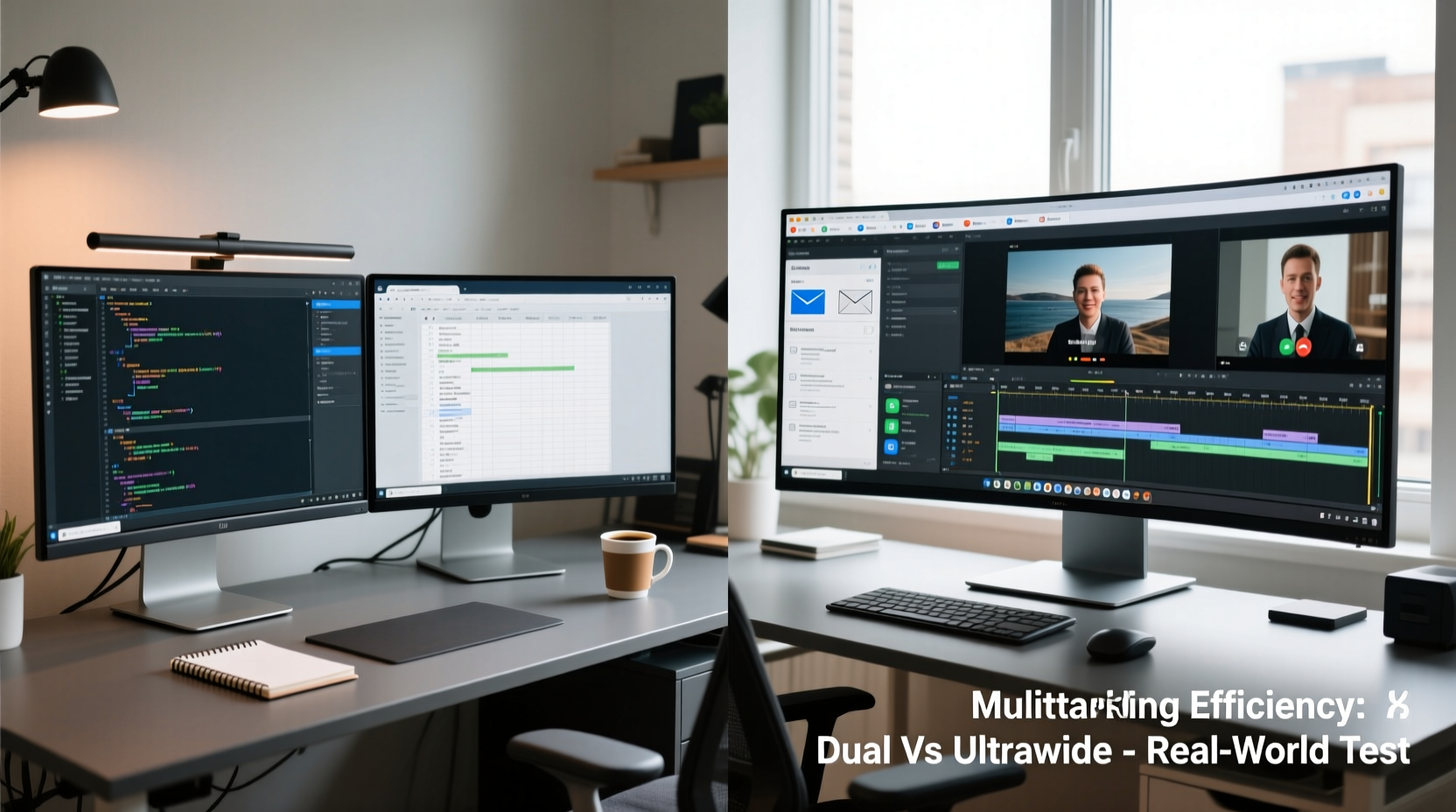
Multitasking is often misunderstood. True multitasking—performing two cognitively demanding tasks simultaneously—is inefficient and mentally taxing. What most people mean by “easier multitasking” is actually better task management: quickly switching between applications, referencing materials side-by-side, or monitoring multiple workflows without losing context.
In this sense, both dual monitors and ultrawides aim to reduce cognitive load by minimizing window shuffling, alt-tabbing, and constant resizing. But they achieve this differently. Dual monitors offer discrete zones for different functions (e.g., email on one, design software on the other), while ultrawides provide a continuous canvas where windows can be snapped across a wide field of view.
A study from the University of Utah found that users with extended desktop space completed tasks up to 32% faster than those using a single standard display. However, the research didn’t differentiate between dual monitors and ultrawides—only total usable area. This suggests that surface area matters more than configuration, but usability nuances still tip the balance depending on individual needs.
Dual Monitor Setup: Strengths and Trade-Offs
Dual monitors have been a staple in professional environments for over a decade. Their appeal lies in modularity: each screen can run at different resolutions, brightness levels, or orientations. For example, one monitor can be vertical for reading documents or coding, while the other stays horizontal for spreadsheets or design tools.
This flexibility suits hybrid workflows. Financial analysts might keep live data feeds on one screen and modeling tools on the other. Developers often place code on the left and documentation or terminal output on the right. The physical separation helps compartmentalize tasks, reducing accidental clicks and distractions.
However, dual setups come with drawbacks. The bezel gap between screens disrupts panoramic content like timelines in video editing or wide dashboards. Eye movement across two separate panels increases strain over time, especially if monitors aren’t perfectly aligned. Additionally, managing cables, stands, and desk space becomes more complex.
“With dual monitors, I can debug code while watching test results update in real-time. The separation keeps me focused.” — Jordan Lee, Senior Software Engineer
Single Ultrawide Monitor: Seamless Span, New Challenges
Ultrawide monitors typically feature a 21:9 or even 32:9 aspect ratio, offering a cinematic field of view that mimics human peripheral vision. This makes them ideal for immersive multitasking—imagine having Slack, a browser, and a full-screen document open side-by-side without overlapping windows.
Modern operating systems handle window snapping well on ultrawides. Windows 11’s Snap Layouts and macOS Stage Manager allow precise arrangement across thirds or quadrants. Video editors appreciate the ability to stretch a timeline across the entire width, eliminating horizontal scrolling. Traders use the extra space for multiple charts without needing additional hardware.
Yet, ultrawides aren’t universally superior. Some older applications don’t scale well to extreme aspect ratios, leading to black bars or awkward UI stretching. Gaming compatibility varies—while many modern titles support ultrawide resolutions, some indie games do not. Also, because everything is on one panel, there’s less visual separation between tasks, which can lead to distraction if not managed carefully.
Another consideration is cost. A high-quality 34-inch ultrawide with IPS panel and 1440p resolution often costs as much as two mid-range 27-inch monitors. You’re trading quantity for quality and continuity.
Comparative Breakdown: Dual Monitors vs Ultrawide
| Feature | Dual Monitors | Single Ultrawide |
|---|---|---|
| Total Screen Real Estate | ~3840x1080 (two 1920x1080) | 3440x1440 (typical 34\") or 5120x1440 (32:9) |
| Visual Continuity | Bezel interruption between screens | Seamless edge-to-edge display |
| Task Separation | High – natural division between screens | Moderate – requires conscious window management |
| Ergonomics | Potential neck strain from wide head turns | Better central alignment, curved models enhance comfort |
| Cable & Power Management | Two power cords, two video cables | One power cord, one video cable (usually) |
| Flexibility | Can mix sizes, resolutions, orientations | Fixed size and orientation |
| Gaming Experience | Limited to single-screen play | Immersive field of view; limited title support |
| Cost Efficiency | Often cheaper overall | Premium pricing for high-end models |
Real-World Example: Content Creator Workflow
Consider Maya, a freelance video editor and graphic designer working from home. She used a dual-monitor setup for years: a 27-inch main screen for her editing timeline and a second 24-inch vertical monitor for asset browsing and chat apps. While functional, she frequently adjusted her chair to see both screens fully, and the middle bezel made it hard to preview full-width animations.
Last year, she switched to a 34-inch ultrawide with a curved IPS panel. Now, she uses the left third for project files, the center for the preview window, and the right for effects controls. The entire timeline spans nearly the full width, reducing scroll frequency. She reports fewer headaches and improved focus, though she admits it took two weeks to retrain her muscle memory for window placement.
“I didn’t realize how much mental energy I was spending switching contexts,” she says. “Now everything feels connected. It’s like my thoughts flow directly onto the screen.”
Step-by-Step: Choosing the Right Setup for Your Needs
Selecting between dual monitors and an ultrawide shouldn’t be arbitrary. Follow this decision framework:
- Map Your Daily Tasks: List your top three activities (e.g., coding, writing, video calls). Are they sequential or concurrent?
- Analyze Application Behavior: Do your key programs work well in split views? Does any require full-screen dominance?
- Measure Your Desk Space: Dual monitors need ~50–60 inches of width; ultrawides fit in ~35 inches but may require depth adjustments.
- Test Ergonomic Alignment: Position mockups (use cardboard) to simulate eye level and viewing angles. Avoid excessive head turning.
- Budget for Accessories: Consider monitor arms, docks, or KVM switches if expanding your setup.
- Try Before You Buy: Visit electronics stores or borrow equipment to test real-world usability.
Many users find success with a hybrid approach: a central ultrawide flanked by a smaller vertical monitor for notifications or reference material. This combines the best of both worlds but demands significant desk space and budget.
Expert Insight: The Cognitive Impact of Display Design
Dr. Lena Patel, a human-computer interaction researcher at MIT, emphasizes that screen choice affects more than productivity—it influences cognitive rhythm.
“The brain treats discontinuous spaces differently. A bezel acts as a perceptual boundary, similar to a page break. That can help with task segmentation but also interrupts fluid thinking. Ultrawides reduce fragmentation, which benefits creative flow—but only if the user actively manages attention.” — Dr. Lena Patel, HCI Researcher
Her team’s eye-tracking studies show that dual-monitor users make more saccadic jumps between screens, increasing mental fatigue after 90 minutes. Ultrawide users maintain steadier gaze patterns, particularly when content is logically grouped into zones.
Frequently Asked Questions
Can I use an ultrawide with dual monitor software?
Yes. Tools like DisplayFusion (Windows) or BetterSnapTool (macOS) let you simulate multi-monitor behavior on an ultrawide by creating virtual boundaries and custom snap regions. This gives you the flexibility of multiple screens within a single display.
Do ultrawides cause eye strain?
Not inherently. Curved ultrawides often reduce strain by matching the natural arc of your vision. However, improper positioning—such as placing the screen too far or too high—can lead to discomfort regardless of type. Ensure the top of the screen is at or slightly below eye level.
Is dual monitor better for gaming?
For productivity during gaming streams, yes—dedicate one screen to game and another to chat or OBS. But for actual gameplay, ultrawides offer a wider field of view in supported titles, enhancing immersion. Just confirm your GPU can drive high-resolution ultrawide settings smoothly.
Final Recommendation: Match Hardware to Workflow
There’s no universal winner in the dual monitor vs ultrawide debate. The optimal choice depends on your specific workflow, physical space, and personal preference.
If you juggle disparate tasks—like customer service agents managing tickets, emails, and knowledge bases—a dual monitor setup provides clear visual separation and reduces cross-application interference. Its affordability and upgrade path also make it accessible.
If your work involves continuous content—video editing, data visualization, coding with extensive commenting, or financial modeling—an ultrawide minimizes interruptions and supports deeper focus. The reduction in cable clutter and unified calibration simplifies maintenance.
Ultimately, the goal isn’t just more screen space—it’s smarter screen space. Whether you choose two panels or one expansive display, the key is intentional organization. Use snapping tools, virtual desktops, and consistent layouts to turn raw pixels into a productive ecosystem.




 浙公网安备
33010002000092号
浙公网安备
33010002000092号 浙B2-20120091-4
Comments
No comments yet. Why don't you start the discussion?