
For software developers, time is measured in keystrokes, context switches, and debugging cycles. The tools that shape your environment—especially your display setup—can dramatically influence how efficiently you work. Two dominant choices have emerged in recent years: dual monitors and ultrawide displays. Both promise enhanced screen real estate and improved multitasking, but they deliver these benefits in fundamentally different ways. Choosing between them isn’t just about preference—it’s about aligning hardware with your coding style, workflow rhythm, and long-term comfort.
This comparison dives deep into how each setup affects focus, window management, debugging efficiency, and physical workspace design. Whether you're building full-stack applications, managing cloud infrastructure, or writing data pipelines, understanding the trade-offs can help you optimize not just your desk—but your daily output.
The Case for Dual Monitors in Development
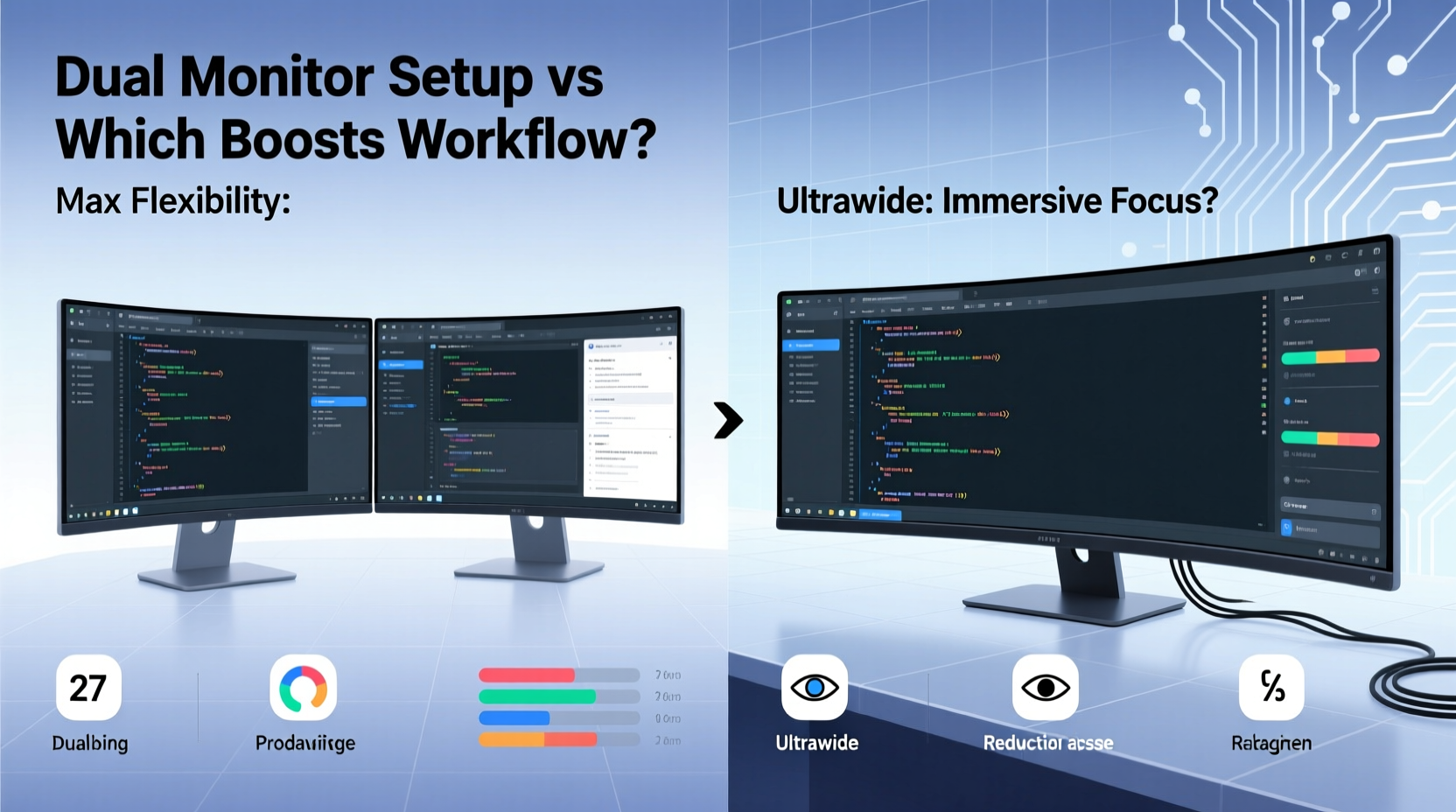
A dual monitor configuration typically involves two separate 24- to 27-inch displays arranged side by side. This setup has been a staple in developer environments for over a decade. Its appeal lies in flexibility: one screen for code, another for documentation, terminal windows, browser tabs, or communication tools like Slack and Zoom.
Many IDEs (Integrated Development Environments) are designed with this layout in mind. For example, in Visual Studio Code or JetBrains IDEs, it's common to dock terminals, version control panels, or database tools on the secondary screen while keeping the main editor front and center. This spatial separation reduces visual clutter and minimizes the need to toggle between panes.
Dual monitors also allow for independent scaling and resolution settings. A developer might run a high-DPI primary screen for sharp text rendering while using a secondary monitor at standard resolution for reference materials. This granularity supports mixed-use workflows where precision and readability matter differently across tasks.
Advantages of Dual Monitor Setups
- Task isolation: Keep unrelated applications visually separated to reduce cognitive load.
- Hardware redundancy: If one monitor fails, you can still function on the other.
- Flexible orientation: Rotate one monitor vertically for better code readability (ideal for long files).
- Cost-effective upgrades: Replace or upgrade one monitor without redoing the entire setup.
The Rise of Ultrawide Displays for Coders
Ultrawide monitors—typically 34 inches or larger with a 21:9 or even 32:9 aspect ratio—offer a seamless panoramic view that eliminates the bezel gap found in dual setups. For developers who value immersion and horizontal space, this format excels. A single ultrawide can span the width of two 24-inch monitors while maintaining continuity across applications.
This uninterrupted canvas is particularly effective when working with wide IDE layouts, split editors, or comparing multiple files side by side. Git diffs, API documentation comparisons, and parallel debugging become more intuitive when both panes are visible without jumping across screens.
Modern operating systems handle ultrawides well. macOS Spaces and Windows Snap Layouts support multi-region tiling across the extended horizontal plane. Tools like Rectangle (macOS) or PowerToys (Windows) make it easy to assign windows to precise thirds or quarters of the screen—perfect for organizing a terminal, browser, and editor simultaneously.
“An ultrawide gives me the same real estate as dual monitors but without the mental tax of crossing a bezel chasm.” — Alex Tran, Senior Backend Engineer at DevFlow Systems
Benefits of Ultrawide Monitors
- No bezel interruption: Eliminates visual breaks that disrupt flow during mouse transitions.
- Better immersion: Encourages deeper focus by framing all tools within a single field of vision.
- Cleaner cable management: One power and video cable instead of two, reducing desk clutter.
- Ergonomic alignment: Single focal plane reduces head movement and eye refocusing.
Direct Comparison: Key Decision Factors
To determine which setup enhances your coding workflow, consider several practical dimensions. The following table summarizes core differences based on real-world usage patterns among professional developers.
| Factor | Dual Monitor Setup | Ultrawide Monitor |
|---|---|---|
| Screen Real Estate (approx.) | ~3840x1080 (two 1920x1080) | 3440x1440 or 5120x1440 |
| Bezel Interference | Yes – middle bezel disrupts cursor/window flow | No – continuous display surface |
| Multitasking Flexibility | High – fully independent screens | Moderate – relies on software-based zones |
| Vertical Space | Standard (1080–1440p) | Limited (1440p max in most models) |
| Setup Complexity | Moderate – mounting, cabling, alignment | Low – plug-and-play simplicity |
| Cost (mid-range) | $500–$700 for two 27” 1440p | $600–$900 for 34” 1440p ultrawide |
| Ease of Window Management | Drag windows freely between screens | Requires snapping tools for optimal use |
While ultrawides offer superior continuity, dual monitors provide unmatched modularity. For instance, if you frequently switch between coding and video conferencing, having a dedicated screen for Zoom while keeping your IDE undisturbed may justify the dual setup. Conversely, if you’re writing complex frontend layouts or analyzing large datasets in Jupyter notebooks, the extra horizontal space of an ultrawide becomes indispensable.
Workflow Scenarios: Who Benefits From What?
Not all coding workflows are created equal. Your choice should reflect how you structure your day, interact with tools, and manage attention.
When Dual Monitors Shine
- Full-stack developers: Run backend logs on one screen, frontend UI on the other.
- DevOps engineers: Monitor Kubernetes dashboards on one display, edit Terraform scripts on the other.
- Remote team leads: Host meetings on a secondary screen without minimizing active development tools.
When Ultrawides Are Superior
- Data scientists: View wide pandas DataFrames or Matplotlib charts without horizontal scrolling.
- Frontend developers: Preview responsive designs alongside component code in real time.
- Mobile app developers: Simultaneously view iOS and Android emulators side by side.
Mini Case Study: React Developer Transitioning to Ultrawide
Jamal Chen, a senior frontend engineer at a SaaS startup, used dual 27-inch monitors for three years. He often worked with component libraries, storybooks, and live previews. Despite efficient window management, he noticed frequent micro-interruptions every time his cursor hit the bezel gap between screens—especially during drag operations in design tools.
After switching to a 34-inch 3440x1440 ultrawide, Jamal reorganized his workspace into three vertical zones: left for VS Code, center for Storybook, and right for Chrome DevTools. Within a week, he reported fewer context switches and smoother drag-and-drop interactions. “I didn’t realize how much mental energy I was spending navigating the gap,” he said. “Now everything feels connected.”
However, he did note a limitation: vertical space. When reviewing deeply nested JSON responses, he missed the taller resolution available on modern 27-inch 1440p screens. His workaround? Using collapsible tree viewers and API clients optimized for horizontal layouts.
Step-by-Step: Optimizing Either Setup for Maximum Coding Efficiency
Regardless of your hardware choice, proper configuration makes a critical difference. Follow this sequence to extract the most from your display system.
- Assess your primary workflows: Track how many applications you use simultaneously and their spatial relationships (e.g., terminal + editor + browser).
- Choose resolution and aspect ratio: For dual monitors, aim for at least 2560x1440 each. For ultrawides, 3440x1440 is ideal; avoid 1080p ultrawides due to pixel density issues.
- Position monitors ergonomically: Center the primary screen directly in front of you. In dual setups, angle both inward slightly (about 30 degrees) to reduce head turning.
- Install window management tools: Use PowerToys (Windows), Magnet (macOS), or i3wm (Linux) to snap windows to predefined regions with keyboard shortcuts.
- Customize IDE layout: Configure your editor to take advantage of horizontal space—split views, dock terminals on the side, enable word wrap only when needed.
- Test with real projects: Spend a full workday using typical tasks before finalizing your decision.
- Adjust brightness and color temperature: Match both screens (in dual setups) to prevent eye fatigue from contrast mismatches.
Frequently Asked Questions
Can I use an ultrawide with portrait mode splits?
Yes, though less common than landscape. Some ultrawides support electronic rotation via built-in software, allowing vertical segmentation. However, native vertical resolution (usually 1440p) limits how many lines of code you can see compared to a dedicated 27-inch 4K monitor in portrait mode.
Is eye strain worse with ultrawide monitors?
Not inherently. Eye strain depends more on brightness, blue light exposure, and viewing distance than aspect ratio. That said, poorly positioned ultrawides—especially those too far away or too wide for your peripheral range—can cause subtle tracking fatigue over time. Sit at least 24–30 inches from the screen and ensure the edges stay within comfortable gaze angles.
Can I combine both—an ultrawide and a second monitor?
Absolutely. Some developers use a 34-inch ultrawide as their central hub and add a third vertical monitor for notifications, email, or monitoring dashboards. This hybrid approach offers the best of both worlds but requires sufficient desk depth and GPU output capability (e.g., DisplayPort + HDMI from a capable graphics card).
Final Recommendation: Match Hardware to Workflow
There is no universal winner between dual monitors and ultrawide displays. The optimal choice hinges on your specific coding habits, physical workspace, and software ecosystem.
If your work demands strict task segregation—such as running live servers, CI/CD pipelines, and chat tools concurrently—a dual monitor setup provides clearer boundaries and greater independence. It’s also easier to scale incrementally: start with one monitor, then add another later.
But if your workflow thrives on comparison, continuity, and immersive editing—like frontend development, data analysis, or system architecture—an ultrawide removes friction points introduced by bezels and disjointed window movement. The seamless expanse fosters concentration and reduces the cognitive cost of switching contexts.
Ultimately, the goal isn’t more pixels—it’s better focus, faster iteration, and sustainable comfort. Test both configurations if possible. Borrow a colleague’s ultrawide for a day. Temporarily rearrange your existing screens into a dual layout. Observe how your muscle memory, attention span, and error rates shift.
“The right display doesn’t just show your code—it shapes how you think through problems.” — Dr. Lena Patel, Human-Computer Interaction Researcher, Stanford University
Take Action Today
Your monitor setup is not a static fixture—it’s a dynamic part of your engineering toolkit. Whether you decide to consolidate into a sleek ultrawide or expand into a dual-screen command center, make the change with intention. Reconfigure your windows, remap your shortcuts, and give the new layout a fair trial over three full workdays.
Then ask yourself: Did I spend less time hunting for tabs? Was debugging faster? Did I feel more in control?




 浙公网安备
33010002000092号
浙公网安备
33010002000092号 浙B2-20120091-4
Comments
No comments yet. Why don't you start the discussion?