
For professionals across creative, technical, and administrative fields, screen real estate directly influences efficiency, focus, and long-term comfort. The debate between using two separate monitors versus a single ultrawide display isn’t just about aesthetics—it’s about how each configuration shapes your daily work rhythm. While both setups offer expanded viewing space over standard 16:9 displays, their impact on multitasking, immersion, software compatibility, and physical workspace varies significantly. Understanding these differences helps you make an informed decision based on actual workflow demands rather than marketing appeal.
The Core Differences in Layout and Usability
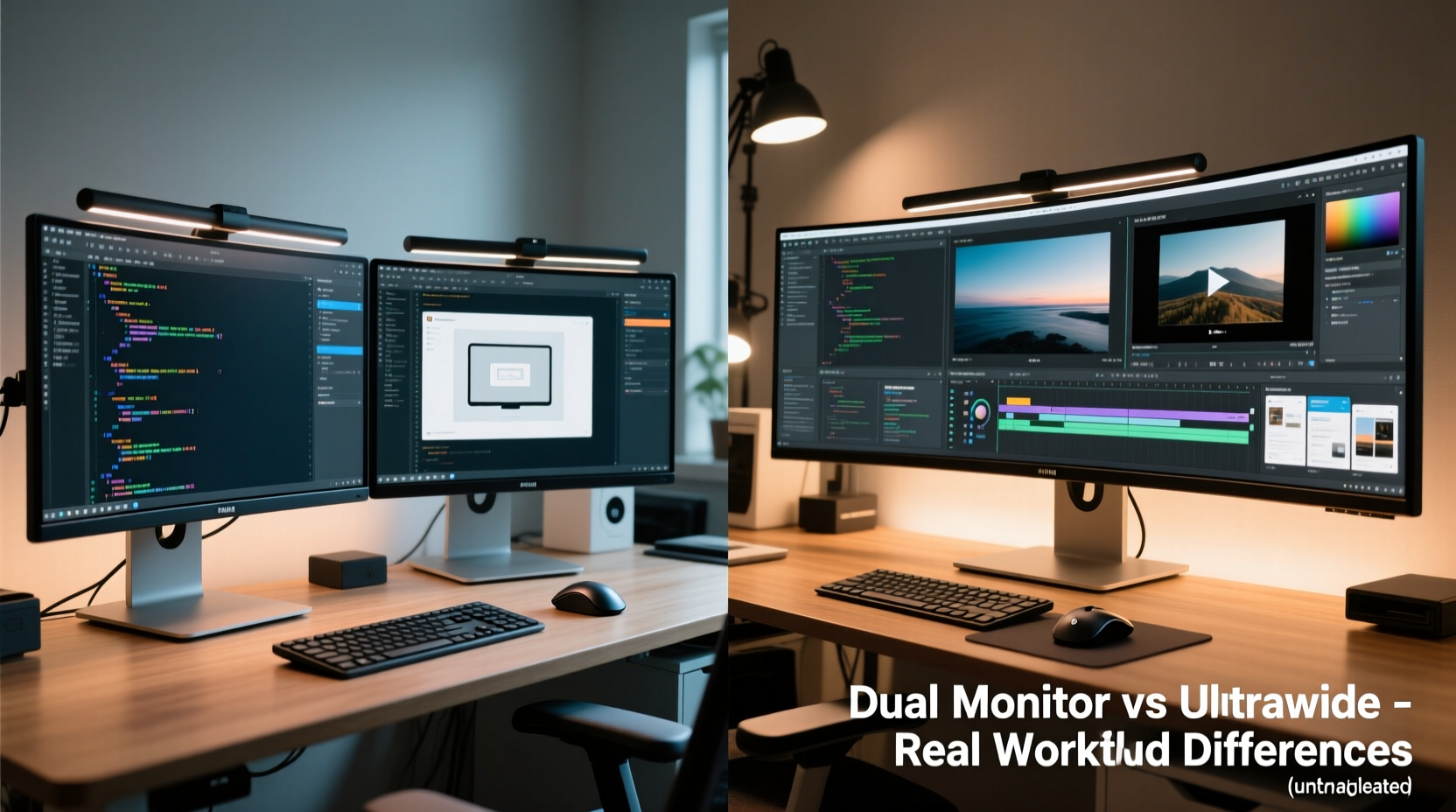
A dual monitor setup typically consists of two side-by-side 16:9 or 16:10 displays, often ranging from 24 to 27 inches each. This arrangement provides discrete screens that can run different applications independently, with clear visual separation. In contrast, an ultrawide monitor—usually 29 to 49 inches with aspect ratios like 21:9 or even 32:9—offers one continuous display surface designed to minimize bezel interruptions and create a panoramic view.
The most immediate distinction lies in continuity. Dual monitors introduce a central bezel (or gap), which can disrupt horizontal workflows such as video editing timelines, spreadsheet navigation, or wide-code views. Ultrawides eliminate this barrier, enabling seamless panning across applications. However, they may also encourage window sprawl if not managed properly, leading to inefficient use of space.
Another key factor is scaling behavior. Operating systems handle multiple discrete displays differently than stretched desktops. On dual monitors, each screen can have independent resolution and scaling settings, making it easier to match older hardware. Ultrawides, particularly high-resolution models (e.g., 3440x1440 or 5120x2160), require careful DPI scaling to avoid text becoming too small for comfortable reading.
Productivity: Multitasking vs Immersion
Multitasking efficiency depends heavily on how you structure your digital environment. Dual monitors excel when you need strict compartmentalization—such as keeping email open on one screen while drafting reports on the other, or monitoring chat tools alongside development environments. The psychological boundary created by the physical gap between screens reinforces task separation, reducing distractions.
Ultrawides, on the other hand, promote fluid transitions between windows. With proper virtual desktop managers or tiling window managers (especially on Linux or macOS), users can organize large spreadsheets, coding panels, and reference materials side-by-side without switching contexts. Designers benefit from seeing entire artboards at once; coders gain visibility into multi-file projects without constant tabbing.
However, research suggests cognitive load increases when too much information is visible simultaneously. A study published in the *Journal of Applied Psychology* found that while increased screen space boosted output by up to 35%, unfocused layouts led to higher error rates. Thus, the advantage of either setup hinges less on raw pixels and more on intentional organization.
“More screen doesn’t automatically mean better productivity. It’s how you design your digital workspace that determines whether extra real estate enhances or hinders performance.” — Dr. Lena Torres, Human-Computer Interaction Researcher, MIT Media Lab
Hardware and Ergonomic Considerations
Ergonomics play a critical role in long-term comfort and injury prevention. Dual monitor setups require precise alignment to avoid neck strain. Misaligned heights or angles force users to tilt their heads repeatedly, contributing to chronic discomfort. Ideally, both monitors should be at eye level, angled slightly inward, and positioned so the inner edges meet at the centerline of the user’s seated position.
Mounting solutions like dual-arm stands or VESA-compatible brackets help achieve optimal posture but add cost and complexity. Desk depth becomes crucial—many standard desks are too shallow to accommodate two monitors without crowding the keyboard zone.
Ultrawide monitors simplify ergonomics. One unit means fewer adjustments, consistent curvature (on curved models), and uniform brightness/color calibration across the field of view. Their wider footprint still demands adequate desk space, but cable management and power requirements are reduced compared to running two separate displays.
From a hardware perspective, ultrawides often demand more from graphics cards. Driving resolutions beyond 3440x1440 requires capable GPUs, especially for creative professionals using color-accurate modes or running GPU-intensive apps. Dual monitors, particularly at 1080p or 1440p, place lower aggregate strain on integrated or mid-tier graphics.
Workflow-Specific Performance Comparison
Different professions derive varying benefits from each setup. Below is a comparative analysis across common use cases:
| Use Case | Dual Monitor Advantage | Ultrawide Advantage |
|---|---|---|
| Software Development | Run IDE on one screen, documentation/debug console on the other | View full code files with multiple panes; better terminal integration |
| Video Editing | Preview on one screen, timeline/tools on the second | Entire timeline visible without scrolling; immersive preview experience |
| Data Analysis / Spreadsheets | Keep data sources open on secondary screen | Wider columns and formulas visible simultaneously; easier formula tracing |
| Graphic Design | Color palettes and layers on secondary screen | Full canvas visibility; fewer context switches |
| Financial Trading | Multiple dashboards across screens with dedicated alerts | Consolidated market overview; smoother chart panning |
| Writing & Research | Source material on one screen, writing app on the other | Fewer alt-tab interruptions; distraction-free composition |
Notably, some workflows benefit from hybrid approaches. For instance, pairing an ultrawide with a smaller vertical monitor allows panoramic main work while reserving the secondary screen for communication tools or system monitoring.
Real-World Example: A Content Creator’s Transition
Jamie Chen, a freelance video editor and motion designer, used a dual 27-inch 1440p monitor setup for five years. Her left screen hosted Adobe Premiere Pro’s timeline and effects panel, while the right displayed the preview window and asset browser. Over time, she noticed increasing fatigue during long edits due to constant head movement and inconsistent color matching between panels.
She switched to a 34-inch 21:9 ultrawide after testing one at a local retailer. Initially, she struggled with window placement—her old habits kept her confining apps to “virtual” halves of the screen. After adopting a tiling manager and adjusting Premiere’s workspace layout, she gained full utilization of the extended width. Now, her entire timeline fits horizontally, eliminating scroll lag during scrubbing. She reports a 20% reduction in edit time on complex projects and significantly less neck strain.
Still, she occasionally misses having a completely separate screen for client Zoom calls. To compensate, she uses picture-in-picture mode and assigns specific keyboard shortcuts to toggle visibility quickly.
Actionable Checklist Before Choosing
Before investing in new display hardware, evaluate your needs with this checklist:
- Assess your primary tasks: Do you constantly compare documents, or do you work within expansive single applications?
- Measure your desk space: Ensure enough depth and width to support your chosen configuration comfortably.
- Check GPU capabilities: Verify that your graphics card supports the combined resolution and refresh rate.
- Test window management habits: Are you disciplined about organizing windows, or do you tend to pile them up?
- Consider future-proofing: Will your next laptop or workstation support DisplayPort 1.4 or HDMI 2.1 for ultrawide bandwidth?
- Evaluate portability needs: If you work remotely, dual monitors are harder to transport than a single ultrawide.
- Budget for accessories: Include mounts, cables, and potential calibration tools in your total cost estimate.
FAQ
Can I use an ultrawide and still have multiple virtual desktops?
Absolutely. Modern operating systems support multiple virtual desktops regardless of display type. On macOS, use Mission Control; on Windows, use Task View. Third-party tools like Dexpot (Windows) or BetterTouchTool (macOS) enhance customization further.
Is screen burn-in a concern with ultrawide OLEDs?
Yes, particularly for static UI elements like taskbars or dock icons. Many manufacturers include pixel-shifting and auto-brightness features to mitigate risk. Avoid leaving static content on-screen for extended periods, and enable screen savers during idle times.
Do dual monitors use more power than an ultrawide?
Generally, yes. Two LED panels consume more energy than a single similarly sized ultrawide, though actual difference varies by model and brightness. Check Energy Star ratings and typical wattage under load for accurate comparisons.
Step-by-Step: Optimizing Your Chosen Setup
- Position correctly: Center the main display at eye level, about an arm’s length away. For dual monitors, align tops and angle inward slightly.
- Calibrate brightness and color: Use built-in presets or a hardware calibrator to ensure consistency, especially important for photo/video work.
- Configure OS display settings: Set appropriate scaling (125%, 150%, etc.) so text is readable without zooming.
- Organize windows strategically: Use snapping features (Windows Snap, macOS Split View) or third-party managers like Magnet or Rectangle.
- Minimize distractions: Assign notifications and communication apps to less dominant areas of the screen or secondary displays.
- Review weekly: Take five minutes each week to reassess window layouts and adjust based on evolving project needs.
Final Verdict: It Depends on How You Work
There is no universal winner in the dual monitor vs ultrawide debate. The real difference in workflow emerges not from the hardware itself, but from how well it aligns with your cognitive patterns, software ecosystem, and physical environment. Dual monitors offer modularity, flexibility, and ease of incremental upgrades. Ultrawides deliver immersion, continuity, and cleaner desk aesthetics.
Ultimately, the best choice reflects your personal rhythm of attention. If your work thrives on parallel processing and clear boundaries between tasks, dual monitors remain a powerful ally. If your process benefits from expansive canvases and uninterrupted flow, an ultrawide could transform your efficiency and comfort.
Rather than defaulting to trends or peer recommendations, treat this decision as a personal experiment. Borrow, rent, or visit showrooms to experience both firsthand. Small adjustments in display configuration can yield outsized returns in focus, speed, and long-term well-being.




 浙公网安备
33010002000092号
浙公网安备
33010002000092号 浙B2-20120091-4
Comments
No comments yet. Why don't you start the discussion?