
For software developers, time is code. Every second saved through efficient workflows compounds into meaningful gains over a career. One of the most impactful decisions a coder can make—beyond choosing an IDE or keyboard—is how to configure their visual workspace. The debate between dual monitors and ultrawide displays has raged in tech circles for years, often framed as personal preference. But when it comes to measurable productivity, the choice carries tangible consequences.
Both setups offer expanded screen real estate, reduce window-switching fatigue, and support complex development environments. Yet they differ fundamentally in continuity, ergonomics, and workflow integration. Understanding these differences isn’t about aesthetics—it’s about optimizing cognitive load, minimizing distractions, and creating a sustainable coding rhythm.
The Core Trade-Off: Continuity vs. Segmentation
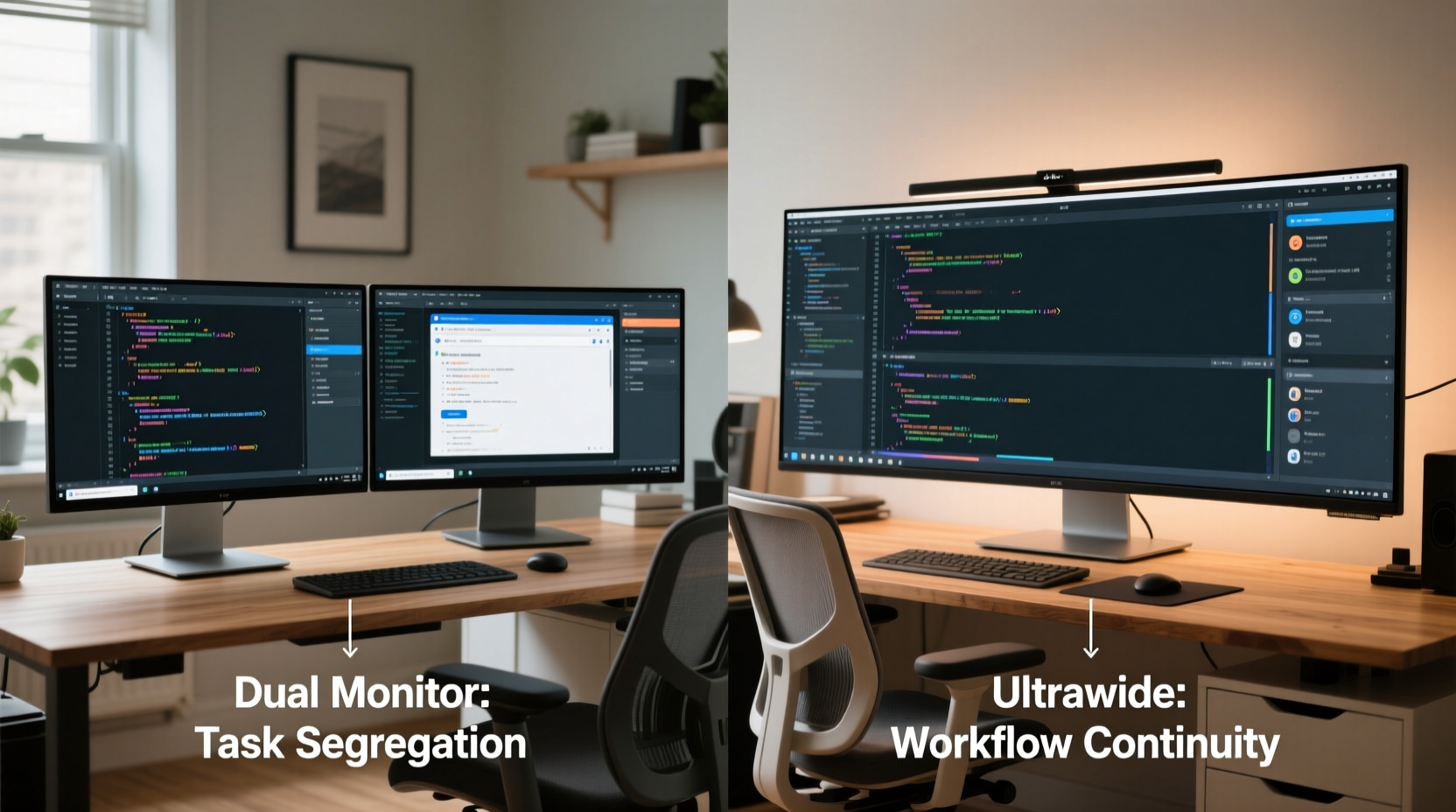
The fundamental distinction lies in how each setup manages space. Dual monitors create two distinct work zones, allowing physical separation between tasks. An ultrawide screen provides a single, seamless canvas that stretches across your field of view, promoting fluid transitions between applications.
Dual monitor users often assign roles: one screen for code, another for documentation, terminal, or browser testing. This segmentation reduces mental clutter by isolating functions. However, the gap between screens—a literal bezel divide—can disrupt eye tracking and force awkward head movements during rapid context switches.
Ultrawide displays eliminate that gap. With aspect ratios like 21:9 or even 32:9, they mimic panoramic vision, enabling side-by-side windows without interruption. For developers working with split editors, version control diffs, and live previews simultaneously, this uninterrupted flow can enhance focus and reduce navigation latency.
Real-World Workflow Analysis
To assess true productivity impact, consider common developer scenarios:
- Debugging across tools: Terminal on one side, IDE in center, browser console on the other.
- Pair programming: Sharing one screen while keeping local notes or references visible.
- Full-stack development: Frontend preview beside backend logs and API documentation.
- Code reviews: Comparing old and new versions side-by-side with comments open.
In dual monitor setups, managing these workflows often requires dragging windows across screens or relying on virtual desktops. While effective, this introduces micro-delays. Ultrawides allow all components to coexist in a single view, reducing reliance on alt-tabbing or window snapping.
However, segmentation has its merits. Some developers report better focus when using one monitor exclusively for deep work (coding) and reserving the second for communication apps like Slack or email. This creates a psychological boundary—distractions stay off the primary screen.
“After switching from dual 24-inch monitors to a 49-inch ultrawide, I reduced my daily alt-tab count by nearly 70%. That might sound trivial, but over eight hours, those small interruptions add up to lost concentration.” — Daniel Reyes, Senior Backend Engineer at DevFlow Labs
Performance and Technical Considerations
Hardware compatibility plays a critical role. Not all laptops or GPUs can drive high-resolution ultrawide panels at optimal refresh rates. A 3440x1440 ultrawide demands more graphical horsepower than two 1080p displays, especially when running Docker containers, emulators, or GPU-intensive IDEs.
Additionally, scaling issues arise on ultrawides. Operating systems like Windows sometimes struggle with DPI scaling across different resolutions, leading to blurry text or misaligned UI elements in older applications. macOS handles this more gracefully, but inconsistencies still occur.
Dual monitors offer flexibility. You can mix sizes, orientations, and resolutions based on need—one vertical monitor for code, one horizontal for output. This modularity suits developers who value customization over uniformity.
| Feature | Dual Monitors | Ultrawide Display |
|---|---|---|
| Screen Real Estate | ~3840x1080 (two 1920x1080) | 3440x1440 (typical) |
| Seamless Spanning | No (bezel gap) | Yes |
| Multitasking Flexibility | High (separate workspaces) | Moderate (requires tiling) |
| Ergonomic Alignment | Requires careful positioning | Natural arc fit (curved models) |
| GPU Demand | Lower | Higher |
| Cost Efficiency | Often cheaper (used market) | Premium pricing |
| Vertical Space | Depends on orientation | Limited unless paired with secondary |
Mini Case Study: From Dual to Ultrawide Transition
Jessica Tran, a full-stack developer at a fintech startup, used dual 27-inch 1440p monitors for three years. Her typical layout included VS Code on the left, Chrome DevTools and staging site on the right. She frequently rotated between four browser tabs, Postman, and a terminal emulator.
After experiencing persistent neck strain, she switched to a 34-inch ultrawide (3440x1440). Initially, she missed the clear separation between tasks. However, within two weeks, she adapted her workflow using tiling features in her OS and IDE. She arranged her editor on the left third, browser in the center, and terminal/postman on the right.
The result? A 22% reduction in reported task-switching time, measured via RescueTime. More importantly, she noted fewer instances of losing focus due to “window hunting.” The curved design also reduced peripheral distortion, making long debugging sessions less fatiguing.
She did encounter one limitation: when reviewing large JSON responses or database schemas, she missed the ability to rotate one monitor vertically. To compensate, she now uses a compact secondary monitor placed above the ultrawide—effectively combining both worlds.
Step-by-Step Guide: Choosing Your Setup
Follow this decision framework to determine the best fit for your coding style:
- Assess your primary workflow: Do you constantly switch between unrelated apps (e.g., coding and messaging), or do you prefer having everything related to one task visible at once?
- Evaluate your physical space: Measure desk depth and viewing distance. Ultrawides require at least 40 inches of width for comfortable use.
- Test GPU capabilities: Ensure your graphics card supports your desired resolution and refresh rate. Check driver support for multi-stream transport if considering ultra-ultrawide (e.g., 5120x1440).
- Simulate the experience: Use existing monitors to mimic ultrawide proportions by placing them side-by-side (even if there’s a gap). Alternatively, try tiling all windows on a single screen to simulate dual-monitor discipline.
- Prioritize ergonomics: Position dual monitors with inward angles meeting at your eyes, or choose a curved ultrawide that matches your natural field of view.
- Start incremental: If unsure, begin with dual standard monitors. Upgrade to ultrawide later, or adopt a hybrid approach (ultrawide + small vertical screen).
Hybrid Approach: Best of Both Worlds?
An emerging trend among elite developers is the hybrid setup: an ultrawide as the primary display, supplemented by a smaller vertical monitor dedicated to notifications, logs, or chat.
This configuration leverages the ultrawide’s strength in horizontal task spanning while reclaiming vertical space for long-scrolling content. It’s particularly effective for DevOps engineers monitoring CI/CD pipelines, data scientists reviewing long scripts, or frontend developers inspecting lengthy DOM trees.
The trade-off is increased desk footprint and cable complexity. However, for those already invested in high-end peripherals, the marginal cost is low compared to the productivity return.
Frequently Asked Questions
Can an ultrawide replace dual monitors entirely?
For many developers, yes—especially those focused on integrated workflows like full-stack development or data analysis. However, users who heavily rely on app segregation (e.g., separating personal and professional tools) may still prefer dual monitors for psychological compartmentalization.
Is eye strain worse on ultrawide displays?
Not inherently. Curved ultrawides can actually reduce eye strain by maintaining consistent focal distance across the screen. However, poor calibration, excessive brightness, or improper positioning can negate these benefits. Always align the top of the screen at or slightly below eye level.
What size ultrawide is ideal for coding?
A 34-inch 3440x1440 panel offers the best balance of screen space, pixel density, and affordability. Larger 49-inch models (5120x1440) provide immense width but may require downscaling or specialized software to avoid tiny text. Avoid going below 1440p vertical resolution for comfortable code readability.
Productivity Checklist: Optimizing Your Coding Workspace
- ✅ Define your core development workflow (split by function or project?)
- ✅ Measure desk space and viewing distance
- ✅ Verify GPU supports target resolution and refresh rate
- ✅ Choose aspect ratio: 21:9 ultrawide or dual 16:9
- ✅ Decide on curvature (optional but recommended for >34\")
- ✅ Install window management software
- ✅ Calibrate brightness, contrast, and blue light settings
- ✅ Position screen so top edge aligns with or sits just below eye level
- ✅ Test with actual coding tasks before finalizing
- ✅ Re-evaluate every 6 months based on evolving needs
“The right display setup doesn’t just increase output—it changes how you think through problems. When information flows smoothly across your visual field, cognition follows.” — Dr. Lena Patel, Cognitive Ergonomics Researcher, MIT Human Systems Lab
Final Recommendation: Match Tool to Task
There is no universal winner in the dual monitor vs. ultrawide debate. Productivity gains depend on individual workflow patterns, physical environment, and cognitive preferences.
Choose dual monitors if:
- You thrive on task segregation.
- You want maximum hardware flexibility.
- Your GPU or laptop limits high-resolution output.
- You frequently use portrait-mode layouts.
Choose an ultrawide if:
- You value seamless multitasking.
- You work with wide datasets, timelines, or video/audio editing alongside code.
- Ergonomic comfort is a priority (especially with curved models).
- You want a minimalist, clutter-free desk aesthetic.
Ultimately, the goal isn’t to pick a side—it’s to design a system that fades into the background, letting your mind engage fully with the code. Whether through segmented clarity or panoramic immersion, the best setup is the one that disappears when you’re in flow.




 浙公网安备
33010002000092号
浙公网安备
33010002000092号 浙B2-20120091-4
Comments
No comments yet. Why don't you start the discussion?