
It’s a common frustration: you open your iPhone’s Contacts app and see the same name listed multiple times—sometimes with slight variations in phone numbers, emails, or labels. These duplicates clutter your address book, make searching harder, and can lead to missed calls or misdirected messages. The good news is that duplicate iPhone contacts are both preventable and fixable. Understanding why they occur—and knowing the right tools and techniques—can restore order to your digital life in minutes.
Why Do iPhone Contacts Duplicate?
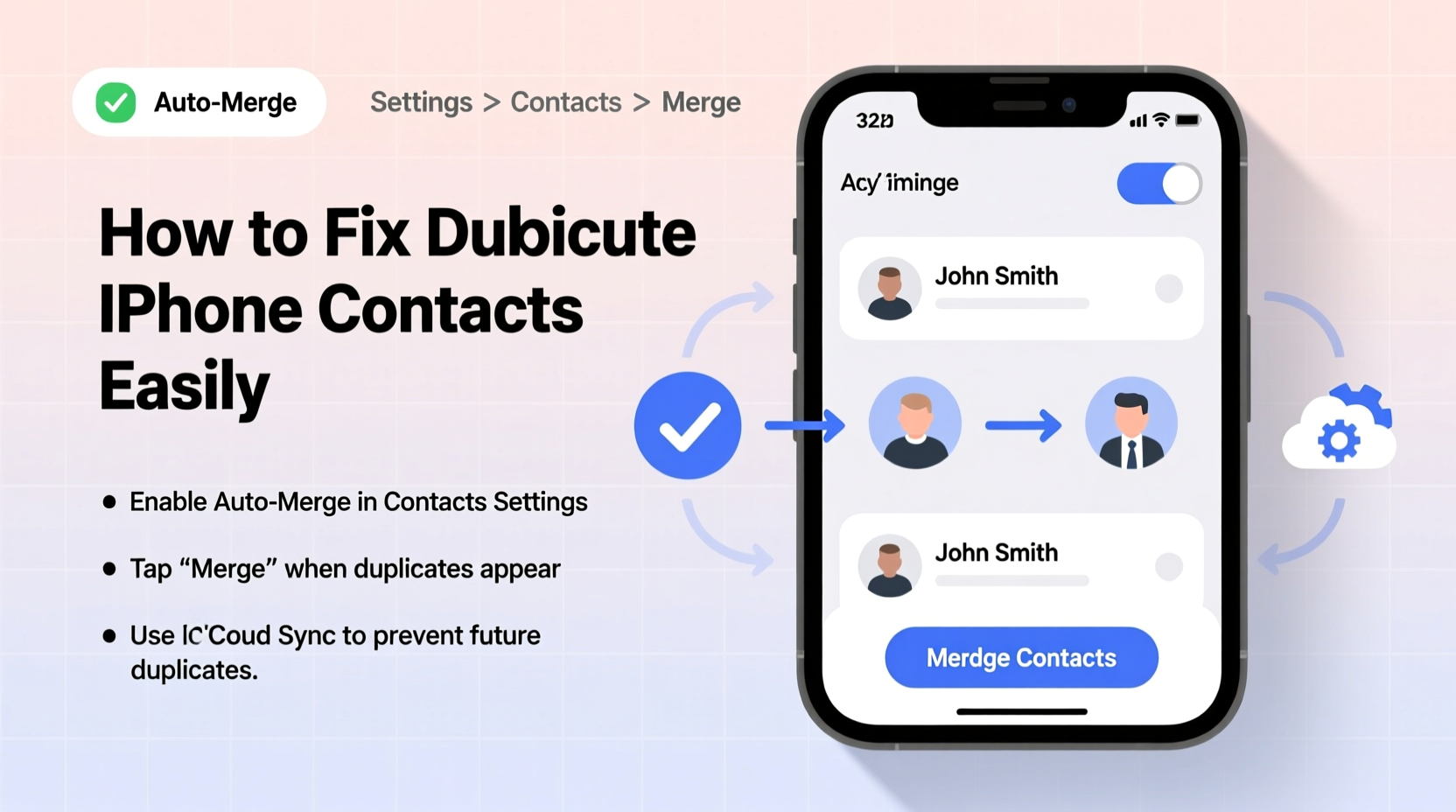
Duplicate contacts don’t appear out of nowhere. They’re typically the result of syncing issues across multiple accounts and devices. Here are the most common causes:
- Multiple account syncs: If you use iCloud, Google, Outlook, or other email services simultaneously, each may pull in its own version of the same contact.
- Restoring from backup: Restoring an old iTunes or iCloud backup while already having synced current contacts can cause overlap.
- iCloud merging issues: When iCloud fails to recognize two entries as the same person (e.g., one has only a phone number, another has an email), it treats them as separate.
- Third-party apps: Apps like WhatsApp, Skype, or CRM tools sometimes import contacts without checking for existing matches.
- Manual entry errors: Accidentally adding someone twice, especially if names are entered differently (e.g., “John Smith” vs. “Smith, John”).
How to Fix Duplicated Contacts on iPhone (Step-by-Step)
Apple provides built-in tools to merge duplicates, but many users overlook them. Follow this timeline-based guide to clean up your contact list efficiently.
- Back up your iPhone first — Use iCloud or iTunes to ensure no data loss during cleanup.
- Ensure all accounts are synced: Go to Settings > [Your Name] > iCloud, and toggle Contacts ON. Repeat for any linked accounts under Settings > Mail > Accounts.
- Open the Contacts app and wait a few moments for full sync completion.
- Tap a duplicated name. If iOS detects a possible match, it may display a “Link Contact” suggestion at the bottom.
- Select “Link Contact” to merge two entries manually.
- Repeat for each visible duplicate pair.
Note: This method works well for small-scale duplication but becomes impractical when dozens—or hundreds—of duplicates exist.
Automated Merge Using iCloud.com
For larger volumes, Apple offers an automatic deduplication tool via iCloud.com:
- Visit iCloud.com and sign in with your Apple ID.
- Click the Contacts app icon.
- In the bottom-left corner, click the gear icon ⚙️.
- Select “Select All” or filter by specific groups.
- Choose “Merge Similar Contacts”.
- Wait for iCloud to process and combine entries intelligently.
- Refresh your iPhone’s Contacts app—it will sync the updated list within minutes.
“We’ve seen users regain over 200MB of cloud storage just by cleaning duplicate contacts. It’s not just about organization—it affects performance.” — Lisa Tran, Senior Support Engineer at Apple Authorized Service Provider
Best Tools to Remove Duplicates Automatically
If iCloud’s native tool isn’t enough, third-party apps offer advanced features like batch merging, cross-account detection, and detailed previews before changes.
| Tool | Platform | Key Feature | Cost |
|---|---|---|---|
| FullContact | iOS & Web | Smart merging with social profile enrichment | Free tier; premium $5/month |
| Contact Cleaner | iOS App Store | One-tap scan and merge with undo option | Free with in-app purchases |
| Copy My Data (by Motorola) | iOS & Android | Excellent for detecting near-duplicates (e.g., typos) | Free |
| Google Contacts (via browser) | Web | Built-in “Find & merge duplicates” function | Free |
To use these tools effectively:
- Always back up contacts before running automated cleaners.
- Review merged results on a computer if possible—small screens increase error risk.
Mini Case Study: Recovering a Cluttered Address Book
Sarah, a small business owner, noticed her iPhone was slow to load contacts and often rang the wrong “Jennifer” during client calls. After reviewing her list, she found 78 duplicates among 420 total entries—many created through repeated imports from Gmail and LinkedIn.
She followed the iCloud.com merge process first, which resolved 60 duplicates automatically. Then, she used Contact Cleaner to detect subtle mismatches (like “Jenn Miller” vs. “Jennifer Miller”). In under 30 minutes, her contact list was streamlined, search became instant, and call accuracy improved immediately.
Her key takeaway? “I didn’t realize how much mental clutter those duplicates caused until they were gone.”
Preventing Future Duplicates: A Proactive Checklist
Maintaining a clean contact list requires ongoing habits. Use this checklist monthly or after major device changes:
- ✅ Consolidate contact sources: Pick one primary service (iCloud recommended for iPhone users).
- ✅ Turn off redundant syncs: Disable Contacts for non-essential accounts in Settings > Mail > Accounts.
- ✅ Avoid manual re-entry: Instead of typing a number, use “Add to Existing Contact” when receiving messages.
- ✅ Regularly run “Merge Similar Contacts” on iCloud.com—at least once every 3 months.
- ✅ Be cautious with vCard imports: Always preview before importing .vcf files.
- ✅ Update shared contacts carefully: Group calendars or team directories should be imported into a separate group to avoid overlap.
Frequently Asked Questions
Can merging contacts delete my information?
No—if done correctly, merging combines details from both entries (numbers, emails, addresses) into one complete record. However, always back up first using iCloud or iTunes to eliminate risk.
Why does my iPhone keep creating new duplicates after I fix them?
This usually means multiple accounts are still syncing independently. Check Settings > Mail > Accounts and disable contact syncing for any account you don’t actively use for contacts. Also, ensure your primary account (e.g., iCloud) is set as the default under Settings > Contacts.
Is there a way to find duplicates without merging them?
Yes. On iCloud.com, sort contacts by name and scroll slowly—you’ll spot consecutive entries with similar names. Alternatively, export your contacts as a vCard, open it in a text editor, and search for recurring names. Third-party apps like Copy My Data also let you preview duplicates before taking action.
Conclusion: Take Control of Your Digital Connections
Duplicate iPhone contacts are more than a minor annoyance—they disrupt communication, waste time, and reflect poorly in professional settings. But with the right understanding and tools, fixing them is fast and straightforward. Whether you choose Apple’s built-in merge feature or opt for a powerful third-party solution, the effort pays off instantly in clarity and efficiency.
Your contact list is a reflection of your personal and professional network. Treat it with care. Clean it regularly, protect it from unnecessary sync conflicts, and enjoy a smoother, smarter iPhone experience.




 浙公网安备
33010002000092号
浙公网安备
33010002000092号 浙B2-20120091-4
Comments
No comments yet. Why don't you start the discussion?