
For students, researchers, and professionals who regularly work with dense academic materials, choosing the right device for reading PDF textbooks is more than a matter of convenience—it affects comprehension, eye strain, productivity, and even long-term study habits. The debate between E Ink tablets and iPads centers on two fundamentally different philosophies: one prioritizes focus and eye comfort, the other versatility and functionality. While both can display PDFs, their performance, usability, and impact on reading endurance vary significantly.
This comparison isn’t about which device is “better” in absolute terms, but which is better suited to the specific demands of reading and interacting with academic PDFs—often filled with small text, complex diagrams, equations, and layered annotations.
Eye Comfort and Reading Endurance
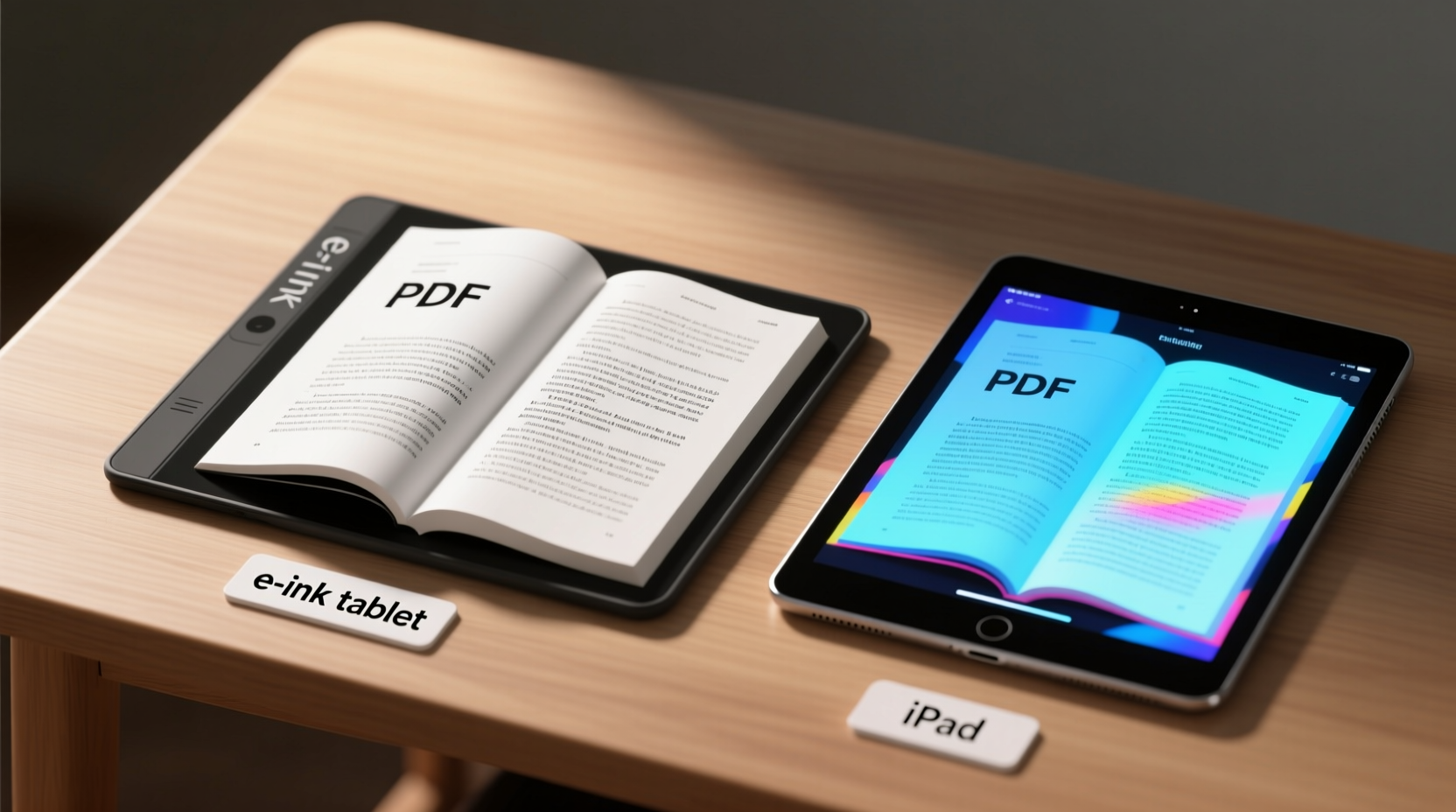
One of the most critical factors in prolonged reading sessions is visual fatigue. Traditional backlit LCD screens, like those on the iPad, emit blue light directly into the eyes. While Apple has introduced Night Shift and True Tone features to mitigate this, the fundamental issue remains: staring at a glowing screen for hours increases eye strain, especially in low-light environments or during late-night study sessions.
E Ink technology, by contrast, mimics paper. It reflects ambient light rather than emitting it. This means your eyes don’t have to work as hard to process text over extended periods. For readers dealing with 500-page textbooks or dense journal articles, this difference is not subtle—it’s transformative.
“After switching from my iPad to an E Ink tablet for academic reading, I noticed I could study for twice as long without headaches or dry eyes.” — Sarah Lin, PhD candidate in Neuroscience
Users consistently report being able to read for longer stretches on E Ink devices. This is particularly valuable during exam season or when digesting large volumes of material. The lack of flicker and minimal blue light output reduces circadian disruption, making E Ink tablets safer for nighttime reading.
Annotation and Note-Taking Capabilities
Reading a textbook isn’t passive—it requires active engagement through highlighting, underlining, margin notes, and sketching. Here, the iPad pulls ahead due to its high-resolution display, responsive Apple Pencil, and powerful apps like GoodNotes, Notability, and PDF Expert.
The iPad allows pixel-perfect handwriting, instant shape recognition, and searchable handwritten notes. You can highlight text, insert typed comments, draw diagrams, and even record audio synced to your notes. Its multitasking features let you open a textbook in one window and your notes in another—a workflow that mirrors desktop-level productivity.
E Ink tablets have improved significantly in this area. Devices like the reMarkable 2, Onyx Boox Note Air series, and Kindle Scribe now support stylus input with low latency. However, they still lag behind the iPad in responsiveness and precision. Writing feels slightly delayed, and advanced features like pressure sensitivity or palm rejection aren’t as refined. Additionally, E Ink refresh rates cause brief ghosting or flickering during writing, which can be distracting.
That said, E Ink excels in creating a distraction-free environment. There are no notifications, no app badges, no urge to check email mid-lecture. The interface is minimalist by design, forcing focus on the content. For users who struggle with digital distractions, this trade-off may be worth the reduced annotation fidelity.
Annotation Comparison Table
| Feature | E Ink Tablet | iPad |
|---|---|---|
| Writing Latency | Moderate (noticeable delay) | Very low (near-instant) |
| Palm Rejection | Basic to good (varies by model) | Excellent |
| Highlight Accuracy | Good for text, poor for images | Precise across all content |
| Searchable Handwriting | Limited (some models support OCR) | Yes (via Notes, GoodNotes, etc.) |
| Multitasking | Minimal or none | Full split-screen, picture-in-picture |
| Battery Impact During Annotation | Low (refresh-based power use) | High (constant screen + processor load) |
Battery Life and Portability
When it comes to battery longevity, E Ink dominates. Most E Ink tablets can last weeks on a single charge under typical textbook reading use—sometimes up to a month. Even with heavy annotation, battery drain is minimal because the screen only consumes power when the page refreshes.
iPads, while offering impressive battery life by general device standards (8–10 hours), fall short in comparison. Continuous PDF reading with annotation quickly drains the battery, especially when using Bluetooth accessories like the Apple Pencil. Students relying on all-day study marathons will need to carry chargers or power banks.
In terms of portability, both form factors are lightweight, but E Ink tablets often feel more like physical books. The reMarkable 2, for example, weighs just 403g and has a matte finish that resists fingerprints. Many models are designed to be held comfortably in one hand for long periods. iPads, while sleek, are more slippery and benefit from cases, adding bulk.
File Management and Compatibility
Academic workflows involve managing hundreds of PDFs—course readings, research papers, lecture slides. Seamless file transfer, organization, and syncing are essential.
iPads integrate deeply with iCloud, Dropbox, Google Drive, and OneDrive. Drag-and-drop between apps is smooth, and file management via the Files app is robust. You can easily download a PDF from a university portal, annotate it, then email it to yourself or upload it to a cloud folder—all within minutes.
E Ink tablets vary widely. Some, like the reMarkable, rely heavily on proprietary cloud ecosystems. While secure, this limits flexibility. Transferring files often requires uploading to their cloud first, then syncing to the device. Offline access is possible, but the process is less intuitive. Other models, such as the Onyx Boox devices, run full Android, giving them access to the Google Play Store and greater file system control—but at the cost of increased complexity and potential distractions.
Additionally, rendering complex PDFs—especially those with mathematical formulas, layered vector graphics, or embedded fonts—can be problematic on E Ink devices. Slower processors and limited RAM sometimes result in laggy zooming or incomplete rendering. iPads, with their powerful A-series chips, handle these files effortlessly.
Checklist: Choosing Based on Your Study Style
- Choose an E Ink tablet if:
- You read for 2+ hours daily and experience eye strain
- You value deep focus and minimal distractions
- You prefer a paper-like reading experience
- You don’t need advanced multitasking
- Choose an iPad if:
- You annotate heavily and need precise handwriting
- You work with complex diagrams, equations, or color figures
- You want seamless integration with cloud services
- You use multiple apps simultaneously (e.g., notes, dictionary, browser)
Real-World Example: Medical Student Workflow
Consider Ana, a second-year medical student juggling anatomy textbooks, pathology PDFs, and clinical guidelines. Her day involves reviewing dense material with intricate illustrations and annotating key points for later review.
Initially, she used her iPad Pro with an Apple Pencil. She appreciated the ability to zoom into histology slides, highlight structures in different colors, and link her notes to flashcards in Anki. However, after six months, she began experiencing frequent headaches and difficulty concentrating past two-hour blocks.
She switched to a reMarkable 2. The transition was challenging—she missed the color, the speed, and the searchability. But within weeks, she found she could read for four to five hours straight without discomfort. She adapted by taking summary notes on the reMarkable and transferring key insights to her iPad weekly for Anki import.
Her hybrid solution illustrates a growing trend: using E Ink for primary reading and the iPad for secondary processing. This approach leverages the strengths of both platforms.
Step-by-Step: Setting Up Your Device for Academic Reading
- Organize your PDFs: Sort by course or subject. Rename files clearly (e.g., \"Biochem_Ch8_Metabolism.pdf\").
- Transfer to device: Use USB, email, or cloud sync depending on your platform.
- Adjust display settings: On E Ink, increase font size and margins; on iPad, enable Dark Mode and reduce brightness.
- Set up annotation tools: Choose highlight colors and pen styles that match your learning style (e.g., red for definitions, blue for examples).
- Create a backup routine: Sync annotated files to cloud storage daily to avoid data loss.
- Review and export: At the end of each week, compile key annotations into summaries or flashcards.
Frequently Asked Questions
Can E Ink tablets display color PDFs properly?
Most E Ink tablets are monochrome, so color diagrams appear in grayscale. Some newer models, like the Onyx Boox Kaleido series, offer limited color e-paper displays, but the color saturation is low and not suitable for detailed visuals like medical imaging or engineering schematics.
Is the iPad too distracting for serious reading?
It can be. Notifications, app icons, and the temptation to browse can interrupt deep reading. However, using Focus Modes, disabling notifications, and dedicating the device primarily to study can mitigate this. Some users keep a separate iPad solely for textbooks to avoid temptation.
Do E Ink tablets support LaTeX or scientific notation?
They can display PDFs containing LaTeX-generated content, but editing or writing in LaTeX is not supported natively. Users needing to create technical documents should pair their E Ink device with a computer or use the iPad with specialized apps like MathKey or MyScript Calculator.
Conclusion: Match the Tool to the Task
There is no universal answer to whether an E Ink tablet or iPad is better for reading PDF textbooks—the decision depends on your priorities, environment, and study habits. If your primary goal is sustainable, comfortable reading with minimal distractions, E Ink is unmatched. It transforms the digital reading experience into something closer to holding a real book—one you can annotate, organize, and carry in bulk without fatigue.
But if your work demands precision, multitasking, and integration with modern academic tools, the iPad remains the gold standard. Its ecosystem, performance, and accessory support make it a powerhouse for active learning.
Many advanced users now adopt a dual-device strategy: using E Ink for initial reading and comprehension, then switching to the iPad for annotation refinement, flashcard creation, and collaboration. This hybrid model offers the best of both worlds.
Rather than seeking a single perfect device, consider building a workflow that aligns with how you learn best. Experiment with both platforms if possible. Your eyes, your focus, and your academic performance will thank you.




 浙公网安备
33010002000092号
浙公网安备
33010002000092号 浙B2-20120091-4
Comments
No comments yet. Why don't you start the discussion?