
Installing Python on Windows should be a straightforward process, but many users encounter issues due to incorrect paths, outdated versions, or incomplete setups. Whether you're a beginner learning your first programming language or a developer setting up a new machine, using the right method ensures you start with a stable, functional environment. The most effective approach combines official tools, correct configuration, and verification steps that prevent future headaches.
This guide walks through the simplest, most dependable method for installing Python on Windows—using the official installer from python.org—and includes essential post-install checks, environment setup, and troubleshooting advice used by professionals.
Why the Official Installer Is the Best Choice
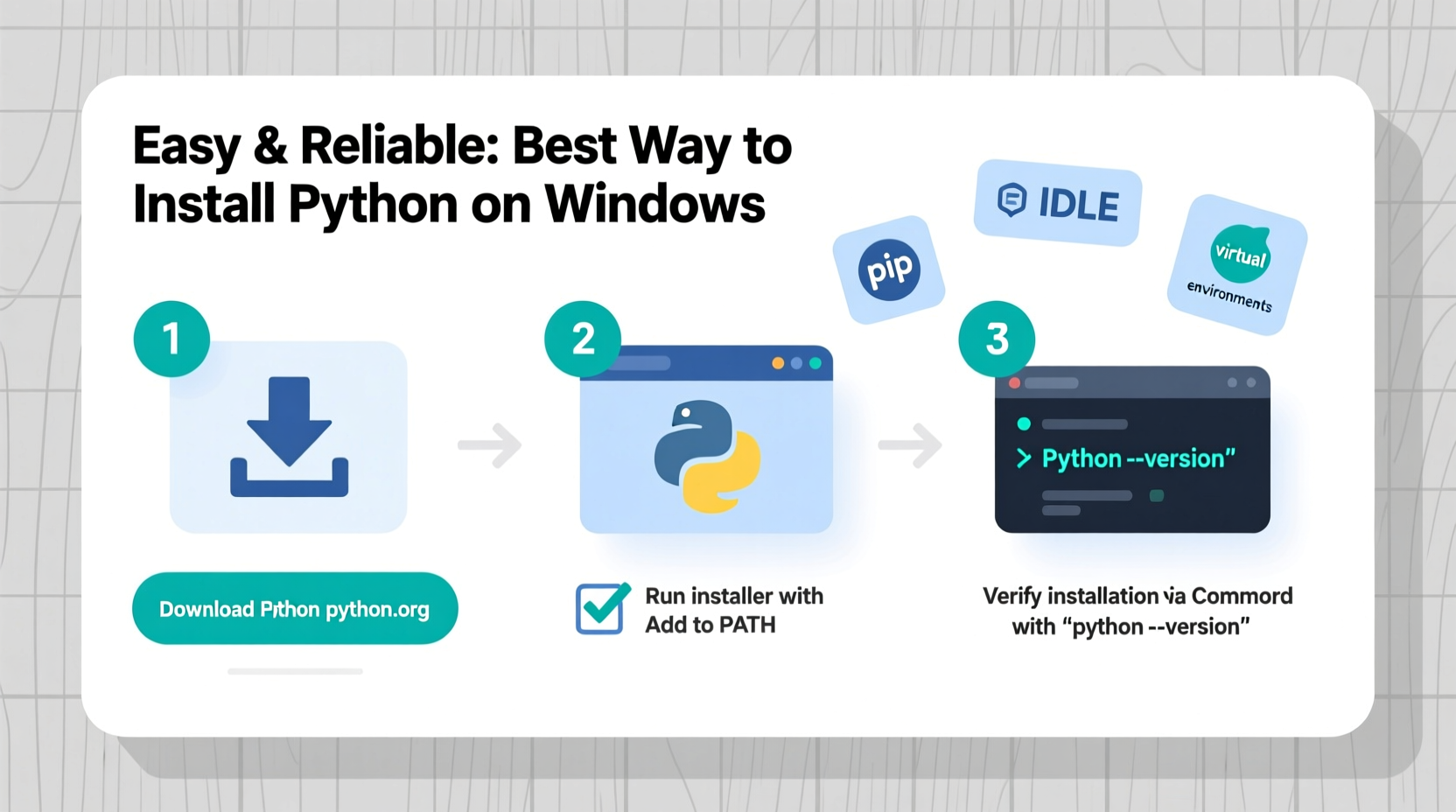
The safest and most reliable source for Python is python.org. Unlike third-party package managers or bundled distributions, the official installer gives you full control over version selection, installation location, and PATH configuration. It’s regularly updated, digitally signed, and tested across Windows versions from 10 to 11.
Some developers opt for alternatives like Anaconda or Chocolatey, which are useful in specific scenarios (e.g., data science workflows), but they add complexity and bloat for general use. For most users, especially beginners, the direct download from python.org is faster, cleaner, and easier to troubleshoot.
“Always start with the official Python installer. It's the foundation of a predictable development environment.” — Sarah Kim, Senior Software Engineer at Microsoft
Step-by-Step Installation Process
Follow this timeline to install Python correctly the first time:
- Visit python.org: Go to https://www.python.org/downloads/.
- Download the Latest Version: Click the yellow “Download Python” button, which automatically detects your OS. As of 2024, Python 3.12+ is recommended.
- Run the Installer as Administrator: Right-click the downloaded .exe file and select “Run as administrator” to avoid permission issues.
- Enable 'Add Python to PATH'**: This is critical. Check the box at the bottom of the installer window before clicking “Install Now”.
- Wait for Completion: The default settings install Python, pip, IDLE, and documentation. <6> Verify Installation: Open Command Prompt and type
python --version and
pip --version.
python --version returns an error, close and reopen Command Prompt or restart your PC to refresh environment variables.
Post-Installation Checklist
After installing Python, confirm everything works properly with this quick checklist:
- ✅ Run
python --version– Should return the installed version (e.g., Python 3.12.3) - ✅ Run
pip --version– Confirms pip is installed and accessible - ✅ Test launching IDLE (Python GUI) from Start Menu
- ✅ Create a test script: Save
print(\"Hello, World!\")as hello.py and run it viapython hello.py - ✅ Ensure user directory is not blocked by corporate policies (common in work laptops)
Common Pitfalls and How to Avoid Them
Even with a smooth installer, mistakes happen. Here’s a comparison of typical errors versus correct practices:
| Don’t | Do |
|---|---|
| Skip checking \"Add Python to PATH\" | Always enable PATH during installation |
| Install to Program Files without admin rights | Use default location or choose a user-writable path |
| Use outdated mirrors or unofficial sites | Download only from python.org |
| Ignore command-line verification | Test both Python and pip immediately after install |
| Assume multiple versions won’t conflict | Use py launcher (py -3.12) to manage versions |
A frequent issue arises when users install Python but later find that typing python in the terminal says “command not recognized.” This almost always means the PATH was not set. Re-running the installer and selecting “Repair” usually fixes it.
Real Example: Fixing a Broken Setup
Jamal, a college student starting a coding bootcamp, downloaded Python but couldn’t run it in PowerShell. He followed online videos that didn’t emphasize the PATH option. After hours of frustration, he reinstalled Python, making sure to check “Add Python to PATH,” and ran the verification commands. Within minutes, his environment worked perfectly. His instructor later explained that 70% of beginner errors stem from misconfigured environments—not code mistakes.
This scenario highlights why attention to detail during installation saves significant debugging time later.
Managing Multiple Python Versions
You may need different Python versions for various projects. Windows includes the Python Launcher (py) by default since Python 3.3, allowing seamless switching:
py -3.9– Launches Python 3.9py -3.12– Launches Python 3.12py -m pip install package_name– Uses pip for the selected versionpy -0– Lists all installed versions
This tool eliminates conflicts and makes version management intuitive without third-party tools like pyenv (which isn't native to Windows).
py instead of
python if you have or plan to install multiple versions. It gives you precise control.
Frequently Asked Questions
Can I install Python without admin rights?
Yes, but with limitations. Download the embeddable zip file from python.org and extract it to a user folder (e.g., Documents/Python). You’ll need to manually configure scripts and may miss some integrations. Not ideal for long-term use.
Should I install Python 32-bit or 64-bit?
Choose 64-bit unless you’re working with legacy software requiring 32-bit. Modern Windows systems (even on older hardware) benefit from 64-bit performance and memory access.
Is pip included automatically?
Yes. The standard installer bundles pip, Python’s package manager. If missing, run python -m ensurepip --upgrade to reinstall it.
Final Recommendations for Long-Term Success
Reliability starts with consistency. Stick to the official installer, verify every installation, and resist the temptation to skip PATH configuration. Over time, you might explore virtual environments (python -m venv myenv) and advanced tools, but a clean base setup remains essential.
Keep your Python version updated. Security patches and language improvements are regular, and upgrading takes just minutes: download the latest installer, run it, and select “Upgrade Now.” Your existing packages and scripts will remain intact.
“The fewer surprises you have at setup, the more focused you can be on writing great code.” — David Beazley, Python Educator and Author
Take Action Today
Don’t wait for a project deadline to sort out your development environment. Install Python now using the method described here, run the verification steps, and create a simple script to confirm it works. A solid foundation today prevents weeks of troubleshooting tomorrow. Share your experience or ask questions in the comments—helping one developer helps the entire community grow stronger.




 浙公网安备
33010002000092号
浙公网安备
33010002000092号 浙B2-20120091-4
Comments
No comments yet. Why don't you start the discussion?