
A cluttered or poorly organized desktop can silently drain your focus and slow down your work. While most people accept desktop chaos as normal, the truth is that even small changes in how you set up your digital workspace can significantly improve concentration, reduce stress, and accelerate task completion. Whether you're working from home, studying, or managing personal projects, optimizing your desktop environment is a low-effort, high-impact way to boost daily productivity.
This guide walks through practical, research-backed strategies to reconfigure your desktop—both physically and digitally—for maximum efficiency. From file organization to monitor placement, every detail plays a role in shaping your workflow.
1. Declutter Your Digital Desktop
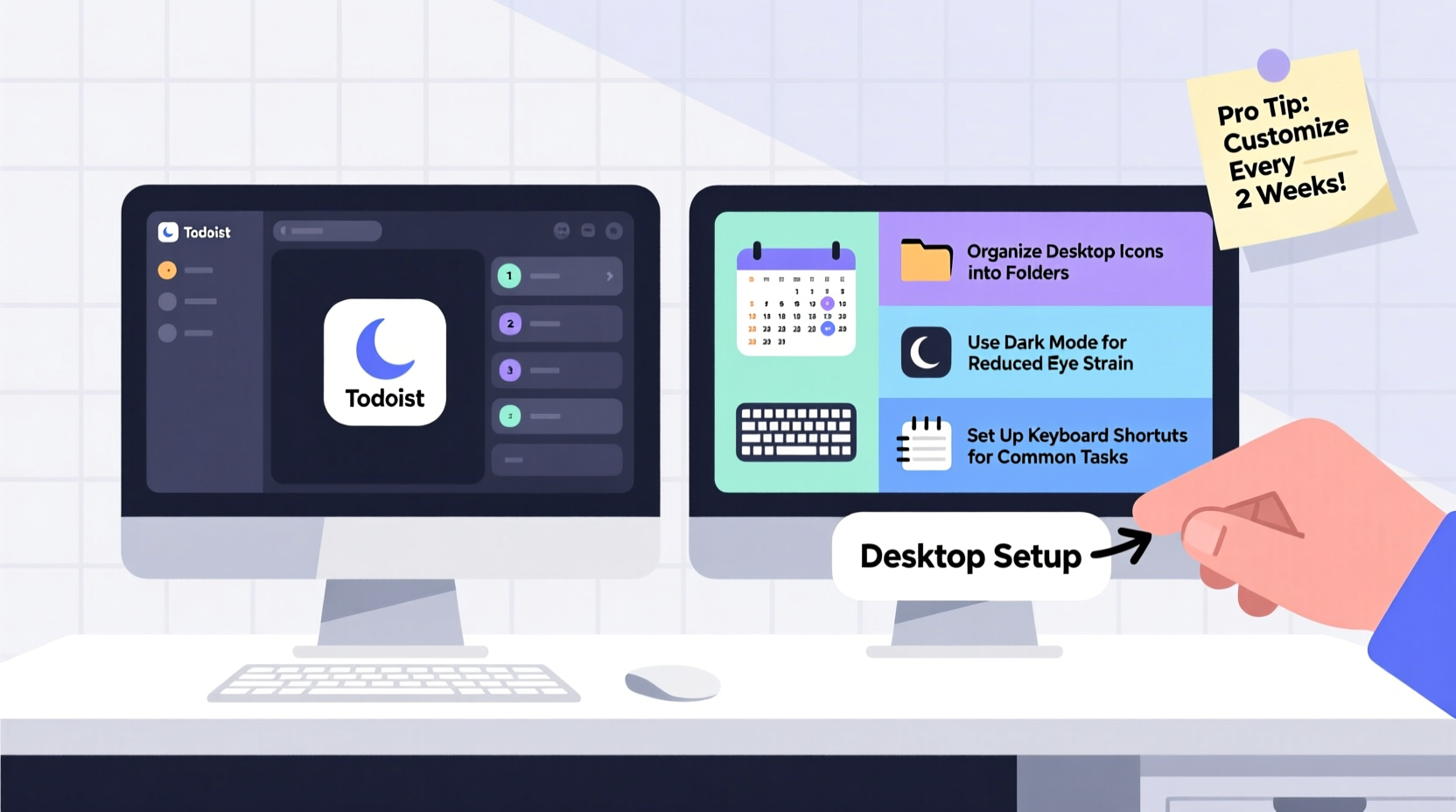
Your computer’s desktop is often the first thing you see when starting work. A screen littered with icons, outdated files, and random downloads creates visual noise that distracts your brain and slows decision-making. Cognitive psychology research shows that clutter competes for attention, reducing your ability to process information efficiently.
Start by removing everything from your desktop except essential shortcuts. Move old files into properly labeled folders stored in Documents or a dedicated “Archive” directory. Use a naming convention like “ProjectName_Date” to make retrieval faster.
Create a Folder System That Works
Instead of scattering files across the desktop, build a logical folder hierarchy. For example:
- Work → Projects → 2024-Q3 → ClientA
- Personal → Finance → Invoices → Paid
- Reference → Templates, Guides, Certificates
This structure reduces search time and makes backups easier. Consider color-coding folders (if supported by your OS) or adding emoji prefixes (e.g., 📊 Reports, ✅ Completed) for quick visual scanning.
2. Optimize Your Physical Workspace Layout
Your physical desktop setup directly affects posture, energy levels, and mental clarity. The goal is to create an ergonomic zone where everything you need is within easy reach and aligned with your body’s natural movements.
“An optimized workstation can reduce fatigue by up to 50% over an eight-hour day.” — Dr. Lena Torres, Occupational Ergonomist
Follow these positioning guidelines:
- Monitor height: Top of the screen should be at or slightly below eye level, about an arm’s length away.
- Keyboard and mouse: Keep wrists straight; elbows bent at 90 degrees.
- Chair support: Lumbar support aligned with lower back, feet flat on the floor or footrest.
If possible, use a sit-stand desk to alternate positions throughout the day. Studies show standing for 30 minutes every two hours improves circulation and alertness.
Do’s and Don’ts of Desk Setup
| Do | Don’t |
|---|---|
| Position monitor to avoid glare from windows | Place laptop on desk without raising screen |
| Use cable organizers to reduce visual clutter | Allow cords to tangle under the desk |
| Keep frequently used tools (notebook, pen, headphones) within arm’s reach | Store snacks or unrelated items on your work surface |
| Add a small plant or calming decor element | Crowd the desk with non-work-related objects |
3. Customize Display Settings for Focus
Most people never adjust their screen brightness, resolution, or scaling—yet these settings have a direct impact on eye strain and readability.
Reduce blue light exposure during evening hours by enabling Night Mode or using apps like f.lux. During the day, ensure brightness matches ambient lighting to prevent squinting or glare. High-DPI displays should use appropriate scaling (125–150%) so text remains legible without excessive scrolling.
If you use multiple monitors, arrange them logically: primary screen centered, secondary to the side for reference material or communication apps. Avoid placing the secondary monitor behind or too far off-axis, which forces constant head turning.
4. Streamline Shortcuts and Automation
Every second spent navigating menus adds up. Customizing keyboard shortcuts and automating repetitive tasks can reclaim hours each week.
Map common actions to key combinations. For example:
- Win + E → Open File Explorer (Windows)
- Cmd + Space → Launch Spotlight search (Mac)
- Create custom shortcuts for opening project folders or launching workflows
Use built-in tools like Automator (Mac) or Power Automate (Windows) to automate file sorting, renaming batches, or backing up documents. Even simple scripts—like moving all downloaded invoices to a finance folder—save mental energy and reduce errors.
Step-by-Step: Create a Morning Launch Routine
- Identify the 3–5 apps you open daily (browser, calendar, task manager).
- Create a folder named “Morning Stack” and place shortcuts inside.
- Right-click the folder > Send to > Desktop (creates a shortcut).
- Assign a keyboard shortcut via Properties > Shortcut key (e.g., Ctrl+Alt+M).
- Now one keystroke launches your entire startup suite.
5. Real Example: How Sarah Doubled Her Writing Output
Sarah, a freelance content writer, struggled with distractions and slow progress. Her desktop had 200+ files, dual monitors misaligned, and no system for organizing drafts.
After spending one afternoon reconfiguring her setup, she made these changes:
- Moved all files into categorized folders; kept only current project on desktop.
- Adjusted monitor height and added a document holder for client briefs.
- Set up a dark-mode writing theme with minimized notifications.
- Created a “Daily Focus” virtual desktop with only her editor and research browser tab.
Within a week, Sarah reported fewer headaches, faster drafting, and a 90% reduction in time spent searching for files. She now completes articles in half the time and has taken on more clients without increasing stress.
Frequently Asked Questions
How often should I reorganize my desktop?
Review your digital and physical setup weekly. Spend 10 minutes every Friday closing unused tabs, archiving completed files, and wiping down surfaces. Monthly, reassess layout efficiency and update shortcuts as projects change.
Is a dual-monitor setup always better for productivity?
Not necessarily. Dual monitors help when multitasking between data sources (e.g., coding, financial analysis), but they can increase distraction if not managed. Use them intentionally—assign roles (primary for creation, secondary for communication)—and disable notifications on the secondary screen.
Can changing wallpaper improve focus?
Yes. Minimalist, neutral backgrounds reduce cognitive load. Avoid animated or emotionally stimulating wallpapers. Some users benefit from “focus wallpapers” with embedded to-do lists or motivational quotes—but only if they don’t become visual noise.
Checklist: Optimize Your Desktop in One Hour
- 🗸 Remove all non-essential files and icons from desktop
- 🗸 Organize documents into labeled folders with clear hierarchy
- 🗸 Adjust monitor height, angle, and brightness
- 🗸 Position keyboard and mouse to maintain neutral wrist posture
- 🗸 Enable dark mode or night light based on time of day
- 🗸 Set up virtual desktops for different work modes
- 🗸 Create a launch shortcut for your daily app stack
- 🗸 Use cable ties or clips to manage cords
- 🗸 Add one calming element (plant, photo, notebook)
- 🗸 Test the setup with a 25-minute focused task
Final Thoughts
Productivity isn’t just about working harder—it’s about designing an environment where focused work happens naturally. By thoughtfully customizing your desktop setup, both digitally and physically, you remove friction from your daily routine and create space for deeper concentration.
You don’t need expensive gear or a full office overhaul. Start with one change today: clean your desktop, adjust your chair, or map a new shortcut. Small tweaks compound into lasting gains. Your future self will thank you for the clarity, speed, and calm those changes bring.




 浙公网安备
33010002000092号
浙公网安备
33010002000092号 浙B2-20120091-4
Comments
No comments yet. Why don't you start the discussion?