
Bringing a new smartwatch into your daily routine can transform how you manage fitness, communication, and productivity. But before you begin tracking steps or receiving notifications, you need to power it on and set it up properly. Whether you’ve just unboxed an Apple Watch, Samsung Galaxy Watch, Fitbit, or another model, the initial setup follows a consistent pattern across most brands. This guide walks you through each essential step with clarity and precision, so you can confidently activate and use your device from day one.
Step 1: Charge Your Smartwatch Before First Use
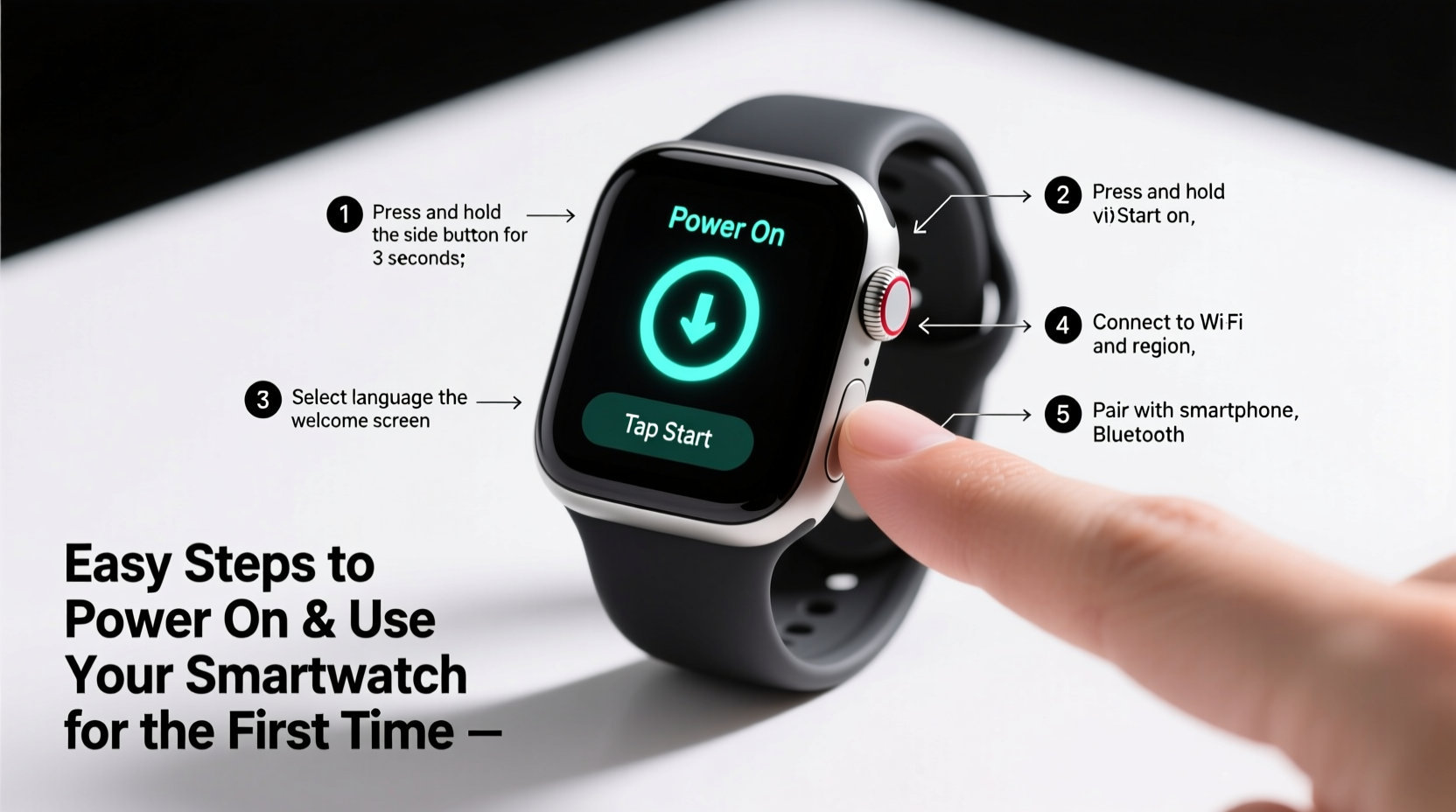
Most smartwatches ship with partial battery charge, but powering on a low-battery device can lead to instability or premature shutdown during setup. Always begin by charging your watch fully.
- Locate the correct charging dock or magnetic cable included in the box.
- Connect the charger to a USB power adapter or computer port.
- Align the back of the smartwatch with the charger’s connectors until it magnetically attaches.
- Wait at least 30–60 minutes, or until the screen shows a full or near-full battery indicator.
You’ll typically see a battery icon or animation on the screen once charging begins. Some watches may turn on briefly during this process—even without manual input—to display the charging status.
Step 2: Power On the Device
Once charged, it’s time to turn on your smartwatch. The method varies slightly depending on brand and model, but the general principle remains the same.
- Apple Watch: Press and hold the side button (on the right edge) until the Apple logo appears.
- Samsung Galaxy Watch: Press and hold the upper button for 3–5 seconds until the Samsung logo lights up.
- Fitbit: Press and hold the side button (or buttons, depending on model) until the Fitbit logo appears.
- Garmin: Press and hold the “Back” or “Power” button—location varies by model—for several seconds.
If nothing happens after holding the button, ensure the device has sufficient charge. A completely drained battery may require 5–10 minutes of charging before responding.
What Happens After Powering On?
After the brand logo appears, the watch boots into setup mode. You’ll usually see a welcome screen with language selection, followed by prompts to pair with a smartphone. At this stage, the device is ready for configuration.
Step 3: Pair with Your Smartphone
Smartwatches rely on smartphones for core functionality like app syncing, notifications, and internet access. Pairing is done via Bluetooth and requires a companion app.
Checklist: Pairing Preparation
- Enable Bluetooth and Wi-Fi on your phone.
- Ensure your phone’s operating system is up to date.
- Download the official companion app (e.g., Wear OS by Google, Galaxy Wearable, Fitbit App, Garmin Connect).
- Unlock your phone and keep it nearby during setup.
Open the companion app and follow the on-screen instructions. Most apps will detect your watch automatically when it's in pairing mode. You may be asked to confirm a matching code displayed on both devices.
| Smartwatch Brand | Companion App | Phone Compatibility |
|---|---|---|
| Apple Watch | Apple Watch (built-in) | iOS only (iPhone 8 or later recommended) |
| Samsung Galaxy Watch | Galaxy Wearable | Android only (Samsung phones preferred) |
| Fossil, TicWatch, Others (Wear OS) | Wear OS by Google | Android & iOS (limited iOS features) |
| Fitbit | Fitbit App | Android & iOS |
| Garmin | Garmin Connect | Android & iOS |
Step 4: Complete Initial Setup and Customize Settings
Once paired, your smartwatch will guide you through personalization options. These include:
- Selecting your preferred language and region.
- Choosing a watch face design (analog, digital, fitness-focused).
- Enabling health sensors (heart rate, blood oxygen, sleep tracking).
- Setting up user profiles (for fitness data accuracy).
- Granting permissions for notifications, GPS, and microphone access.
Taking time to customize now ensures a smoother experience later. For example, selecting an always-on display option conserves battery if used wisely, while disabling unnecessary alerts reduces distractions.
“First-time users often overlook sensor calibration. Taking a short walk during setup helps the accelerometer and GPS align with real-world movement.” — Lena Patel, Wearable Technology Analyst
Step 5: Sync Apps and Begin Using Core Features
Your smartwatch is now active and connected. To get the most out of it, sync essential apps and explore built-in tools.
Common Functions to Activate
- Fitness Tracking: Start a walking, running, or workout session directly from the watch.
- Notifications: Receive calls, texts, emails, and app alerts without reaching for your phone.
- Mobile Payments: Add a credit card to services like Samsung Pay or Apple Pay for contactless purchases.
- Voice Assistant: Use voice commands to set reminders, check weather, or control smart home devices.
- Music Control: Play, pause, or skip tracks from streaming apps even when your phone is out of reach.
To install additional apps, open the companion app on your phone, browse the available watch apps, and select “Install.” Avoid cluttering your watch with too many apps—stick to those you’ll use daily.
Mini Case Study: Starting Strong with a New Routine
Sarah, a teacher in Portland, received a Samsung Galaxy Watch as a gift. Initially hesitant about technology, she followed the steps above over a quiet Sunday morning. After charging the watch and pairing it with her Android phone using the Galaxy Wearable app, she selected a minimalist watch face and enabled step tracking. That week, she walked an average of 8,000 steps per day—up from 4,500 the prior week. The gentle vibration reminder to stand every hour helped her stay active between classes. Within two weeks, Sarah was checking heart rate trends and using voice notes to jot down lesson ideas during her commute.
Her experience reflects a common truth: a proper start makes all the difference in long-term adoption.
Frequently Asked Questions
How do I know if my smartwatch is turned on?
If the screen lights up with the brand logo or a welcome message, the device is powered on. If the screen remains black despite charging, press and hold the power button for 10 seconds to force a restart.
Can I use my smartwatch without a phone?
Limited functions like step counting, alarms, and offline music playback work independently. However, full features such as notifications, app updates, and GPS route saving require a connected smartphone unless the watch has cellular capability.
Why isn’t my smartwatch connecting to Wi-Fi?
Ensure the watch and phone are on the same Wi-Fi network. Some models require initial setup via Bluetooth before allowing direct Wi-Fi connection. Also, avoid public or secured networks that require web-based login.
Conclusion: Make the Most of Your Smartwatch Journey
Powering on and setting up your smartwatch doesn’t have to be overwhelming. With a fully charged battery, the right companion app, and a few minutes of focused attention, you can unlock a powerful tool for health, communication, and convenience. The early steps—charging, pairing, customizing—are foundational. Get them right, and your smartwatch becomes a seamless extension of your digital life.




 浙公网安备
33010002000092号
浙公网安备
33010002000092号 浙B2-20120091-4
Comments
No comments yet. Why don't you start the discussion?