
Knowing your Windows 10 version and build number is more than just a technical detail—it’s essential for effective device management. Whether you're troubleshooting software compatibility issues, applying security patches, or preparing for an upgrade, having accurate system information helps you make informed decisions. The version and build numbers reveal exactly which update your system is running, including feature releases and patch levels. Fortunately, checking this information doesn’t require advanced skills or third-party tools. With several built-in methods available, you can retrieve these details in under a minute.
Why Version and Build Numbers Matter
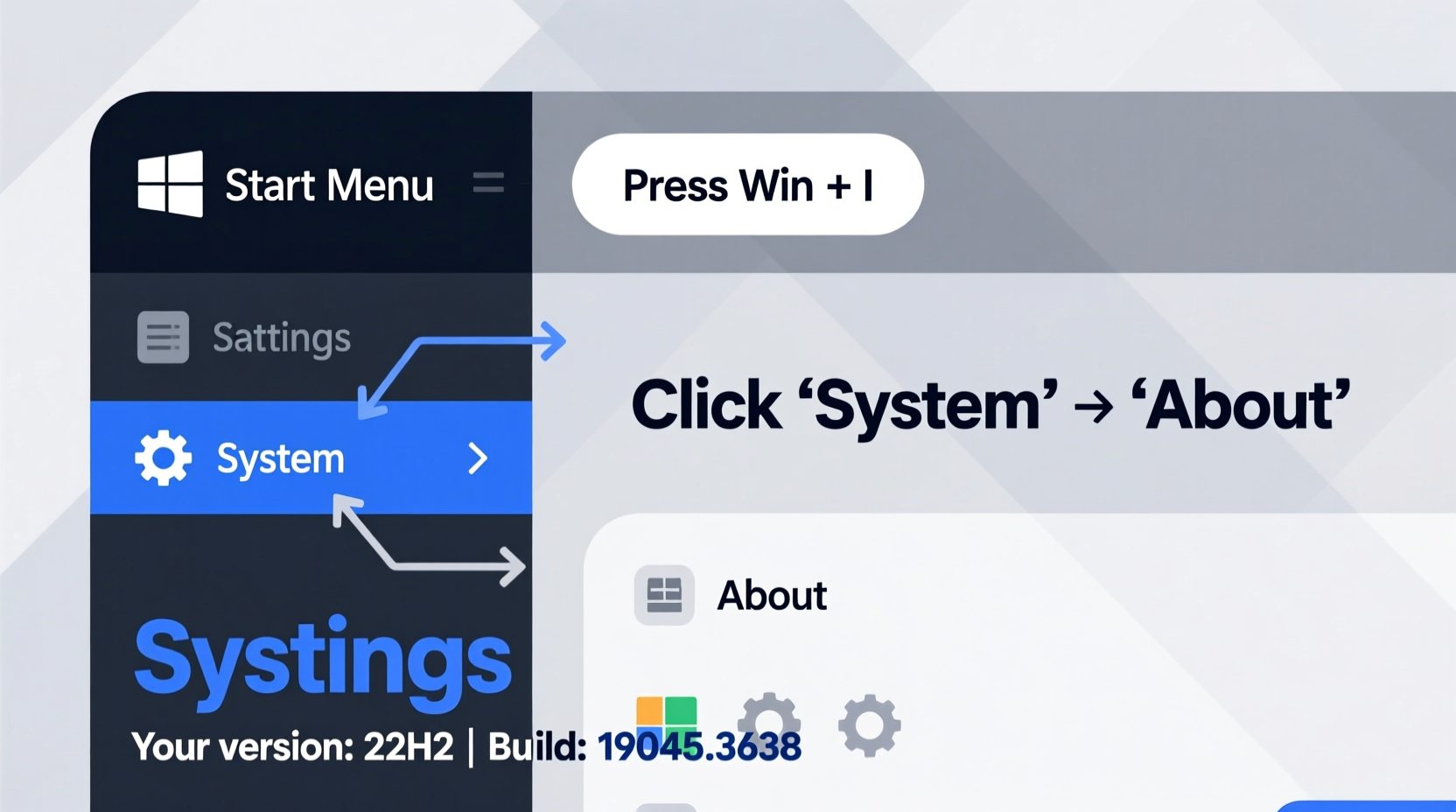
Windows 10 receives regular updates from Microsoft, including feature upgrades (released twice a year) and monthly security patches. Each release carries a unique version number (e.g., 22H2) and a build number (e.g., 19045). These identifiers help determine:
- Whether your system supports specific applications or drivers
- If critical security fixes have been applied
- Compatibility with cloud services or enterprise tools
- Eligibility for future Windows upgrades
For IT administrators and home users alike, staying aware of your current build ensures you’re not running outdated or unsupported software. Unsupported versions may no longer receive security updates, leaving devices vulnerable to exploits.
“Accurate system identification is the first step in proactive maintenance and cybersecurity hygiene.” — David Lin, Senior Systems Engineer at TechGuard Solutions
Step-by-Step: How to Check Your Windows 10 Version and Build Number
There are multiple reliable ways to access your Windows 10 version and build information. Below are five straightforward methods, each suited to different user preferences and scenarios.
Method 1: Using Settings (Easiest for Most Users)
The Settings app provides a clean, user-friendly interface to view system details.
- Click the Start menu and select the Settings gear icon (or press Windows + I).
- Navigate to System > About.
- Under “Device specifications,” find your system type (32-bit or 64-bit).
- Under “Windows specifications,” locate:
- Windows edition (e.g., Windows 10 Pro)
- Version (e.g., 22H2)
- OS build (e.g., 19045.3448)
- Experience (e.g., Windows Feature Experience Pack 1000.22684.1000.0)
Method 2: Using Winver (Fastest Shortcut)
This method uses a dedicated dialog box that displays core version data instantly.
- Press Windows + R to open the Run dialog.
- Type
winverand press Enter. - A pop-up window titled “About Windows” will appear, showing:
- Windows version (e.g., Version 22H2)
- OS build number (e.g., 19045.3448)
- Copyright notice and license info
This method is ideal when you need fast confirmation without navigating menus.
Method 3: Command Prompt or PowerShell
Use command-line tools for scripting, remote diagnostics, or batch checks across multiple machines.
To use Command Prompt:
- Open Start and type cmd.
- Right-click “Command Prompt” and choose “Run as administrator” (optional).
- Type the following command and press Enter:
systeminfo | findstr /B /C:\"OS Name\" /C:\"OS Version\"
- Results will show:
- OS Name: Microsoft Windows 10 Pro
- OS Version: 10.0.19045 N/A Build 19045
Alternatively, in PowerShell:
Get-ComputerInfo | Select-Object WindowsProductName, WindowsVersion, OsHardwareAbstractionLayer
This returns structured output suitable for logs or reports.
Method 4: Using Run Dialog with msinfo32
For comprehensive system diagnostics, use the System Information tool.
- Press Windows + R.
- Type
msinfo32and press Enter. - In the right pane, look for:
- OS Name
- Version
- Build Number
- Installed On (date of last major update)
This method reveals deeper insights, including BIOS version, boot device, and hotfixes installed.
Method 5: Registry Editor (Advanced Users)
The registry stores detailed OS metadata. Access it carefully.
- Press Windows + R, type
regedit, and press Enter. - Navigate to:
HKEY_LOCAL_MACHINE\\SOFTWARE\\Microsoft\\Windows NT\\CurrentVersion
- Check these values:
- ProductName – e.g., Windows 10 Pro
- ReleaseId – e.g., 22H2
- CurrentBuild – e.g., 19045
- UBR (Update Build Revision) – minor update level
Combine CurrentBuild and UBR to get the full build string (e.g., 19045.3448).
Quick Checklist: Verify Your Windows 10 Version in Under 2 Minutes
Follow this simple checklist to confirm your system status quickly:
- ✅ Press Win + I → Go to System → About
- ✅ Locate “Version” and “OS build” under Windows specifications
- ✅ Confirm if it matches the latest release (check Microsoft’s official update history)
- ✅ If outdated, go to Settings > Update & Security > Windows Update to install pending patches
- ✅ For advanced needs, run
winverormsinfo32for additional verification
Real-World Example: Resolving App Compatibility Issues
Sarah, a graphic designer using Adobe Premiere Pro, encountered repeated crashes after returning from vacation. She hadn’t used her laptop in three weeks. After contacting Adobe support, she was asked to provide her Windows 10 build number. Sarah opened Settings > About and discovered her version was still on 21H2, while the latest was 22H2. Her system had failed to install the November 2023 cumulative update due to a paused download.
After resuming updates and rebooting, her OS upgraded to build 19045.3448. Premiere Pro launched without issues. This case highlights how falling behind on updates—even briefly—can disrupt productivity. Regularly checking your build number could prevent similar setbacks.
Common Version vs. Build Confusions Clarified
| Term | What It Means | Example |
|---|---|---|
| Version | Marketing name for feature updates; usually biannual (e.g., 22H2 = second half of 2022) | 22H2 |
| Build Number | Internal development identifier; increases with every test and patch | 19045 |
| UBR (Update Build Revision) | Incremental patch level applied monthly | 3448 |
| Full OS Identifier | Complete string combining build and UBR | 10.0.19045.3448 |
Understanding these distinctions helps interpret support documentation and update notes accurately.
Frequently Asked Questions
How do I know if my Windows 10 version is still supported?
Microsoft typically supports each Windows 10 feature update for 18 months for Home and Pro editions. As of 2024, only version 22H2 remains supported. You can verify end-of-support dates on Microsoft’s Lifecycle page. If your version is no longer listed, you should update immediately.
Can two computers with the same version have different build numbers?
Yes. Two devices running Windows 10 22H2 might have different build numbers based on when they last received updates. One could be on 19045.2965 while another is on 19045.3448, depending on patch installation timelines. The higher number indicates more recent security fixes.
Is it safe to use third-party tools to check system info?
While tools like CPU-Z or Speccy are generally safe, Windows’ built-in utilities (Settings, winver, msinfo32) are sufficient and eliminate risks from downloading unverified software. Stick to native options unless you need hardware-level diagnostics.
Take Control of Your Device Today
Checking your Windows 10 version and build number is a small action with significant benefits. It empowers you to maintain system stability, ensure compatibility, and protect against vulnerabilities. By incorporating one of these quick methods into your routine—especially after travel, long idle periods, or before installing new software—you stay ahead of potential issues. Don’t wait for a crash or error message to prompt action. Take two minutes now to verify your system status, and set a monthly reminder to do it again. In the world of digital efficiency, knowledge isn’t just power—it’s prevention.




 浙公网安备
33010002000092号
浙公网安备
33010002000092号 浙B2-20120091-4
Comments
No comments yet. Why don't you start the discussion?