
In today’s hyper-connected world, constant internet access can be a double-edged sword. While it keeps you informed and productive, there are times when disconnecting is not only beneficial but necessary—whether for digital detox, conserving battery, avoiding distractions, or protecting sensitive data. If you own a Huawei smartphone, you have multiple built-in tools at your disposal to disable internet access quickly and safely. Unlike third-party apps or complex system modifications, these methods require no root access and leave no lasting impact on your device.
Huawei devices run on EMUI (Emotion UI) or HarmonyOS, both of which offer intuitive network management features. Whether you want to cut off mobile data temporarily, block Wi-Fi, or restrict background data for specific apps, the process is straightforward. This guide walks you through practical, secure, and reversible techniques that put you in full control of your connectivity.
Why Disable Internet Access?
Before diving into the how, it helps to understand the why. Disabling internet access isn’t just about going offline—it serves several real-world purposes:
- Battery conservation: Background sync and data fetching drain battery life significantly.
- Reduced distractions: Cutting off social media and notifications improves focus.
- Data protection: Prevents accidental overages on limited data plans.
- Security during travel: Avoids risks from unsecured public Wi-Fi networks.
- Digital well-being: Encourages mindful tech use and reduces screen time.
Step-by-Step Guide to Disable Internet Access
Here are five effective, user-friendly methods to disable internet access on your Huawei phone. All are safe, non-invasive, and can be reversed instantly.
1. Enable Airplane Mode
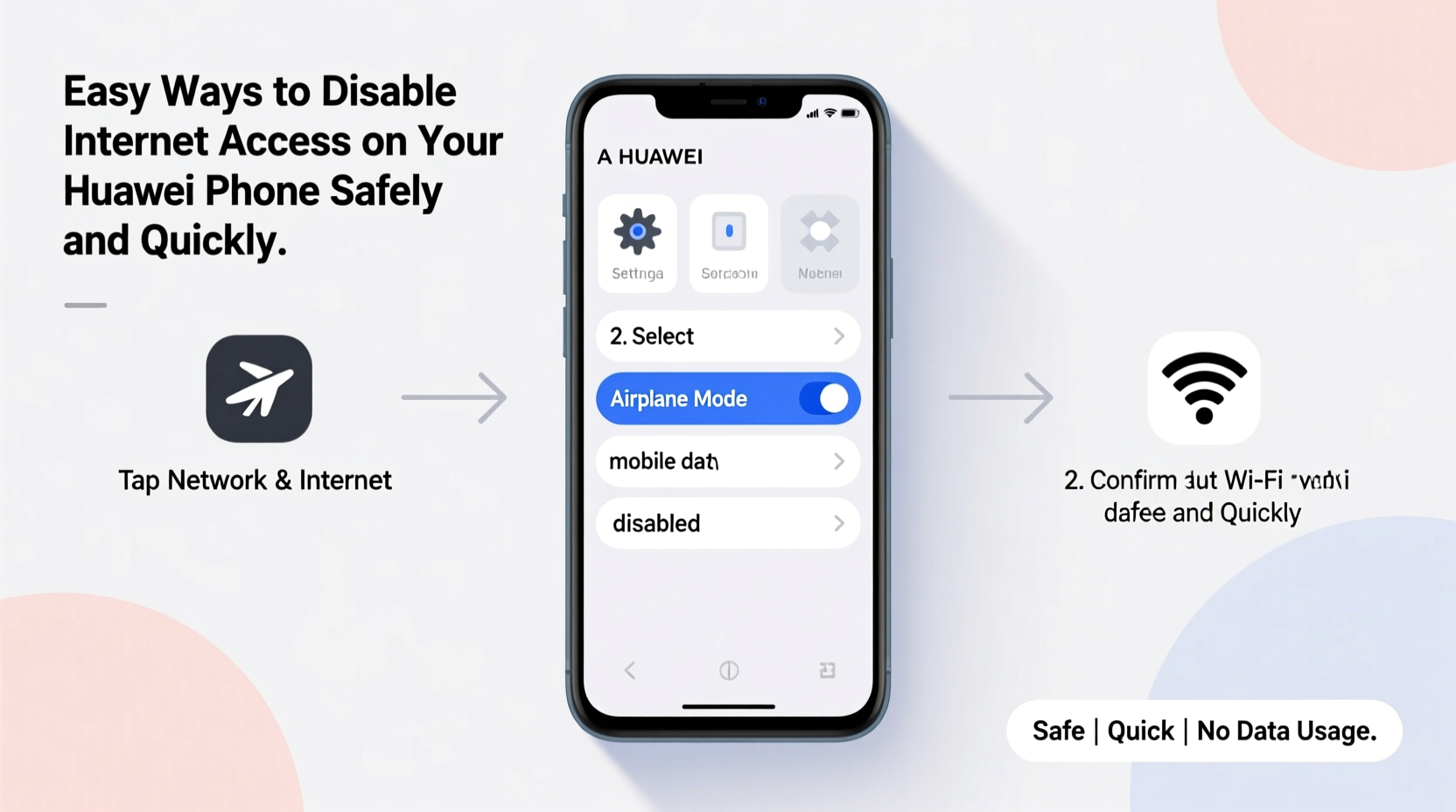
The fastest way to disable all wireless communication—including cellular data, Wi-Fi, and Bluetooth—is by turning on Airplane Mode.
- Swipe down from the top of the screen to open the Quick Settings panel.
- Tap the Airplane Mode icon (a small airplane).
- Wait a few seconds for the system to disconnect all radios.
To re-enable internet access, simply tap the icon again and reconnect to Wi-Fi or mobile data manually if needed.
2. Turn Off Mobile Data
If you want to stay connected to Wi-Fi but disable cellular data, follow these steps:
- Open the Settings app.
- Tap Mobile Network or Cellular Data.
- Toggle off the Mobile Data switch.
This method is ideal when using Wi-Fi at home or work but wanting to avoid roaming charges or data overuse.
3. Disconnect from Wi-Fi
To disable only Wi-Fi while keeping mobile data active:
- Go to Settings > Wi-Fi.
- Toggle off the Wi-Fi switch at the top.
Alternatively, swipe down and long-press the Wi-Fi tile in the notification shade to access settings directly.
4. Use Data Saver Mode
Huawei’s Data Saver restricts background data usage without fully disconnecting you from the internet.
- Navigate to Settings > Mobile Network > Data Usage.
- Tap Data Saver and toggle it on.
- Choose which apps can bypass restrictions under “Unrestricted data usage.”
This option is perfect for extending data limits while still allowing essential services like messaging or navigation to function.
5. Temporarily Disable Specific App Connectivity
You can prevent individual apps from accessing the internet in the background.
- Go to Settings > Apps > App Management.
- Select the app you want to restrict (e.g., Facebook, TikTok).
- Tap Mobile Data & Wi-Fi.
- Disable both Allow background data usage and Allow data usage.
This selective approach gives granular control without cutting off your entire device.
Comparison Table: Methods and Their Impact
| Method | Internet Disabled? | Reversible? | Best For |
|---|---|---|---|
| Airplane Mode | Yes (all connections) | Instantly | Complete disconnection, sleep, flights |
| Turn Off Mobile Data | Cellular only | Yes | Saving data, avoiding roaming |
| Turn Off Wi-Fi | Wi-Fi only | Yes | Security, reducing distractions |
| Data Saver Mode | Background data limited | Yes | Extending data plans |
| App-Level Restrictions | Per app | Yes | Controlling specific app usage |
Mini Case Study: Reducing Screen Time During Work Hours
Sophie, a project manager in Shanghai, struggled with constant social media notifications disrupting her workflow. She used her Huawei P40 Pro daily but found herself checking Instagram and WeChat every few minutes. After learning about Huawei’s Data Saver and app-level restrictions, she disabled background data for non-essential apps and turned off mobile data during core work hours. Instead, she relied solely on office Wi-Fi for approved tasks.
Within a week, Sophie reported a 40% increase in productivity and reduced evening fatigue from screen overload. By selectively disabling internet access rather than going completely offline, she maintained communication for urgent emails while eliminating digital noise.
“Controlled disconnection is more sustainable than total blackout. Users benefit most when they tailor restrictions to their lifestyle.” — Dr. Lin Wei, Digital Wellness Researcher, Fudan University
Checklist: How to Safely Disable Internet Access
- ✅ Determine whether you need full or partial disconnection.
- ✅ Use Airplane Mode for immediate, total offline status.
- ✅ Disable mobile data to avoid overage charges.
- ✅ Turn off Wi-Fi to avoid insecure networks.
- ✅ Activate Data Saver to limit background usage.
- ✅ Restrict internet access per app for fine-tuned control.
- ✅ Test connectivity after changes to ensure desired effect.
- ✅ Re-enable access using the same toggles when ready.
Frequently Asked Questions
Can disabling internet access harm my Huawei phone?
No. These methods only toggle software settings and do not affect hardware or system integrity. They are designed by Huawei for regular user access and pose no risk when used as intended.
Will I still receive calls and texts without internet?
Yes. Voice calls and SMS operate over traditional cellular networks and do not require data. However, messaging apps like WhatsApp or WeChat will not deliver messages unless Wi-Fi is available.
How can I automate internet disabling at certain times?
Huawei’s Smart Automation feature (under Settings > Smart Assistance) allows scheduling actions. You can set rules like “Turn on Airplane Mode at 10 PM” or “Disable mobile data during work hours.” This promotes consistent digital boundaries without manual intervention.
Conclusion: Take Control of Your Connectivity
Your Huawei smartphone is designed to serve you—not distract or drain you. By mastering simple tools to disable internet access, you reclaim control over your time, data, and attention. Whether you're preparing for a focused work session, traveling abroad, or simply seeking a quieter digital experience, these methods offer flexible, safe, and reversible solutions.
Start small: try disabling mobile data for one hour each day. Observe how it affects your mood and productivity. Gradually build habits that align with your goals. Technology should empower you, not command you. With Huawei’s intuitive interface, taking charge of your connectivity has never been easier.




 浙公网安备
33010002000092号
浙公网安备
33010002000092号 浙B2-20120091-4
Comments
No comments yet. Why don't you start the discussion?