
Many people assume their phone number is readily visible on their device, only to realize it’s missing when they need it most—applying for a service, verifying an account, or sharing contact details. Surprisingly, modern smartphones don’t always display your number prominently, and the location varies by brand, model, and operating system. Whether you're using an Android, iPhone, or even a secondary device like a tablet, there are fast, reliable methods to retrieve your number instantly.
This guide walks through proven techniques across platforms, including built-in settings, carrier tools, and emergency workarounds—even if your SIM card isn’t active or your number is hidden in settings.
Check Your Phone Number in Device Settings
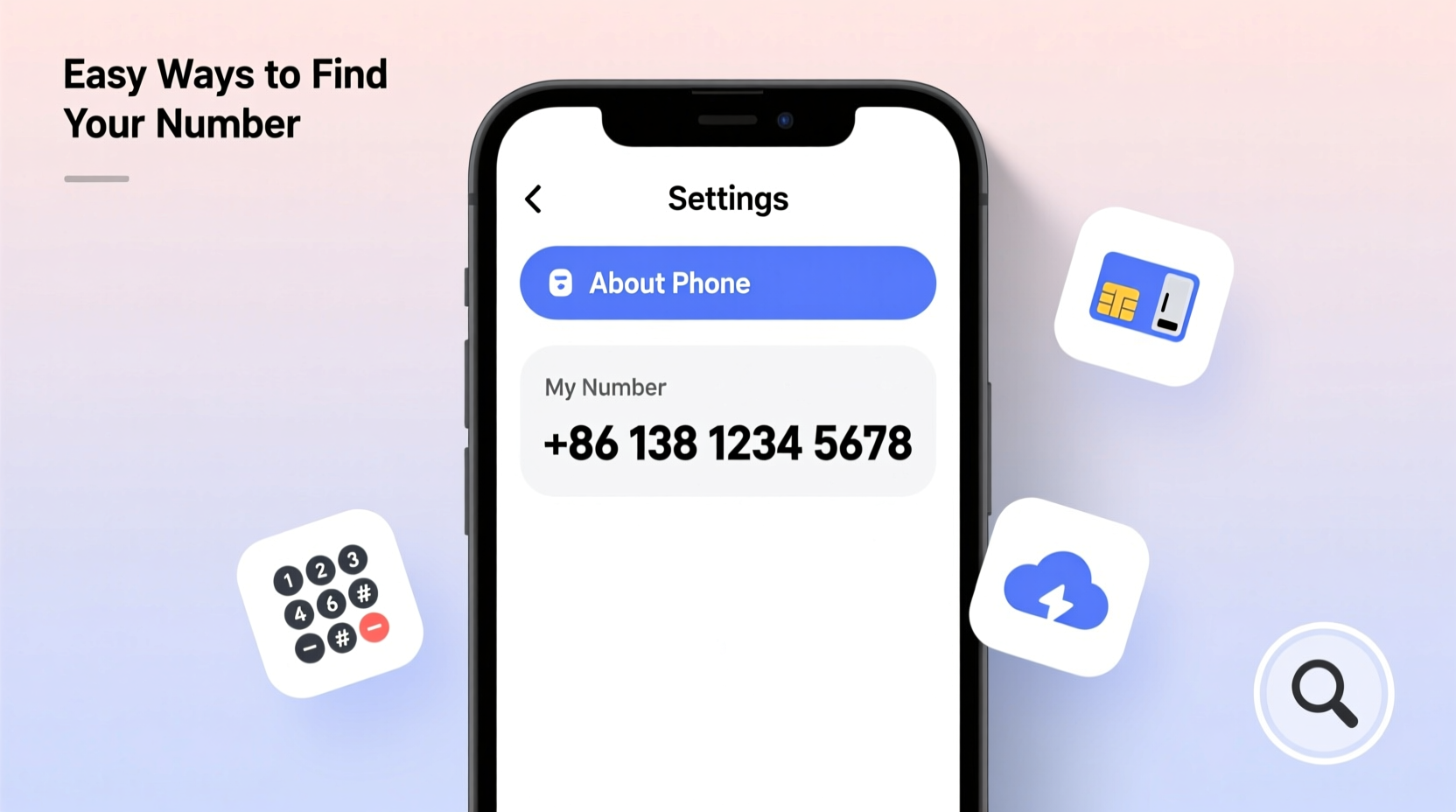
The most straightforward way to locate your number is through your phone’s native settings. However, the path differs depending on whether you’re using iOS or Android—and sometimes even between Android manufacturers.
For iPhone Users
Apple devices often pull your number from your SIM card, but this information may not appear if your carrier hasn’t properly registered it.
- Open the Settings app.
- Tap your name at the top (Apple ID section).
- Select Phone or go back and tap Phone directly from the main menu.
- Tap My Number. If populated, your number will be displayed here.
If no number appears, your carrier may not have sent it to the device. In that case, try alternative methods below.
For Android Devices
Android lacks a universal standard, so the process can vary:
- Google Pixel & Stock Android: Go to Settings > Network & internet > Mobile network > SIMs. Tap your active SIM to view its details, including your number.
- Samsung Galaxy: Navigate to Settings > Connections > SIM card manager. Select your SIM to see the number.
- Other Brands (Xiaomi, OnePlus, etc.): Search “phone number” in settings or check under About phone > Status > My phone number.
Use Carrier Services and Apps
Your mobile carrier stores your number and often provides self-service tools to retrieve it without calling support.
Carrier-Specific Apps
Most major carriers offer apps that display your line information:
- Verizon: Use the My Verizon app. Your number appears on the home screen under your account summary.
- AT&T: The AT&T Mobile app shows your number upon login under “Account” or “Devices.”
- T-Mobile: Open the Magenta App, and your number is visible at the top of the dashboard.
These apps also allow you to manage billing, data usage, and device lines—making them useful beyond just number retrieval.
Call or Text a Service Number
Some carriers let you text or call a shortcode to receive your number via SMS:
- Verizon: Dial
*#or send a blank text to VERIZON (837496). You’ll get an automated reply with your number. - AT&T: Dial *#PLN# (or *#756#) to display your phone number on-screen.
- T-Mobile: Send a message to 646 with the word “NUMBER” to receive your line info.
“Carriers embed subscriber data directly into network signals. When devices register, that data—including your number—can be pulled automatically.” — David Lin, Wireless Network Engineer
Quick Dial Codes That Work Across Networks
Universal dialer codes can reveal SIM and network information, including your number, though success depends on carrier support.
| Code | Purpose | Common Compatibility |
|---|---|---|
*#100# |
Displays your number (works on some T-Mobile and MVNO networks) | US, Canada |
*#123# |
Balance and number info (common in Asia and Africa) | India, Nigeria, Philippines |
*#06# |
Shows IMEI (not your number, but useful for identification) | Global |
*86 |
Voice mailbox access; sometimes announces your number upon login | North America |
While these codes aren’t guaranteed to show your number, they’re worth trying—especially if you’re abroad or using a local SIM.
Alternative Methods Without Access to Your Number
Sometimes, your number simply won’t appear anywhere on the device. This happens with older phones, dual-SIM models, or after a carrier switch. Here are backup strategies.
Call or Text Yourself from Another Device
Borrow a friend’s phone or use a landline to call your own device. Your number will appear on the incoming call screen. Alternatively, send a text to your phone—the sender ID will be your number.
Check Email or Account Sign-Ups
Review recent sign-up confirmations from services like WhatsApp, Google Voice, or banking apps. These often include the phone number used during registration.
Use Voicemail Greetings
When setting up voicemail, many systems prompt you to say your number aloud. Call your voicemail (*86 on most US carriers) and listen to the greeting instructions—they might state your number before prompting you to record.
Real-Life Scenario: Recovering a Number After Switching Carriers
Mark recently switched from AT&T to a smaller MVNO provider. After inserting his new SIM, he noticed his number wasn’t showing in Settings. He tried restarting the phone and checking under About Phone, but the field was blank.
He opened the carrier’s app, logged in, and saw his new number listed under “Active Lines.” To confirm, he used another phone to call his new number—verified. He then saved the number to his Google Contacts and updated his WhatsApp profile.
Mark’s experience highlights how carrier apps can fill gaps when device settings fail. It also underscores the importance of verifying changes after porting numbers.
Frequently Asked Questions
Why doesn’t my phone show my number in settings?
Not all carriers send the number to the device automatically. Some phones rely on manual entry, while others only display it if the SIM is properly authenticated. Dual-SIM phones may only show one number, or neither, depending on configuration.
Can I find my number without a SIM card?
No—your mobile number is tied to the SIM. Without it, your phone cannot retrieve the number from the network. However, if you previously saved it in contacts, messages, or cloud storage, you might still access it locally.
Does airplane mode affect number visibility?
No. Airplane mode disables connectivity but doesn’t erase stored information. If your number was visible before enabling airplane mode, it should remain so. However, carrier-based checks (like dial codes) require network access.
Step-by-Step Checklist to Find Your Number Quickly
- Check device settings: Look under Phone, SIM, or About Phone sections.
- Open your carrier’s app: Log in to view account details and linked numbers.
- Try a dial code: Enter
*#100#or carrier-specific codes like*#756#. - Call yourself: Use another phone to see your number on caller ID.
- Review past messages or emails: Search for verification texts or account alerts.
- Contact customer service: As a last resort, call your carrier with ID for confirmation.
Final Thoughts
Knowing how to quickly find your mobile number is more than a convenience—it’s essential for digital identity, security, and communication. While modern smartphones handle countless tasks seamlessly, retrieving your own number remains surprisingly inconsistent across platforms. By mastering these methods, you ensure you’re never caught off guard when asked for your digits.
Take a few minutes today to locate and securely save your number. Whether stored in a password manager, cloud note, or trusted contact list, having it accessible prevents delays tomorrow.




 浙公网安备
33010002000092号
浙公网安备
33010002000092号 浙B2-20120091-4
Comments
No comments yet. Why don't you start the discussion?