
Finding your own phone number on an Android device should be simple—but surprisingly, many users struggle with it. Unlike iPhones, which often display the number clearly in settings, Android manufacturers vary in how they handle this information. Whether you’ve just switched carriers, lost your SIM details, or need to share your number quickly, knowing where to look saves time and frustration.
This guide reveals multiple reliable methods across different Android brands and OS versions. From built-in settings to carrier codes and third-party tools, you’ll learn how to retrieve your number in seconds—without relying on memory or external help.
Why Your Phone Number Isn’t Always Visible
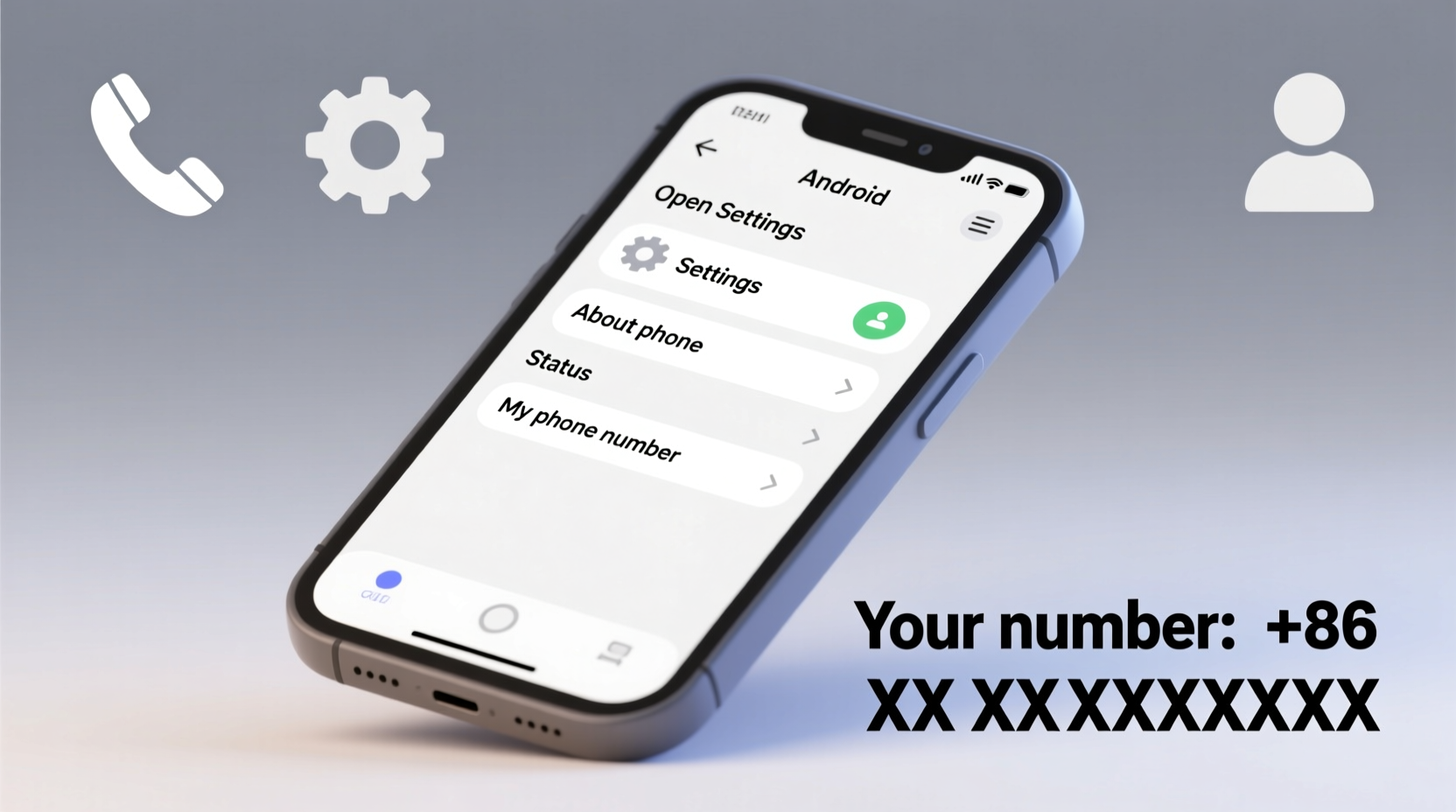
Despite being essential, your phone number isn't automatically stored or displayed by the device itself. Instead, it's typically provided by your SIM card and network carrier. However, not all carriers push this data to the phone consistently. Some devices may show it; others leave it blank or display “Unknown.” This inconsistency stems from:
- SIM limitations: Older or regional SIM cards may not transmit number data.
- Manufacturer differences: Samsung, Google Pixel, OnePlus, and others organize settings differently.
- Carrier policies: Some providers don’t register the number directly on the SIM.
“Many users assume their number is embedded in the phone, but it’s actually managed by the network. That’s why retrieval can vary so much.” — Raj Mehta, Mobile Network Consultant
Step-by-Step Guide to Find Your Number in Settings
The most straightforward method uses your device’s native settings. While paths differ slightly between brands, the general logic remains consistent. Follow these steps based on your Android version and manufacturer.
- Open the Settings app.
- Tap About phone (sometimes under “System” on newer models).
- Select Status or Phone identity.
- Look for My phone number, MSISDN, or ICCID.
If the number appears, copy or screenshot it. If it says “Unknown,” proceed to alternative methods below.
| Device Brand | Path to Phone Number | Notes |
|---|---|---|
| Google Pixel | Settings → About phone → Status → My phone number | Usually accurate if SIM supports it |
| Samsung Galaxy | Settings → About phone → Status → My phone number | May require carrier update |
| OnePlus | Settings → About → Status → My phone number | Often blank; use dial code instead |
| Xiaomi (MIUI) | Settings → About phone → Status → My phone number | Check SIM status separately |
Use Carrier Dial Codes to Retrieve Your Number Instantly
When settings fail, dial codes offer a fast workaround. These USSD (Unstructured Supplementary Service Data) commands connect directly to your carrier’s system and return real-time account details—including your number.
Here are the most effective codes by major U.S. and international carriers:
- AT&T:
*#54636#(short for INFO) – Displays name, number, plan, and balance - T-Mobile:
*#225#(BAL) – Shows number and account balance - Sprint (now T-Mobile):
*narrator#– Returns phone number via voice prompt - Verizon:
*#865#(MYINFO) – Pulls number and service details - Vodafone (UK/EU):
*#100# - Airtel/Jio (India):
*#123#or*121#
To use:
- Open the Phone dialer.
- Enter the code for your carrier.
- Tap the call button.
- Wait a few seconds—your number will pop up on screen.
Real Example: Maria Finds Her Number Before a Job Interview
Maria had just switched to a new budget carrier and forgot to write down her number. With a video interview scheduled in 20 minutes, she needed to provide her contact info to the HR team. Her phone settings showed “Unknown,” and she didn’t have a previous SIM to check.
She opened her dialer and tried *#54636#—the AT&T code—even though she was now with Mint Mobile (an MVNO using T-Mobile’s network). The menu loaded instantly, displaying her full number, plan expiration, and balance. She copied it, sent the message, and joined her interview on time.
This case shows that even off-brand codes can work due to shared network infrastructure. Don’t hesitate to test multiple options if one fails.
Alternative Methods When All Else Fails
If both settings and dial codes come up empty, consider these backup strategies:
Call or Text Yourself from Another Device
Borrow a friend’s phone or use a tablet with calling apps. Call your number and check the incoming caller ID. Alternatively, send a text to yourself—the sender ID will reveal your number.
Check Your Google Account
If you’ve ever added your number to your Google profile:
- Go to myaccount.google.com.
- Sign in with your device’s Google account.
- Navigate to Personal info → Contact info.
- Your number may be listed under “Phone.”
Use a Third-Party App (With Caution)
Apps like Phone Number Owner Finder or Truecaller can detect your number during setup. However, they require permissions and internet access. Only download from trusted sources like the Google Play Store.
“Third-party apps can help, but they’re not always accurate. Rely on official carrier methods first.” — Lena Torres, Cybersecurity Analyst
Checklist: How to Quickly Retrieve Your Android Phone Number
- ✅ Open Settings → About phone → Status → Look for \"My phone number\"
- ✅ Try a carrier-specific dial code (e.g., *#54636# for AT&T)
- ✅ Call your number from another phone to see the ID
- ✅ Check your Google Account online under contact info
- ✅ Use Truecaller or similar app as a last resort
- ✅ Save the working method in your notes for future use
FAQ
Why does my phone show “Unknown” for my number?
This usually happens when your carrier doesn’t send the number to the SIM or device. It’s common with MVNOs (like Cricket or Boost) or older SIM cards. Try a dial code or alternative method.
Can I find my number without a SIM card?
No. Your phone number is tied to the SIM. Without it, the device has no way of knowing your line. You may see IMEI or Wi-Fi MAC address, but not a calling number.
Do all Android phones hide the number?
No, but visibility depends on brand, model, and carrier. Google Pixels tend to display it more reliably than budget devices. Still, even Pixels can show “Unknown” with certain carriers.
Conclusion
Knowing how to find your phone number on any Android device is a small skill with big practical value. Whether you're confirming details for a delivery, signing up for two-factor authentication, or sharing contacts, having instant access avoids delays and embarrassment.
The key is understanding that no single method works universally. Combine built-in settings, carrier dial codes, and smart fallbacks to stay prepared. Once you identify what works for your device and provider, save it. A 10-second note today could save you critical minutes tomorrow.




 浙公网安备
33010002000092号
浙公网安备
33010002000092号 浙B2-20120091-4
Comments
No comments yet. Why don't you start the discussion?