
Streaming YouTube on a large screen enhances the viewing experience, whether you're watching tutorials, music videos, or full-length documentaries. Many people assume they need a streaming stick, game console, or set-top box to get YouTube on their TV. But that’s not always true. Most modern TVs already have the tools needed to access YouTube—often without any additional hardware. With the right approach, you can enjoy seamless playback directly from your smartphone, tablet, or even through your TV’s native interface.
The key is knowing what your TV supports and how to leverage existing features like screen mirroring, built-in apps, or voice-enabled remotes. This guide walks through practical, device-free methods to bring YouTube content to your television, saving money and clutter while maximizing convenience.
Built-in YouTube App: The Simplest Option
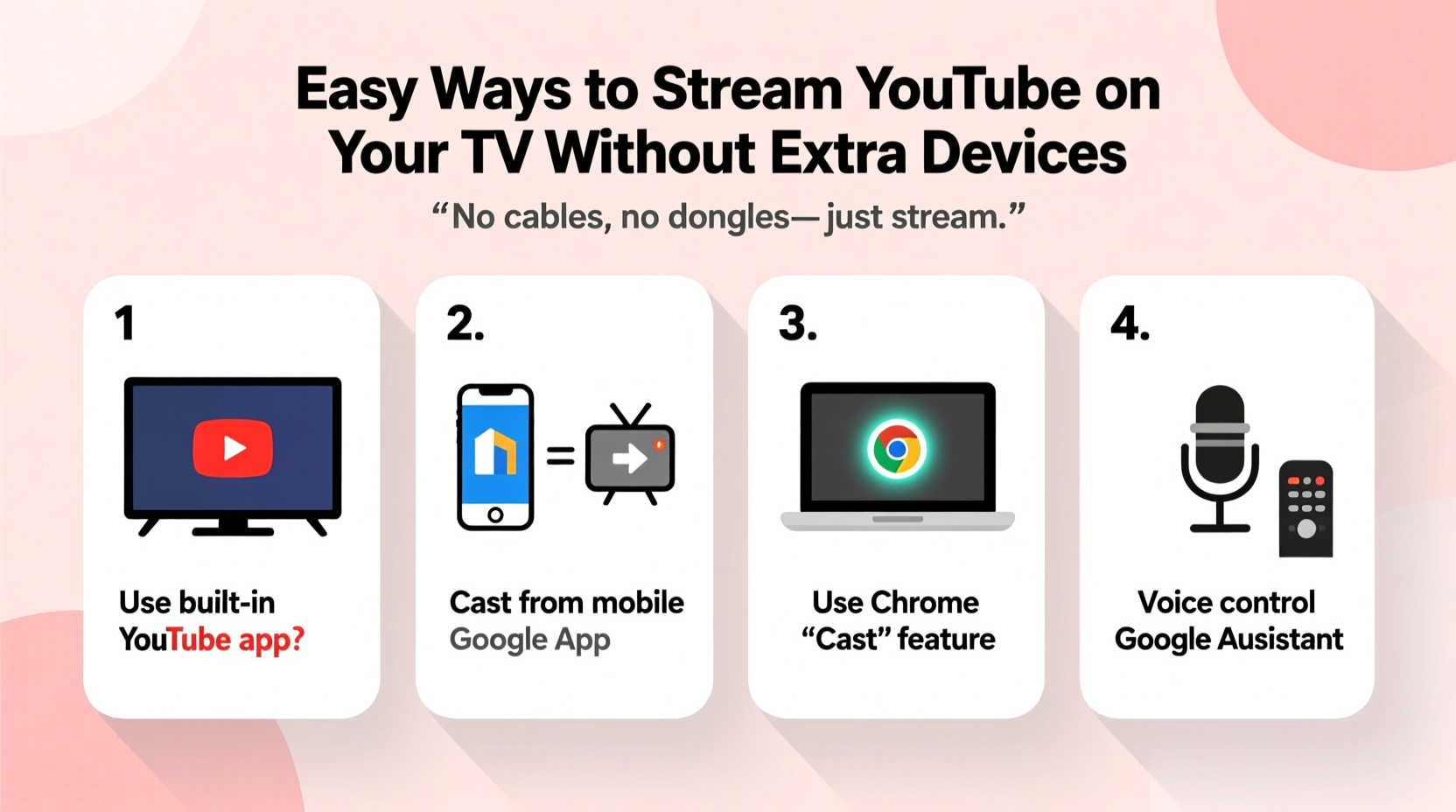
If your TV was manufactured in the last decade, there's a high chance it runs on a smart platform such as Android TV, Google TV, Samsung Tizen, LG webOS, or Roku TV. These systems typically come with a pre-installed YouTube app accessible from the home screen.
To use this method:
- Turn on your TV and navigate to the home menu.
- Look for the YouTube icon among your installed apps.
- Open the app and sign in using your Google account (optional but recommended).
- Search for content or browse personalized recommendations.
No extra steps are required. Once launched, the app functions just like its mobile or desktop counterpart, supporting playlists, subscriptions, and background play if audio-only mode is enabled.
Google Cast (Chromecast Built-in)
Many modern smart TVs include Chromecast functionality embedded directly into the system—no external dongle needed. This feature allows you to “cast” YouTube videos from your phone, tablet, or Chrome browser straight to your TV over Wi-Fi.
How to Cast from Mobile Devices
- Ensure both your mobile device and TV are connected to the same Wi-Fi network.
- Open the YouTube app on your phone.
- Tap the Cast icon (a rectangle with Wi-Fi waves) in the top-right corner.
- Select your TV from the list of available devices.
- Play any video—the stream will appear instantly on your TV.
You retain control via your phone: pause, skip, adjust volume, or switch videos—all while the output displays on the big screen.
Desktop Casting via Chrome Browser
You can also cast from a computer:
- Open YouTube in Google Chrome.
- Click the three-dot menu at the top-right, then select “Cast.”
- Choose your TV from the device list.
- Select “Cast tab” to mirror whatever you’re watching.
This method works seamlessly for long-form content like lectures or live streams without draining your phone’s battery.
“Casting leverages existing infrastructure—your phone becomes a remote, not the player. It reduces strain on mobile hardware and keeps the TV experience smooth.” — David Lin, Streaming Technology Analyst
Screen Mirroring (Miracast or AirPlay 2)
For TVs without native casting support, screen mirroring offers a reliable alternative. This technique duplicates your phone or laptop display directly onto the TV.
Using Miracast (Android & Windows)
- On your TV, go to Input or Source and select “Screen Mirroring” or “Smart View.”
- On your Android phone, open Quick Settings and tap “Cast,” “Smart View,” or “Screen Sharing.”
- Select your TV from the detected devices.
- Confirm the connection; your phone’s screen will now mirror on TV.
- Open YouTube and play any video.
Miracast uses peer-to-peer Wi-Fi Direct, so no internet connection is required after pairing—though streaming video still needs online access.
Using AirPlay 2 (Apple Devices)
If you own an AirPlay 2-compatible smart TV (such as select LG, Samsung, or Sony models):
- Swipe down from the top-right on iPhone/iPad to open Control Center.
- Tap “Screen Mirroring” and choose your TV.
- Enter the on-screen PIN if prompted.
- Launch YouTube and begin playback.
Note: Audio and video quality depend on network strength and device performance. Close unused apps to prevent lag.
| Method | Required Equipment | Internet Needed? | Control Method |
|---|---|---|---|
| Built-in YouTube App | Smart TV only | Yes (for streaming) | TV remote |
| Google Cast | TV with Chromecast built-in + phone/laptop | Yes (same network) | Mobile device or browser |
| Miracast | TV with screen mirroring + Android/Windows | Optional after pairing | Phone controls content |
| AirPlay 2 | AirPlay 2-compatible TV + Apple device | Yes (same network) | iDevice or Siri Remote |
Using Voice Commands with Smart Remotes
Some newer TVs come with voice-enabled remotes powered by Google Assistant or Amazon Alexa. These allow hands-free YouTube access.
For example:
- Press and hold the microphone button on your remote.
- Say: “Open YouTube” or “Play cat videos on YouTube.”
- The TV launches the app and starts playing relevant results.
This works best when your TV is linked to your Google or Amazon account, enabling personalized suggestions based on watch history.
Mini Case Study: Maria Streams Without Buying Anything
Maria wanted to watch workout videos on her living room TV but didn’t want to buy a Fire Stick or Roku. Her Samsung QLED TV ran Tizen OS and had YouTube preinstalled. She opened the app, signed in, and saved her favorite fitness channels. When friends visited, she used her iPhone to cast specific routines via AirPlay 2. No purchases, no setup delays—just instant access. Within a week, she’d replaced her tablet-based viewing entirely with TV playback, enjoying better sound and visibility.
Step-by-Step Checklist to Get Started
Follow this checklist to quickly enable YouTube on your TV without buying new gear:
- Identify your TV model and operating system – Check settings or user manual.
- Check for a built-in YouTube app – Look on the home screen or app drawer.
- Verify casting capability – Search for “Chromecast built-in” or “Google Cast” in system settings.
- Enable screen mirroring – Turn on Miracast or AirPlay depending on your device type.
- Connect all devices to the same Wi-Fi network – Essential for casting and mirroring.
- Test casting from your phone – Use the YouTube app’s Cast button.
- Use voice search if available – Speed up navigation with spoken commands.
Frequently Asked Questions
Can I watch YouTube on a non-smart TV without extra devices?
No—non-smart TVs lack internal processing and connectivity to run apps or receive casts. You’ll need at least a basic streaming stick or HDMI adapter in those cases.
Why won’t my TV show up when I try to cast?
This usually happens due to network mismatch. Ensure both devices are on the same Wi-Fi band (2.4GHz vs 5GHz). Restart your router or forget and rejoin the network on your mobile device.
Is screen mirroring the same as casting?
No. Screen mirroring duplicates your entire device display, consuming more power and bandwidth. Casting sends only the video stream, leaving your phone free for other tasks.
Final Thoughts
You don’t need to invest in additional gadgets to enjoy YouTube on your TV. Modern smart televisions are equipped with powerful software and wireless capabilities that make streaming effortless. Whether you use a native app, cast from a browser, or mirror your screen, the tools are likely already in your home. By understanding your TV’s features and matching them with your current devices, you can unlock a richer, more immersive viewing experience—without spending a dime.




 浙公网安备
33010002000092号
浙公网安备
33010002000092号 浙B2-20120091-4
Comments
No comments yet. Why don't you start the discussion?