
Suddenly finding that Microsoft Edge refuses to close — even after clicking the “X” — can be more than just annoying. It disrupts workflow, consumes system resources, and may indicate deeper performance or software conflicts. While Edge is built on Chromium and generally stable, issues like unresponsive windows, frozen tabs, or background processes lingering after closure are surprisingly common. The good news: most of these problems are fixable with a combination of browser maintenance, system-level adjustments, and targeted troubleshooting.
This guide walks through proven methods to resolve Microsoft Edge not closing properly, from quick fixes to advanced solutions. Whether you're using Windows 10 or 11, encountering this issue sporadically or daily, the following steps will help restore smooth functionality.
Common Causes of Edge Not Closing
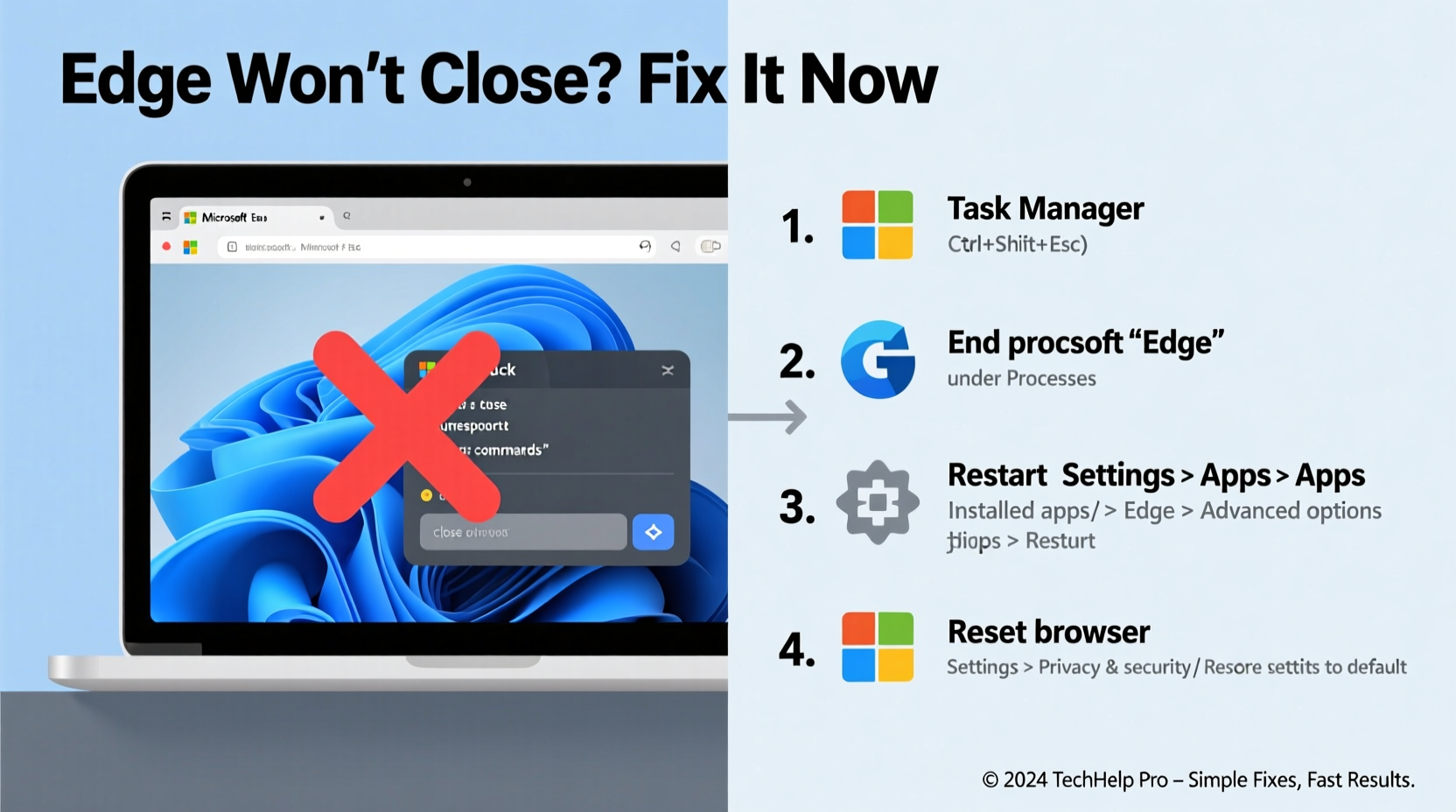
Before jumping into fixes, it's important to understand why Edge might resist closing. Identifying the root cause streamlines troubleshooting and prevents recurrence.
- Unresponsive Tabs or Extensions: A single misbehaving tab or extension can freeze the entire browser process.
- Background Apps and Processes: Edge continues running in the background for features like push notifications or fast startup, sometimes failing to terminate cleanly.
- Corrupted Browser Profile: Damaged user data, cache, or settings can interfere with normal shutdown procedures.
- Outdated or Buggy Edge Version: Software bugs in specific builds may prevent proper window closure.
- System Resource Conflicts: Low memory, high CPU usage, or third-party software interference (especially antivirus tools) can delay or block process termination.
Step-by-Step Fixes to Resolve Edge Not Closing
Follow this structured approach, starting with the simplest solutions and progressing to more involved ones if needed.
1. Force Quit Using Task Manager
If Edge appears frozen or won’t respond to the close button:
- Press Ctrl + Shift + Esc to open Task Manager.
- Go to the “Processes” tab.
- Locate all entries labeled “Microsoft Edge.”
- Right-click each and select End task.
- Confirm the action if prompted.
This immediately stops all Edge-related processes. While this doesn’t fix the underlying issue, it regains control of your system quickly.
2. Disable Background Apps
Edge is designed to run in the background for faster startup and real-time updates. However, this feature often causes processes to persist after the window is closed.
- Open Microsoft Edge.
- Click the three dots (⋯) in the top-right corner.
- Navigate to Settings > System and performance.
- Toggle off \"Continue running background apps when Microsoft Edge is closed.\"
Disabling this setting ensures Edge shuts down completely once the last window is closed.
3. Update Microsoft Edge
Bugs in outdated versions can cause improper behavior, including failure to close. Ensure you’re running the latest build.
- In Edge, click the three dots (⋯).
- Select Help and feedback > About Microsoft Edge.
- The browser will automatically check for updates and install them.
- Restart Edge after installation completes.
Keeping Edge updated improves stability and closes known vulnerabilities that could affect process management.
4. Clear Corrupted Cache and Site Data
Accumulated cache or corrupted site data can lead to unresponsive behavior.
- Go to Settings > Privacy, search, and services.
- Under “Clear browsing data,” click Choose what to clear.
- Select “Cached images and files” and “Cookies and other site data”.
- Click Clear now.
This removes temporary files that may be causing instability without affecting saved passwords or bookmarks.
5. Run Edge in Safe Mode (Disable Extensions)
Extensions are a frequent culprit behind browser freezes.
- Close all Edge windows.
- Press Win + R, type
msedge --disable-extensions, and press Enter.
Edge will launch without extensions. Test whether it closes normally. If yes, re-enable extensions one by one to identify the problematic one.
Troubleshooting Table: Do’s and Don’ts
| Action | Do | Don’t |
|---|---|---|
| When Edge freezes | Use Task Manager to end processes | Repeatedly click the close button |
| Updating Edge | Check for updates regularly | Ignore update prompts for weeks |
| Managing extensions | Disable them one by one to test | Keep all extensions enabled indefinitely |
| Clearing data | Clear cache monthly | Delete everything without backup |
| System maintenance | Reboot occasionally to clear memory | Run too many apps alongside Edge |
Mini Case Study: Persistent Edge Issue Resolved
Sarah, a project manager using Windows 11, reported that Edge wouldn’t close after her weekly team video calls via Teams (running in-browser). She’d close the window, but CPU usage remained high. Upon checking Task Manager, multiple Edge processes were still active.
She followed these steps:
- Disabled background apps in Edge settings.
- Cleared browsing data, focusing on cached media.
- Disabled her ad-blocker and meeting scheduler extension.
The issue resolved after disabling the meeting scheduler extension, which was trying to sync calendar events post-call. Re-enabling it caused the problem to return, confirming the source. Sarah now uses the extension only when needed and closes Teams sessions manually before exiting Edge.
“Browser extensions often run asynchronous tasks that outlive the UI. Always test in safe mode when diagnosing closure issues.” — David Lin, Senior Software Support Engineer at Microsoft Partner Solutions
Advanced Fix: Reset or Repair Microsoft Edge
If basic steps fail, consider resetting Edge to default settings or repairing the installation.
Reset Edge Settings
- Go to Settings > Reset settings.
- Click Restore settings to their default values.
- Confirm with Reset.
This resets startup pages, search engine, pinned tabs, and disables extensions — but keeps history, passwords, and favorites.
Repair or Reset via Windows Apps
- Open Settings > Apps > Installed apps.
- Search for Microsoft Edge.
- Click the three dots and choose Modify > Repair.
- If repair fails, select Reset to wipe and reinstall the app.
Note: Resetting removes all settings and extensions permanently.
FAQ: Common Questions About Edge Not Closing
Why does Microsoft Edge keep running in the background?
By default, Edge runs background processes to enable features like download continuation, notifications, and faster startup. You can disable this in Settings under “System and performance.”
Can malware cause Edge not to close?
Yes. Malicious extensions or scripts can hijack browser processes. Scan your system with Windows Defender or a trusted antivirus tool, and review installed extensions for suspicious names or permissions.
Does restarting my PC fix Edge closure issues?
Often, yes. Restarting clears stuck processes and resets system memory. It’s a reliable first step when troubleshooting any persistent app issue.
Conclusion: Take Control of Your Browser Experience
Microsoft Edge not closing is a frustrating but solvable issue. By methodically addressing potential causes — from rogue extensions to outdated builds — you can restore reliable performance. Start with disabling background apps and clearing cache, then escalate to resetting or repairing the browser if needed. Regular maintenance, such as updating Edge and auditing extensions, prevents future disruptions.




 浙公网安备
33010002000092号
浙公网安备
33010002000092号 浙B2-20120091-4
Comments
No comments yet. Why don't you start the discussion?