
When your eero Wi-Fi system displays a red light, it’s more than just an alert—it’s a signal that something is wrong with your network. Unlike the calm blue or soft white indicators of normal operation, a red light demands attention. While it can be alarming, especially if you're in the middle of a video call or streaming your favorite show, most issues behind the red light are fixable at home with basic troubleshooting. Understanding what the red light means, what causes it, and how to respond can save time, reduce frustration, and get your internet back online fast.
What the eero Red Light Indicates
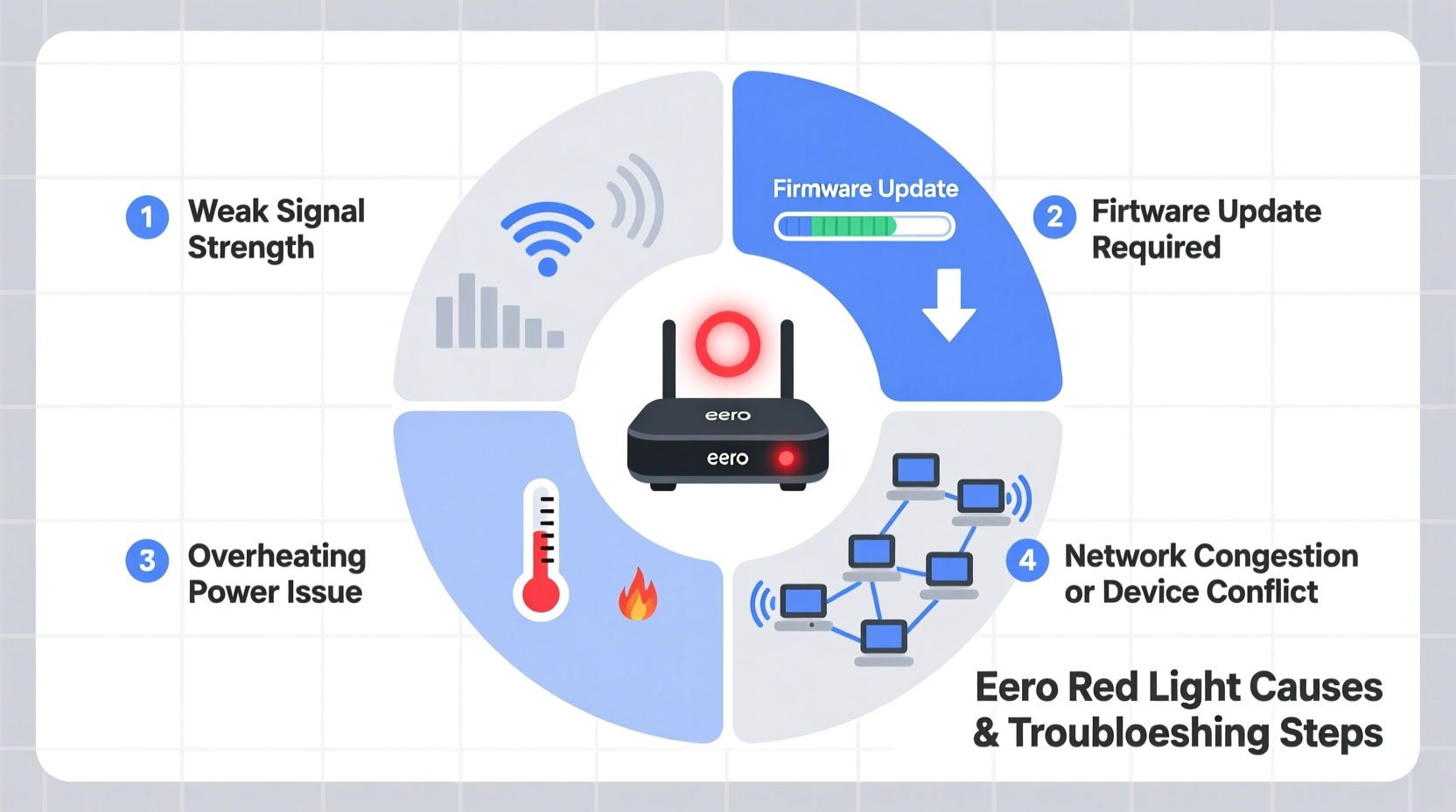
The color of the light on your eero device is part of its visual feedback system. A steady red glow typically signals a critical issue—most commonly, a loss of internet connection or a hardware malfunction. According to eero's official support documentation:
“Solid red light: Your eero is not connected to the internet. Check your modem and internet service.” — eero Support Team
This doesn’t always mean your entire internet is down. Sometimes, the problem lies within the eero system itself—such as misconfiguration, outdated firmware, or interference from nearby electronics. The key is to determine whether the issue is isolated to the eero unit or affects your broader network setup.
Common Causes of the eero Red Light
A red light isn't random. It reflects specific underlying problems. Knowing the root cause helps you apply the right solution. Here are the most frequent reasons your eero shows a red light:
- No Internet Connection: The most common trigger. If your modem isn’t sending data to the eero, the gateway eero will turn red.
- Modem or ISP Issues: Cable modems can freeze or lose sync. Internet service providers may experience outages or maintenance downtimes.
- Improper Network Configuration: Plugging the eero into the wrong port (like LAN instead of WAN) or daisy-chaining routers incorrectly disrupts connectivity.
- Firmware Problems: Outdated or corrupted firmware can prevent the device from functioning normally.
- Hardware Failure: Though rare, internal components like the Ethernet port or power supply may fail.
- Overheating: Poor ventilation or placement near heat sources can cause thermal shutdowns.
Troubleshooting Steps to Fix the eero Red Light
Follow this step-by-step guide to systematically identify and resolve the cause of the red light. Start simple and progress to advanced checks only if needed.
- Verify Power and Connections
Ensure the eero is securely plugged into both power and the modem via Ethernet. Confirm the cable is firmly seated in the correct port (WAN/uplink). - Restart Your Devices
Power cycle your modem first, wait 60 seconds, then restart your eero. This resolves temporary glitches in over 60% of cases. - Check Modem Status Lights
Look at your modem’s indicator lights. If DOCSIS or “Online” lights are off or blinking erratically, contact your ISP. - Test with a Different Ethernet Cable
Cables degrade over time. Swap in a known-working Cat5e or Cat6 cable to rule out physical layer faults. - Move the eero Away from Interference
Keep it away from microwaves, cordless phones, metal objects, and thick walls that can block signals or cause electronic noise. - Update Firmware via the eero App
Open the app, go to Settings > Network > Software Updates. Install any pending updates. - Factory Reset (Last Resort)
Press and hold the reset button for 10 seconds. Note: This erases all settings. Reconfigure the network afterward.
Real-World Example: John’s Weekend Outage
John noticed his eero turned red during a weekend Zoom meeting. His phone showed Wi-Fi but no internet. He checked his modem—its online light was off. After restarting the modem and waiting two minutes, the light turned solid, and his eero switched back to white. The issue? His ISP had pushed a configuration update overnight that required a reboot. By following basic troubleshooting, John resolved it in under 10 minutes without calling support.
Do’s and Don’ts When Dealing with a Red Light
| Do’s | Don’ts |
|---|---|
| Restart both modem and eero in sequence | Ignore the issue—delaying can prolong downtime |
| Use the eero app to monitor connection status | Plug eero into a power strip with surge issues |
| Keep firmware updated automatically | Place eero inside cabinets or near mirrors |
| Contact ISP if modem shows errors | Perform factory reset without backing up settings |
When to Contact Support
If you’ve completed all troubleshooting steps and the red light persists, it may be time to reach out. Contact eero support if:
- The device remains unresponsive after a factory reset.
- You’re unable to access the eero app or log in.
- Multiple eeros in a mesh network show red simultaneously (excluding internet outage scenarios).
- You suspect hardware damage (burn smell, visible scorching, or broken ports).
Before contacting support, gather the following information:
Frequently Asked Questions
Why is my eero blinking red instead of solid red?
A blinking red light usually indicates the device is in setup mode or failed to complete boot-up. If it doesn’t transition to white or blue within five minutes, try unplugging and restarting it. Persistent blinking may require a factory reset.
Can a power surge cause a permanent red light?
Yes. Power surges can damage internal circuitry. Always use a surge protector with your eero and modem. If a surge occurred recently and the device won’t power on properly, contact eero support for replacement options.
Does a red light mean my eero is dead?
Not necessarily. Most red lights indicate a solvable connectivity issue rather than hardware death. Only after exhausting all troubleshooting steps should you assume the unit is faulty.
Expert Insight: Network Stability Matters
Maintaining a stable home network goes beyond fixing lights. Experts emphasize proactive care.
“Modern homes rely on seamless connectivity for work, education, and security. Monitoring indicator lights and acting early prevents cascading failures.” — Dr. Lena Torres, Network Systems Engineer
Regular maintenance—like rebooting monthly, checking for updates, and ensuring proper placement—can prevent many issues before they start.
Final Checklist: Resolve eero Red Light Fast
Use this concise checklist the next time you see a red light:
- ✅ Confirm eero is receiving power
- ✅ Check Ethernet cable between modem and eero
- ✅ Restart modem, then eero
- ✅ Verify modem lights indicate online status
- ✅ Test internet on another device
- ✅ Open eero app to view error messages
- ✅ Update firmware if available
- ✅ Factory reset only if all else fails
Conclusion: Stay Calm and Troubleshoot
A red light on your eero isn’t the end of the world—it’s a diagnostic tool. With methodical troubleshooting, most issues can be resolved in under 30 minutes. The key is understanding what the light means and responding logically, not emotionally. Whether it’s a loose cable, a frozen modem, or a firmware hiccup, solutions exist. Don’t rush to replace hardware. Instead, follow the steps outlined here, consult the app, and lean on support when needed.




 浙公网安备
33010002000092号
浙公网安备
33010002000092号 浙B2-20120091-4
Comments
No comments yet. Why don't you start the discussion?