
Dust, oils, and grime accumulate on laptop keyboards and screens faster than most people realize. Over time, this buildup not only affects appearance but can interfere with performance—sticky keys, smudged displays, and even overheating due to blocked vents. Cleaning your laptop properly is essential for both hygiene and longevity. However, using the wrong tools or chemicals can cause irreversible damage. The key lies in choosing effective yet gentle methods that protect sensitive components while delivering a spotless finish.
Why Regular Cleaning Matters
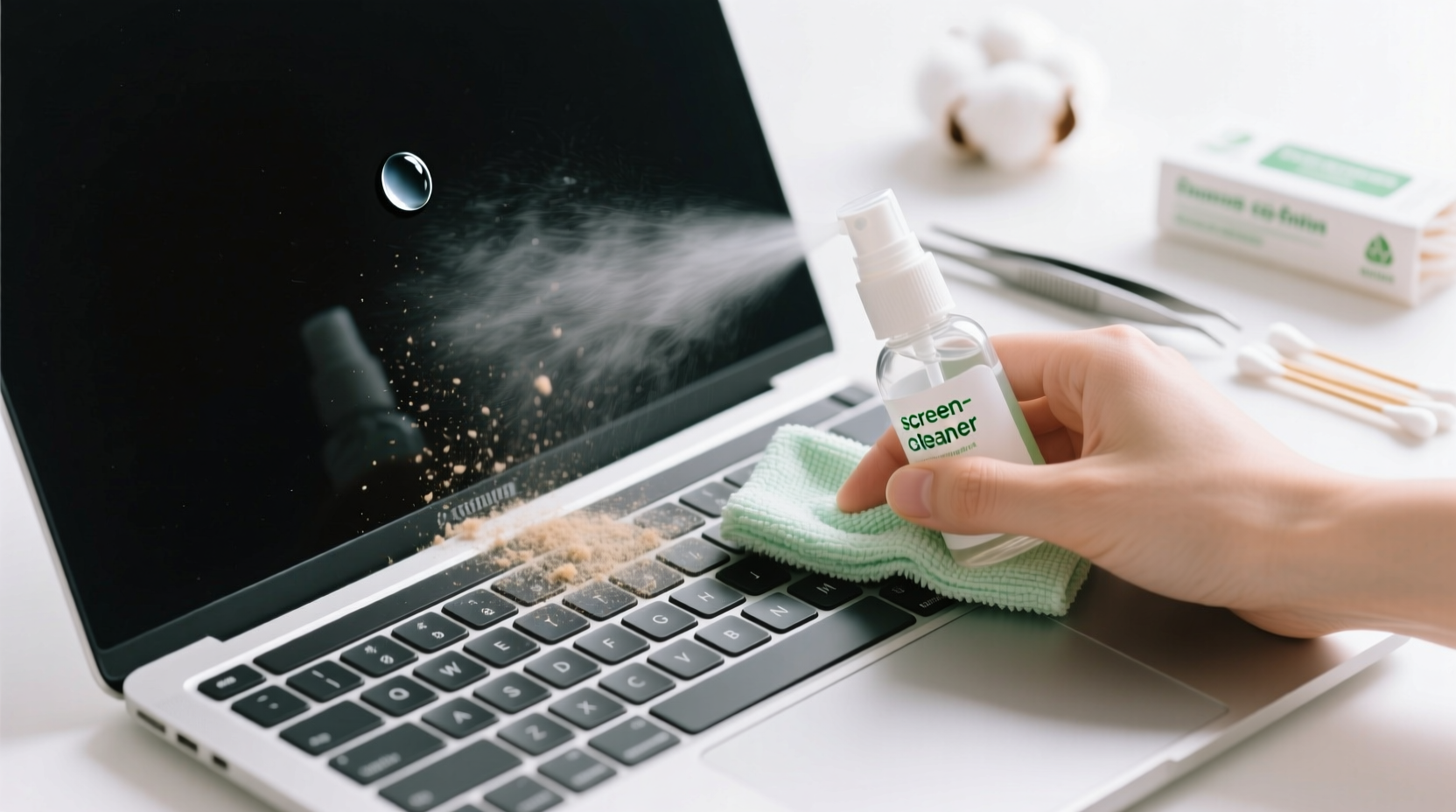
Laptops are personal devices used daily, often in environments where food, skin oils, dust, and pet hair contribute to contamination. A study by the University of Arizona found that the average keyboard hosts more bacteria per square inch than a toilet seat. Beyond health concerns, accumulated debris can lead to mechanical issues: crumbs jam keys, dust blocks cooling fans, and fingerprints obscure screen clarity.
Regular cleaning helps maintain responsiveness, prevents long-term wear, and preserves resale value. Most importantly, it ensures your device remains hygienic and functional over years of use.
Gathering the Right Supplies
The effectiveness of any cleaning routine depends on the tools used. Many household cleaners contain harsh solvents like ammonia or alcohol concentrations too high for delicate electronics. Using paper towels or rough cloths can scratch anti-glare coatings. Instead, assemble a kit designed specifically for electronics care.
| Item | Purpose | Recommended Option |
|---|---|---|
| Cleaning Cloth | To wipe surfaces without scratching | Microfiber (lint-free) |
| Liquid Cleaner | To dissolve oils and disinfect safely | Isopropyl alcohol (70%), distilled water, or screen-safe spray |
| Compressed Air | To dislodge debris between keys | Canister with precision nozzle |
| Cotton Swabs | To reach tight spaces around keys | Soft-tip swabs (non-abrasive) |
| Soft Brush | To sweep away loose particles | Makeup brush or small paintbrush |
“Using improper cleaning agents is one of the top causes of avoidable laptop damage. Always check manufacturer guidelines before applying anything to your screen.” — Dr. Lena Patel, Electronics Maintenance Specialist
Step-by-Step Guide to Cleaning Your Keyboard
A clean keyboard improves typing accuracy and reduces germ exposure. Follow these steps carefully to avoid damaging internal components:
- Power down and unplug: Shut off the laptop completely and disconnect from power sources. This prevents electrical shorts during cleaning.
- Tilt and shake gently: Hold the laptop at a 75-degree angle over a trash can and tap the back lightly to dislodge loose crumbs.
- Use compressed air: Spray short bursts between keys at a 45-degree angle to lift out dust and debris. Avoid shaking the can, as moisture may escape and damage circuits.
- Brush away residue: Use a soft brush to sweep lingering particles from keycaps and crevices.
- Clean individual keys: Dampen a cotton swab with isopropyl alcohol (do not soak) and carefully wipe around each key. For stubborn grime, hold the swab in place briefly to allow evaporation to lift residue.
- Wipe the surface: Use a slightly damp microfiber cloth to go over the entire keyboard area. Never pour liquid directly onto the laptop.
- Let dry completely: Allow at least 10–15 minutes before powering back on.
How to Safely Clean Your Laptop Screen
Laptop screens are coated with anti-reflective and oleophobic layers that repel fingerprints. These coatings degrade when exposed to abrasive materials or strong chemicals. Proper technique is critical.
- Start by turning off the display to better see smudges.
- Use a dry microfiber cloth first to remove light dust.
- If further cleaning is needed, lightly dampen a corner of the cloth with distilled water or a 50/50 mix of distilled water and 70% isopropyl alcohol. Never spray liquid directly on the screen.
- Wipe gently in straight lines from top to bottom. Circular motions can leave swirl marks.
- For persistent spots, press lightly and let the moisture dissolve the residue rather than scrubbing.
- Finish with a dry section of the cloth to eliminate streaks.
Never use window cleaners, paper towels, napkins, or clothing to clean your screen. These can scratch or chemically degrade the surface.
Mini Case Study: Recovering a Neglected Work Laptop
Sarah, a freelance graphic designer, noticed her laptop screen was constantly blurry despite repeated wiping. After months of working from coffee shops and leaving the device uncovered, oil buildup had created a film resistant to dry cleaning. She followed the recommended method: powered down the laptop, used a microfiber cloth dampened with a water-alcohol solution, and wiped vertically. Within minutes, the screen regained clarity. She also cleaned the keyboard with compressed air and swabs, removing years of compacted debris. Her productivity improved—not just because the machine looked better, but because sticky keys no longer interfered with design work.
Do’s and Don’ts of Laptop Cleaning
| Action | Do | Don't |
|---|---|---|
| Cleaning Liquid | Use 70% isopropyl alcohol or manufacturer-approved cleaner | Use bleach, ammonia, or Windex |
| Cloth Type | Lint-free microfiber | Paper towels, tissues, or t-shirts |
| Moisture Application | Dampen cloth, not device | Spray directly on screen or keyboard |
| Pressure | Light, even strokes | Press hard or scrub aggressively |
| Timing | Clean every 4–6 weeks | Wait until performance suffers |
Frequently Asked Questions
Can I use baby wipes to clean my laptop screen?
No. Most baby wipes contain mild soaps, fragrances, and preservatives that can damage screen coatings. Some also include alcohol at unpredictable concentrations. Stick to microfiber cloths and approved cleaning solutions.
Is it safe to clean a laptop while it's on?
No. Always power down and unplug your laptop before cleaning. Moisture near live circuits increases the risk of short-circuiting and permanent hardware failure.
How do I deep clean under laptop keys without removing them?
You don’t need to remove keys. Use compressed air at an angle to push debris out sideways, followed by a cotton swab lightly moistened with alcohol. Avoid excessive force, which could loosen key mechanisms.
Checklist: Complete Laptop Cleaning Routine
- ✅ Power off and unplug the laptop
- ✅ Gather microfiber cloth, isopropyl alcohol (70%), compressed air, cotton swabs, soft brush
- ✅ Shake out loose debris from keyboard
- ✅ Blow out dust with compressed air
- ✅ Brush remaining particles from key areas
- ✅ Wipe keys with alcohol-dampened swabs
- ✅ Clean screen with lightly dampened microfiber cloth
- ✅ Dry all surfaces thoroughly
- ✅ Wait 10–15 minutes before turning on
- ✅ Store in a clean, dry location
Conclusion
Maintaining a clean laptop doesn’t require expensive products or technical expertise—just consistency and the right approach. By using gentle, electronics-safe techniques, you extend your device’s lifespan, improve usability, and create a healthier workspace. Whether you're a student, remote worker, or casual user, taking a few minutes every month to care for your laptop pays long-term dividends.




 浙公网安备
33010002000092号
浙公网安备
33010002000092号 浙B2-20120091-4
Comments
No comments yet. Why don't you start the discussion?