
In today’s digital world, sharing documents is routine—but so is the risk of exposing sensitive data. Whether you're a legal professional, healthcare provider, or business owner, redacting a PDF properly isn't optional; it's essential. A poorly executed redaction can leave behind hidden text, metadata, or recoverable layers that compromise confidentiality. The consequences range from privacy violations to regulatory fines. True security means ensuring the information is permanently removed, not just visually obscured.
This guide outlines proven, technically sound methods for securely redacting PDFs, helping you avoid common pitfalls and maintain compliance with data protection standards like GDPR, HIPAA, and CCPA.
Why Visual Blackout Isn’t Enough
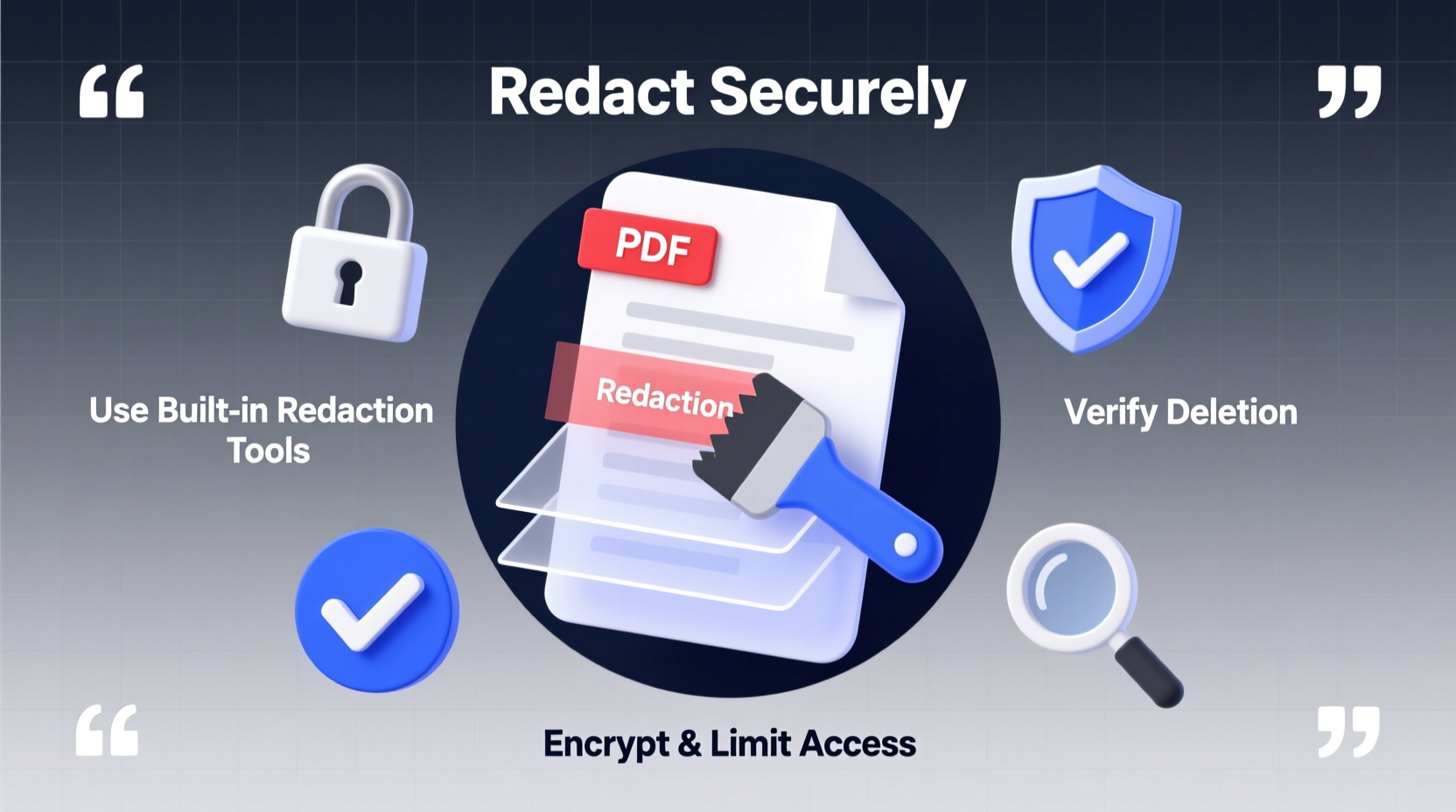
A widespread misconception is that covering text with a black rectangle in a PDF editor equals redaction. In reality, this method often fails because the underlying text remains embedded in the document. Anyone with basic PDF tools can select, copy, or extract the “hidden” content by dragging a cursor over the black box or using text recovery features.
Additionally, metadata such as author names, edit history, comments, and file paths may still be accessible even after visual editing. These remnants can reveal more than intended, especially when dealing with legal depositions, medical records, or internal audits.
“Redaction isn’t about hiding text—it’s about eliminating it. If the data still exists in the file structure, it hasn’t been redacted.” — David Lin, Digital Forensics Analyst at CyberShield Labs
The Right Tools for Secure PDF Redaction
Not all PDF software handles redaction equally. Some offer only cosmetic editing, while others provide true content removal. Below is a comparison of popular tools and their redaction capabilities:
| Software | True Redaction? | Metadata Removal | Cost |
|---|---|---|---|
| Adobe Acrobat Pro DC | Yes (with Redaction Tool) | Yes (after redaction + Save As) | Paid (Subscription) |
| PDF-XChange Editor | Yes | Limited (requires manual cleanup) | Freemium |
| LibreOffice Draw | No (visual only) | No | Free |
| Microsoft Word (Save as PDF) | No | No (retains source doc metadata) | Bundled |
| PDFtk or QPDF (Command Line) | Indirect (combine with OCR & scripting) | Yes (if configured) | Free |
For reliable results, Adobe Acrobat Pro DC remains the industry standard due to its certified redaction workflow and audit trail features. However, cost-effective alternatives like PDF-XChange Editor offer strong functionality for smaller operations.
Step-by-Step Guide to Securely Redact a PDF
Follow this verified process to ensure your redactions are irreversible and compliant:
- Open the PDF in a trusted editor – Use Adobe Acrobat Pro DC or another tool with built-in redaction support.
- Enable the Redaction Tool – In Acrobat, go to Tools > Redact. Do not use the \"Draw Rectangle\" or \"Edit Text\" tools.
- Select sensitive content – Click and drag to mark text, images, or areas for redaction. The software will tag them for permanent removal.
- Apply redactions – Click “Apply” to permanently delete all marked content. This step cannot be undone, so double-check selections.
- Remove hidden data and metadata – Go to File > Properties > Description and clear author, title, and subject fields. Use “Sanitize Document” or “Remove Hidden Information” if available.
- Save as a new file – Export the final version under a new name. Avoid overwriting the original.
- Verify the output – Open the redacted PDF and test: try selecting under redacted areas, check metadata, and search for keywords.
Common Redaction Mistakes and How to Avoid Them
- Mistake: Using image overlays or stamps.
Solution: Use actual redaction tools that modify the document’s content stream. - Mistake: Forgetting metadata.
Solution: Strip metadata before finalizing the file. In Acrobat, use “Reduce File Size” or “Export to PDF/A” to purge non-essential data. - Mistake: Redacting on a scanned image without OCR.
Solution: Run optical character recognition first to ensure all text layers are accessible for selection. - Mistake: Sharing via unsecured channels.
Solution: Encrypt the PDF with a password and send through secure portals or encrypted email.
Real-World Example: Legal Disclosure Gone Wrong
In 2021, a law firm submitted a court filing with supposedly redacted client identities. They used black boxes in Microsoft Word before converting to PDF. Opposing counsel simply copied the text beneath the boxes, revealing Social Security numbers and medical diagnoses. The oversight led to disciplinary review, reputational damage, and a $75,000 fine under state privacy laws.
Post-incident analysis showed that the firm failed to use proper redaction software and skipped verification. A simple check using free PDF analysis tools would have caught the error before submission.
This case underscores that redaction is not just technical—it’s procedural. Human oversight and validation are critical components of a secure workflow.
Best Practices Checklist
Use this checklist before distributing any redacted PDF:
- ✅ Used a dedicated redaction tool (not highlighting or shapes)
- ✅ Applied redactions permanently (not just marked)
- ✅ Removed metadata (author, comments, revision history)
- ✅ Verified no hidden text remains (test selection and search)
- ✅ Saved under a new filename
- ✅ Stored the original securely
- ✅ Shared via encrypted method if sensitive
Frequently Asked Questions
Can I redact a PDF for free without compromising security?
Yes, but with caution. Free tools like PDF-XChange Editor (free for non-commercial use) and command-line utilities like QPDF can perform secure redactions when combined with metadata stripping. However, free online converters often upload your file to servers, risking exposure. Always use offline tools for sensitive documents.
What happens if I only delete text instead of redacting?
Simply deleting text doesn’t remove it from the file’s underlying code. Deleted content can often be recovered using PDF repair or extraction tools. True redaction replaces the content with non-recoverable placeholders or removes it entirely from the document structure.
Is it safe to redact a scanned document?
Only if OCR (Optical Character Recognition) has been applied first. Without OCR, the document is treated as an image, and redaction tools won’t detect embedded text. Run OCR in your PDF software before attempting to redact scanned pages.
Conclusion: Take Responsibility for Data Security
Securely redacting a PDF is not a one-click task—it’s a disciplined process that combines the right tools, careful execution, and thorough verification. With data breaches and privacy regulations tightening globally, cutting corners is no longer an option. Whether you’re handling financial reports, personnel files, or legal evidence, the integrity of your redaction reflects your commitment to confidentiality.




 浙公网安备
33010002000092号
浙公网安备
33010002000092号 浙B2-20120091-4
Comments
No comments yet. Why don't you start the discussion?