
In an age where smartphones store our personal data, financial accounts, health records, and daily communications, accessing them quickly and securely is more important than ever. Yet many users still rely on outdated or inefficient unlocking methods—either sacrificing convenience for security or vice versa. The ideal solution balances both: fast access without compromising protection. This guide explores proven strategies to unlock and use your device efficiently while maintaining strong digital hygiene.
1. Choose the Right Authentication Method
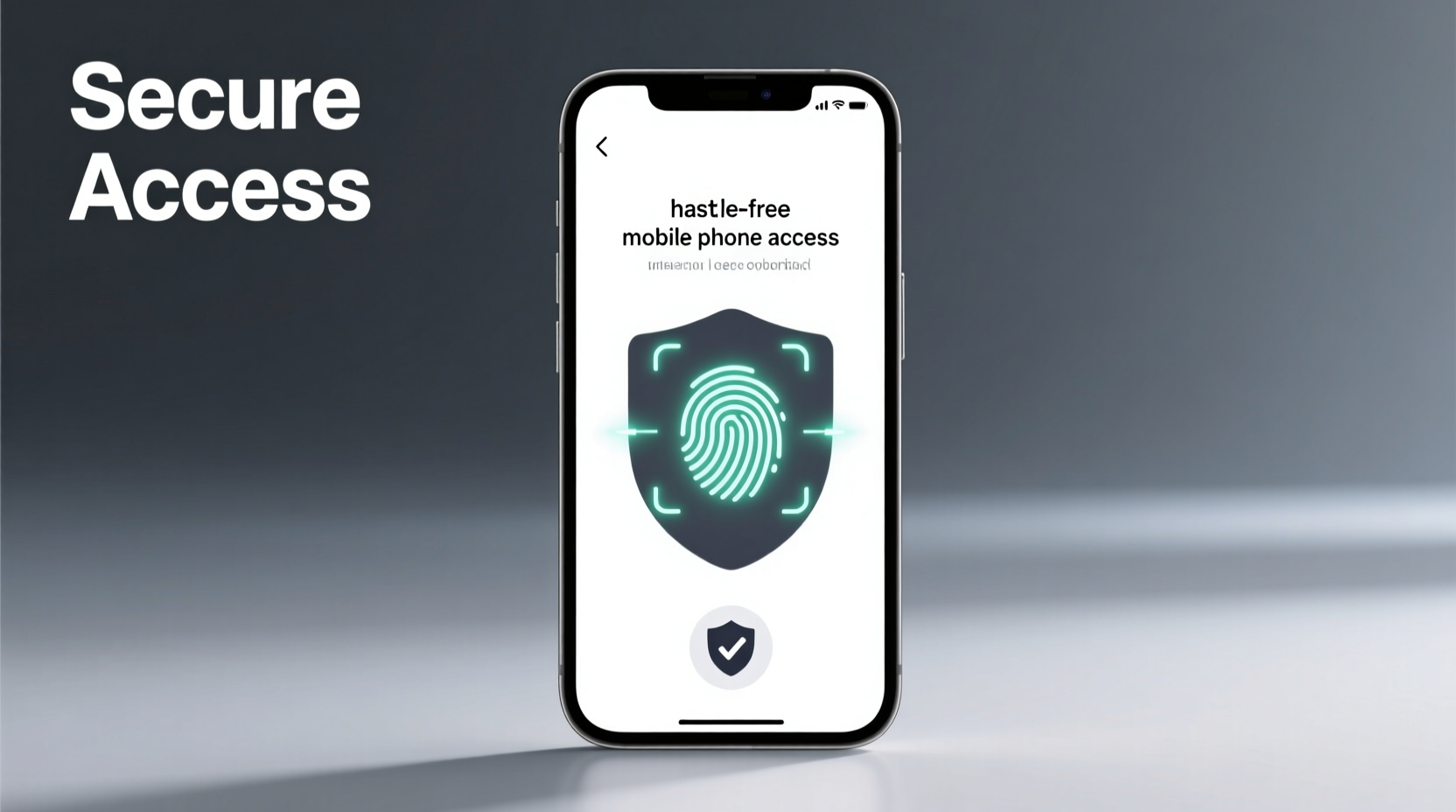
Your phone’s lock screen is the first line of defense. Modern devices offer multiple authentication options, each with distinct advantages and trade-offs in speed, reliability, and security.
| Method | Speed | Security Level | Best For |
|---|---|---|---|
| PIN (6-digit) | Moderate | High | Users prioritizing security over speed |
| Password | Slow | Very High | Enterprise or high-risk environments |
| Fingerprint | Fast | High | Daily use; reliable under most conditions |
| Face Unlock | Very Fast | Moderate to High* | Quick access; varies by model and lighting |
| Pattern Lock | Fast | Low to Moderate | Casual users; less secure due to smudge attacks |
*Note: Face unlock security depends heavily on hardware. iPhones using TrueDepth cameras offer stronger biometric verification than Android models relying solely on front cameras.
2. Optimize Biometric Settings for Reliability
Biometrics—fingerprint and facial recognition—are among the fastest ways to unlock your phone, but only if properly configured. A poorly registered fingerprint or narrow face scan can lead to repeated failures, defeating the purpose of convenience.
To maximize performance:
- Register your fingerprint at multiple angles. Hold the phone naturally and scan slowly from different grips.
- Use face unlock in varied lighting conditions during setup so the system learns your features under different environments.
- Avoid wearing masks or sunglasses during facial enrollment unless those are typical for your daily use.
- Keep sensors clean. Oils, dust, or screen protectors can interfere with accuracy.
“Proper biometric enrollment reduces failed attempts by up to 70%. Users often rush setup, leading to long-term frustration.” — Dr. Lena Torres, Mobile Security Researcher at SecureTech Labs
3. Leverage Trusted Devices and Context-Aware Unlocking
Modern operating systems support context-based unlocking that adapts to your environment. These features reduce friction when you're in safe locations or using trusted accessories.
For example:
- Android Smart Lock allows your phone to stay unlocked when it detects your smartwatch, a trusted Bluetooth device, or when it’s in a familiar location like your home.
- iOS does not allow automatic unlock via location, but it supports wrist detection with Apple Watch—your iPhone unlocks automatically when you look at it while wearing your watch.
These tools eliminate the need to repeatedly enter credentials in secure contexts, reducing fatigue and improving usability.
Mini Case Study: Sarah’s Commute Routine
Sarah, a project manager in Chicago, used to unlock her phone 15–20 times a day—on her train ride, during meetings, and while checking messages. She enabled Smart Lock with her wireless earbuds as a trusted device. Now, when her earbuds are connected, her phone remains unlocked. She estimates she saves nearly 10 minutes per week and reports feeling less frustrated with access delays.
4. Implement a Step-by-Step Access Optimization Plan
Improving how you access your phone shouldn’t be trial and error. Follow this structured approach to refine your setup:
- Evaluate your current method: Track how often you fail to unlock your phone or experience delays over three days.
- Select your primary method: Choose between fingerprint, face unlock, or PIN based on your device capabilities and lifestyle.
- Re-enroll biometrics: Delete old fingerprints or face data and re-register carefully under optimal conditions.
- Set up trusted triggers: Pair a wearable or enable location-based unlocking if supported and appropriate.
- Test for one week: Monitor success rate, speed, and any security concerns.
- Adjust as needed: If face unlock fails in sunlight, switch to fingerprint. If you lose your watch often, disable wrist detection.
5. Balance Security and Convenience with Best Practices
The most effective access strategy isn’t just about speed—it’s about consistency and awareness. Even the fastest unlock method fails if it encourages risky behavior.
Do’s and Don’ts of Secure Phone Access
| Do | Don't |
|---|---|
| Use two-factor authentication for sensitive apps (e.g., banking) even after unlocking | Rely solely on facial recognition in crowded public spaces |
| Enable auto-lock after 30–60 seconds of inactivity | Leave your phone unlocked while walking or commuting |
| Regularly review trusted devices and remove ones no longer in use | Share your PIN or pattern with others, even family members |
| Update your OS regularly to patch biometric vulnerabilities | Use simple patterns like “Z” or “L” shapes—they’re easily guessed |
Remember: convenience should never override core security principles. Your phone may unlock instantly, but sensitive actions—like approving payments or viewing medical data—should require re-authentication.
Frequently Asked Questions
Is face unlock safe from photos or videos?
On high-end devices like recent iPhones and select Android flagships (e.g., Samsung Galaxy S series), face unlock uses depth-sensing technology that detects whether it’s a live face, not a photo. However, basic front-camera-based systems can sometimes be tricked. Always verify your device uses 3D mapping or infrared sensors for true security.
What happens if my fingerprint sensor stops working?
If your sensor fails, you can still unlock your phone using your backup method—PIN, password, or pattern. It’s critical to keep this updated and memorized. Some manufacturers may require proof of ownership to restore biometric functions after hardware issues.
Can someone unlock my phone while I’m sleeping?
Potential risk exists with face unlock if someone knows your passcode or has physical access. To prevent this, iOS offers a “Require Attention for Face ID” setting, and Android has “Require on Wake” options. Enable these to ensure your eyes must be open and actively looking at the device.
Conclusion: Take Control of Your Digital Access
Accessing your mobile phone doesn’t have to be a daily compromise between speed and safety. With thoughtful configuration of biometrics, trusted devices, and smart settings, you can enjoy seamless entry without weakening your defenses. The key lies in intentional setup, regular maintenance, and understanding the tools at your disposal.
Start today by auditing your current unlock method. Is it causing unnecessary delays? Are you bypassing security for convenience? Make one small improvement—re-enroll your fingerprint, tighten auto-lock timing, or disable unreliable face unlock in public. Small changes compound into significant gains in both productivity and peace of mind.




 浙公网安备
33010002000092号
浙公网安备
33010002000092号 浙B2-20120091-4
Comments
No comments yet. Why don't you start the discussion?