
Losing access to your smartphone—whether due to a forgotten passcode, biometric failure, or accidental lockout—can be stressful. Your phone holds personal data, messages, photos, and access to critical accounts. The good news is that there are multiple reliable, secure ways to regain entry without damaging your device or violating security protocols. This guide covers the most effective strategies for both Android and iPhone users, emphasizing safety, legality, and practicality.
Understanding Phone Lock Types
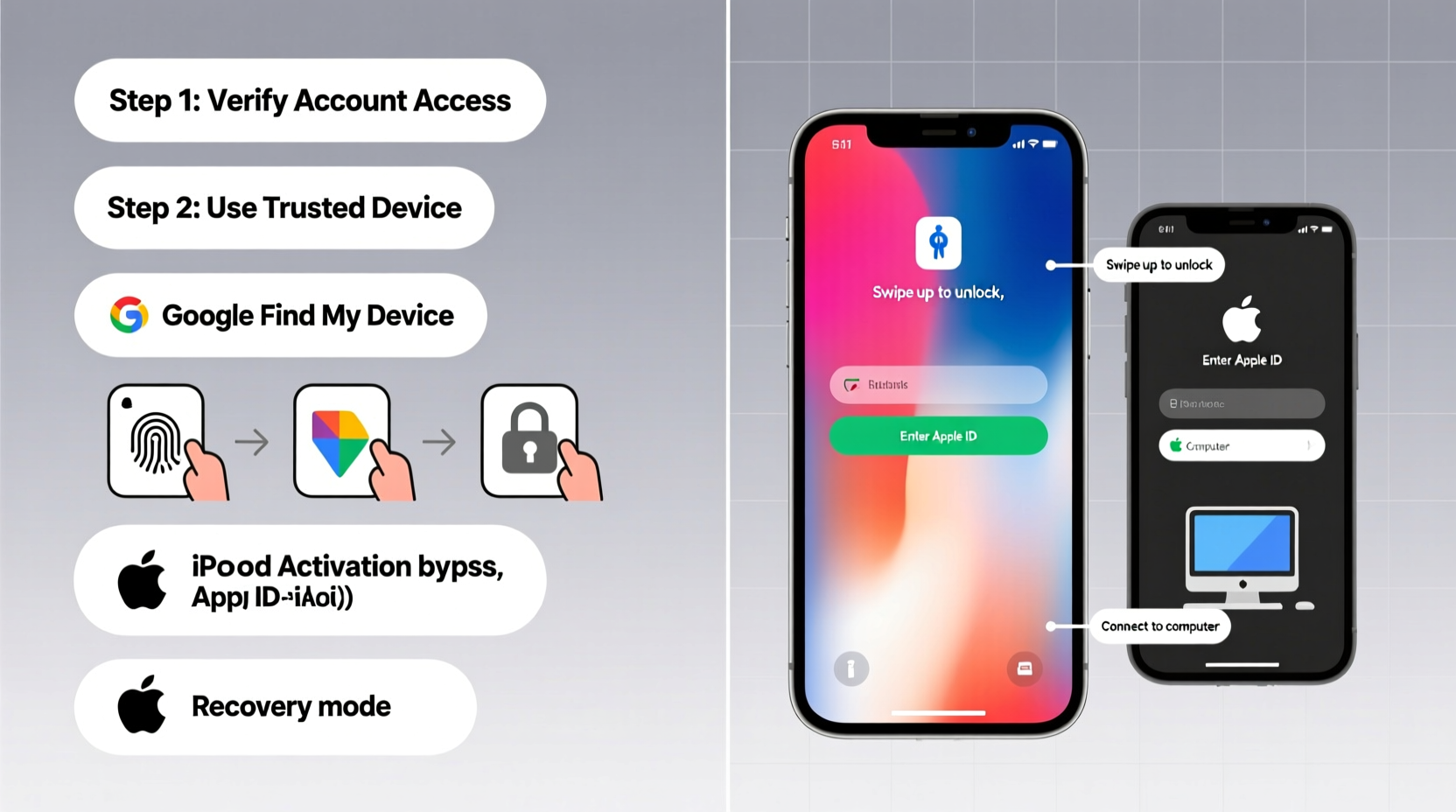
Before attempting recovery, it's essential to understand the type of lock in place. Different mechanisms require different solutions:
- Pattern Lock: Common on older Android devices; requires drawing a specific pattern on a grid.
- PIN: Numeric code, typically 4–6 digits.
- Password: Alphanumeric or special character-based unlock method.
- Biometric Locks: Includes fingerprint (Touch ID) and facial recognition (Face ID or Face Unlock).
- Encryption Lock: Automatically enabled when a screen lock is set; protects stored data even if hardware is accessed directly.
Each lock type interacts with the device’s operating system differently. For example, iPhones rely heavily on Apple ID verification after failed attempts, while Android devices may integrate Google account recovery or manufacturer-specific tools like Samsung’s Find My Mobile.
Step-by-Step Recovery Methods for Android Devices
Android offers several built-in and third-party-compatible options to unlock your device safely.
- Google Account Recovery (for older Android versions): After multiple incorrect attempts, some Android phones prompt you to enter the username and password of the Google account previously synced with the device. This feature has been phased out on newer models for security reasons but remains functional on devices running Android 4.4 to 9.
- Find My Device by Google: Visit google.com/android/find from another device. Sign in with the same Google account linked to your locked phone. You can remotely ring, lock, or erase the device. While erasing removes all data, it also resets the lock screen, allowing setup as new.
- Samsung’s Find My Mobile (for Galaxy users): If you own a Samsung phone and had the service enabled, visit findmymobile.samsung.com. After logging in, use the “Unlock” feature to remove the screen lock remotely—provided the device is online and linked to your Samsung account.
- Safe Mode Boot (for third-party lock apps): If a third-party app is causing the lock issue, booting into Safe Mode disables all non-system apps. Press and hold the power button, then long-press “Power Off” until “Reboot to Safe Mode” appears. Once in Safe Mode, uninstall the problematic app via Settings.
Factory Reset via Recovery Mode
If no remote option works, a factory reset through recovery mode may be necessary:
- Power off the device completely.
- Press and hold Volume Up + Power buttons simultaneously (varies slightly by brand).
- Use volume keys to navigate to “Recovery Mode,” select with the power button. <4>Select “Wipe Data/Factory Reset.” Confirm action.
- Reboot the system once complete.
Note: This erases all data, including photos, messages, and installed apps. Only proceed if backups exist.
iPhone Unlock Solutions: From Passcode Reset to iCloud
iPhones are designed with strong encryption, making brute-force attacks impractical. However, Apple provides structured recovery paths.
Use iTunes or Finder to Restore
If you’ve previously synced your iPhone with a computer:
- Connect your iPhone to the trusted computer.
- Open iTunes (Windows/older macOS) or Finder (macOS Catalina+).
- Put the iPhone into recovery mode:
- iPhone 8 and later: Press Volume Up, then Volume Down, then hold Side Button until recovery screen appears.
- iPhone 7/7 Plus: Hold Volume Down + Side Button.
- iPhone 6s and earlier: Hold Home + Top/Side Button.
- When prompted, choose “Restore” (not Update). This reinstalls iOS and removes the passcode.
After restoration, restore from a previous backup if available.
iCloud Remote Erase (via Find My)
If “Find My iPhone” was enabled:
- Go to icloud.com/find on any web browser.
- Log in with your Apple ID.
- Select the locked device under “All Devices.”
- Click “Erase iPhone.”
- Once erased, set up the phone as new or restore from iCloud backup.
“Apple’s ecosystem prioritizes user privacy, which means bypassing a passcode without credentials isn’t possible—but recovery through verified accounts is robust and secure.” — David Lin, Senior Mobile Security Analyst at TechShield Labs
Do’s and Don’ts When Locked Out
| Action | Recommended? | Reason |
|---|---|---|
| Use official recovery tools (iCloud, Find My Device) | ✅ Yes | Secure, supported, and preserves future device usability |
| Try third-party unlock software | ❌ No | High risk of malware, scams, or permanent device disabling |
| Contact manufacturer support | ✅ Yes | Legitimate path for eligible devices, especially under warranty |
| Leave the device powered off indefinitely | ❌ No | May trigger activation locks or complicate syncing |
| Visit an authorized repair center | ✅ Yes | Professionals can verify ownership and assist with recovery steps |
Real-World Example: Recovering a Forgotten PIN
Sarah, a teacher from Portland, forgot her Samsung Galaxy S20 PIN after two weeks of not using it. She tried several combinations unsuccessfully and faced a 30-second delay after each failed attempt. Remembering she used a Samsung account, she visited findmymobile.samsung.com on her laptop. After logging in, she located her phone, ensured it was online, and selected “Unlock.” Within seconds, the screen unlocked, allowing her full access. She immediately changed the PIN and updated her recovery information.
This case highlights the importance of enabling cloud-based find-and-unlock services before lockout occurs.
Preventative Checklist: Avoid Future Lockouts
To minimize the risk of being locked out again, follow this checklist:
- ✅ Enable biometric authentication (fingerprint or face unlock) as a backup.
- ✅ Link your device to a recovery email and secondary phone number.
- ✅ Regularly back up your phone (iCloud, Google Drive, or computer).
- ✅ Write down your passcode and store it securely (e.g., password manager or physical safe).
- ✅ Use a memorable but secure PIN or password—avoid birthdays or simple sequences.
- ✅ Test your recovery method annually to ensure everything works.
Frequently Asked Questions
Can I unlock my phone without losing data?
Yes, if you use account-based recovery (like Google Find My Device or iCloud) and haven’t exceeded attempt limits. These services can sometimes remove locks remotely without wiping. However, many modern devices automatically encrypt data behind the passcode, meaning true “non-destructive” unlocking without credentials isn't feasible for security reasons.
What if I never backed up my phone?
You can still unlock it via reset methods, but all local data will be lost. In the future, enable automatic backups: iCloud for iPhones, Google One for Android. Set them to run over Wi-Fi nightly.
Are professional unlocking services trustworthy?
Most are not. Services claiming to bypass locks for a fee often use illegal methods, distribute spyware, or scam customers. Stick to manufacturer-approved channels. If a service promises to unlock without proof of ownership, it’s likely unethical or fraudulent.
Final Thoughts: Stay Calm, Stay Prepared
Being locked out of your phone doesn’t mean permanent loss of access. Modern smartphones are built with layered recovery systems that prioritize both security and usability. The key is preparation: enabling remote find-and-unlock features, maintaining backups, and keeping recovery details current.
If you're currently locked out, start with official tools—Google Find My Device, iCloud, or manufacturer portals. Avoid shortcuts that compromise security. And once you regain access, take preventive steps immediately.




 浙公网安备
33010002000092号
浙公网安备
33010002000092号 浙B2-20120091-4
Comments
No comments yet. Why don't you start the discussion?