
Ads have become an unavoidable part of the mobile experience. From intrusive pop-ups in free apps to video ads that autoplay in games, they disrupt usability, drain battery life, and compromise privacy. While some advertising supports app developers, excessive or deceptive ads can degrade performance and even expose users to malware. The good news is that Android offers multiple tools and strategies to effectively block and permanently remove unwanted ads. With the right approach, you can reclaim control over your device and enjoy a cleaner, safer, and more responsive user experience.
Understanding the Types of Mobile Ads
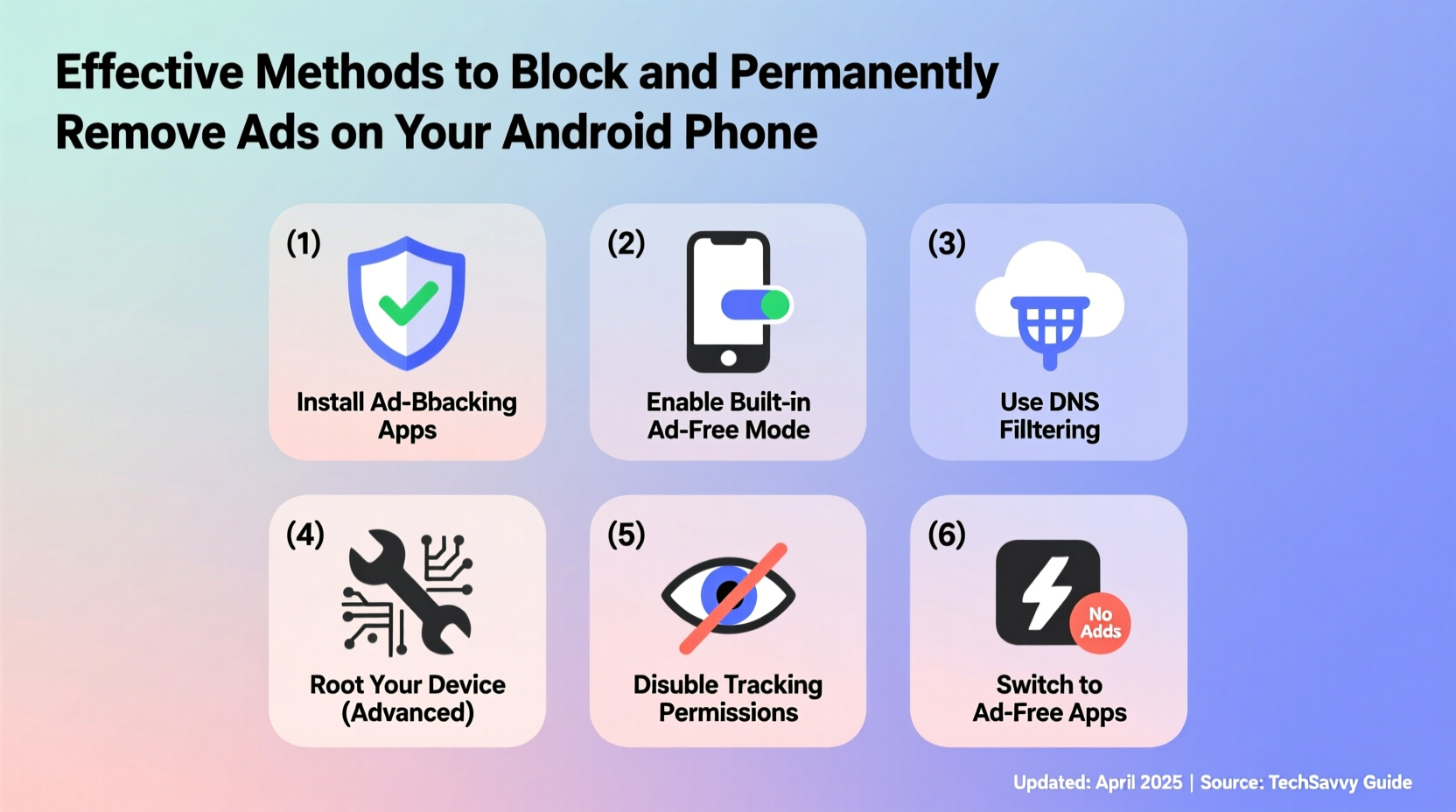
Before tackling ad removal, it’s important to recognize where ads come from. Most mobile ads fall into three categories:
- In-app ads: Displayed within free applications, often through SDKs like Google AdMob or Facebook Audience Network.
- Browser-based ads: Appear when browsing websites via Chrome, Firefox, or other browsers—especially on ad-heavy sites.
- System-level ads: Caused by adware-infected apps or malicious software that injects ads across multiple apps and system notifications.
Each type requires a different mitigation strategy. In-app ads are best handled at the app level, browser ads with ad blockers, and system-level ads demand deeper intervention such as uninstalling rogue apps or using network-level filtering.
Method 1: Use a Reliable Ad-Blocking Browser
Your web browser is one of the biggest gateways for ads. Chrome, while popular, does not block ads by default. Switching to a browser with built-in ad-blocking capabilities can eliminate most banner, pop-up, and video ads during browsing.
Recommended browsers include:
- Bromite: A privacy-focused fork of Chromium that blocks ads and trackers by default.
- Firefox + uBlock Origin: Pair Firefox for Android with the powerful uBlock Origin extension for comprehensive filtering.
- Privacy Browser: Lightweight and open-source, designed specifically to block ads and scripts without compromising speed.
To maximize protection, disable JavaScript selectively on untrusted sites and clear cookies regularly. These steps reduce tracking and prevent retargeted ads from following you across the web.
Method 2: Install a DNS-Based Ad Blocker
DNS-level ad blocking stops ads before they reach your device by redirecting known ad-serving domains. Unlike app-specific blockers, this method works system-wide—even for in-app and video ads.
One of the most effective tools is NextDNS or AdGuard DNS. Here’s how to set it up:
- Download the official AdGuard or NextDNS app from the Google Play Store.
- Launch the app and follow setup instructions to configure a secure local VPN (required for DNS routing).
- Select filter lists such as “EasyList,” “Anti-Facebook,” and “Malware Domains.”
- Activate protection. Once enabled, all network traffic will be filtered in real time.
This method doesn’t require root access and works across Wi-Fi and mobile data. It also blocks phishing sites and third-party trackers, enhancing both performance and security.
| Tool | Blocks In-App Ads? | Requires Root? | Privacy Protection |
|---|---|---|---|
| Bromite Browser | No | No | High |
| AdGuard (DNS Mode) | Yes | No | Very High |
| Hosts File (Root Only) | Yes | Yes | Maximum |
| uBlock Origin (Firefox) | No | No | High |
Method 3: Remove Adware and Malicious Apps
Persistent ads that appear even when no app is open often stem from adware. These apps disguise themselves as useful utilities—flashlights, battery savers, or file cleaners—but secretly inject ads into your UI.
Follow this step-by-step guide to identify and remove them:
- Go to Settings > Apps and sort by \"Last used.\"
- Look for unfamiliar apps installed around the time ads started appearing.
- Tap each suspicious app and check permissions. Red flags include \"Display over other apps\" or \"Send SMS.\"
- Uninstall the app. If standard uninstall fails, go to Settings > Security > Device Administrators and revoke its privileges first.
- Reboot your phone and monitor if ads disappear.
“Over 60% of rogue ad displays on Android originate from just five categories of fake utility apps.” — Dr. Lin Zhou, Mobile Security Researcher at Kaspersky Lab
Mini Case Study: Eliminating Lock Screen Ads
Jamal, a college student, noticed full-screen ads popping up every time he unlocked his phone. He hadn’t downloaded any new apps recently, but upon checking his app list, he found “Battery Optimizer Pro”—an app he installed months ago from a third-party site. After uninstalling it and switching to AdGuard DNS, the ads vanished completely. His phone also ran cooler and lasted longer on a charge, proving that ad-laden apps don’t just annoy—they consume resources.
Method 4: Use Hosts File Blocking (For Advanced Users)
For permanent, system-level ad removal, editing the hosts file redirects ad servers to a dead end (127.0.0.1). This method is highly effective but requires root access.
Steps to implement:
- Root your Android device using Magisk (research risks thoroughly beforehand).
- Install a hosts editor like Hosts Editor or Root Tools.
- Replace the default hosts file with one from a trusted source like Steven Black’s Unified Hosts List (available on GitHub).
- Save changes and reboot.
Once active, this blocks thousands of ad domains across all apps and services. Updates must be applied manually or via automation tools like Tasker.
Checklist: How to Permanently Remove Ads on Android
- ✅ Audit installed apps and uninstall suspicious ones
- ✅ Enable DNS filtering via AdGuard or NextDNS
- ✅ Use an ad-blocking browser like Bromite or Firefox with uBlock Origin
- ✅ Disable JavaScript in browser settings for non-essential sites
- ✅ Avoid downloading apps from third-party stores
- ✅ Consider rooting and hosts file modification for maximum control
- ✅ Regularly update apps and OS to patch security vulnerabilities
Frequently Asked Questions
Can I block ads without rooting my phone?
Yes. DNS-based solutions like AdGuard and NextDNS provide strong system-wide ad blocking without requiring root access. They work by filtering requests before they reach ad servers, making them ideal for most users.
Are ad blockers safe to use?
Reputable ad blockers from trusted developers (e.g., AdGuard, Bromite) are safe and open-source. However, avoid unknown apps that promise “total ad removal” with excessive permissions, as they may be scams or contain malware.
Why do some apps stop working with ad blockers?
Some apps rely heavily on ad networks for functionality or detect and block devices running ad blockers. In such cases, you can temporarily disable the blocker for that app or look for alternative versions in privacy-focused app repositories like F-Droid.
Conclusion
Blocking and permanently removing ads on your Android phone isn’t just about convenience—it’s about protecting your privacy, improving performance, and regaining control over your digital environment. Whether you choose lightweight DNS filtering, dedicated browsers, or advanced hosts file modifications, each step reduces clutter and enhances your daily experience. Start with simple, non-invasive methods and escalate only if needed. The cleaner your device runs, the more efficiently you’ll work, browse, and play.




 浙公网安备
33010002000092号
浙公网安备
33010002000092号 浙B2-20120091-4
Comments
No comments yet. Why don't you start the discussion?