
In today’s digital landscape, maintaining control over what you see online is more important than ever. Whether it's avoiding time-wasting websites, protecting children from inappropriate content, or shielding yourself from phishing attempts, blocking specific URLs in Google Chrome can significantly enhance your browsing safety. While Chrome doesn’t offer native URL filtering, several reliable methods—ranging from browser extensions to system-level configurations—can help you achieve precise control over access to problematic sites.
This guide explores practical, tested approaches to blocking URLs on Chrome across different devices and user needs. From simple add-ons to advanced host file edits, these strategies empower users to create a cleaner, safer internet experience without compromising performance.
Why Block Specific URLs?
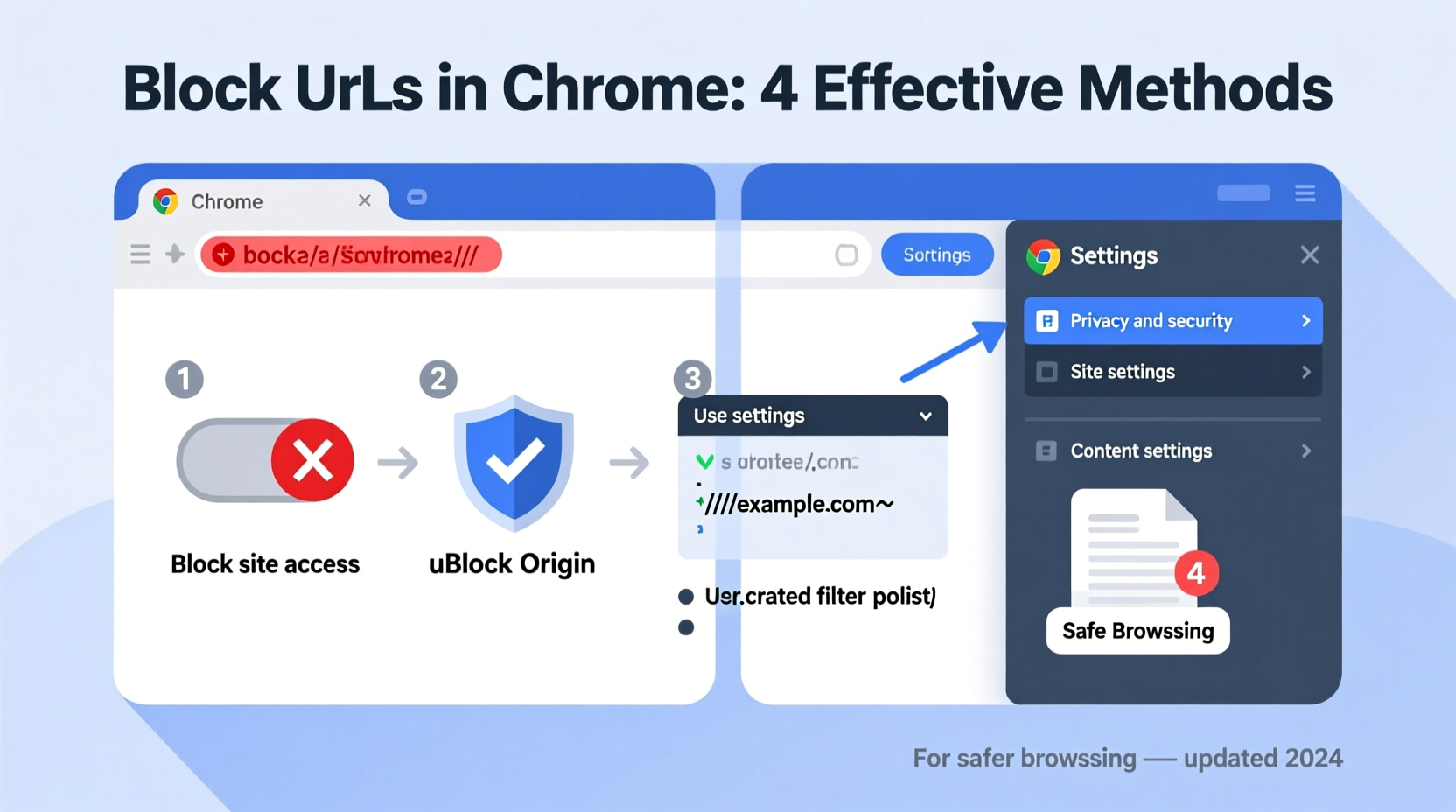
Blocking certain web addresses isn't just about restricting access—it's a proactive step toward digital well-being. Common reasons include:
- Enhanced security: Prevent visits to known malicious or scam sites that could compromise personal data.
- Improved focus: Eliminate distractions by blocking social media or entertainment sites during work hours.
- Parental control: Shield younger users from adult content or harmful online communities.
- Bandwidth management: Reduce unnecessary traffic caused by auto-loading video or ad-heavy domains.
According to a report by the Anti-Phishing Working Group (APWG), over 300,000 unique phishing sites are detected monthly. Proactively blocking suspicious URLs reduces exposure to such threats before they reach your browser.
Method 1: Use Chrome Extensions for Granular Control
Browser extensions provide the easiest way to block specific URLs directly within Chrome. These tools allow real-time filtering with customizable rules.
Recommended Extensions:
- Block Site – Simple interface, one-click blocking, password protection.
- StayFocusd – Ideal for productivity; limits time on distracting sites.
- LeechBlock NG – Highly configurable with scheduling and regex support.
Step-by-Step: Blocking a URL Using LeechBlock NG
- Open Chrome and go to the Chrome Web Store.
- Search for “LeechBlock NG” and click “Add to Chrome.”
- Confirm installation when prompted.
- Click the extension icon in the toolbar and select “Options.”
- Under “Blocked Sites,” enter the full URL (e.g.,
www.example.com) or use wildcards like*example.com*. - Set timing restrictions if needed (e.g., block only between 9 AM–5 PM).
- Save settings. The site will now be inaccessible during specified periods.
These extensions operate locally and don’t require administrative privileges, making them ideal for individual users seeking quick deployment.
Method 2: Modify the Hosts File for System-Level Blocking
For deeper, system-wide control, editing the hosts file redirects unwanted URLs to a non-existent address (typically 127.0.0.1), effectively blocking them at the OS level—regardless of browser used.
This method works across all browsers on the machine and doesn’t rely on third-party software running in the background.
Editing the Hosts File (Windows)
- Navigate to
C:\\Windows\\System32\\drivers\\etc\\hosts. - Right-click the file and open with Notepad as Administrator.
- Add lines in this format:
# Block tracking and malware sites
127.0.0.1 example.com
127.0.0.1 www.socialmedia-distraction.com
- Save the file (you may need permission confirmation).
- Flush DNS cache via Command Prompt:
ipconfig /flushdns.
On macOS or Linux
- Open Terminal.
- Edit the file:
sudo nano /etc/hosts. - Add entries using the same syntax.
- Save (Ctrl+O, then Enter), exit (Ctrl+X).
- Clear DNS cache:
sudo dscacheutil -flushcache(macOS) orsudo systemd-resolve --flush-caches(Linux).
“System-level blocking through the hosts file remains one of the most efficient ways to enforce consistent URL restrictions across applications.” — David Lin, Network Security Analyst
Method 3: Leverage Built-in Parental Controls and Family Link
If managing access for children or shared devices, Google’s Family Link offers robust oversight directly integrated with Chrome and Android.
Parents can approve or block specific websites, set daily usage limits, and receive activity reports—all from a mobile app.
Setting Up Website Blocking via Family Link
- Create a supervised account via Google Families.
- Link the child’s device and sign in with their account.
- Open the Family Link app and tap “Controls” > “Content restrictions.”
- Select “Manage site list” under “Allowed & blocked sites.”
- Add URLs to either allowed or blocked lists.
- Changes sync automatically across all devices using the account.
This method ensures enforcement even if the child tries switching browsers or clearing history. It also provides transparency without requiring technical configuration.
Comparison of URL Blocking Methods
| Method | Setup Difficulty | Precision | Device-Wide? | Best For |
|---|---|---|---|---|
| Chrome Extensions | Easy | High (per-site rules) | No (browser-specific) | Individual users, productivity |
| Hosts File Edit | Moderate | Very High | Yes | Advanced users, permanent blocks |
| Family Link | Easy | Medium | Yes (on linked devices) | Families, child safety |
| Router-Based Filtering | Moderate | Medium | Yes (network-wide) | Home networks, multiple devices |
Real-World Example: Securing a Home Office Environment
Sarah, a freelance writer working from home, found herself frequently sidetracked by news aggregators and shopping sites. Despite her best intentions, she was losing up to two hours per day to unproductive browsing.
To regain focus, she installed Block Site and added domains like newsfeed.example.com and deals.shoppinghub.net to her blocklist. She enabled password protection so she couldn’t easily disable it during moments of weakness. Within a week, her deep work sessions increased by 40%, and client deliverables improved noticeably.
Later, she edited her hosts file to permanently block known ad-tracking domains, which also sped up page loading times. This combination gave her both behavioral discipline and technical efficiency.
Essential Checklist for Effective URL Blocking
Follow this checklist to implement a reliable URL blocking strategy:
- ✅ Identify target URLs to block (e.g., phishing, distracting, or inappropriate sites).
- ✅ Choose the appropriate method based on user type (individual, family, enterprise).
- ✅ Test the block by attempting to visit the site after setup.
- ✅ Set up password protection if using extensions (to prevent tampering).
- ✅ Regularly review and update the blocklist as needed.
- ✅ Back up the hosts file before editing (in case of errors).
Frequently Asked Questions
Can I unblock a site later?
Yes. With extensions, simply remove the URL from the blocklist. For hosts file edits, delete the corresponding line and save. Flush DNS afterward to ensure changes take effect.
Will blocking URLs slow down my browser?
No—in fact, blocking resource-heavy or ad-laden sites often improves performance. The overhead from filters is negligible on modern hardware.
Are there risks in editing the hosts file?
The main risk is misconfiguration. Typing an incorrect domain or IP could inadvertently break access to legitimate services. Always back up the original file before making changes.
Take Control of Your Browsing Experience
Blocking specific URLs on Chrome is not just a technical fix—it’s a step toward intentional, secure internet use. Whether you're safeguarding kids, boosting productivity, or defending against cyber threats, the right blocking method puts you back in control.
Start small: pick one tool, define your top three distracting or risky sites, and apply a block today. Over time, refine your approach based on what works best for your lifestyle and environment. A safer, more focused web is within reach—one blocked URL at a time.




 浙公网安备
33010002000092号
浙公网安备
33010002000092号 浙B2-20120091-4
Comments
No comments yet. Why don't you start the discussion?