
Unwanted calls—from telemarketers, scammers, or persistent unknown numbers—are more than just a nuisance. They disrupt daily life, waste time, and can even pose security risks. If you're using a ZTE mobile device, you have several built-in and third-party options to regain control over who can reach you. Unlike high-end smartphones that often spotlight call-blocking features, ZTE devices—popular for their affordability and reliability—require a bit more manual navigation. This guide walks through proven, practical ways to block unwanted callers effectively, tailored specifically for ZTE users.
Understanding Call Management on ZTE Devices
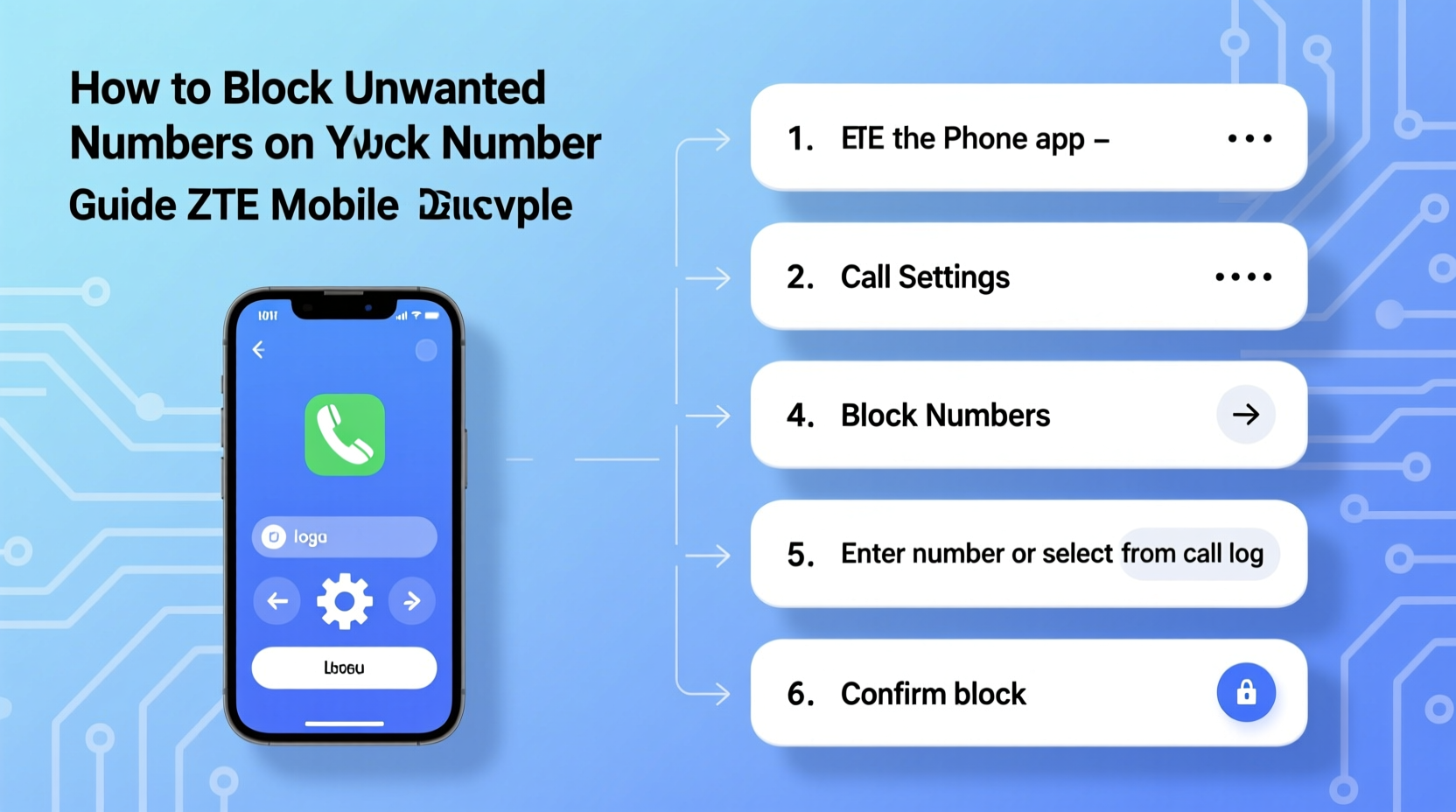
ZTE smartphones typically run on stock or lightly customized versions of Android, meaning they lack some of the advanced spam detection tools found in Samsung or Google Pixel phones. However, most modern ZTE models support core call-blocking functionality through the default Phone app and integration with Google services. The key is knowing where to look and how to configure settings properly.
Call blocking on ZTE works primarily through:
- The native Phone app’s call settings
- Google’s built-in spam protection via the Phone by Google app
- Third-party apps from the Google Play Store
Because ZTE does not offer its own dedicated call-filtering suite, leveraging Google’s ecosystem becomes essential for robust protection.
Step-by-Step Guide to Block Numbers Using the Native Dialer
Every ZTE phone includes a default dialer app (often labeled “Phone” or “Dialer”) that allows direct blocking of individual numbers. This method is ideal for stopping specific repeat offenders.
- Open the Phone app on your ZTE device.
- Navigate to the Recent calls tab.
- Locate the number you wish to block and tap the three-dot menu (⋮) next to it.
- Select Block number or Add to reject list, depending on your model’s firmware.
- Confirm the action when prompted.
Once blocked, incoming calls from that number will be automatically rejected without ringing your phone. Text messages from the number may still come through unless separately filtered.
Enable Google’s Spam Protection for Automatic Filtering
One of the most effective tools available to ZTE users is Google’s Phone by Google app, which provides real-time spam detection and automatic call screening. While some ZTE models ship with their own dialer, installing Phone by Google from the Play Store enhances protection significantly.
How to Activate Google Call Screening and Spam Protection
- Download and install Phone by Google from the Google Play Store.
- Set it as your default dialer: Go to Settings > Apps > Default apps > Phone app > Select “Phone by Google.”
- Open the app and tap the three-line menu > Settings.
- Go to Spam and Call screen.
- Toggle on Enable spam filtering.
- Optionally enable See caller & spam ID and Auto-block suspected spam calls.
With this enabled, Google cross-references incoming numbers against a global database of known spam sources. Suspected spam calls are labeled, silenced, or automatically answered by an AI assistant that asks the caller to state their purpose.
“Over 100 million spam calls are flagged daily using Google’s machine learning models. Users who enable auto-blocking report up to 70% fewer unwanted interruptions.” — Google Safety Engineering Team, 2023
Using Third-Party Apps for Advanced Call Blocking
While native and Google-based solutions work well, some users need deeper functionality—such as blocking text messages, identifying hidden numbers, or syncing blocklists across devices. Third-party apps fill these gaps effectively.
Top Recommended Apps for ZTE Phones
| App Name | Key Features | Drawbacks |
|---|---|---|
| Truecaller | Caller ID, spam detection, SMS blocking, community reporting | Requires contact access; free version has ads |
| Hiya | Real-time spam alerts, reverse lookup, business identification | Limited customization in free tier |
| Mr. Number | Custom block rules, blacklisting, social spam reporting | Infrequent updates; interface feels outdated |
After installation, these apps typically request permission to access calls, messages, and contacts. Once granted, they operate in the background, intercepting and filtering communications before they reach your notification panel.
Mini Case Study: Reducing Telemarketer Calls by 90%
Sarah, a ZTE Blade V10 user from Phoenix, was receiving over 15 unsolicited calls per day—mostly mortgage refinancing offers and fake warranty scams. She first tried manually blocking numbers, but new ones appeared daily. After installing Phone by Google and enabling auto-spam blocking, her flagged spam calls dropped to 3–4 per week. She then installed Truecaller and activated SMS filtering, which stopped phishing texts impersonating banks. Within two weeks, her unwanted communication volume decreased by over 90%, restoring peace during work and family time.
Her success stemmed from combining multiple layers: Google’s AI-driven filtering plus Truecaller’s crowd-sourced database. This hybrid approach is especially effective for ZTE users who lack manufacturer-level protections.
Checklist: Securing Your ZTE Device Against Unwanted Calls
Follow this actionable checklist to maximize protection:
- ✅ Set up Google Phone app as default dialer
- ✅ Enable spam filtering and auto-blocking in Google settings
- ✅ Manually block persistent骚扰 numbers via Recent Calls
- ✅ Install a trusted third-party app like Truecaller or Hiya
- ✅ Regularly review and clean your blocked numbers list
- ✅ Report spam numbers to help improve global databases
- ✅ Avoid answering or engaging with suspicious unknown calls
Frequently Asked Questions
Can I block private or hidden numbers on my ZTE phone?
Yes. In the Phone app settings, look for “Call rejection” or “Blocked numbers” and enable the option to “Block anonymous calls” or “Reject unknown IDs.” When active, calls without a displayed number will be automatically declined.
Will blocking a number also stop texts from that person?
No, call blocking and message blocking are separate functions on most ZTE devices. To stop texts, open the Messages app, find a message from the number, long-press it, and select “Block” or “Report spam.”
Are there any risks to using third-party call blockers?
Some apps request broad permissions, so only download reputable ones from the official Google Play Store. Avoid apps that require root access or promise “100% spam elimination,” as these may be misleading or malicious.
Conclusion: Take Control of Your Communication
Dealing with constant unwanted calls doesn’t have to be part of your daily routine. With the right combination of built-in tools and smart app choices, ZTE users can achieve a quiet, secure calling environment. Whether you’re fending off scam bots, silencing old acquaintances, or protecting elderly family members, the methods outlined here provide real, lasting results.




 浙公网安备
33010002000092号
浙公网安备
33010002000092号 浙B2-20120091-4
Comments
No comments yet. Why don't you start the discussion?