
Unwanted text messages are more than just a nuisance—they can be intrusive, misleading, or even dangerous. From phishing scams to aggressive marketing blasts, spam texts have become increasingly common on iPhones. The good news is that Apple has built robust tools into iOS to help users take control of their messaging experience. With the right setup and habits, you can significantly reduce or even eliminate unwanted texts and protect your privacy.
Understanding the Problem: Why You’re Getting Spam Texts
Spam texts often originate from automated systems using harvested phone numbers. These may come from data brokers, compromised apps, or public directories. Common types include:
- Promotional offers: “You’ve won a prize!” or “50% off today only!”
- Phishing attempts: Messages pretending to be banks, delivery services, or government agencies asking for personal information.
- Silent number spoofing: Scammers disguise their number to look like it’s from someone you know.
Unlike email, SMS lacks strong authentication standards, making it easier for bad actors to exploit. However, Apple continues to improve filtering and blocking capabilities in Messages to counter these threats.
Step-by-Step Guide to Blocking Unwanted Texts on iPhone
iOS provides multiple layers of protection. Follow this sequence to maximize your defense against spam.
- Open the suspicious message in the Messages app.
- Tap the sender’s name or number at the top of the conversation.
- Select info (the \"i\" icon).
- Scroll down and tap Block this Caller.
- Confirm by tapping Block Contact.
Once blocked, the sender cannot reach you via calls, FaceTime, or messages. Their future messages will be silently discarded without notification.
This method works for individual contacts, but what about unknown or masked numbers? That’s where additional tools come in.
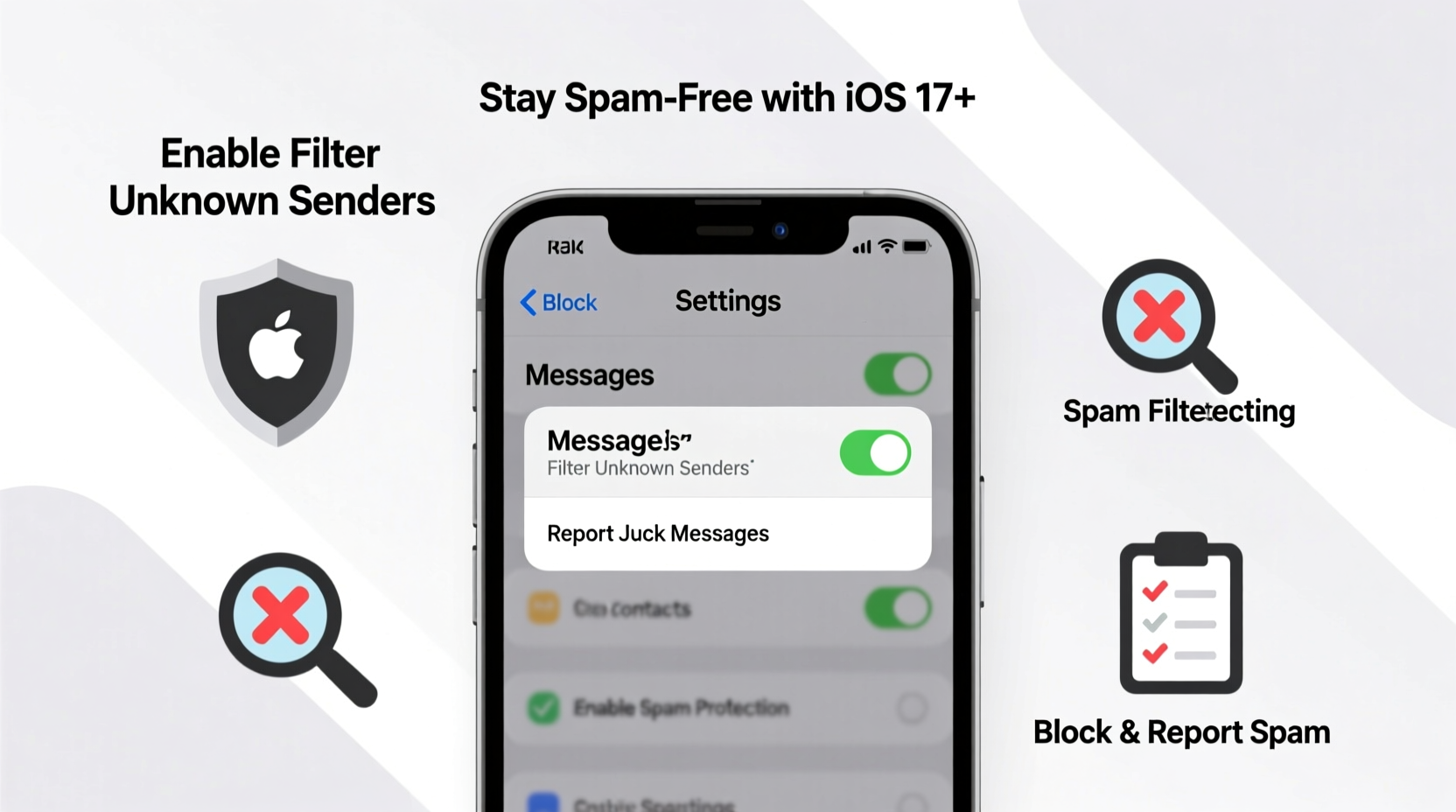
Enable Filter Unknown Senders
Introduced in iOS 13, this feature separates verified contacts from potential spam.
- Go to Settings > Messages.
- Toggle on Filter Unknown Senders.
After enabling, messages from non-contacts appear in a separate “Unknown Senders” section below your main inbox. This makes it easy to identify and delete spam without opening potentially harmful links.
“Filtering unknown senders cuts spam exposure by over 70% for most iPhone users.” — David Lin, Senior iOS Security Analyst at PrivacyWatch Labs
Using Third-Party Apps for Advanced Protection
While Apple’s native tools are effective, third-party apps offer enhanced detection powered by real-time databases and machine learning.
Popular options include:
| App Name | Key Features | Cost |
|---|---|---|
| RoboKiller | AI-powered spam detection, blacklist sharing, scam alerts | Paid (subscription) |
| Hiya | Calls and texts filtering, reverse lookup, community reporting | Free + premium tier |
| Truecaller | Global spam database, caller ID, message filtering | Free + subscription |
These apps integrate with iOS through message extensions and can automatically flag or block known spam numbers. Some even allow users to report new spam patterns, contributing to broader protection networks.
Real Example: How Sarah Reduced Her Spam by 90%
Sarah, a small business owner in Portland, was receiving over 15 spam texts daily—ranging from fake package deliveries to loan scams. She initially ignored them, but after one message led her to a phishing site mimicking her bank, she took action.
She followed these steps:
- Enabled Filter Unknown Senders in Settings.
- Blocked the top five repeat offenders manually.
- Installed Hiya and synced it with her Messages app.
- Reported scam numbers directly from the app to help others.
Within a week, her spam volume dropped to fewer than two per day. After a month, only one questionable message slipped through—and it was flagged by Hiya before she opened it.
Sarah now checks her “Unknown Senders” tab once a week and deletes en masse. “It’s not just about peace of mind,” she says. “It’s about security. I don’t want to accidentally click something that compromises my business accounts.”
Checklist: Your Action Plan to Stay Spam-Free
Follow this checklist monthly to maintain a clean, secure messaging environment:
- ✅ Enable Filter Unknown Senders in Settings > Messages.
- ✅ Block any suspicious number immediately after identifying spam.
- ✅ Avoid responding to unknown texts—even to unsubscribe.
- ✅ Install a trusted third-party spam filter (e.g., RoboKiller or Hiya).
- ✅ Report phishing attempts to the FTC at reportfraud.ftc.gov.
- ✅ Regularly review blocked contacts and update filters.
- ✅ Turn off iMessage for unknown senders if spam persists (Settings > Messages > iMessage toggle).
Common Mistakes That Invite More Spam
Some actions unintentionally signal that your number is active, encouraging further spam. Avoid these pitfalls:
- Replying with “STOP”: Legitimate marketing texts honor this, but scammers use replies to validate your number.
- Clicking links in unsolicited messages: Even previewing an image can trigger tracking scripts.
- Sharing your number publicly: On forums, social media bios, or online forms without privacy safeguards.
- Using the same number for everything: Consider using a secondary number (via Google Voice or Burner) for sign-ups.
Also, beware of “smishing”—SMS phishing. These messages often mimic urgent alerts (“Your account will be suspended!”) to pressure quick action. Always verify such claims through official channels, never through links in texts.
FAQ
Can I block texts from people not in my contacts?
Yes. Even if a number isn’t saved, you can still open the message, tap the sender’s number, go to info, and select “Block this Caller.” Once blocked, all future messages and calls from that number are stopped.
Will the person know I’ve blocked them?
No. Apple does not notify blocked contacts. They may see their messages as delivered (if iMessage is involved), but you won’t receive them. There’s no indication to them that they’ve been blocked.
What should I do if I’m getting spam from a local area code?
This is likely “neighbor spoofing,” where scammers fake local numbers to increase response rates. Do not assume a local code means it’s safe. Use the same blocking and filtering methods regardless of origin.
Conclusion: Take Control of Your Messaging Experience
Your iPhone should serve you—not bombard you with distractions and risks. By combining iOS’s built-in tools with smart habits and optional third-party apps, you can reclaim your message inbox and enjoy a truly spam-free experience. The key is proactive management: filter early, block quickly, and never engage with suspicious content.




 浙公网安备
33010002000092号
浙公网安备
33010002000092号 浙B2-20120091-4
Comments
No comments yet. Why don't you start the discussion?