
In today’s hyper-connected world, constant digital distractions are one of the biggest threats to productivity, mental clarity, and online safety—especially for students, remote workers, and parents managing children’s screen time. Social media, news sites, adult content, or even compulsive shopping platforms can pull attention away from important tasks and expose users to risks. The good news: you don’t have to rely solely on willpower. By strategically blocking websites on your computer, you create a cleaner, safer, and more intentional digital environment. This guide explores proven, accessible techniques—from built-in system tools to advanced software solutions—that empower you to take control of your browsing experience.
Why Block Websites? Beyond Distraction Control
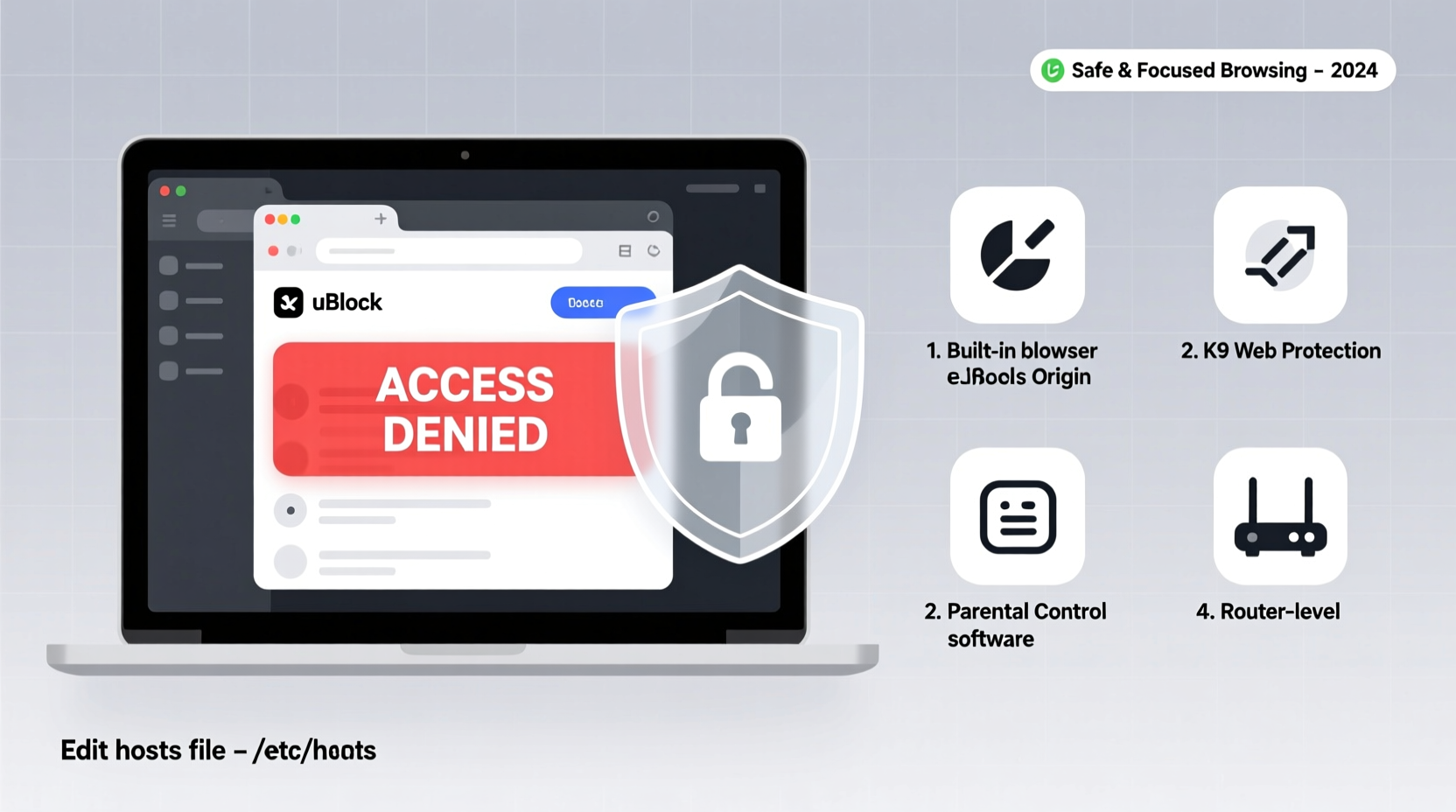
Blocking websites isn't just about stopping procrastination. It serves multiple practical purposes. For professionals, eliminating access to distracting sites during work hours can increase deep-focus time by up to 40%, according to research from the University of California, Irvine. For families, parental controls help shield children from inappropriate content and excessive screen exposure. And for individuals recovering from digital addiction or managing ADHD, website blockers act as behavioral guardrails that support long-term focus and mental health.
“Digital self-control isn’t weakness—it’s strategy. Tools that limit access to high-distraction sites are like seatbelts for cognitive performance.” — Dr. Lena Torres, Cognitive Psychologist & Digital Wellbeing Researcher
Method 1: Edit the Hosts File (Free & System-Level Control)
One of the most powerful—and free—ways to block websites is by modifying your computer’s hosts file. This local configuration file maps domain names to IP addresses. By redirecting unwanted domains to the loopback address (127.0.0.1), you prevent the browser from loading them entirely.
Step-by-Step Guide: Blocking Sites via Hosts File
- Open Notepad as Administrator (Windows) or use Terminal with sudo (macOS/Linux).
- Navigate to the hosts file location:
- Windows:
C:\\Windows\\System32\\drivers\\etc\\hosts - macOS/Linux:
/etc/hosts
- Windows:
- Add lines in this format at the end of the file:
127.0.0.1 facebook.com127.0.0.1 www.youtube.com - Save the file (may require admin permissions).
- Flush DNS cache: Run
ipconfig /flushdns(Windows) orsudo dscacheutil -flushcache(macOS). - Test by visiting the blocked site—it should fail to load.
This method works across all browsers and doesn’t require ongoing subscriptions. However, it’s static—once set, changes must be manually undone—and less convenient for temporary blocks.
Method 2: Use Built-In Parental Controls & Screen Time Features
Modern operating systems include robust tools for managing web access without third-party apps. These are ideal for families or shared devices.
On Windows 10/11: Family Safety Settings
Create a Microsoft Family account, link it to a child’s profile, and use the Microsoft Family app or website to:
- Block specific websites or entire categories (e.g., adult content, gambling).
- Set time limits for daily device usage.
- Receive activity reports showing browsing history.
On macOS: Screen Time
Go to System Settings > Screen Time. Enable Content & Privacy Restrictions, then navigate to “Content Restrictions” > “Web Content.” Choose from three options:
- Unrestricted Access
- Limit Adult Websites (system detects and blocks)
- Allowed Websites Only (whitelist-only mode)
You can add custom sites to always allow or always block. Scheduling downtime (e.g., 9 PM–7 AM) automatically enforces these rules.
Method 3: Browser Extensions for Focus & Productivity
For targeted, flexible blocking, browser-based extensions offer real-time control. These are best suited for adults aiming to reduce personal distractions during work or study.
Top Recommended Extensions:
- StayFocusd (Chrome): Limits time on configured sites per day. Once the quota is used, the site is blocked.
- BlockSite (Chrome & Firefox): Blocks URLs, keywords, or categories. Offers scheduling and password protection.
- LeechBlock NG (Firefox): Highly customizable—block sites during certain hours, after X minutes, or based on usage patterns.
Mini Case Study: Remote Developer Boosts Output
Mark, a freelance software developer, struggled with frequent YouTube and Reddit checks during coding sessions. He installed StayFocusd and set a daily 30-minute limit on both sites. After two weeks, his tracked work output increased by 35%, and he reported fewer context-switching errors. “It felt restrictive at first,” he said, “but within days, I stopped craving those breaks. Now I finish tasks earlier and enjoy my evenings guilt-free.”
Method 4: Third-Party Software with Advanced Features
Dedicated applications provide deeper functionality than browser extensions, including cross-device syncing, application-level blocking, and analytics.
| Tool | Best For | Key Features | Platform |
|---|---|---|---|
| Cold Turkey | Deep work sessions | Schedule blocks, unbreakable modes, app + website blocking | Windows, macOS |
| Freedom | Multidevice users | Sync across devices, block apps, recurring schedules | iOS, Android, Windows, macOS |
| K9 Web Protection | Families with young kids | AI-powered filtering, detailed reporting, strict enforcement | Windows, macOS |
These tools often cost $30–$60 annually but justify the price through reliability, ease of use, and comprehensive dashboards.
Checklist: Setting Up Effective Website Blocking
- ✅ Identify the top 3–5 websites that distract or harm your goals.
- ✅ Decide whether to block permanently, temporarily, or by schedule.
- ✅ Choose a method based on your technical comfort and needs (e.g., hosts file for tech-savvy users, parental controls for families).
- ✅ Set up password protection to prevent easy bypassing.
- ✅ Test the block by attempting to visit the site in different browsers.
- ✅ Review and adjust weekly—blocking too much can cause frustration; too little won’t help.
FAQ
Can website blockers be bypassed easily?
Simple browser extensions can be disabled by uninstalling or resetting settings. For stronger enforcement, use system-level tools like the hosts file, parental controls, or locked-down software like Cold Turkey with unbreakable mode enabled.
Do website blockers affect all users on the computer?
It depends. Hosts file changes apply system-wide. Parental controls and some apps are user-account-specific. Always configure under the correct profile if sharing a device.
Can I schedule website blocks for certain times of day?
Yes. Most modern tools—including macOS Screen Time, Freedom, and LeechBlock—allow scheduled blocking. For example, block social media from 9 AM to 5 PM on weekdays.
Conclusion: Take Back Your Attention
Your attention is one of your most valuable assets. Every time you open a distracting tab, you pay a cognitive price in focus, energy, and time. By implementing even one of these website-blocking methods, you build a digital environment that supports your priorities—not undermines them. Whether you're protecting a child’s online experience, boosting professional productivity, or cultivating healthier habits, the tools are available, effective, and easier to use than ever. Start small: pick one site to block, choose one method, and commit for seven days. Notice the difference in your concentration and peace of mind. The internet will still be there later—but on your terms.




 浙公网安备
33010002000092号
浙公网安备
33010002000092号 浙B2-20120091-4
Comments
No comments yet. Why don't you start the discussion?