
Web browsers store data to make your online experience smoother, but over time, accumulated cookies can compromise your privacy and slow down performance. Mozilla Firefox, known for its commitment to user privacy, offers multiple ways to manage and remove cookies. Whether you're concerned about tracking, login issues, or sluggish browsing, regularly clearing cookies is a smart digital hygiene practice. This guide walks through proven techniques to clear cookies in Firefox, explains when to use each method, and highlights the real benefits for both security and speed.
Why Clearing Cookies Matters
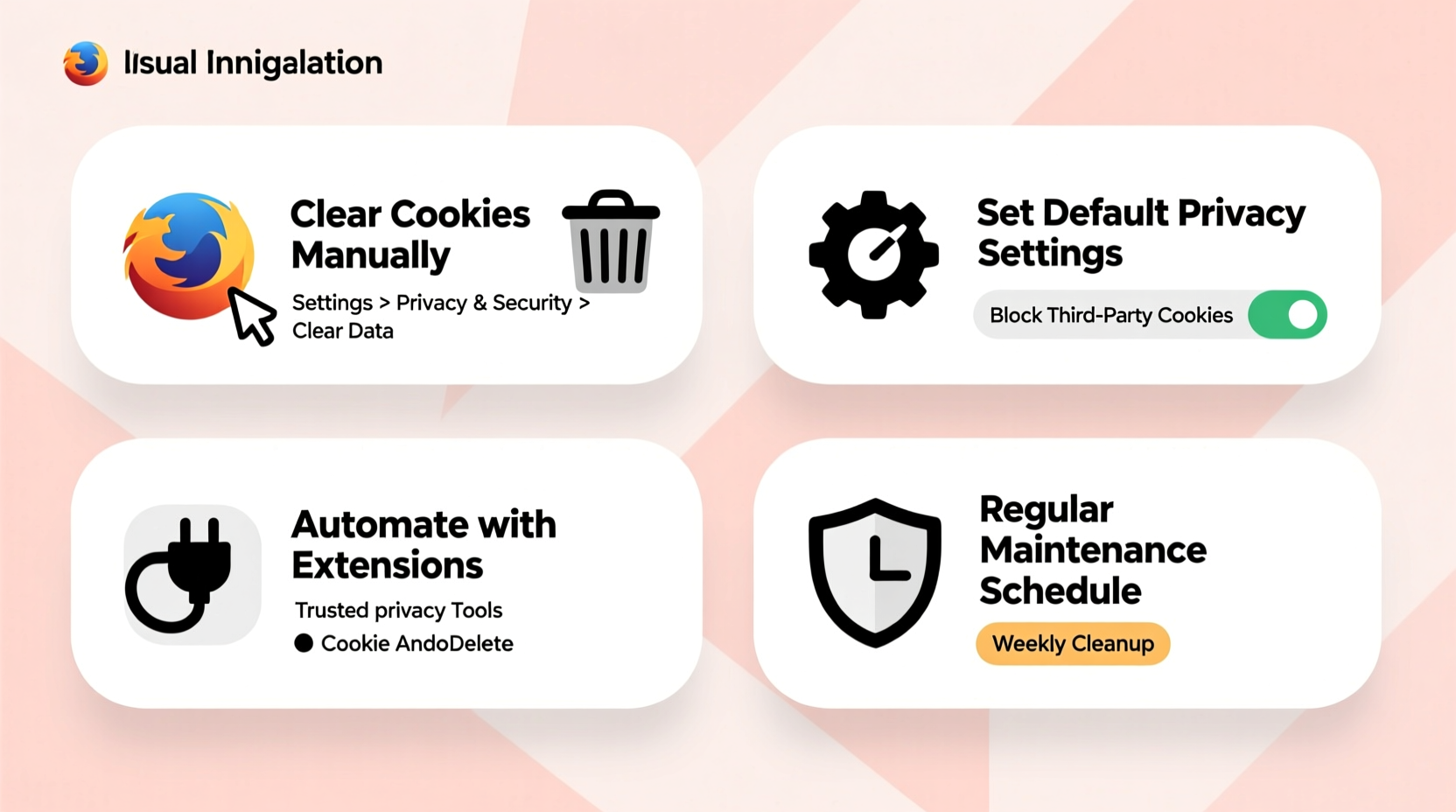
Cookies are small text files websites place on your device to remember your preferences, login status, and browsing behavior. While useful, they come with trade-offs. Third-party cookies, in particular, are used by advertisers to track your movements across sites, building detailed profiles without explicit consent. Over time, an overloaded cookie cache can also cause Firefox to run slower, trigger website errors, or prevent logins from working correctly.
Regularly clearing cookies helps mitigate these issues. It reduces your digital footprint, minimizes tracking risks, and often resolves glitches caused by corrupted or outdated session data. The key is knowing how and when to clear them—without losing access to essential accounts unnecessarily.
“Managing cookies isn’t just about cleaning up—it’s a foundational step in taking control of your online identity.” — Dr. Lena Patel, Cybersecurity Researcher at the Open Web Initiative
Step-by-Step: How to Clear All Cookies in Firefox
If you want a fresh start or suspect widespread tracking, removing all cookies is the most thorough option. Follow this sequence to do it safely:
- Open Firefox and click the menu button (three horizontal lines) in the top-right corner.
- Select Settings (or Preferences on macOS).
- Navigate to the Privacy & Security section on the left sidebar.
- Scroll down to the Cookies and Site Data panel.
- Click Clear Data… next to “Cookies and Site Data.”
- In the pop-up window, ensure both checkboxes are selected: Cookies and Site Data and Cache Web Content.
- Click Clear.
Firefox will immediately remove all stored cookies. You’ll be logged out of most websites, so have your credentials ready if needed. This method is ideal before switching devices, troubleshooting persistent site errors, or conducting a full privacy reset.
Selective Cookie Management: Remove Specific Sites Only
Sometimes, you only want to remove cookies from certain domains—like social media platforms or shopping sites that aggressively track behavior. Firefox allows precise removal without disrupting your entire browsing session.
To delete cookies from specific sites:
- Go to Settings > Privacy & Security > Cookies and Site Data.
- Click Manage Data… under the same section.
- A searchable list of websites storing data will appear.
- Type the domain (e.g., facebook.com) into the search bar.
- Select the entry and click Remove Selected.
- Click Save Changes when done.
This selective approach preserves logins for trusted sites while eliminating tracking from high-risk domains. It's especially useful after visiting ad-heavy or data-collecting websites.
Automate Privacy: Set Firefox to Clear Cookies on Close
For ongoing protection, configure Firefox to automatically erase cookies every time you exit the browser. This ensures no long-term tracking occurs while still allowing functional use during active sessions.
To enable automatic cleanup:
- Visit Settings > Privacy & Security.
- Under History, select Use custom settings for history from the dropdown.
- Check the box labeled Clear history when Firefox closes.
- Click Settings… next to it.
- In the dialog, make sure Cookies is checked.
- Uncheck items you’d like to preserve (e.g., bookmarks, passwords), unless you want those cleared too.
- Click OK to confirm.
With this setting active, your browsing remains convenient during use but leaves no trace afterward. Combine it with a password manager to avoid repeated logins.
| Method | Best For | Frequency Recommended |
|---|---|---|
| Clear All Cookies | Full privacy reset, major performance issues | Every 1–3 months |
| Selective Removal | Removing trackers from specific sites | As needed, after sensitive browsing |
| Auto-Clear on Exit | Ongoing privacy protection | Continuous (set once) |
| Private Browsing Mode | One-time sensitive tasks | Per session |
Real Example: Recovering Browser Speed After Cookie Buildup
Samantha, a freelance researcher, noticed Firefox was becoming increasingly sluggish. Pages loaded slowly, autocomplete fields froze, and she was repeatedly logged out of her email. After ruling out internet issues, she reviewed her browser data. Using Firefox’s Manage Data tool, she discovered over 1,200 entries—many from analytics and advertising networks.
She selectively removed cookies from domains like doubleclick.net and facebook.com, then cleared the rest entirely. Immediately, page load times improved by nearly 40%, and form inputs responded instantly. By enabling auto-clear on close afterward, she maintained peak performance without sacrificing usability.
Essential Tips for Smart Cookie Management
- Whitelist trusted sites: In Settings > Cookies and Site Data, click Exceptions to allow cookies from essential services (e.g., banking, work tools).
- Use containers: Firefox Multi-Account Containers lets you isolate browsing contexts (e.g., personal, work, shopping), preventing cross-site tracking even with cookies enabled.
- Monitor storage usage: Visit
about:preferences#privacyand check “Manage Data” monthly to stay aware of growing tracking footprints.
Frequently Asked Questions
Will clearing cookies delete my saved passwords?
No—if you’ve chosen to save passwords in Firefox, they are stored separately from cookies. However, if you clear “Site Preferences” or “Active Logins” in the clear-data dialog, you may need to re-authenticate. Always keep a backup password manager as a safety net.
Can I recover deleted cookies?
No, once cleared, cookies cannot be restored. If you rely on automatic logins, consider using Firefox Lockwise or a third-party password manager to streamline access after cleanup.
Does blocking all cookies break websites?
Blocking all cookies, especially first-party ones, can disrupt functionality—shopping carts, logins, and preferences may fail. A balanced approach (blocking third-party, allowing first-party) or using auto-clear on exit provides better results without sacrificing usability.
Final Checklist: Master Your Firefox Cookie Settings
- Review current cookies via Settings > Privacy & Security > Manage Data.
- Remove unwanted or suspicious domains manually.
- Perform a full cookie and cache clearance if performance lags.
- Enable Clear history when Firefox closes for continuous privacy.
- Add exceptions for critical sites that require persistent logins.
- Consider using Private Browsing or Containers for sensitive activities.
- Repeat full cleanups every few months or after high-risk browsing.
Take Control of Your Digital Footprint Today
Cookies are invisible but impactful. Left unchecked, they erode privacy and degrade browser performance. Firefox gives you powerful tools to manage them—with precision, automation, and foresight. Whether you’re guarding against surveillance, fixing technical hiccups, or simply optimizing your workflow, taking charge of cookie settings is one of the fastest wins in digital self-defense.




 浙公网安备
33010002000092号
浙公网安备
33010002000092号 浙B2-20120091-4
Comments
No comments yet. Why don't you start the discussion?