
In today’s digital world, smartphones are central to how we communicate, work, and entertain ourselves. Over time, however, even the most advanced devices can begin to lag, freeze, or run out of storage. A cluttered phone not only slows down performance but also drains battery life and limits functionality. The good news is that with a few strategic steps, you can completely clear your phone’s memory and restore it to near-original speed and efficiency. This guide outlines proven, practical techniques—backed by expert insights and real-world results—to help you reclaim space, optimize system resources, and keep your device running smoothly.
1. Understand Your Phone’s Memory: RAM vs. Storage
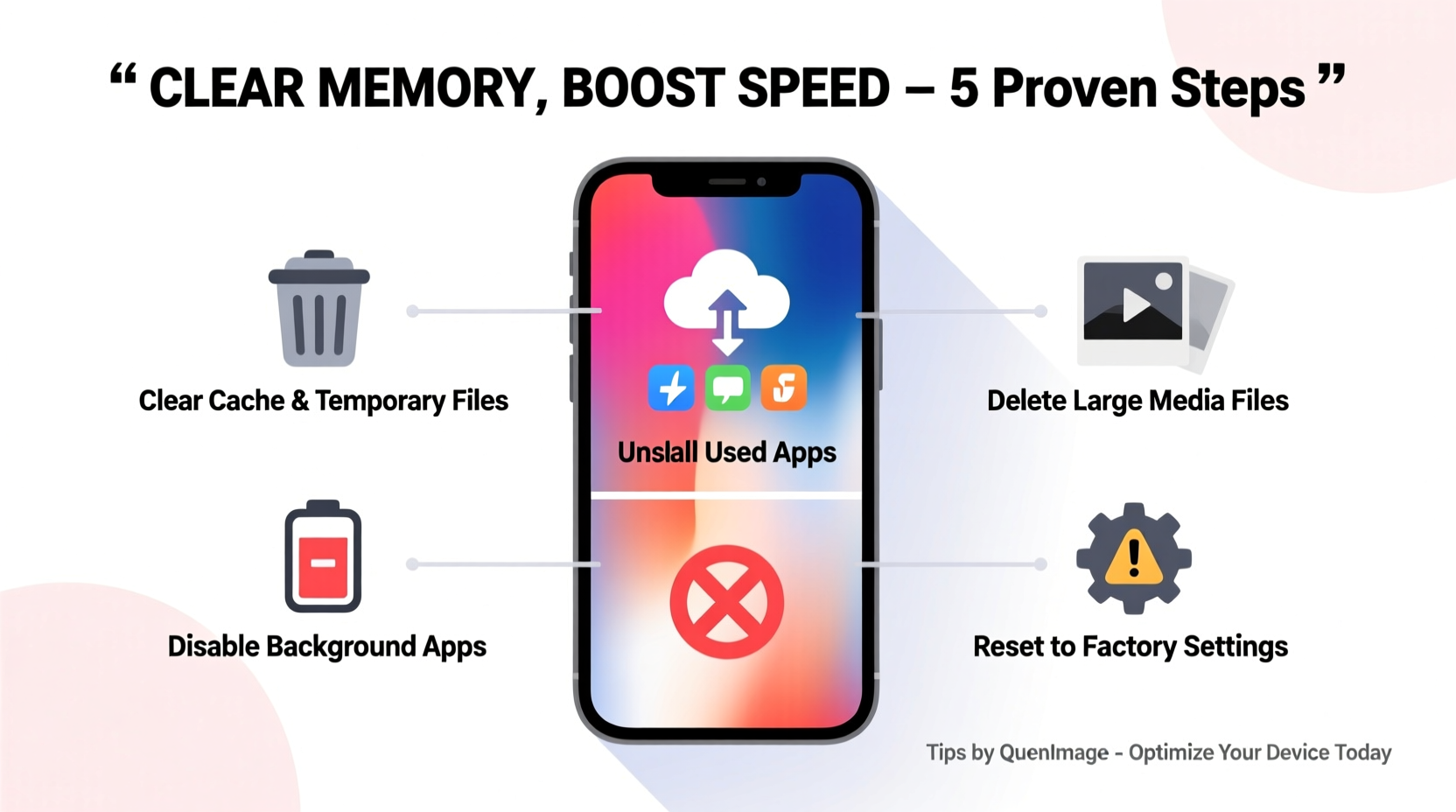
Before diving into cleanup strategies, it’s essential to distinguish between two types of memory: RAM (Random Access Memory) and internal storage. Many users conflate the two, leading to ineffective troubleshooting.
- Internal Storage: This is where apps, photos, videos, messages, and documents are saved. When storage is full, your phone may display warnings like “Storage Space Running Low” or fail to download updates.
- RAM: This temporary memory handles active tasks—like running apps or switching between screens. Low RAM causes slowdowns, app crashes, and delayed responses.
Cleaning internal storage doesn’t directly increase RAM, but it reduces background strain on the system, indirectly improving performance. Clearing cached data and closing unused apps frees up RAM in real time.
“Most performance issues stem from poor storage management rather than hardware limitations. A well-maintained phone with 64GB can outperform a neglected 256GB model.” — Daniel Park, Mobile Systems Engineer at Android Authority Labs
2. Step-by-Step Guide to Clear Internal Storage
Follow this structured approach to eliminate unnecessary files and free up significant space.
- Review Storage Usage: Go to Settings > Storage. Most phones break down usage by category—Apps, Photos, Audio, Downloads, etc. Identify the largest consumers.
- Delete Unused Apps: Uninstall apps you haven’t used in the past 30–60 days. Games and social media apps often take up hundreds of megabytes each.
- Clear App Cache: In Android, go to Settings > Apps > [App Name] > Storage > Clear Cache. On iPhone, offload apps via Settings > General > iPhone Storage > [App] > Offload App (keeps documents but removes the app binary).
- Manage Media Files: Transfer high-resolution photos and videos to cloud storage (Google Photos, iCloud) or an external drive, then delete them from the device.
- Empty Download Folders: Navigate to your file manager and delete old PDFs, APKs, ZIP files, and temporary downloads.
- Remove Duplicate Files: Use tools like Google Files (Android) or iMazing (iOS) to detect and remove duplicate images, voice memos, or documents.
3. Optimize RAM and Background Processes
Even with ample storage, a phone can feel sluggish if too many apps are running in the background. Here’s how to manage RAM effectively:
- Close unused apps by swiping them away in the recent apps menu.
- Disable auto-launch and background refresh for non-essential apps (Settings > Apps > Special Access > Autostart on Android; Settings > General > Background App Refresh on iOS).
- Avoid live wallpapers and heavy widgets—they constantly consume RAM and CPU.
- Restart your phone weekly. This clears RAM, stops rogue processes, and resets network connections.
On newer iPhones and Android devices, the OS manages RAM efficiently, so constant manual closing isn’t always necessary. However, restarting remains one of the most effective ways to reset system performance.
4. Do’s and Don’ts of Phone Memory Management
| Do’s | Don’ts |
|---|---|
| Use built-in cleanup tools like Google Files or iPhone Storage Management | Install third-party “cleaner” apps that promise miracles (many are adware) |
| Back up data before major deletions | Delete system files or use root access without understanding risks |
| Update your OS regularly—updates often include performance optimizations | Ignore software updates thinking they’ll slow your phone |
| Offload rarely used apps instead of deleting them | Keep dozens of unused shopping or travel apps “just in case” |
5. Real Example: Reviving a Sluggish Device
Consider Maria, a freelance photographer who uses her smartphone daily for shoots, editing, and client communication. After 18 months, her Android phone began freezing during photo exports and taking over 10 seconds to open messaging apps. Storage was at 97%, and camera app launches were inconsistent.
She followed a systematic cleanup:
- Transferred 4.2GB of RAW photos to Google Drive using Wi-Fi-only sync.
- Uninstalled seven unused apps, including two video editors she no longer needed.
- Cleared cache across all social media apps (freed 1.1GB).
- Enabled “Free Up Space” in Google Files, which removed duplicates and old downloads.
- Disabled background refresh for Instagram and TikTok.
The result? She reclaimed 7.8GB of space, and her phone’s responsiveness improved dramatically. App launch times dropped by over 60%, and multitasking became seamless again.
Essential Maintenance Checklist
Use this checklist monthly to maintain peak performance:
- ✅ Review total storage usage
- ✅ Delete or archive old photos and videos
- ✅ Clear app caches (especially browsers and social media)
- ✅ Uninstall at least one unused app
- ✅ Restart your phone
- ✅ Check for and install OS updates
- ✅ Run a duplicate file scan
- ✅ Disable background activity for non-critical apps
Frequently Asked Questions
Will clearing cache delete my app data?
No. Cache consists of temporary files like thumbnails and session data. Clearing it won’t affect your login status, preferences, or saved content. However, some apps may take slightly longer to load the next time as they rebuild the cache.
Is it safe to use third-party cleaning apps?
Most are unnecessary and potentially harmful. Apps like “Clean Master” have been flagged for aggressive ad behavior and minimal actual benefit. Stick to trusted tools like Google Files, Samsung My Files, or Apple’s built-in storage management.
How often should I clear my phone’s memory?
Aim for a light cleanup every month and a deeper audit every 3–6 months. If you frequently download media or install trial apps, consider bi-weekly checks.
Final Thoughts: Make Optimization a Habit
Clearing your phone’s memory isn’t a one-time fix—it’s part of ongoing digital hygiene. Just as you wouldn’t let physical clutter accumulate indefinitely, regular digital maintenance prevents frustration and extends your device’s lifespan. Modern smartphones are powerful, but they rely on smart user habits to perform at their best. By understanding your phone’s memory, applying targeted cleanup strategies, and staying consistent, you can enjoy faster response times, longer battery life, and a more reliable experience.




 浙公网安备
33010002000092号
浙公网安备
33010002000092号 浙B2-20120091-4
Comments
No comments yet. Why don't you start the discussion?