
Windows 10 updates are essential for security, performance, and feature improvements. However, their automatic nature can disrupt work, consume bandwidth, or trigger reboots at inconvenient times. While some users resort to disabling updates entirely—a risky move that exposes systems to vulnerabilities—there are smarter, safer alternatives. You can effectively manage, delay, or temporarily pause updates without compromising your system’s long-term health.
This guide explores practical, Microsoft-compliant strategies to take control of update timing and delivery. From built-in settings to network-level controls, these methods help you balance reliability with convenience.
Use Built-in Pause Updates Feature
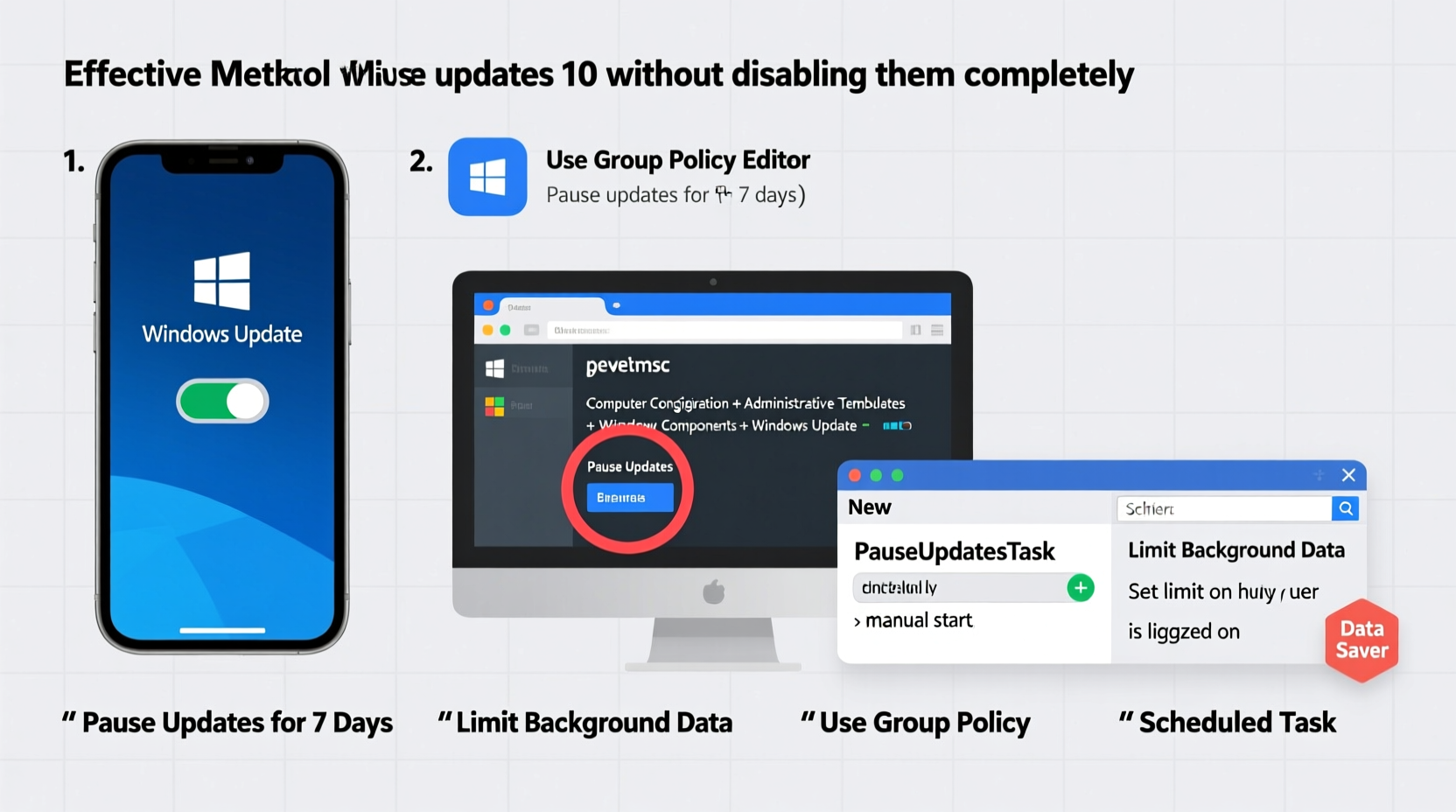
Microsoft introduced the ability to pause updates directly in Windows 10 Settings, recognizing user demand for more control. This is the safest and most straightforward method for temporary delays.
To pause updates:
- Open Settings (Windows + I).
- Navigate to Update & Security > Windows Update.
- Click on Pause updates for 7 days.
- Repeat as needed—up to 35 days total (five 7-day extensions).
After 35 days, Windows will require you to install pending updates. This ensures no indefinite deferral, maintaining baseline security compliance.
Leverage Metered Connection Settings
Marking your network as metered limits background data usage, including automatic download of large update files. This doesn’t stop updates permanently but prevents them from consuming excessive bandwidth.
How to Set a Network as Metered
- Go to Settings > Network & Internet > Wi-Fi.
- Select your connected network.
- Toggle on Set as metered connection.
On Ethernet connections, this option appears under Ethernet > Manage known networks. Once activated, Windows will defer downloading major update packages until a non-metered network is available.
“Using metered connection settings gives users granular control over data use without breaking update integrity.” — IT Support Weekly, Enterprise Tech Review
Configure Active Hours to Prevent Disruptions
Active Hours tell Windows when you’re typically using your PC, so it avoids installing updates and restarting during those times. This is especially useful for professionals working outside standard office hours.
Setting Active Hours
- Open Settings > Update & Security > Windows Update.
- Click Change active hours.
- Adjust the start and end time (up to 18 hours total).
Windows will not automatically reboot your device during active hours, though manual restarts after installation are still required eventually.
| Method | Max Delay | Security Risk | Best For |
|---|---|---|---|
| Pause Updates | 35 days | Low | Short-term control |
| Metered Connection | Indefinite (download delay) | Medium | Data-sensitive users |
| Active Hours | No delay, only timing control | None | Preventing disruptions |
| Group Policy (Pro/Enterprise) | Up to 365 days | Low | Advanced users |
| Delivery Optimization Peers | Bandwidth control only | None | Reducing internet load |
Use Group Policy Editor (Windows 10 Pro and Enterprise)
For advanced users and business environments, the Local Group Policy Editor offers precise control over update behavior. This method allows deferring feature and quality updates for extended periods.
Steps to Defer Updates via Group Policy
- Press Windows + R, type
gpedit.msc, and press Enter. - Navigate to:
Computer Configuration > Administrative Templates > Windows Components > Windows Update > Windows Update for Business - Double-click Defer Quality Updates and set the deferral period (up to 30 days).
- Similarly, configure Defer Feature Updates (up to 365 days).
- Enable both policies and set desired days.
- Click Apply, then OK.
Note: This feature is unavailable in Windows 10 Home edition. Users on Home must rely on registry edits or third-party tools—though modifying the registry carries risk and is not recommended without backups.
Manage Delivery Optimization for Bandwidth Control
Delivery Optimization allows Windows to download update fragments from nearby devices instead of solely from Microsoft servers. While this reduces server load, it can consume upload bandwidth and slow down your network.
You can limit or disable peer sharing without stopping updates:
- Go to Settings > Update & Security > Delivery Optimization.
- Toggle off Allow downloads from other PCs, or switch to “PCs on my local network” only.
- Optionally, set bandwidth limits under Advanced options.
This approach minimizes disruption while still allowing updates to proceed—just more efficiently.
Real-World Scenario: Managing Updates in a Small Office
A small graphic design firm experienced recurring workflow interruptions due to automatic Windows reboots. Designers lost unsaved progress multiple times during crunch periods. The IT consultant implemented a coordinated strategy:
- Set all workstations to pause updates during project deadlines.
- Configured Active Hours from 6 AM to 10 PM.
- Used Group Policy to defer feature updates by 60 days, allowing testing on one machine first.
- Enabled metered connection on mobile hotspots used during client site visits.
Result: No further unexpected reboots. Updates were installed during weekends or low-activity periods. System security remained intact, and productivity improved significantly.
Frequently Asked Questions
Can pausing updates make my computer less secure?
Temporarily pausing updates for up to 35 days poses minimal risk, especially if you resume and install them promptly. However, delaying critical security patches beyond a few weeks increases vulnerability to exploits. Always prioritize installing updates within a reasonable timeframe.
Will these methods work on Windows 10 Home?
Most built-in tools—like pausing updates, setting active hours, and metered connections—are fully available on Windows 10 Home. However, Group Policy Editor is exclusive to Pro, Education, and Enterprise editions. Home users seeking similar control may consider upgrading or using scheduled tasks to monitor update status.
What happens after the 35-day pause limit?
After 35 days, Windows will automatically resume downloading and installing updates. You’ll receive notifications and may be prompted to schedule a restart. Failure to comply may result in forced restarts during inactive periods. It’s best to plan update installations proactively after the pause period ends.
Checklist: Take Control of Windows 10 Updates
- ✅ Pause updates for up to 35 days via Settings.
- ✅ Set accurate Active Hours to prevent disruptive reboots.
- ✅ Mark personal or limited networks as metered.
- ✅ Adjust Delivery Optimization to reduce bandwidth sharing.
- ✅ Use Group Policy (if on Pro/Enterprise) to defer updates longer.
- ✅ Schedule regular maintenance windows to install updates manually.
- ✅ Monitor update history to ensure nothing fails silently.
Conclusion: Balance Control with Responsibility
Controlling Windows 10 updates isn’t about avoiding them—it’s about managing them intelligently. With the right combination of pause features, active hours, metered networks, and policy settings, you can protect your workflow without sacrificing system security.
The goal is not to reject updates, but to embrace them on your terms. By planning update cycles around your routine, you maintain stability, conserve bandwidth, and reduce frustration—all while keeping your system protected against emerging threats.




 浙公网安备
33010002000092号
浙公网安备
33010002000092号 浙B2-20120091-4
Comments
No comments yet. Why don't you start the discussion?