
Windows 10 is designed to update automatically, a feature Microsoft claims enhances security and system stability. While the intention is sound, many users find these forced updates disruptive—interrupting work, consuming bandwidth, or even introducing bugs. For professionals, creatives, or anyone relying on consistent system behavior, unexpected reboots and background installations can be more than inconvenient—they can cost time and productivity.
The good news: you don’t have to accept automatic updates as inevitable. With careful configuration, you can delay, pause, or completely disable Windows Update processes without compromising your system's integrity. This guide outlines practical, tested methods to regain control of your PC while maintaining security awareness.
Why Disable Automatic Updates?
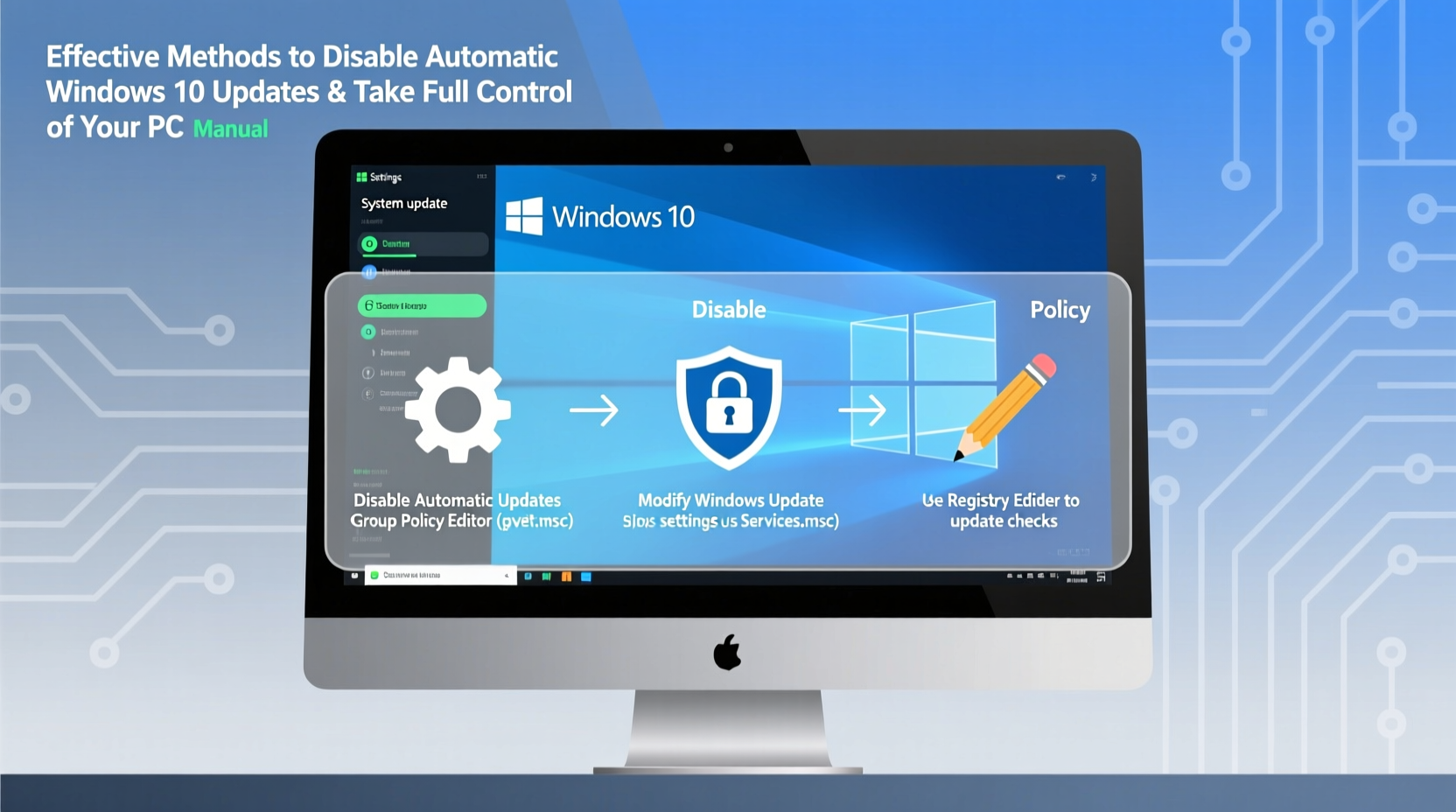
Automatic updates are not inherently bad. However, their lack of user control raises several concerns:
- Unscheduled reboots: Windows may restart during critical tasks, leading to unsaved work loss.
- Bandwidth consumption: Large updates can slow down internet connections, especially on metered plans.
- Compatibility issues: Some updates introduce driver conflicts or software incompatibilities.
- Limited rollback options: Once installed, certain updates cannot be easily removed.
“Updates should enhance usability, not undermine it. A balance between security and user autonomy is essential.” — Dr. Lena Torres, Systems Integration Specialist
Disabling automatic updates doesn't mean abandoning security. It means choosing when and how updates are applied—on your terms.
Method 1: Pause Updates via Settings (Temporary Control)
The safest and most straightforward method for most users is pausing updates through the built-in Windows Settings. This does not permanently disable updates but gives you breathing room.
- Open Settings (Windows + I).
- Navigate to Update & Security > Windows Update.
- Click Pause updates for 7 days. You can extend this up to 35 days by repeatedly pausing.
This approach keeps your system compliant with Microsoft’s update policies while offering temporary relief from interruptions.
Method 2: Set a Metered Connection
By marking your network as metered, Windows significantly reduces background update activity, including automatic downloads.
Steps to Configure a Metered Connection:
- Go to Settings > Network & Internet.
- Select either Wi-Fi or Ethernet, depending on your connection type.
- Click on your active network.
- Toggle on Set as metered connection.
Once enabled, Windows will only download critical updates manually and avoid large downloads in the background.
| Feature | Standard Connection | Metered Connection |
|---|---|---|
| Background Downloads | Enabled | Disabled |
| Automatic Reboots | Possible | Rare |
| Peer-to-Peer Updates | Allowed | Blocked |
| User Control Level | Low | High |
Note: This setting works best on Wi-Fi networks. Ethernet metering may require additional registry tweaks on some systems.
Method 3: Disable Windows Update Service (Advanced)
For users seeking full control, disabling the Windows Update service stops all automatic update processes. This method is powerful but must be used responsibly.
Step-by-Step Guide:
- Press Windows + R, type
services.msc, and press Enter. - Locate Windows Update in the list.
- Right-click and select Properties.
- Change Startup type to Disabled.
- Click Stop under Service status.
- Select Apply and then OK.
With the service disabled, no updates will install until you manually re-enable it.
⚠️ Warning: Disabling this service entirely may prevent access to future feature updates and could pose security risks if neglected long-term.
Method 4: Use Group Policy Editor (Pro/Enterprise Only)
If you’re using Windows 10 Pro, Education, or Enterprise, the Local Group Policy Editor offers granular control over update behavior.
To Access and Configure:
- Press Windows + R, type
gpedit.msc, and hit Enter. - Navigate to:
Computer Configuration > Administrative Templates > Windows Components > Windows Update - Double-click Configure Automatic Updates.
- Select Enabled, then choose option 2 – Notify for download and auto-install or 4 – Auto-download and schedule the install with custom timing.
- Click Apply and OK.
This method allows you to define exactly how updates are handled—ideal for business environments or power users who want predictable maintenance windows.
Mini Case Study: Freelancer Regains Workflow Control
Sarah Kim, a freelance video editor based in Vancouver, faced recurring crashes every Tuesday after her PC restarted unexpectedly. After investigation, she discovered that Windows was installing updates at 3 AM and rebooting mid-edit the next day, corrupting project files.
She applied Method 3—disabling the Windows Update service—and began checking for updates manually every Friday evening. She also set her home Wi-Fi as metered. Since then, she’s had zero unexpected interruptions and maintains a weekly routine of reviewing and applying updates when convenient.
“I still get security patches,” she says, “but now I decide when. That small change saved me hours of lost work and stress.”
Checklist: How to Safely Manage Windows Updates
- ✅ Assess whether you need full disablement or just scheduling control.
- ✅ Backup your system before modifying update settings.
- ✅ Pause updates temporarily via Settings for short-term relief.
- ✅ Set your network as metered to reduce background traffic.
- ✅ Disable the Windows Update service only if you commit to manual checks.
- ✅ Use Group Policy Editor (if available) for precise update scheduling.
- ✅ Schedule monthly review sessions to install pending security updates.
Frequently Asked Questions
Can disabling updates make my computer unsafe?
Yes, if done indefinitely without manual patching. Security vulnerabilities are regularly addressed in updates. The key is not to avoid updates entirely, but to manage them proactively. Check for and install critical patches at least once a month.
Will these methods work on Windows 10 Home?
Most methods do, except Group Policy Editor (gpedit.msc), which isn’t included in Home edition. However, you can achieve similar results using the Registry Editor or third-party tools (not recommended unless experienced).
Can I re-enable updates later?
Absolutely. All changes described here are reversible. Simply re-enable the Windows Update service, reset your network settings, or adjust configurations back to default.
Take Back Control—Responsibly
Automatic updates were meant to simplify computing, but they often complicate it instead. By understanding your options—from pausing and metering to full service management—you can tailor Windows 10 to fit your lifestyle and workflow.
The goal isn’t to reject updates, but to reclaim agency over your machine. A well-maintained PC respects your time and priorities. Apply these strategies wisely, stay informed about critical patches, and create a system that works for you—not against you.




 浙公网安备
33010002000092号
浙公网安备
33010002000092号 浙B2-20120091-4
Comments
No comments yet. Why don't you start the discussion?