
In an era where digital privacy is increasingly under threat, many users are seeking ways to reduce their reliance on tech giants like Google. While Android phones come deeply integrated with Google services—from the Play Store to location tracking and personalized ads—removing these components is not only possible but can significantly enhance your control over personal data. Fully detaching from Google requires more than simply uninstalling apps; it involves rethinking how your phone operates at a system level. This guide outlines practical, tested methods to eliminate Google services while maintaining usability and security.
Why Remove Google Services?
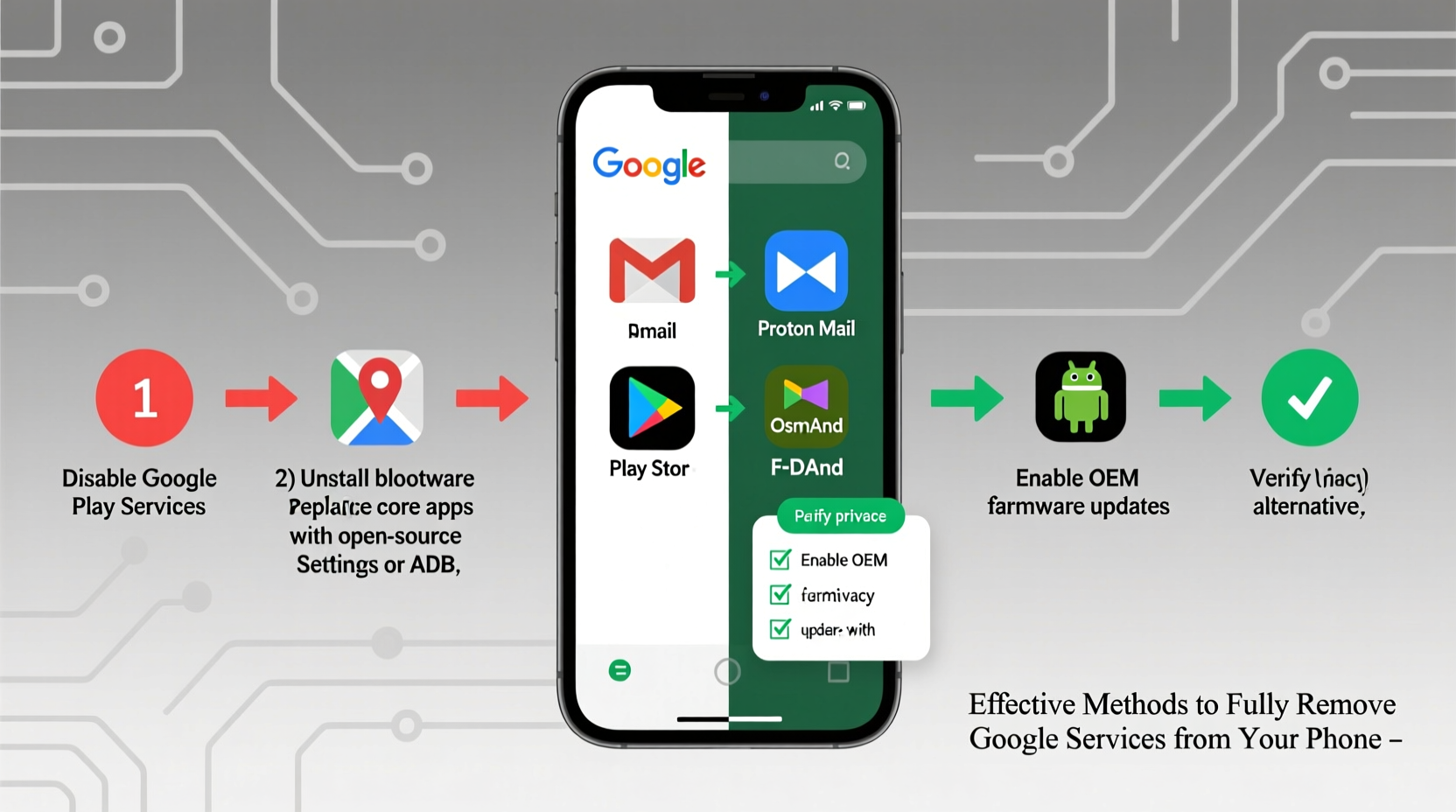
Google’s ecosystem offers convenience: seamless syncing, cloud storage, app access, and AI-driven features. However, this comes at a cost. Every search, location check-in, and app interaction feeds into a vast data collection network used for profiling and targeted advertising. For privacy-conscious users, reducing or eliminating this footprint is essential. Additionally, removing Google services can improve device performance by reducing background processes and bloatware.
“Every time you use a Google service on your phone, you’re trading personal data for convenience. Taking back control starts with understanding what you can—and should—remove.” — Dr. Lena Patel, Digital Privacy Researcher at the Open Tech Institute
Step-by-Step Guide to Removing Google Services
Removing Google services isn’t a one-click process. It requires careful planning and execution across multiple layers of your device. Follow this timeline to ensure a smooth transition:
- Backup Your Data: Before making changes, export contacts, messages, photos, and documents to a local storage or non-Google cloud (e.g., Nextcloud, Proton Drive).
- Uninstall Google Apps: Go to Settings > Apps, find Google-related apps (Google Play Services, Chrome, Gmail, etc.), and disable or uninstall them if possible.
- Replace Core Services: Install alternative app stores (F-Droid, Aurora Store) and communication tools (Signal, Delta Chat).
- Flash a Custom ROM: Replace the stock OS with a de-Googled version like LineageOS without GApps.
- Verify Removal: Use tools like NetGuard or Blokada to monitor network connections and confirm no Google domains are being contacted.
Choosing the Right De-Googled Operating System
The most effective way to remove Google services is to replace the operating system entirely. Stock Android relies heavily on Google Mobile Services (GMS), which cannot be removed without root access and still leave the system functional. A better solution is switching to a privacy-focused, open-source ROM.
| ROM | Google-Free? | Security Updates | User-Friendliness | Best For |
|---|---|---|---|---|
| LineageOS (without GApps) | Yes | Monthly | Medium | Intermediate users seeking balance |
| CalyxOS | Yes | Monthly | High | Privacy beginners |
| GrapheneOS | Yes | Frequent | Low-Medium | Security experts |
| Ubuntu Touch | Yes | Quarterly | Low | Linux enthusiasts |
CalyxOS stands out for its built-in privacy protections and ease of setup, including optional microG for limited compatibility with Google-dependent apps. GrapheneOS, developed with strong isolation principles, is ideal for high-risk users such as journalists or activists.
Mini Case Study: Transitioning from Pixel to De-Googled Device
Sophie, a freelance journalist based in Berlin, used a Google Pixel 6 for work and personal communication. Over time, she noticed her searches were being pre-filled with sensitive topics, and ads began mirroring private conversations. Concerned about surveillance risks, she decided to switch.
She backed up her data to a local NAS drive, then flashed CalyxOS onto her device using the official installer. She replaced Gmail with Proton Mail, switched to Signal for messaging, and used F-Droid for app installations. After two weeks, she reported improved battery life, fewer distractions, and peace of mind knowing her data wasn’t being harvested.
“It took some effort to relearn workflows,” she said, “but now I feel like my phone works for me—not for an algorithm.”
Essential Checklist for Going Google-Free
- ✅ Backup all personal data to non-Google storage
- ✅ Unlock your phone’s bootloader (if required)
- ✅ Install a custom recovery like OrangeFox or TWRP
- ✅ Download a de-Googled ROM compatible with your device
- ✅ Flash the ROM and optional add-ons (e.g., microG for select app compatibility)
- ✅ Install privacy-respecting alternatives: Firefox, NewPipe, Simple Calendar
- ✅ Disable telemetry and analytics in the new OS settings
- ✅ Test connectivity and functionality before full reliance
Common Challenges and How to Overcome Them
Going Google-free isn’t without hurdles. Some apps, particularly banking, ride-sharing, or government services, rely on Google Play Services for verification or push notifications. Here’s how to handle common issues:
- App Compatibility: Use Aurora Store to download APKs anonymously from the Play Store without signing in. Some apps may still fail due to SafetyNet checks—consider web versions instead.
- Location Services: Devices without GMS use A-GPS only. Enable offline maps via Organic Maps or OsmAnd for navigation.
- Push Notifications: On microG-enabled systems, GCM/FCM can be partially emulated. Otherwise, rely on periodic sync or web alerts.
- OTA Updates: Custom ROMs deliver updates manually. Subscribe to your ROM’s forum or Telegram channel to stay informed.
Frequently Asked Questions
Can I remove Google services without rooting my phone?
Partially. You can disable most Google apps through settings, but core services like Google Play Services run at a deeper level and cannot be fully removed without flashing a custom ROM, which typically requires unlocking the bootloader.
Will removing Google affect my phone’s warranty?
Yes, unlocking the bootloader and installing custom software usually voids the manufacturer warranty. Check your device’s policy before proceeding. Some brands, like Fairphone, explicitly support user modifications.
Are de-Googled phones less secure?
No—many privacy-focused ROMs receive regular security patches and implement stronger sandboxing than stock Android. GrapheneOS, for example, includes exploit mitigations that exceed Google’s default protections.
Final Thoughts and Call to Action
Removing Google services from your phone is a powerful step toward reclaiming digital autonomy. While it demands technical effort and lifestyle adjustments, the benefits—enhanced privacy, reduced tracking, and greater control—are substantial. Whether you choose CalyxOS for simplicity or dive into GrapheneOS for maximum security, the tools exist to break free from centralized data ecosystems.
This journey isn’t just about technology—it’s about values. Every app you install, every service you allow, shapes your digital identity. By choosing transparency over convenience, you set a precedent for a healthier relationship with technology.




 浙公网安备
33010002000092号
浙公网安备
33010002000092号 浙B2-20120091-4
Comments
No comments yet. Why don't you start the discussion?