
Comparing data across two Excel columns is a routine task in finance, HR, inventory management, and data analysis. Whether you're reconciling customer lists, verifying employee records, or auditing product inventories, identifying discrepancies accurately and efficiently is essential. Even minor mismatches—such as spelling variations, extra spaces, or case sensitivity—can lead to costly errors if overlooked. Fortunately, Excel offers multiple built-in tools and formulas that make spotting differences both fast and reliable.
This guide walks through proven methods—from simple formula checks to advanced conditional formatting and Power Query—to help you detect variances between two columns with precision. Each approach suits different scenarios, from quick spot-checks to automated workflows handling thousands of rows.
Using Simple Formulas to Compare Columns
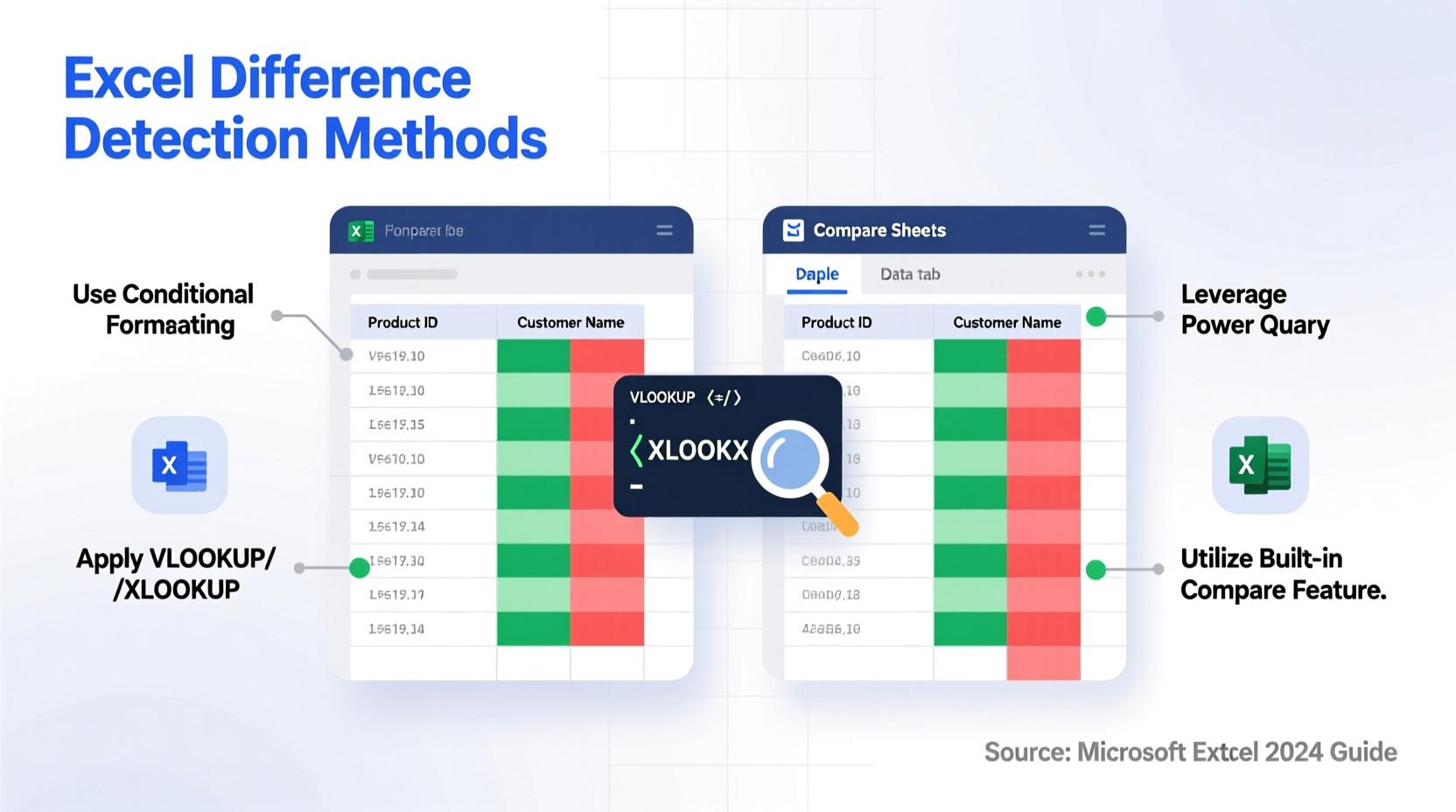
The most straightforward way to compare two Excel columns is by using basic logical formulas. These are ideal for small datasets or when you need immediate results without complex setup.
The =A1=B1 formula returns TRUE if the values in cells A1 and B1 are identical, and FALSE otherwise. This binary output quickly highlights matches and mismatches.
For more control, use the =IF(A1=B1, \"Match\", \"Difference\") formula. It replaces TRUE/FALSE with readable labels, making results easier to interpret at a glance.
To handle common formatting issues like extra spaces or case differences, combine functions:
=IF(TRIM(UPPER(A1))=TRIM(UPPER(B1)), \"Match\", \"Difference\")– Compares text after removing extra spaces and standardizing case.=IF(EXACT(A1,B1), \"Exact Match\", \"Different\")– Case-sensitive comparison, useful for passwords or codes where capitalization matters.
Highlighting Differences with Conditional Formatting
Visual identification speeds up error detection, especially in large spreadsheets. Conditional formatting allows you to color-code cells based on whether they match or differ.
- Select the range in the first column (e.g., A1:A100).
- Go to Home > Conditional Formatting > New Rule.
- Choose “Use a formula to determine which cells to format.”
- Enter:
=A1<>B1— this means “if A1 is not equal to B1.” - Set a fill color (e.g., light red) and click OK.
- Repeat for the second column to highlight mismatches there too.
This method instantly draws attention to discrepancies without altering original data. It’s particularly helpful during audits or peer reviews where visual clarity is key.
Leveraging VLOOKUP and MATCH Functions
When comparing lists of varying lengths or checking presence rather than exact alignment, VLOOKUP and MATCH become powerful tools.
Suppose Column A contains a master list of product IDs, and Column C has entries from a recent shipment. To find which items in Column C are missing from Column A:
Use this formula in D1 and drag down:
=IF(ISNA(VLOOKUP(C1,A:A,1,FALSE)), \"Not in Master\", \"Found\")
This checks if each value in Column C exists anywhere in Column A. If not found, it returns “Not in Master,” flagging potential omissions or typos.
| Function | Purpose | Best For |
|---|---|---|
| VLOOKUP | Finds values in a table array | One-way lookups across non-adjacent columns |
| MATCH | Returns position of a match | Flexible searches within arrays |
| INDEX + MATCH | Combines lookup power with dynamic referencing | Cross-referencing large datasets |
“Accurate data comparison isn’t about volume—it’s about validation. One missed discrepancy can cascade into reporting errors.” — David Lin, Data Integrity Consultant
Advanced Comparison Using Power Query
For recurring comparisons or large-scale data validation, Power Query (available in Excel 2016+) provides a robust, repeatable solution.
Here’s how to use it to compare two columns across separate tables:
- Load both datasets into Power Query via Data > Get & Transform Data > From Table/Range.
- Rename queries meaningfully (e.g., “MasterList” and “UpdatedList”).
- In one query, go to Merge Queries > Merge Queries as New.
- Select both tables, choose the columns to compare, and set join type to “Left Anti” to show rows in the first table not present in the second.
- Expand results and load back to Excel.
Power Query excels because it remembers your steps. Once configured, you can refresh the comparison anytime with new data—ideal for monthly reconciliations or audit trails.
Additionally, Power Query handles fuzzy matching, detects duplicates, and cleans data before comparison, reducing false positives caused by inconsistent formatting.
Mini Case Study: Inventory Reconciliation at TechRetail Inc.
TechRetail Inc. faced recurring stock discrepancies between their warehouse logs and ERP system. Manual checks across 10,000+ SKUs were time-consuming and error-prone. By implementing a Power Query-based comparison workflow, they automated the reconciliation process.
Their team loaded both datasets weekly, used merge operations to isolate unmatched entries, and generated exception reports. Within three months, mismatch resolution time dropped from 8 hours per week to under 45 minutes. The company also reduced overstock incidents by 27% due to faster anomaly detection.
Common Pitfalls and Best Practices
Even experienced users fall into traps when comparing Excel columns. Awareness of these issues improves accuracy.
| Do | Don't |
|---|---|
| Trim whitespace using TRIM() | Assume identical-looking values are equal |
| Standardize case with UPPER() or LOWER() | Ignore hidden characters or line breaks |
| Use absolute references when needed ($A$1) | Compare numbers stored as text directly |
| Validate data types before comparison | Rely solely on visual inspection |
Numeric values entered as text (e.g., '00123 vs. 123) will appear similar but fail logical tests unless converted. Use VALUE() or multiply by 1 to force numeric conversion.
Checklist: Steps to Accurately Compare Two Excel Columns
- ✅ Ensure both columns have consistent formatting (text, number, date).
- ✅ Remove leading/trailing spaces using TRIM().
- ✅ Standardize text case with UPPER() or LOWER().
- ✅ Decide whether comparison should be case-sensitive (use EXACT()).
- ✅ Choose appropriate method: formula, conditional formatting, or Power Query.
- ✅ Test on a small sample before scaling to full dataset.
- ✅ Document the process for future reuse or team sharing.
FAQ
Can I compare two columns with different row counts?
Yes. Use functions like VLOOKUP or MATCH that search entire ranges regardless of position. Alternatively, use Power Query to merge tables and identify missing entries.
Why does Excel say two identical-looking values are different?
This often happens due to invisible characters, extra spaces, or mismatched data types (e.g., number vs. text). Use TRIM(), CLEAN(), and TYPE() functions to diagnose such issues.
Is there a way to automate column comparisons every week?
Absolutely. Save your workbook with Power Query connections and transformation steps. On updating source data, simply refresh the query to rerun the entire comparison automatically.
Conclusion
Identifying differences between Excel columns doesn’t require guesswork or tedious manual review. With the right combination of formulas, formatting rules, and automation tools, you can ensure data integrity with confidence and speed. Whether you're validating client records, tracking changes, or syncing databases, mastering these techniques transforms a repetitive chore into a streamlined, reliable process.




 浙公网安备
33010002000092号
浙公网安备
33010002000092号 浙B2-20120091-4
Comments
No comments yet. Why don't you start the discussion?