
Background app activity is one of the most common causes of poor battery life, sluggish performance, and unnecessary data usage across smartphones, tablets, and computers. While some background processes are essential—like receiving messages or updating weather—many apps run needlessly, consuming system resources without providing immediate value. Taking control of these behaviors not only extends battery life but also enhances responsiveness and protects user privacy. The good news is that nearly every modern operating system offers tools to manage background activity. With the right approach, users can strike a balance between functionality and efficiency.
Understanding Background App Behavior
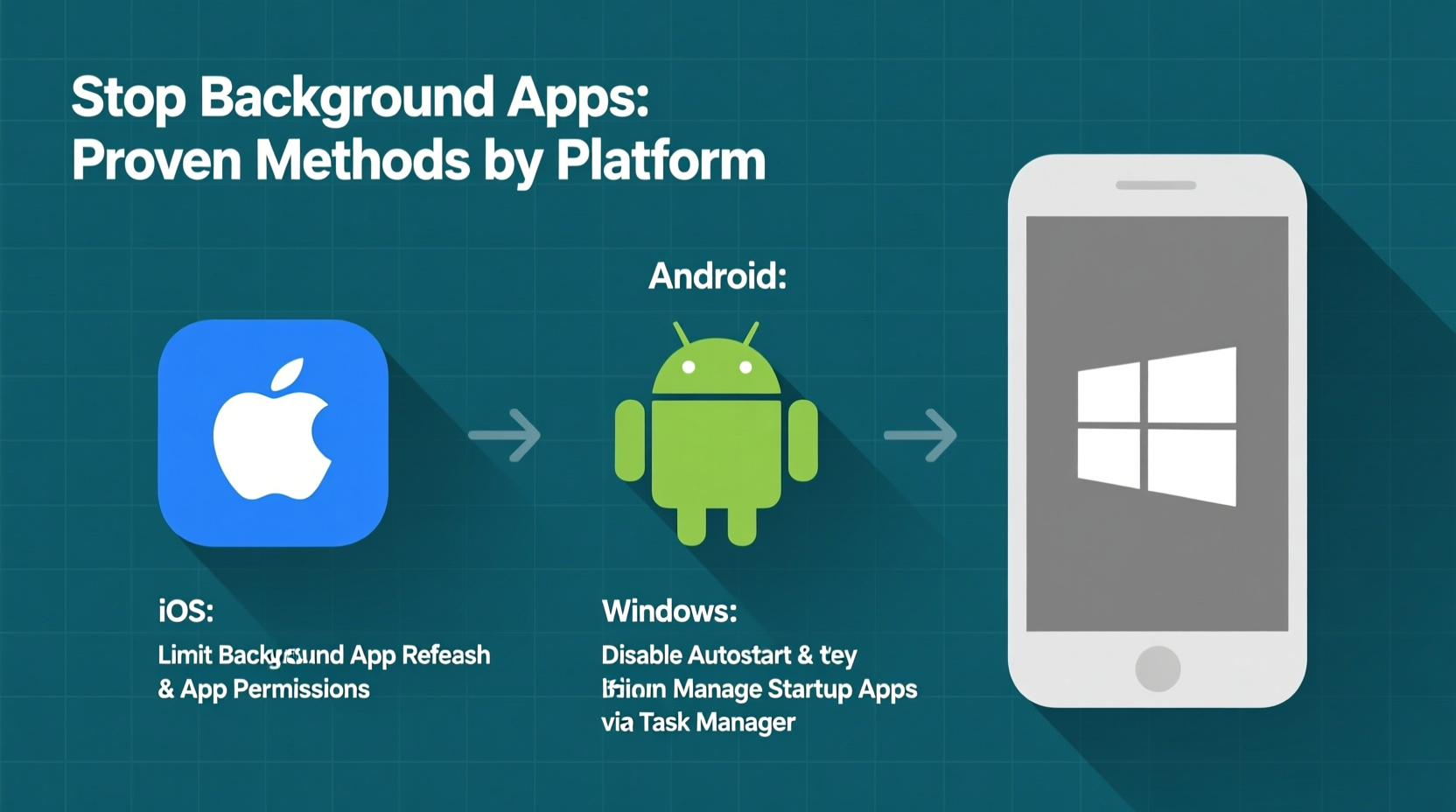
Before taking action, it's important to understand what \"running in the background\" actually means. An app doesn’t have to be open on your screen to be active. Many apps continue working after you switch away from them, performing tasks such as syncing data, checking for updates, playing audio, or tracking location. These activities fall into three main categories:
- Foreground services: Apps actively used or displaying notifications (e.g., music players).
- Background services: Apps refreshing content, downloading updates, or syncing cloud files.
- Autostart processes: Apps launching automatically at startup, often without user knowledge.
While useful in moderation, unchecked background operations can lead to overheating, rapid battery drain, and degraded device performance over time. Identifying which apps are responsible is the first step toward regaining control.
Step-by-Step Guide to Restrict Background Activity
Taking control of background apps requires both system-level settings and smart usage habits. Follow this structured approach to minimize unnecessary background behavior across devices:
- Review Battery Usage Statistics: On Android and iOS, go to Settings > Battery to see which apps consume the most power. Pay attention to those with high “background” percentages.
- Limit Background App Refresh (iOS): Navigate to Settings > General > Background App Refresh. Disable it globally or per app, especially for social media and news apps that don’t require real-time updates.
- Restrict Background Data (Android): Go to Settings > Network & Internet > Data Usage > Mobile Data Usage. Select high-usage apps and toggle off “Background data.”
- Force Stop Non-Essential Apps: In Settings > Apps, select individual apps and tap “Force Stop” if they’re running unnecessarily. Be cautious with system apps.
- Disable Autostart Permissions: On Android, use manufacturer-specific tools (e.g., MIUI, Samsung Device Care) or third-party apps like Greenify to prevent apps from launching at boot.
- Adjust Location Access: Many apps use GPS in the background. Set location permissions to “While Using” instead of “Always” in privacy settings.
- Manage Startup Programs (Windows/Mac): On PCs, disable auto-launching apps via Task Manager (Windows) or System Settings > Users & Groups > Login Items (Mac).
Platform-Specific Optimization Table
Different operating systems offer distinct controls. This comparison highlights key options across major platforms:
| Platform | Key Setting | How to Access | Recommended Action |
|---|---|---|---|
| iOS | Background App Refresh | Settings > General > Background App Refresh | Disable for non-critical apps like games or browsers |
| Android | Background Data & Battery Optimization | Settings > Apps > [App Name] > Mobile Data & Battery | Turn off background data; enable battery optimization |
| Windows | Startup Apps | Task Manager > Startup tab | Disable non-essential apps (e.g., updaters, chat clients) |
| macOS | Login Items | System Settings > General > Login Items | Remove apps that don’t need to launch at startup |
| Linux (GNOME) | Startup Applications | Search “Startup Applications” in Activities | Uncheck unnecessary auto-launch programs |
Expert Insight on Long-Term Impact
“Persistent background activity isn’t just a battery issue—it’s a digital hygiene problem. Over time, unmanaged apps degrade system stability and increase exposure to tracking. Proactive management should be part of routine device maintenance.” — Dr. Lena Torres, Mobile Systems Researcher at TechPrivacy Labs
Checklist: Minimize Background App Usage
Use this actionable checklist monthly to keep your devices running efficiently:
- ✅ Audit battery usage by app
- ✅ Disable Background App Refresh for non-essential apps
- ✅ Turn off background data for high-consumption apps
- ✅ Review and remove unnecessary startup programs
- ✅ Set location permissions to “While Using” or “Ask Next Time”
- ✅ Clear cached data for misbehaving apps
- ✅ Reboot your device weekly to reset background processes
- ✅ Uninstall apps that consistently misuse background resources
Real Example: Recovering Battery Life on an Aging Smartphone
Mark, a freelance photographer, noticed his iPhone 12 was dying by mid-afternoon despite minimal use. After checking Settings > Battery, he discovered Instagram and Facebook were consuming over 40% of his battery in the background. He had never adjusted default permissions, allowing both apps to refresh constantly and track location. By disabling Background App Refresh for both and changing location access to “While Using,” his screen-on time increased by nearly two hours. A month later, he reported smoother performance and fewer spontaneous reboots—proof that small configuration changes yield measurable benefits.
Frequently Asked Questions
Will restricting background apps break their functionality?
Not entirely. Most apps will still receive notifications and function normally when opened. However, features like live updates, automatic downloads, or real-time sync may be delayed until the app is actively used. For critical apps like messaging or navigation, consider leaving some background access enabled.
Can I completely stop all background activity?
Technically, yes—but not practically. Core system functions and essential services (like alarms or messaging) require background operation. The goal is not elimination, but intelligent control. Focus on limiting non-essential apps rather than enforcing total lockdown.
Do background apps pose a security risk?
Yes. Apps running in the background can collect data, track location, or communicate with remote servers without user awareness. Malicious or poorly coded apps may exploit this access. Regularly reviewing permissions and removing unused apps reduces potential exposure.
Conclusion: Take Control for Better Performance
Background app management is not a one-time fix but an ongoing practice. Devices today are more powerful than ever, yet the demand placed on them by aggressive app behavior often negates those gains. By applying platform-specific settings, monitoring resource usage, and adopting smarter permission habits, users can significantly extend battery life, reduce lag, and enhance privacy. These changes cost nothing and take little time, yet deliver lasting improvements in daily usability.




 浙公网安备
33010002000092号
浙公网安备
33010002000092号 浙B2-20120091-4
Comments
No comments yet. Why don't you start the discussion?