
ZTE smartphones, while reliable and budget-friendly, often lack native call recording functionality—especially in regions where legal restrictions limit such features. This limitation can be frustrating for users who need to document business calls, preserve customer service interactions, or safeguard personal communications. However, the absence of a built-in recorder doesn’t mean recording is impossible. With the right tools and understanding of local laws, you can effectively capture important calls using alternative methods tailored for ZTE devices.
Understanding Legal and Ethical Considerations
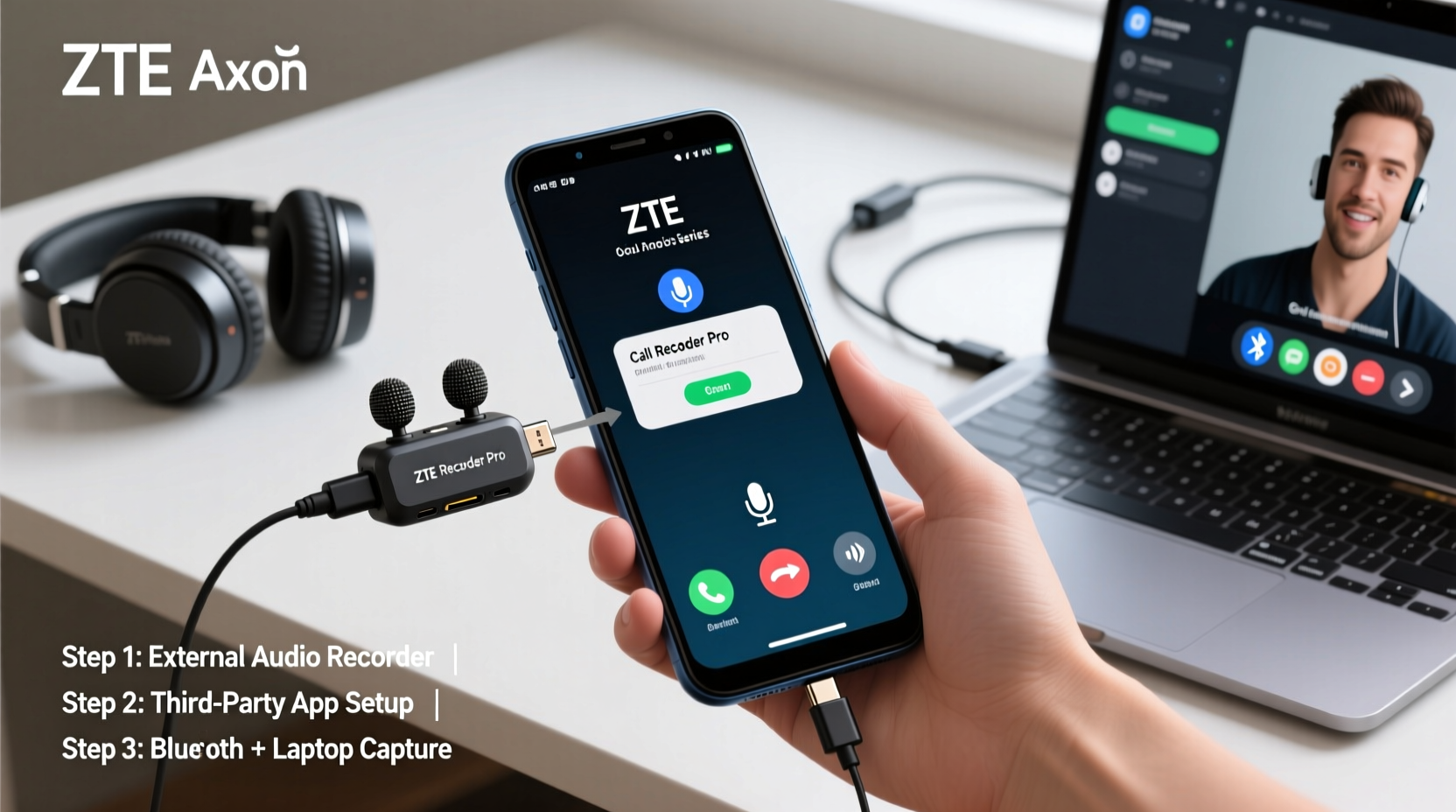
Before exploring technical solutions, it’s critical to address legality. Call recording regulations vary significantly by country and even by state within nations like the United States. In some jurisdictions, only one party (you) needs to consent to the recording (\"one-party consent\"). In others, all participants must give permission (\"two-party consent\").
Violating these laws can lead to serious consequences, including fines or criminal charges. Always verify your local regulations before initiating any recording. For example:
- United States: Federal law allows one-party consent, but states like California, Illinois, and Washington require all parties to agree.
- European Union: Under GDPR, explicit consent from all parties is generally required.
- India: Recording without consent may be admissible as evidence only under specific circumstances.
“Recording a conversation without legal justification isn’t just risky—it undermines trust and privacy. Always inform the other party if you’re recording.” — David Lin, Digital Privacy Advocate
Method 1: Third-Party Call Recording Apps
While ZTE phones running stock Android or customized MiFavor UI typically block background audio access during calls, several third-party apps have adapted to work around these limitations through cloud-based calling or speakerphone detection.
The most effective apps use VoIP integration or route calls through their servers, bypassing device-level restrictions. Popular options include:
| App Name | How It Works | Compatibility with ZTE | Limitations |
|---|---|---|---|
| Google Voice (US only) | Records incoming/outgoing calls via Google’s VoIP network | High – works on most Android versions | Available only in the U.S., requires number porting |
| Audo.ai | AI-powered cloud recorder; uses dial-in system | Full compatibility | Requires internet, subscription model |
| Rev Call Recorder | Creates conference-style calls via server bridge | Works across ZTE models | Both parties hear connection chime |
| Smart Phone Recorder (Local) | Uses phone speaker + microphone pickup | Partial – quality varies | Poor audio if environment is noisy |
To maximize success with these apps:
- Ensure your ZTE device runs Android 8.0 or higher for optimal app support.
- Grant necessary permissions: microphone, storage, phone, and accessibility services.
- Test recordings in quiet environments first to assess clarity.
Method 2: Using Speakerphone and External Recording
When software solutions fail due to OS restrictions, a practical workaround involves enabling speakerphone and using another device—or your own phone’s mic—to capture the audio externally.
This method is particularly useful when taking notes during interviews, documenting tech support sessions, or archiving medical consultations.
Step-by-Step Guide: External Audio Capture
- Start your call and activate speakerphone mode.
- Open a voice recording app (e.g., Samsung Voice Recorder, Easy Voice Recorder).
- Position the phone so both earpiece and microphone face upward, minimizing echo.
- Begin recording in the secondary app.
- After the call, save and label the file appropriately.
Audio quality depends heavily on ambient noise and microphone sensitivity. Newer ZTE models like the Blade V50 or Blade A73 offer improved mic arrays, making this method more viable than on older hardware.
Method 3: Cloud-Based Conference Bridging
Some platforms allow you to turn a regular call into a recorded conference session. Services like Zoom Phone, Microsoft Teams, or dedicated tools such as TapeACall Pro operate by connecting both parties through a central server where audio is captured automatically.
Here's how it works:
- You initiate a call through the app.
- The service dials your contact and bridges the connection.
- All audio flows through the provider’s secure servers and is saved to your account.
This approach ensures high-quality recordings and automatic transcription in premium tiers. It’s especially effective for professionals managing client follow-ups or remote team coordination.
Mini Case Study: Small Business Owner Uses Cloud Recording
Lena, a freelance graphic designer based in Denver, frequently collaborates with clients over the phone. Her ZTE Blade X3 lacked call recording, making it hard to track feedback accurately. After researching options, she subscribed to Rev Call Recorder. Now, every time she discusses project revisions, she starts the call through the app. The recording syncs to her Google Drive, and she shares timestamps with clients for clarity. As a result, misunderstandings dropped by 70%, and client satisfaction improved significantly.
Checklist: Preparing Your ZTE Device for Call Recording
Follow this checklist to ensure your setup is optimized:
- ✅ Verify local laws permit call recording
- ✅ Update your ZTE phone to the latest Android version
- ✅ Install a trusted recording app from the Google Play Store
- ✅ Enable Accessibility and Microphone permissions for the app
- ✅ Test recording quality in different environments
- ✅ Label and store files securely to protect privacy
- ✅ Inform callers when legally required
Frequently Asked Questions
Can I record calls on my ZTE phone without installing any apps?
No direct method exists without an app unless you manually use voice memos in speakerphone mode. However, this yields inconsistent results and lacks automation.
Why do some recording apps fail on ZTE devices?
ZTE’s custom MiFavor OS includes battery optimization and background process restrictions that can prevent apps from accessing the call stream. Disabling auto-launch restrictions in settings may help.
Are cloud-based recording services safe?
Reputable providers use end-to-end encryption and comply with data protection standards like GDPR and HIPAA. Always review the service’s privacy policy before storing sensitive conversations.
Conclusion
Although ZTE mobile devices don’t natively support call recording, practical alternatives exist—from cloud-based conferencing tools to external audio capture techniques. Success lies in selecting the right method for your needs, respecting legal boundaries, and optimizing your device settings for performance. With careful planning and ethical consideration, you can reliably document essential conversations and enhance personal or professional accountability.




 浙公网安备
33010002000092号
浙公网安备
33010002000092号 浙B2-20120091-4
Comments
No comments yet. Why don't you start the discussion?