
Losing access to your mobile phone due to a non-functional touchscreen or complete power failure is more than inconvenient—it can mean losing irreplaceable photos, messages, contacts, and documents. When the device won’t turn on or respond to touch, standard recovery options seem out of reach. However, with the right tools and techniques, it’s often possible to retrieve critical data even in these extreme cases. This guide outlines proven strategies that go beyond basic troubleshooting, offering practical solutions for recovering data from physically compromised devices.
Understanding the Nature of the Damage
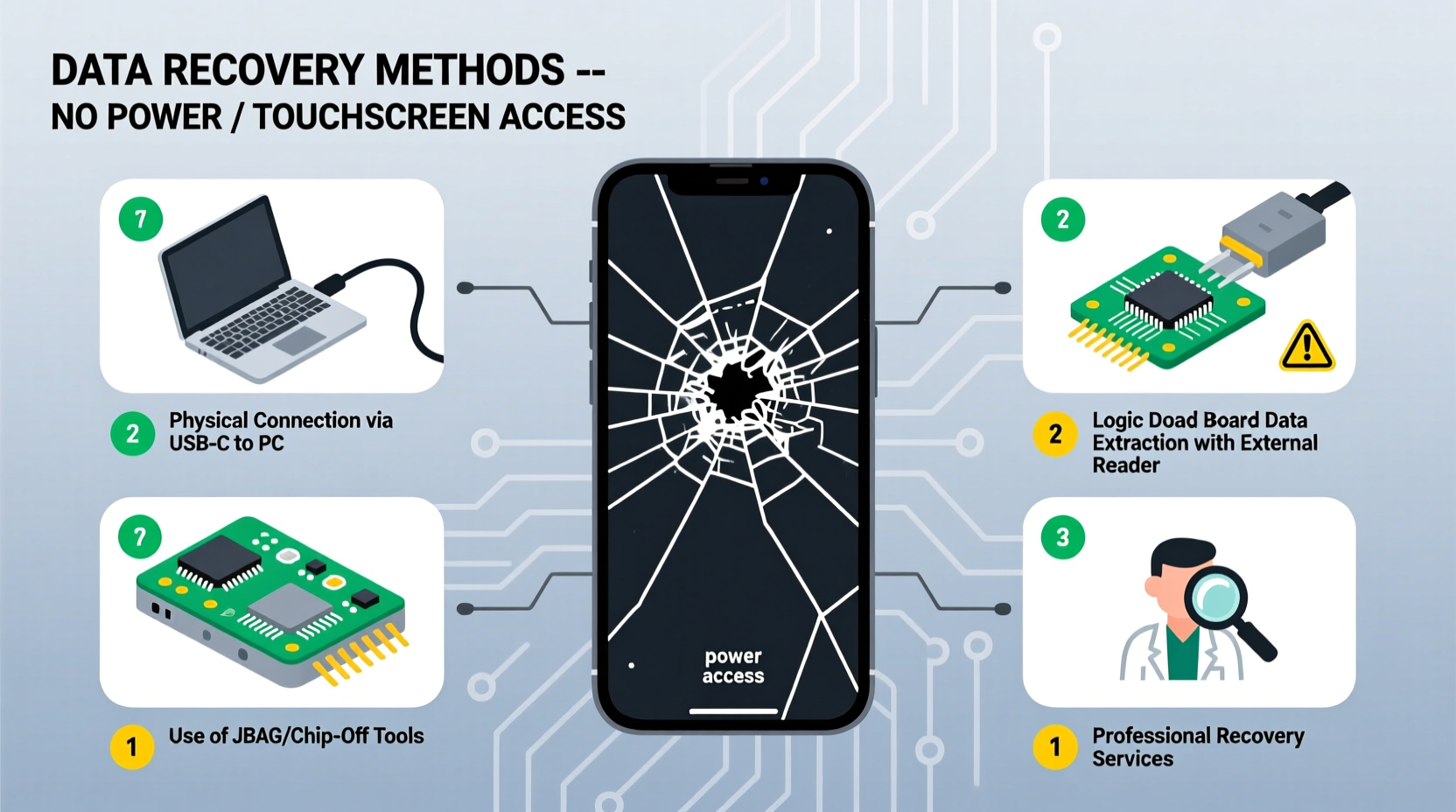
Before attempting recovery, identify the type of damage affecting your phone. A cracked screen doesn’t always mean the internal storage is damaged. Similarly, a phone that won’t power on may still have accessible memory if the battery or charging circuit is the only faulty component. Distinguishing between hardware and software failure is essential:
- Touchscreen unresponsive but display works: The system may be running normally; input just isn't registering.
- No power at all (won’t charge or show signs of life): Likely battery, power IC, or motherboard issue.
- Screen completely black but vibration/sound occurs: Display or backlight failure—data may still be intact.
Knowing this helps determine whether software-based recovery is viable or if physical intervention is required.
Method 1: Use USB OTG with External Input Devices
If your phone powers on but the touchscreen is unresponsive, you may still be able to control it using external peripherals. Many Android devices support USB On-The-Go (OTG), allowing connection of a mouse or keyboard via an OTG adapter.
- Obtain a compatible USB OTG cable (micro-USB or USB-C, depending on your phone).
- Connect a USB mouse or keyboard.
- Power on the device and wait for it to boot.
- Use the mouse to navigate and unlock the phone (if passcode is known).
- Once unlocked, connect the phone to a computer via USB and enable file transfer mode.
- Copy desired files directly to your PC.
This method works best when the operating system loads successfully and the device recognizes external HID (Human Interface Device) inputs. Some older phones may not support OTG, so verify compatibility first.
Method 2: Enable USB Debugging Remotely via ADB (If Previously Enabled)
If you had previously enabled Developer Options and USB debugging, you might still extract data using Android Debug Bridge (ADB), even without touch input.
When connected to a trusted computer, the phone can authorize ADB commands automatically. Here's how:
- Install ADB tools on your computer (official Android SDK platform-tools).
- Connect the phone via USB.
- Open terminal or command prompt and run:
adb devices. - If the device appears (even as unauthorized), proceed.
- Use commands like
adb pull /sdcard/DCIM/Camera C:\\RecoveredPhotosto copy folders.
This approach bypasses the need for touch interaction entirely, provided prior setup was completed.
“ADB remains one of the most powerful tools for forensic data extraction on Android, especially when physical access is limited.” — Dr. Lena Torres, Mobile Forensics Analyst, CyberSecure Labs
Method 3: Use Samsung Smart Switch (For Samsung Devices)
Samsung Galaxy users have an advantage: Smart Switch can sometimes mirror or transfer data even when the screen is unresponsive, especially if the device was previously paired or backed up.
Steps:
- Download and install Smart Switch on a Windows or Mac computer.
- Connect the broken phone via USB.
- If detected, Smart Switch may offer options to back up contacts, messages, photos, and settings.
- Data can be restored to another Samsung device or exported locally.
Note: Success depends on whether the phone enters download mode or is recognized by the software despite the broken interface.
Method 4: Professional Data Recovery Services
When software methods fail, professional recovery services become the last resort. These labs use advanced techniques such as chip-off recovery or JTAG (Joint Test Action Group) interfacing to extract raw data directly from the phone’s memory chip.
Process overview:
- The phone is disassembled carefully.
- The NAND flash memory chip is desoldered (in chip-off method).
- Data is read using specialized readers and reconstructed into usable files.
This method carries risks—irreversible damage if not done correctly—and costs typically range from $300 to $1,500. However, it’s often the only option for completely dead or water-damaged phones.
| Recovery Method | Success Rate | Cost Range | Best For |
|---|---|---|---|
| USB OTG + Mouse | High (if OS boots) | $5–$20 | Unresponsive touchscreen |
| ADB Extraction | Medium-High | Free–$20 | Previously enabled debugging |
| Smart Switch / Manufacturer Tools | Medium | Free | Samsung & Apple ecosystems |
| Chip-Off Recovery | Low-Medium | $300–$1,500 | Dead phones, no response |
Method 5: Cloud and Account-Based Recovery
Even if the device itself is inaccessible, data synced to cloud accounts may still be retrievable. Check the following:
- Google Account (Android): Photos, contacts, calendars, and app data may be backed up automatically.
- iCloud (iPhone): Full backups including messages and settings are available if enabled.
- Third-party apps: WhatsApp, Telegram, Dropbox, and others often sync data independently.
Visit Google Takeout or iCloud.com to download archived data. While this won’t recover everything, it can restore crucial personal information.
Mini Case Study: Recovering Family Photos After a Dropped Phone
Mark, a photographer from Portland, dropped his Android phone in water. The screen went black, and the device wouldn’t power on. He tried charging it for hours with no response. Desperate to recover recent family vacation photos, he took action:
First, he let the phone dry for 72 hours. Then, using a USB OTG adapter and a mouse, he connected it to his laptop. Surprisingly, the phone booted. The display remained dark, but the mouse cursor responded. By navigating blindly through muscle memory, he reached the USB file transfer option and copied over 800 photos and videos.
His success hinged on two factors: prior knowledge of OTG functionality and patience during the drying phase. Had he rushed to replace the phone, he would have lost everything.
Step-by-Step Checklist for Immediate Action
Follow this checklist as soon as your phone becomes inaccessible:
- Charge the phone for at least 30–60 minutes using a known-good cable and charger.
- Attempt to wake the device using button combinations (e.g., Volume Up + Power).
- Connect to a computer to check for detection (file transfer or MTP mode).
- Try USB OTG with a mouse or keyboard if the screen shows any sign of life.
- Check cloud backups (Google, iCloud, Dropbox).
- Contact a reputable data recovery service if hardware failure is suspected.
- Avoid repeated power attempts if the phone overheats or shows damage signs.
Frequently Asked Questions
Can I recover data if my phone won’t turn on at all?
Possibly. If the battery is drained, charging may revive it. If hardware is damaged, professional recovery using chip-off or JTAG methods may be necessary, though not guaranteed.
Is it safe to open my phone myself to retrieve the storage chip?
No. Modern phones use soldered storage chips. Attempting to remove them without proper tools and expertise will likely destroy the data permanently.
Will a factory reset erase my data forever?
Not immediately. Factory resets typically mark data as “deletable” but don’t overwrite it instantly. Skilled recovery tools can still retrieve files afterward—until new data fills the space.
Conclusion: Act Fast, But Think Clearly
Data recovery from a broken phone is challenging but often feasible with the right approach. The key is acting quickly while avoiding panic-driven decisions. Start with simple, non-invasive methods like OTG input or cloud checks before escalating to professional help. Always prioritize backups moving forward—because the next time, prevention could save you hours of stress and hundreds of dollars.




 浙公网安备
33010002000092号
浙公网安备
33010002000092号 浙B2-20120091-4
Comments
No comments yet. Why don't you start the discussion?