
Losing important files—whether by accident, system crash, or sync error—can be stressful. But with the right knowledge and tools, many deleted files can be recovered. Whether you're using a Windows PC or relying on cloud storage like OneDrive, Google Drive, or Dropbox, this guide walks through reliable recovery strategies, preventive measures, and real-world solutions that actually work.
Understanding How File Deletion Works
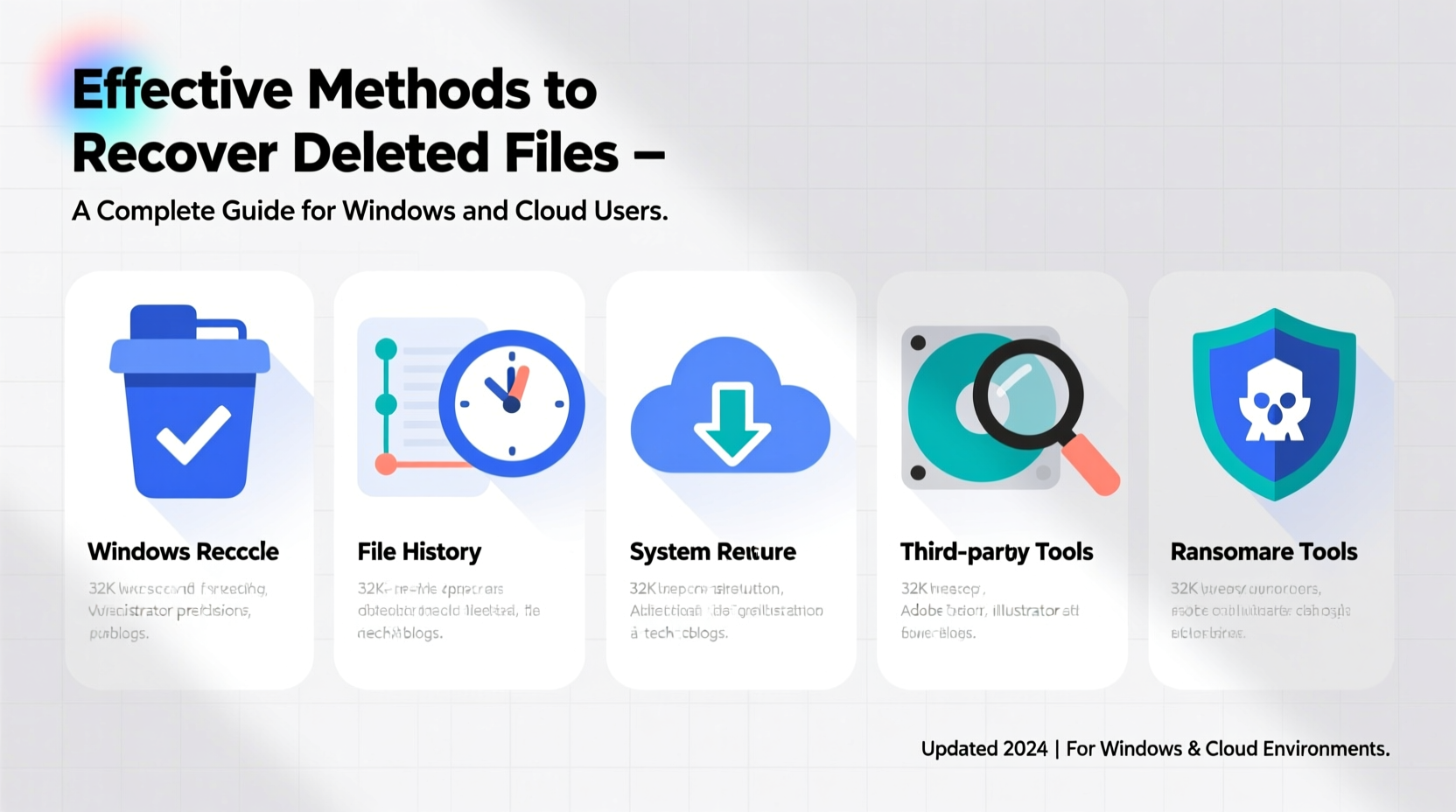
When you delete a file on Windows, it doesn’t vanish instantly. Instead, the operating system marks the space it occupied as available for new data. The file remains physically present until overwritten. This creates a recovery window—if acted upon quickly. Similarly, cloud services retain deleted files in a \"trash\" or \"recycle bin\" for a period before permanent deletion.
This temporary state is what makes recovery possible. However, the longer you wait, the higher the chance of irreversible data loss due to overwriting or automatic cleanup.
Recovering Files on Windows: Step-by-Step Methods
Windows offers several built-in and third-party pathways for retrieving lost data. The method you choose depends on how the file was deleted and whether backups exist.
1. Check the Recycle Bin
If the file was recently deleted from your local drive, start here. Open the Recycle Bin on your desktop, locate the file, right-click, and select “Restore.” This returns the file to its original location.
2. Use File History (If Enabled)
File History automatically backs up versioned copies of files in libraries, desktop, contacts, and favorites. To restore:
- Navigate to the folder where the file was originally stored.
- Right-click and choose “Properties,” then go to the “Previous Versions” tab.
- Select a version from the list and click “Restore.”
Note: File History must have been previously enabled for this to work.
3. Restore from Backup with Windows Backup and Restore
If you’ve created a system image or file backup:
- Open Control Panel > System and Security > Backup and Restore (Windows 7).
- Click “Restore my files” and follow the wizard.
4. Use Third-Party Recovery Software
For files not in the Recycle Bin or without backups, specialized tools can scan disk sectors directly. Reliable options include:
- Recuva (user-friendly, free for basic use)
- EaseUS Data Recovery Wizard (comprehensive, paid with free trial)
- Stellar Data Recovery (advanced filtering and deep scans)
Run the software, select the drive, allow scanning, preview recoverable files, and save them to a different drive to avoid overwriting.
“Most data loss is recoverable within 48 hours if no new data has been written to the drive.” — David Lin, Senior Data Recovery Engineer at ProTech Labs
Cloud Storage Recovery: OneDrive, Google Drive, and Dropbox
Cloud platforms provide robust safety nets. Deleted files are rarely gone forever—but timing matters.
OneDrive (Microsoft)
OneDrive retains deleted files for 30 days (up to 90 days for Microsoft 365 subscribers):
- Go to onedrive.live.com and sign in.
- Click “Recycle bin” on the left sidebar.
- Select the file(s), then click “Restore” or “Download.”
If the file was permanently deleted, check “Second-stage Recycle Bin” under Settings > Recycle bin settings.
Google Drive
Files stay in the Trash for 30 days:
- Visit drive.google.com.
- Click “Trash” in the left menu.
- Right-click the file and choose “Restore.”
After 30 days, files are purged. No second-stage recovery unless managed by a Google Workspace admin.
Dropbox
Premium users get 180-day file recovery via “Deleted files” history:
- Log in to dropbox.com.
- Click “Deleted files” in the left panel.
- Find the file and click “Restore.”
Free accounts only retain deletions for 30 days.
Comparison of Recovery Options: Local vs. Cloud
| Method | Recovery Window | Success Rate | Best For |
|---|---|---|---|
| Recycle Bin (Windows) | Until emptied | Very High | Recent local deletions |
| File History / Backup | As per schedule | High | Versioned document recovery |
| Third-Party Tools | Hours to days | Moderate to High* | |
| OneDrive Recycle Bin | 30–90 days | Very High | Synced Office files |
| Google Drive Trash | 30 days | High | G Suite users |
| Dropbox (Extended Version History) | Up to 180 days | High | Premium account holders |
*Depends on disk activity and overwrite status.
Real-World Example: Recovering a Lost Project
Sophie, a freelance designer, accidentally deleted her client’s final presentation from her laptop. She realized the mistake two hours later. Here’s how she recovered it:
- She stopped working on her laptop immediately.
- Checked the Recycle Bin—file wasn’t there (she had emptied it earlier).
- Remembered syncing with OneDrive, so she logged in online.
- Navigated to the Recycle Bin, found the file, and restored it.
- Downloaded a fresh copy and resumed work.
The project was delivered on time—all because she used cloud sync and acted quickly.
Essential Recovery Checklist
- ✅ Stop using the device immediately.
- ✅ Check the local Recycle Bin or cloud trash.
- ✅ Look for backups (File History, Time Machine, cloud versions).
- ✅ Use recovery software for local drives (if no backup).
- ✅ Log into cloud accounts to restore from recycle bins.
- ✅ Save recovered files to a different drive or folder.
- ✅ Enable automatic backups going forward.
Frequently Asked Questions
Can I recover a file deleted months ago?
Possibly, but success depends on storage conditions. Cloud-stored files may still exist in trash for up to 180 days (e.g., Dropbox). Locally, if the disk sector hasn’t been reused, advanced tools might retrieve fragments—but chances decrease significantly over time.
Does emptying the Recycle Bin mean permanent loss?
Not necessarily. While it removes the file from view, data remains until overwritten. Recovery software can often find such files, especially if the drive hasn’t seen heavy use since deletion.
Are free recovery tools safe to use?
Many are, but download only from official websites. Avoid cracked software or unknown sources, which may contain malware. Recuva and PhotoRec are reputable free options.
Prevention: Building a Resilient Data Workflow
The best recovery strategy is avoiding loss in the first place. Integrate these habits:
- Enable File History or a similar auto-backup tool on Windows.
- Use cloud storage with versioning and long retention periods.
- Regularly back up critical data to an external drive or NAS.
- Label and organize files clearly to reduce accidental deletion.
- Train household or team members on file management protocols.
“Over 60% of data loss incidents could have been avoided with automated backups.” — National Cybersecurity Alliance Report, 2023
Take Action Before It’s Too Late
Data loss doesn’t have to mean permanent loss. Whether you're troubleshooting a mistaken deletion or dealing with a corrupted drive, the tools and methods outlined here give you a strong chance of recovery. Act fast, use the right approach, and prioritize prevention moving forward. Your future self will thank you when the next digital mishap strikes.




 浙公网安备
33010002000092号
浙公网安备
33010002000092号 浙B2-20120091-4
Comments
No comments yet. Why don't you start the discussion?