
Losing important contacts—especially phone numbers of family, colleagues, or clients—can be more than inconvenient. It can disrupt communication, delay business, and cause unnecessary stress. Fortunately, modern iPhones come with multiple layers of backup and recovery options that make retrieving deleted numbers not only possible but often straightforward. The key is knowing where to look and acting quickly before new data overwrites the old.
Unlike physical items, deleted digital entries aren’t instantly erased from your device. Instead, they remain in a recoverable state until overwritten. This creates a window of opportunity for retrieval—if you use the right method at the right time. Whether the deletion was accidental or due to a software glitch, this guide outlines proven, secure ways to recover lost phone numbers from your iPhone.
1. Recover from iCloud Backup
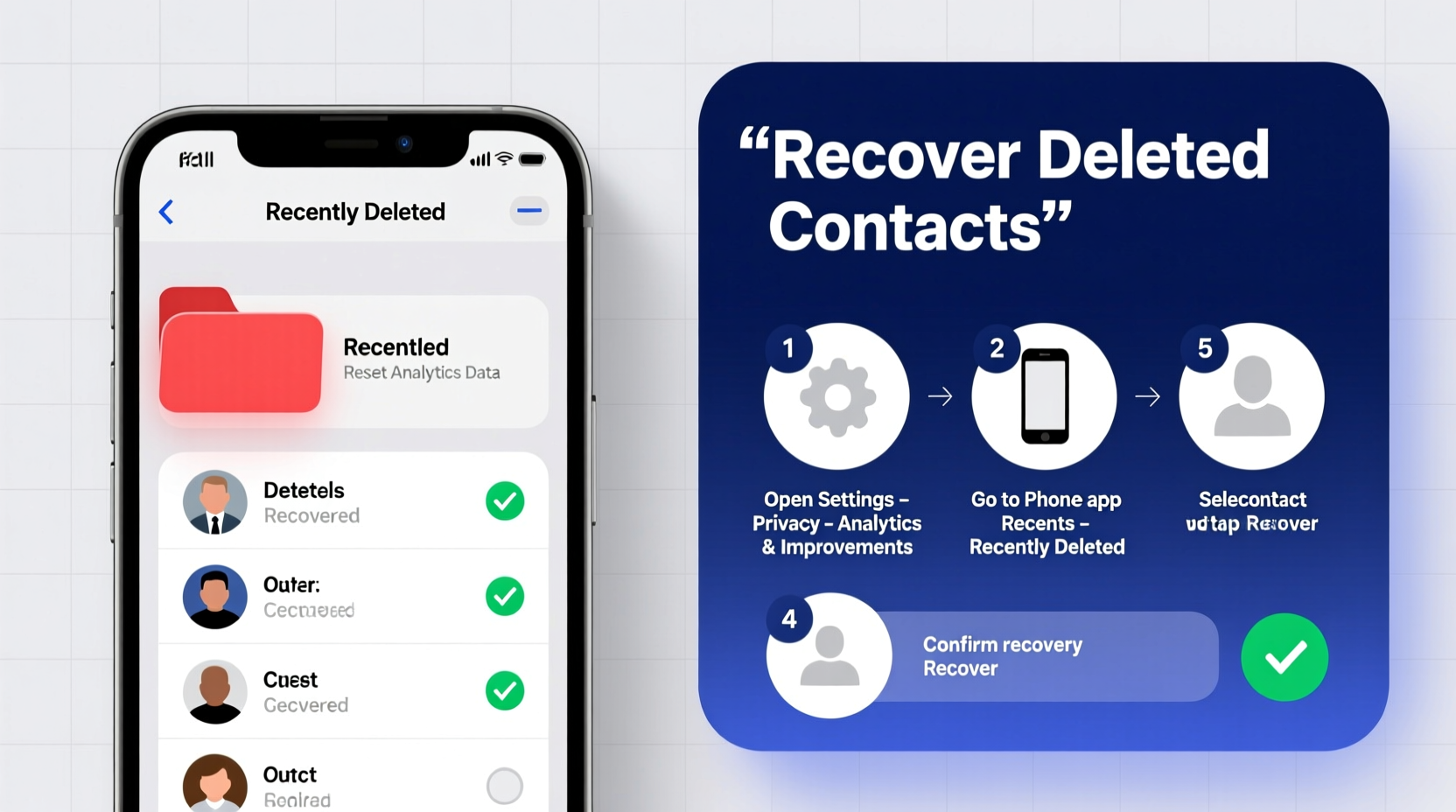
iCloud automatically backs up your iPhone data when connected to Wi-Fi and charging, provided backups are enabled. If you’ve synced your contacts to iCloud, restoring from a recent backup is one of the safest and most reliable recovery methods.
To verify if your contacts are backed up:
- Go to Settings > [Your Name] > iCloud.
- Ensure the toggle next to Contacts is green.
- Check the date of your last backup under iCloud Backup.
If a backup exists from before the deletion, you can restore your entire device from it. Note: This will replace your current data with the backup, so ensure any new information is saved elsewhere first.
2. Restore Contacts Using iTunes (or Finder on Mac)
If you regularly sync your iPhone with a computer via USB, you likely have a local backup stored through iTunes (Windows) or Finder (macOS Catalina and later). These backups often contain older versions of your contact list, even if iCloud syncing is disabled.
Follow this step-by-step process:
- Connect your iPhone to your trusted computer.
- Open iTunes (Windows) or Finder (Mac).
- Select your device when it appears.
- Navigate to the Summary tab.
- Click Restore Backup.
- Choose the most recent backup created before the deletion.
- Wait for the restore process to complete.
Once finished, your contacts—including previously deleted numbers—should reappear. As with iCloud restores, this method replaces all current data on the phone with the backup version.
“Local backups are often more comprehensive than cloud versions because they include app data, settings, and call history alongside contacts.” — David Lin, Senior Data Recovery Specialist at MobileSecure Labs
3. Check Recently Deleted Contacts in iCloud.com
Apple introduced a “Recently Deleted” folder for contacts in iCloud, which retains deleted entries for up to 30 days. This feature allows selective recovery without restoring your entire device—a major advantage for users who only need a few numbers back.
To access recently deleted contacts:
- Visit icloud.com and sign in with your Apple ID.
- Click on the Contacts app.
- Scroll down the left sidebar and select Recently Deleted.
- Browse the list of contacts removed within the past 30 days.
- Select the ones you want to recover and click Recover.
This method is non-destructive and preserves your current data. However, if more than 30 days have passed since deletion, the contacts are permanently purged from Apple’s servers.
4. Use Third-Party Recovery Tools (With Caution)
When built-in options fail, specialized third-party tools like Dr.Fone – Data Recovery, iMyFone D-Back, or Tenorshare UltData offer deeper scanning capabilities. These programs analyze your iPhone’s file system or existing backups to locate remnants of deleted contacts.
While effective, these tools vary in reliability and security. Some may require payment, request extensive permissions, or pose privacy risks if downloaded from untrusted sources.
| Tool | Pros | Cons |
|---|---|---|
| Dr.Fone – Data Recovery | User-friendly interface, recovers from device and backup files | Paid software, occasional false positives |
| iMyFone D-Back | Preview before recovery, supports selective restore | Free version limited, full version costly |
| Tenorshare UltData | Deep scan mode, high success rate | Less intuitive UI, requires download |
Before using any third-party tool:
- Download only from official websites.
- Check user reviews and BBB ratings.
- Avoid tools that ask for your Apple ID password.
5. Prevent Future Loss: Best Practices for Contact Safety
Recovery is useful, but prevention is far more efficient. Implementing a few proactive habits can eliminate the stress of losing contacts altogether.
📋 Contact Preservation Checklist:- ✅ Enable iCloud Contacts sync on all devices.
- ✅ Perform weekly manual backups via computer.
- ✅ Export critical contacts as vCard files and store them securely.
- ✅ Avoid deleting contacts directly on the phone—edit instead.
- ✅ Use dual storage: Keep duplicates in both iCloud and Google Contacts.
Exporting contacts as vCards is especially valuable. To do this:
- Go to iCloud.com and open Contacts.
- Select the contacts you want to export.
- Click the gear icon and choose Export vCard.
- Save the .vcf file to your computer or cloud storage.
Real-World Example: Recovering a Client List After Accidental Deletion
Sophia, a freelance graphic designer, accidentally cleared her iPhone contacts while troubleshooting an app conflict. Among the lost numbers were 12 active clients she hadn’t yet added to her CRM. Panicked, she tried searching her email signatures and social media profiles—but realized many had changed numbers.
She remembered enabling iCloud backups months earlier. Logging into iCloud.com, she navigated to Contacts > Recently Deleted and found all 12 entries still listed. She recovered them individually within minutes. Later, she exported the full list as a vCard and uploaded it to her Google Drive as a failsafe.
“I didn’t think anything would work,” Sophia said. “But finding them in Recently Deleted felt like winning the lottery. Now I back up my contacts every Sunday.”
Frequently Asked Questions
Can I recover deleted phone numbers without a backup?
Direct recovery from the iPhone without a backup is nearly impossible unless you use third-party software that scans cached data. However, success depends on whether the data has been overwritten. The sooner you act, the better your chances.
Do SIM cards store iPhone contacts?
Modern iPhones rarely rely on SIM cards for contact storage. While you can technically save a few numbers to a SIM, iOS defaults to storing contacts in iCloud or on-device accounts. Most users won’t find meaningful contact data on their SIM.
How long are deleted contacts kept in iCloud?
Deleted contacts remain in the “Recently Deleted” folder in iCloud for exactly 30 days. After that, they are permanently erased and cannot be recovered through official Apple channels.
Conclusion
Recovering deleted phone numbers from your iPhone doesn’t have to be a desperate scramble. With iCloud backups, local syncs, and the Recently Deleted feature, Apple provides robust safety nets. Third-party tools add another layer—but should be used judiciously. More importantly, adopting simple habits like regular backups and vCard exports can prevent future losses entirely.
Your contacts represent more than just numbers—they’re connections, opportunities, and relationships. Take a few minutes today to verify your backup settings and secure your contact list. A small effort now can save hours of frustration later.




 浙公网安备
33010002000092号
浙公网安备
33010002000092号 浙B2-20120091-4
Comments
No comments yet. Why don't you start the discussion?